Test Scenario: Capture screenshots for the Portfolios manual chapter
Table of Contents
- 1. Scenario Info
- 2. Steps
- 3. Results
- 4. Notes
This page documents a test scenario verifying Add portfolio entity chapter to the user manual in Commission: portfolio. Captures the four [SCREENSHOT NEEDED] placeholders in chapter_portfolios.org — the Portfolios list window, the Portfolio Details General tab, the Status combo open, and the Portfolio History dialog comparing two versions — then confirms the wired-in chapter reads correctly in both the Qt client's help viewer and the built PDF. It is filled in with the target dialog and checklist of steps before testing starts; the QA Validation Runner panel rewrites * Results in place on save.
1. Scenario Info
| Field | Value |
|---|---|
| Verifies task | Add portfolio entity chapter to the user manual |
| Parent story | Commission: portfolio |
| Target dialog | PortfolioMdiWindow / PortfolioDetailDialog — Menu: Reference Data > Portfolios |
| Clients | |
| State | PASSED |
2. Steps
2.1. Connect to tenant Barclays Plc
Log in against the prime_origin environment as
tenant_admin@barclays_plc / Secure-Password-123 and select
BARCLAYS PLC.
2.1.1. Result
| Field | Value |
|---|---|
| Status | PASS |
2.2. Capture portfolios_main_dialog.png
- Open Reference Data > Portfolios.
- Confirm the list shows several rows with a mix of purpose types, statuses (as colour-coded badges), and aggregation currencies (with flag icons) — if the seeded data doesn't already vary enough, edit a couple of rows first so at least three different Status values and two different Purpose Type values are visible.
- Click the QA Validation Runner's Screenshot button with the full Portfolios list window in frame, then Pass.
2.2.1. Result
| Field | Value |
|---|---|
| Status | PASS |
| Notes | 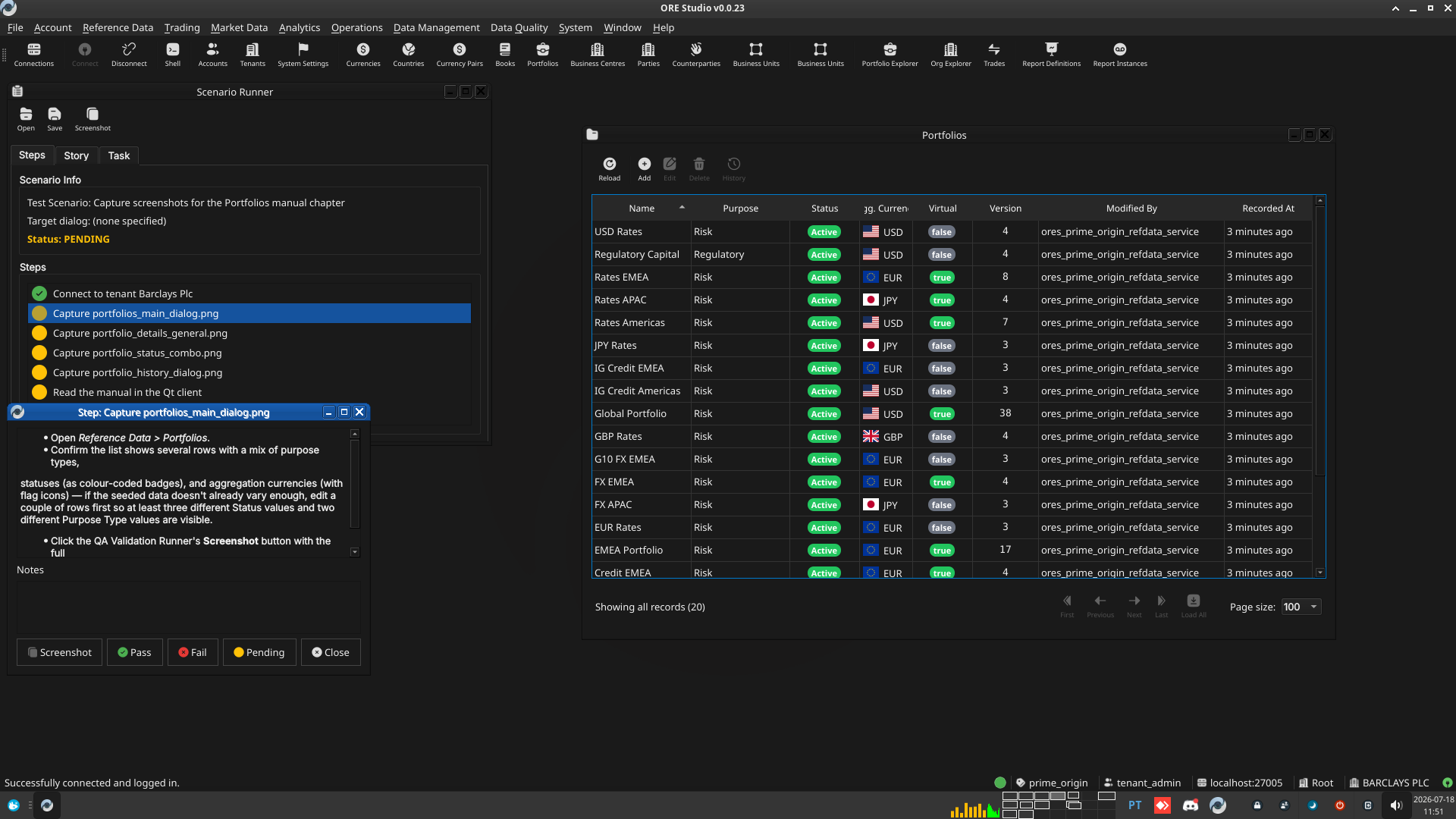 |
2.3. Capture portfolio_details_general.png
- Double-click any portfolio row to open its Details dialog.
- On the General tab, ensure every field is populated — if Description is empty, type a sentence into it and leave the dialog in edit mode (do not save yet).
- Click Screenshot with the General tab showing Id, Name, Purpose Type, Status, Aggregation Currency, Virtual, and Description all filled in, then Pass.
2.3.1. Result
| Field | Value |
|---|---|
| Status | PASS |
| Notes | 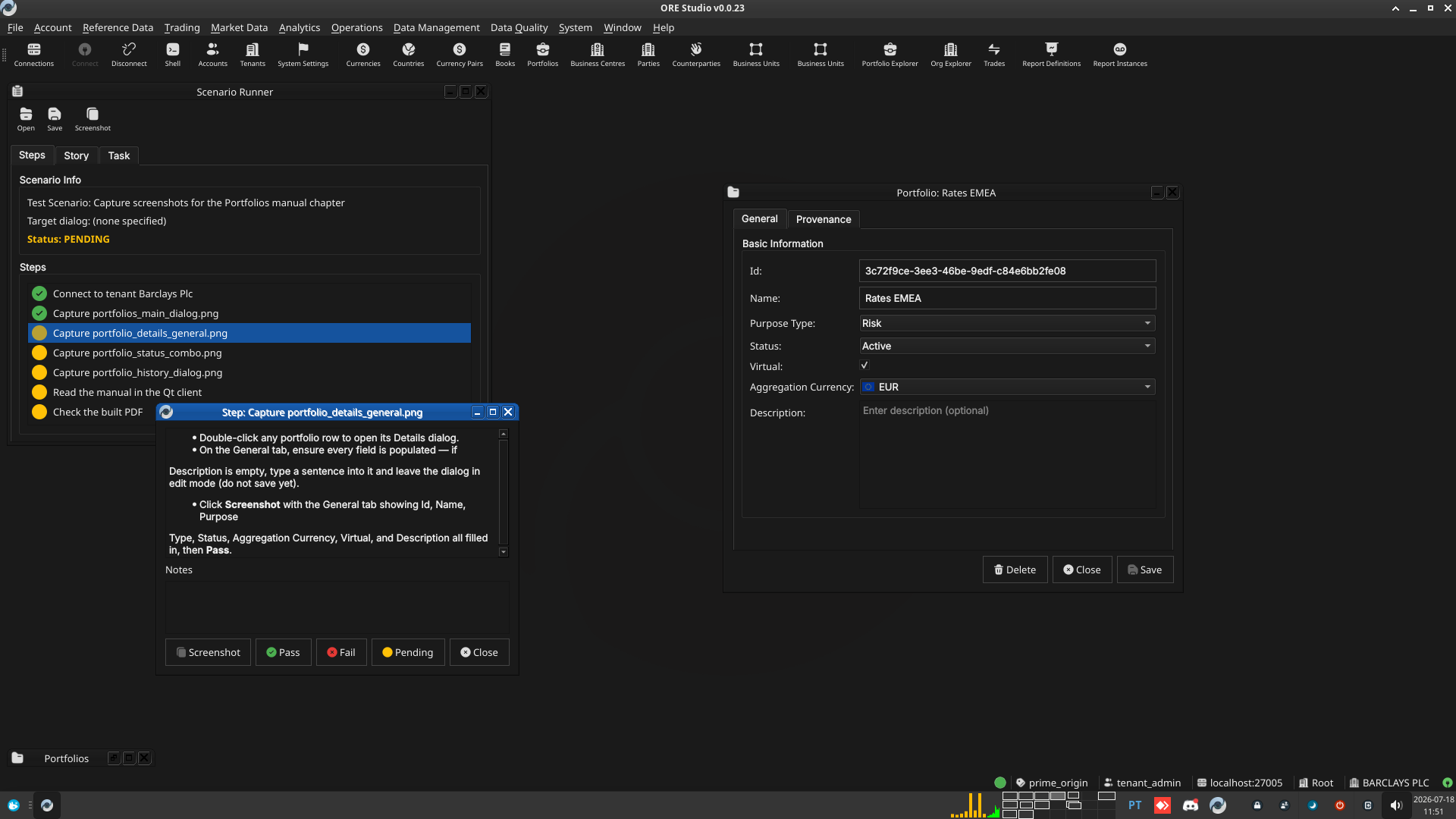 |
2.4. Capture portfolio_status_combo.png
- Still in the Portfolio Details General tab from the previous step, click the Status combo box to open its drop-down.
- Click Screenshot with the open combo showing all five values (Active, Inactive, Closed, Frozen, Pending), then Pass.
- Close the combo and cancel out of the dialog without saving (or save if you'd rather keep the edited description — either is fine for the next step).
2.4.1. Result
| Field | Value |
|---|---|
| Status | PASS |
| Notes | Captured via manual desktop screenshot (raw file since deleted); cropped and wired in as 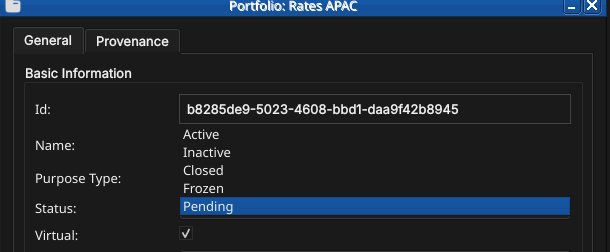 . A second capture of the Purpose Type combo (raw codes, not labels) informed Purpose Type combo shows raw codes, not display labels. . A second capture of the Purpose Type combo (raw codes, not labels) informed Purpose Type combo shows raw codes, not display labels. |
2.5. Capture portfolio_history_dialog.png
- Open a portfolio's Details dialog, change its Status or Purpose Type, and Save — enter a change reason when prompted.
- Open History on that same portfolio (history icon in the dialog's title bar, or right-click the row and choose History).
- Select the two most recent versions in the Compare drop-downs and toggle Only Changes on, so the field list narrows to just the one field that differs.
- Click Screenshot with the History dialog in this state, then Pass.
2.5.1. Result
| Field | Value |
|---|---|
| Status | PASS |
| Notes | 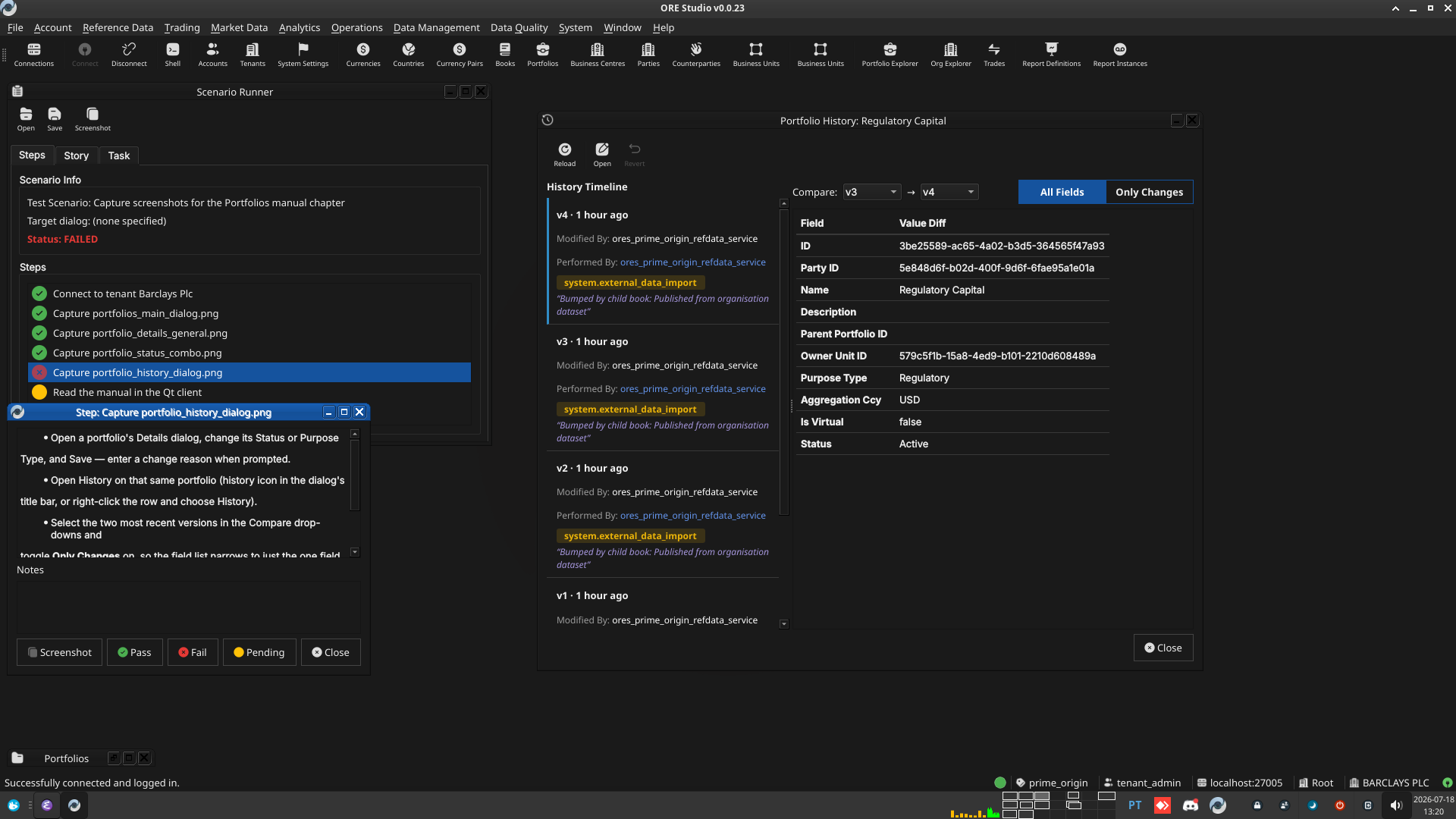 |
2.6. Read the manual in the Qt client
- Rebuild the Qt-embedded help (
compass build --direct helpthencompass build deploy_help_qch --preset <preset>) and restart the client so it picks up the new chapter. - Open the Portfolios chapter in the client's own manual viewer (Help → User Manual) and read it top to bottom.
- Confirm the prose reads correctly, the segues between sections work, and every screenshot appears where expected and actually shows what its caption claims.
2.6.1. Result
| Field | Value |
|---|---|
| Status | PASS |
| Notes | Confirmed after rebuilding ores.qt.exe to embed the fresh .qch (deploy_help_qch alone doesn't take effect until the exe recompiles). |
2.7. Check the built PDF
- Rebuild the manual (
compass build --direct manual) and open the rebuiltuser_manual.pdfat the Portfolios chapter's pages (e.g. viazathuraorevince). - Confirm layout, figure numbering, and captions look correct in the PDF's own rendering, and that all four new figures appear in the List of Figures.
2.7.1. Result
| Field | Value |
|---|---|
| Status | PASS |
| Notes | Confirmed in Chrome after rebuild – layout, figures, and captions all correct. |
3. Results
| Field | Value |
|---|---|
| Status | PASSED |
| Completed at | 2026-07-18T14:41:00Z |
| Branch | feature/portfolio-manual-chapter |
| Commit | 046725658 |
| Worktree | prime_origin |