Test Scenario: Capture the sprint 29 release screenshots
Table of Contents
- 1. Before you start
- 2. Scenario Info
- 3. Steps
- 3.1. Log in as tenant_admin
- 3.2. Capture the trade blotter
- 3.3. Capture a trade booked as draft
- 3.4. Capture a structure
- 3.5. Capture the Connectivity screen
- 3.6. Capture the Public rates screen
- 3.7. Capture the fixing series
- 3.8. Capture the synthetic feeds
- 3.9. Capture a convention record
- 3.10. Capture a curve configuration
- 3.11. Capture a currency record
- 3.12. Capture the dark theme
- 3.13. Capture the release hero image
- 4. Results
- 5. Notes
This page documents a test scenario verifying Sprint 29 in Sprint 29. It is filled in with the target screen and checklist of steps before testing starts; record the outcome by hand in * Results.
1. Before you start
The environment is ready before you open this scenario.
- Worktree
jolly_knuthruns a current build ofmain. - The database is recreated and
acme_corporationis provisioned. - The services run.
Rules for every capture:
- Use the light theme and English unless the step says otherwise.
- Use a browser window 1600 pixels wide, at 100% zoom.
- Save each image in
assets/images/with the file name the step gives. - Do not capture real names, passwords or tokens.
2. Scenario Info
3. Steps
Each step captures one image for the release notes. Record PASS, FAIL or PENDING in its *** Result. Record FAIL when the screen is empty, shows an error or does not match the step, and say what you saw.
3.1. Log in as tenant_admin
- Open
http://localhost:20802/login. - Log in as
tenant_admin@acme_corporationwith the passwordSecure-Password-123. - Confirm that the shell opens with no permission errors.
3.1.1. Result
| Field | Value |
|---|---|
| Status | PASS |
3.2. Capture the trade blotter
- Open
http://localhost:20802/trading/blotter. - Select a book node in the rail that holds trades.
- Confirm that rows show and that the rail states the row counts.
- Save the screenshot as
assets/images/ore_studio-v0.0.29-blotter.png. - Caption for the release notes: The trade blotter reads a page at a time, and its rail counts the rows at each node.
3.2.1. Result
| Field | Value |
|---|---|
| Status | PASS |
| Notes | 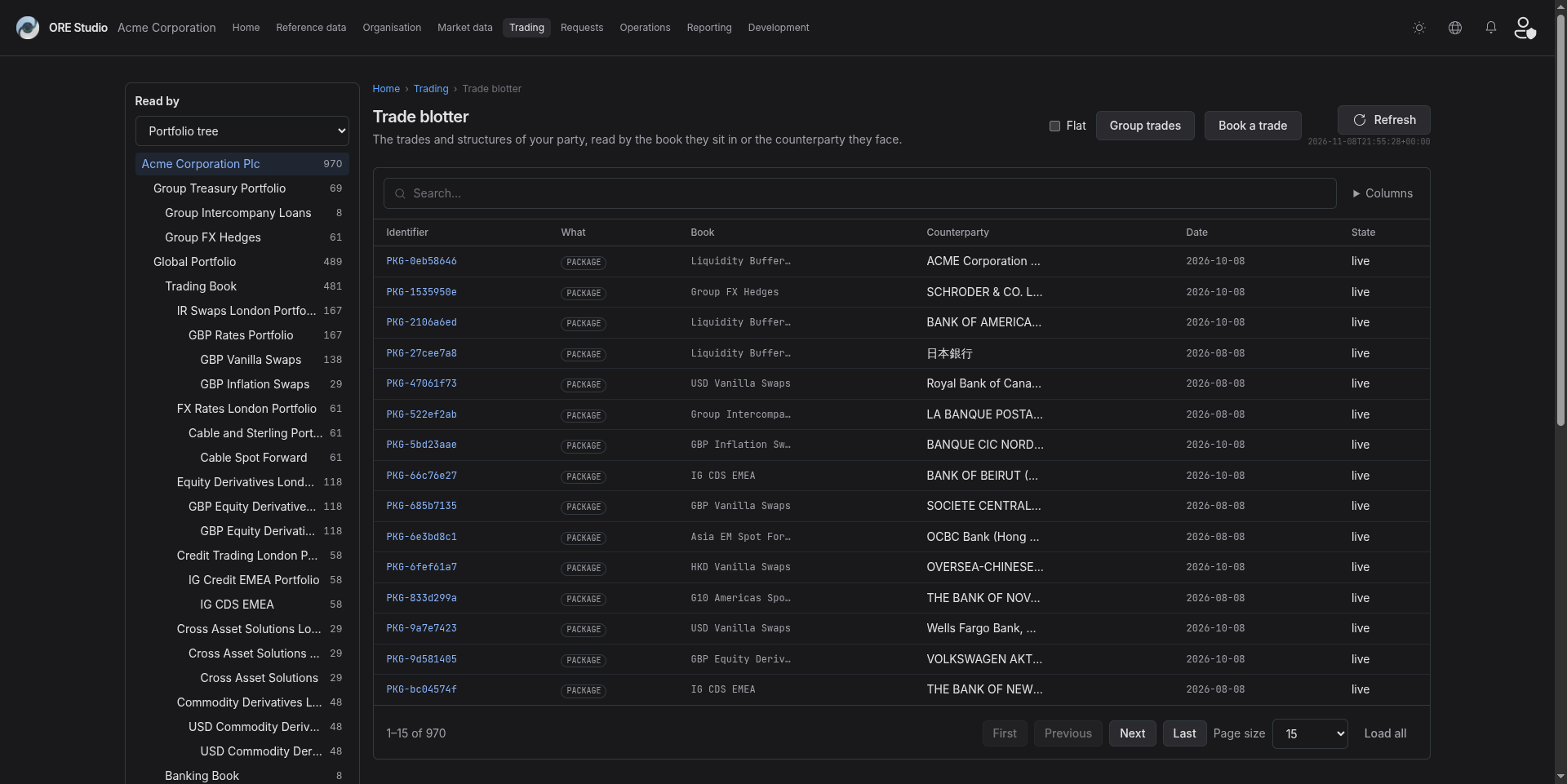 ; ; 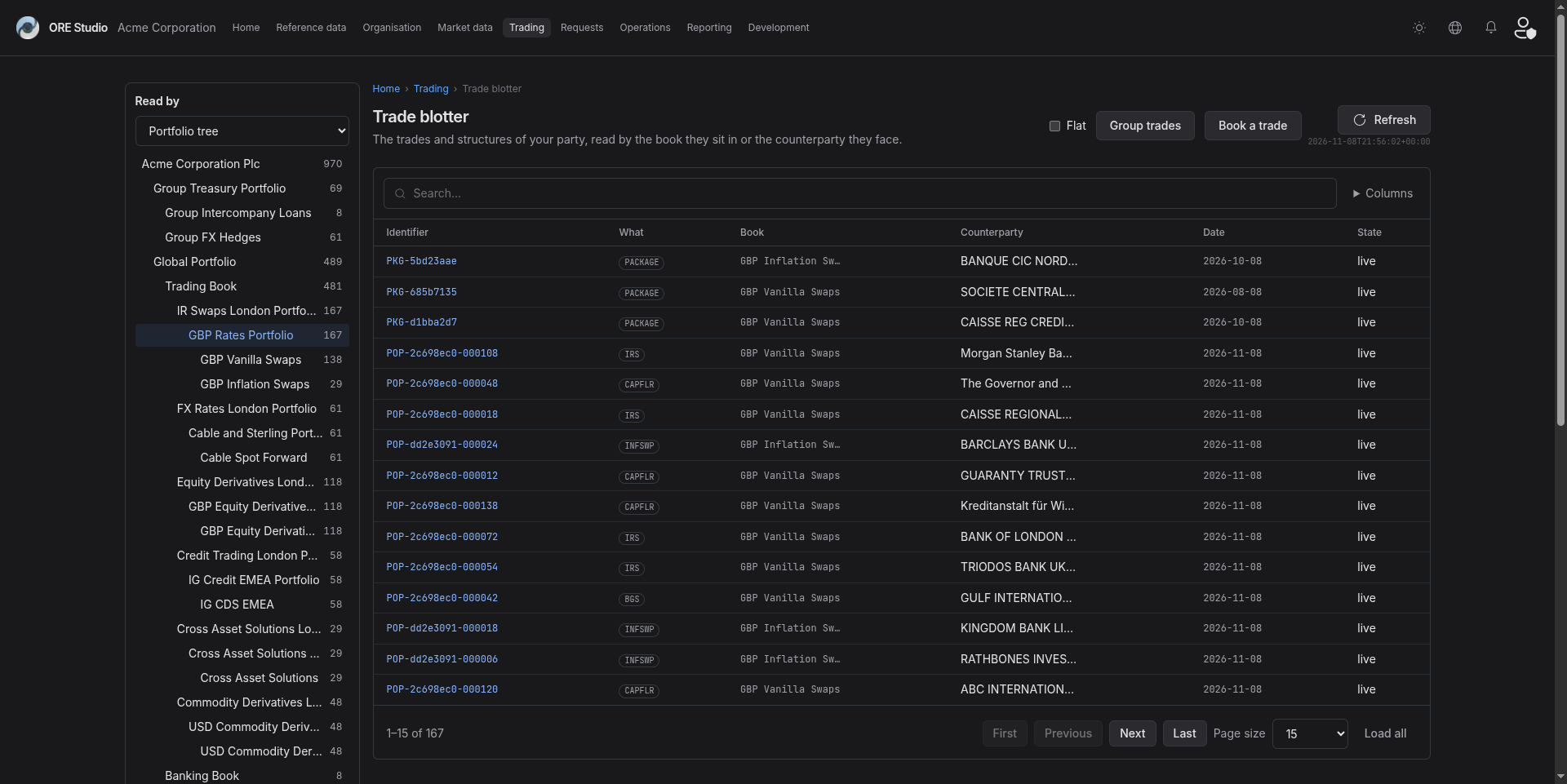 |
3.3. Capture a trade booked as draft
- Open
http://localhost:20802/trading/trades/new. - Fill in enough of the form to show a draft trade.
- Do not submit the trade unless the draft needs it to show.
- Save the screenshot as
assets/images/ore_studio-v0.0.29-trade-draft.png. - Caption for the release notes: A trade books as a draft.
3.3.1. Result
| Field | Value |
|---|---|
| Status | PASS |
| Notes | 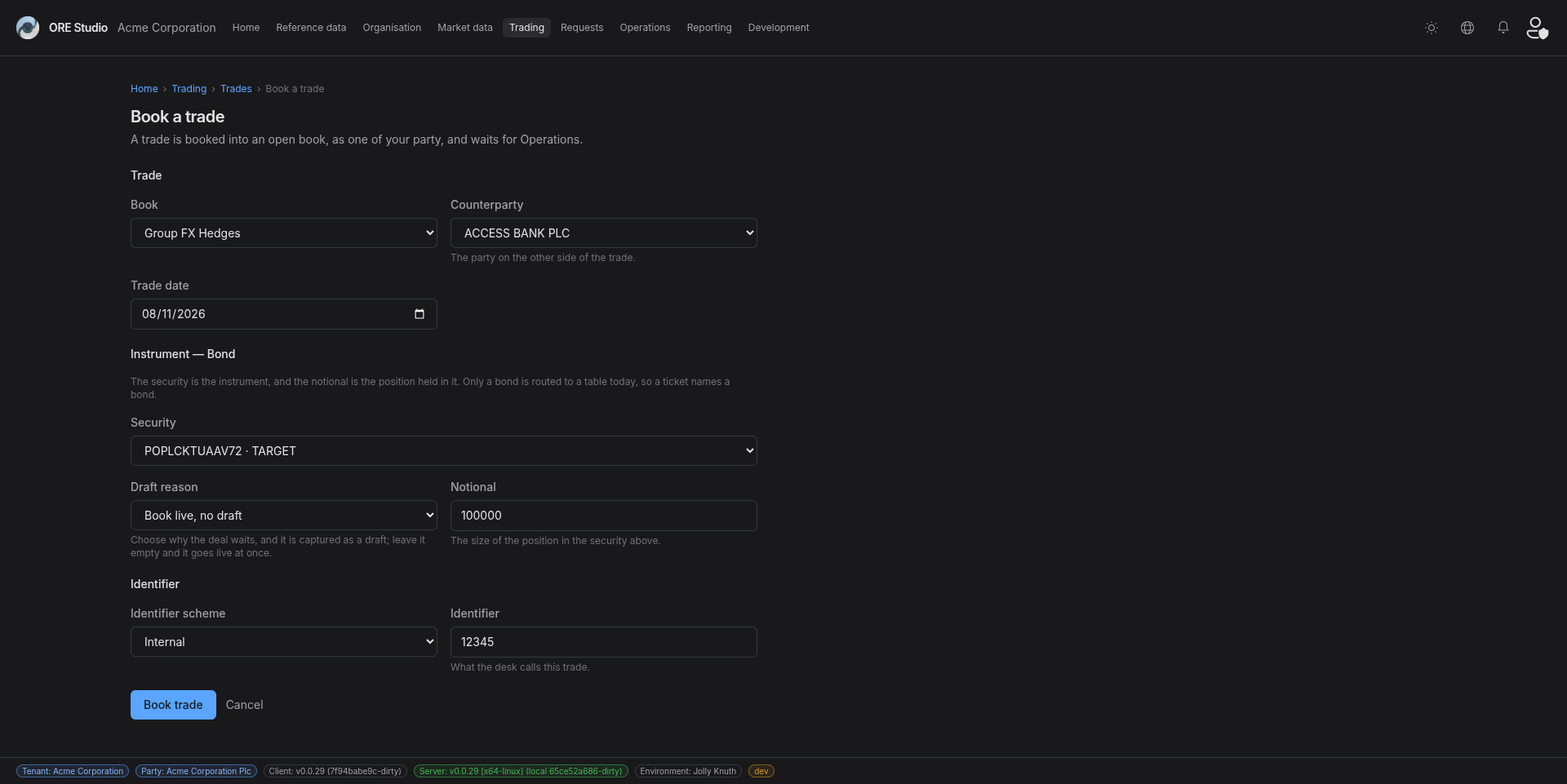 |
3.4. Capture a structure
- Open
http://localhost:20802/trading/structures. - Open one structure if the list holds any.
- Record FAIL if the list is empty.
- Save the screenshot as
assets/images/ore_studio-v0.0.29-structures.png. - Caption for the release notes: A structure completes from a screen.
3.4.1. Result
| Field | Value |
|---|---|
| Status | PASS |
| Notes | 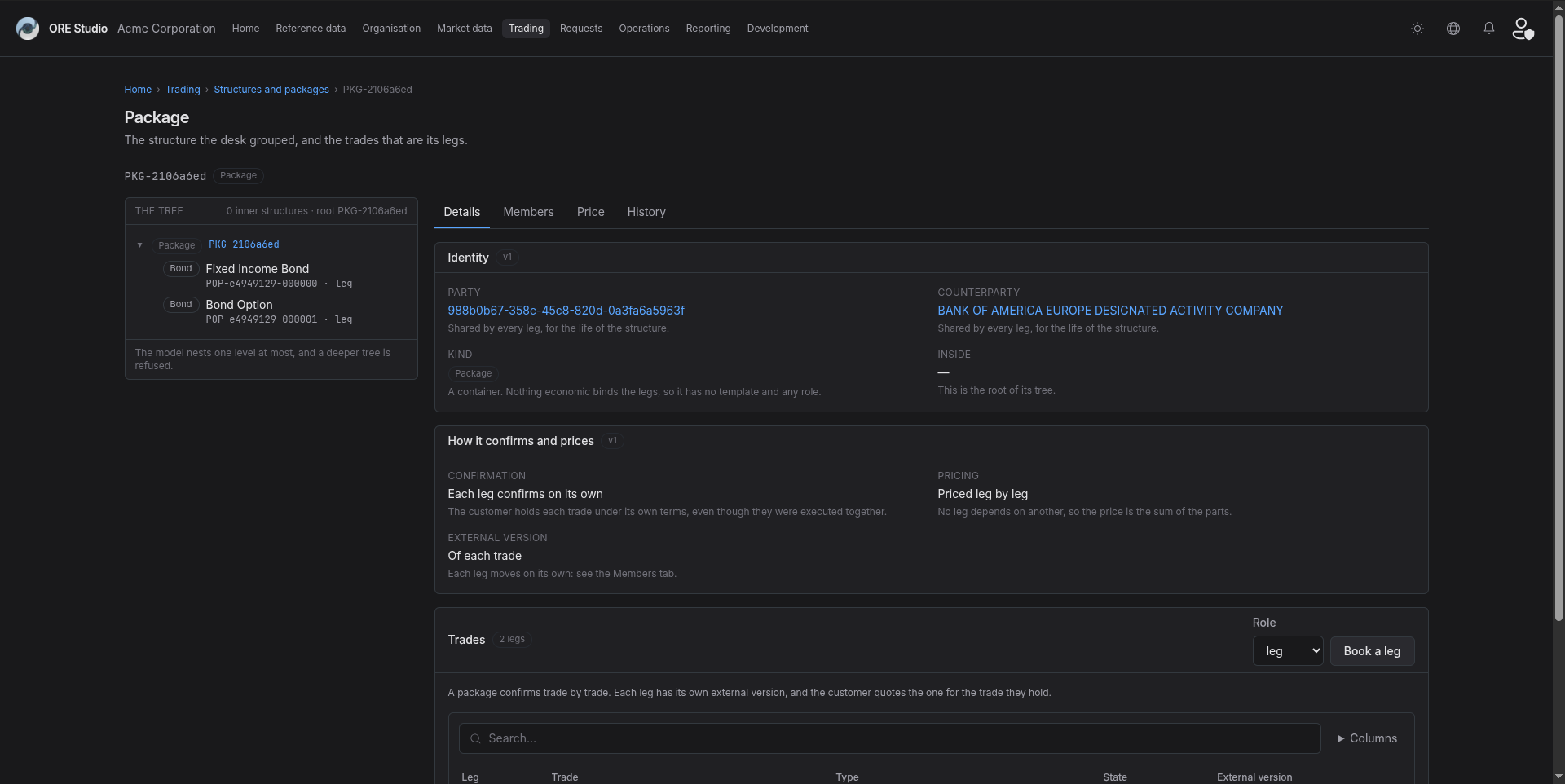 ; ; ; 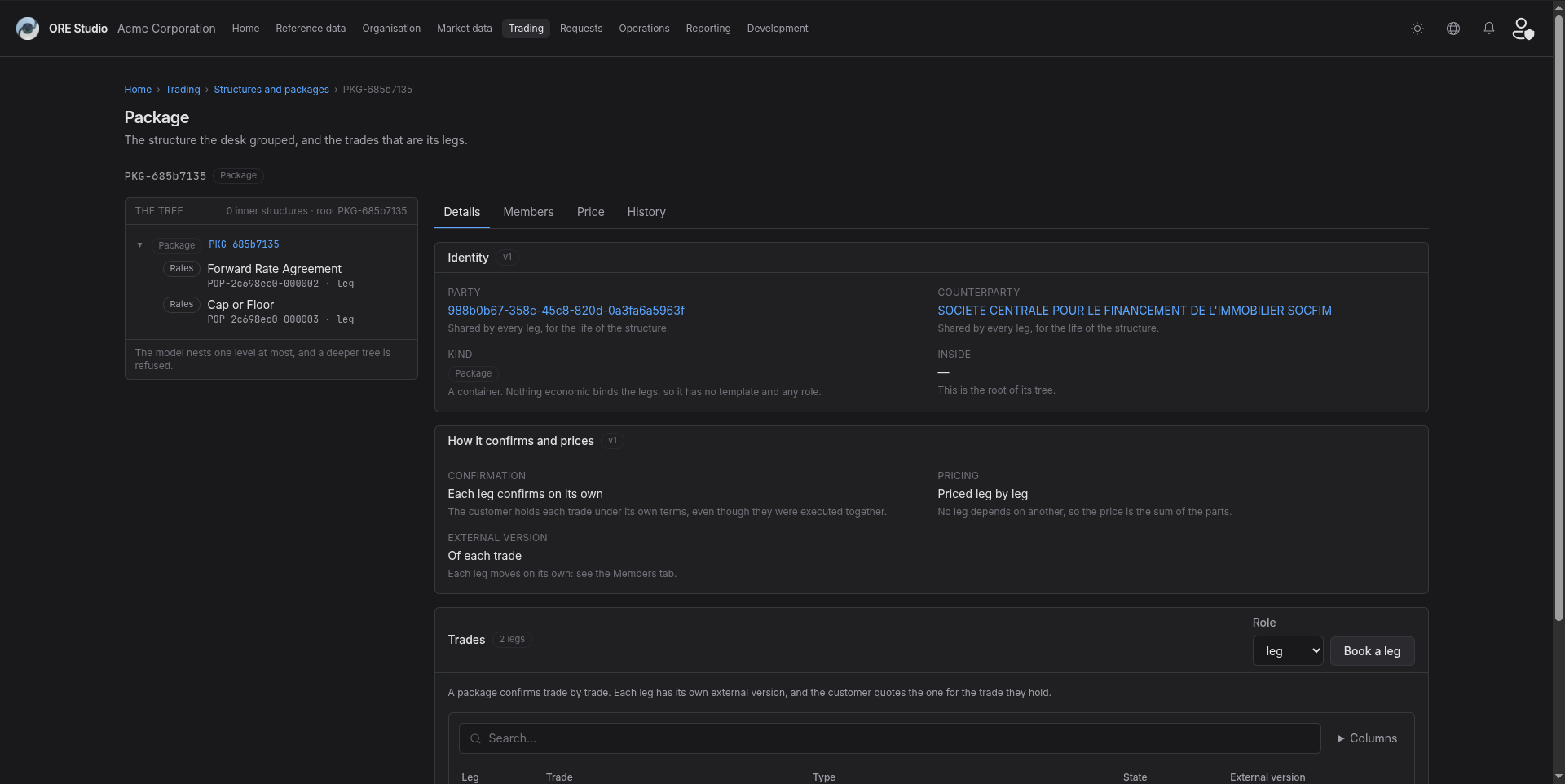 |
3.5. Capture the Connectivity screen
- Open
http://localhost:20802/market-data/connectivity. - Show the delivery tree with its publishers and suppliers.
- Save the screenshot as
assets/images/ore_studio-v0.0.29-connectivity.png. - Caption for the release notes: Connectivity shows the delivery tree of suppliers, sessions and feeds.
3.5.1. Result
| Field | Value |
|---|---|
| Status | PASS |
| Notes | 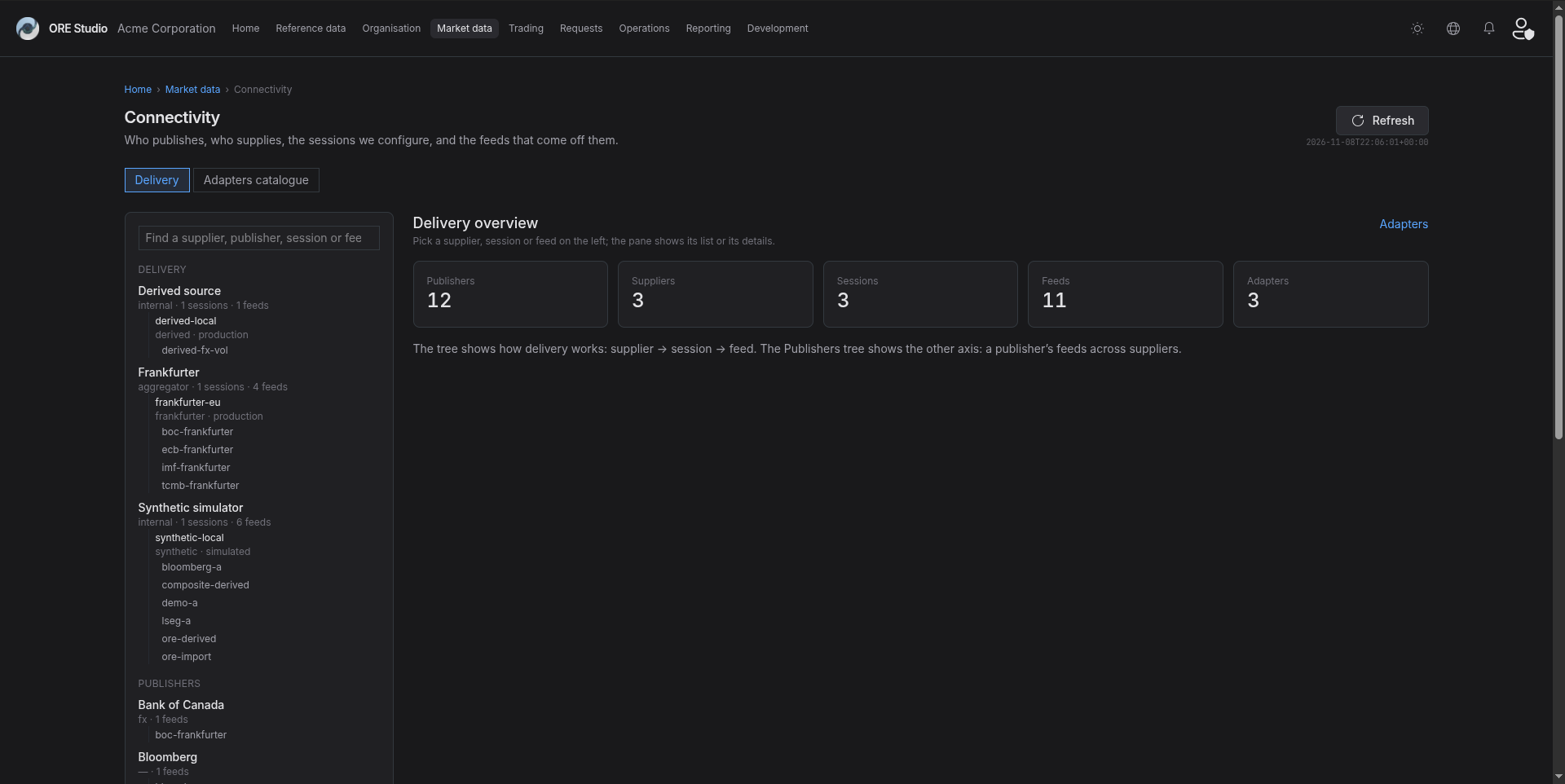 ; ; ; ; 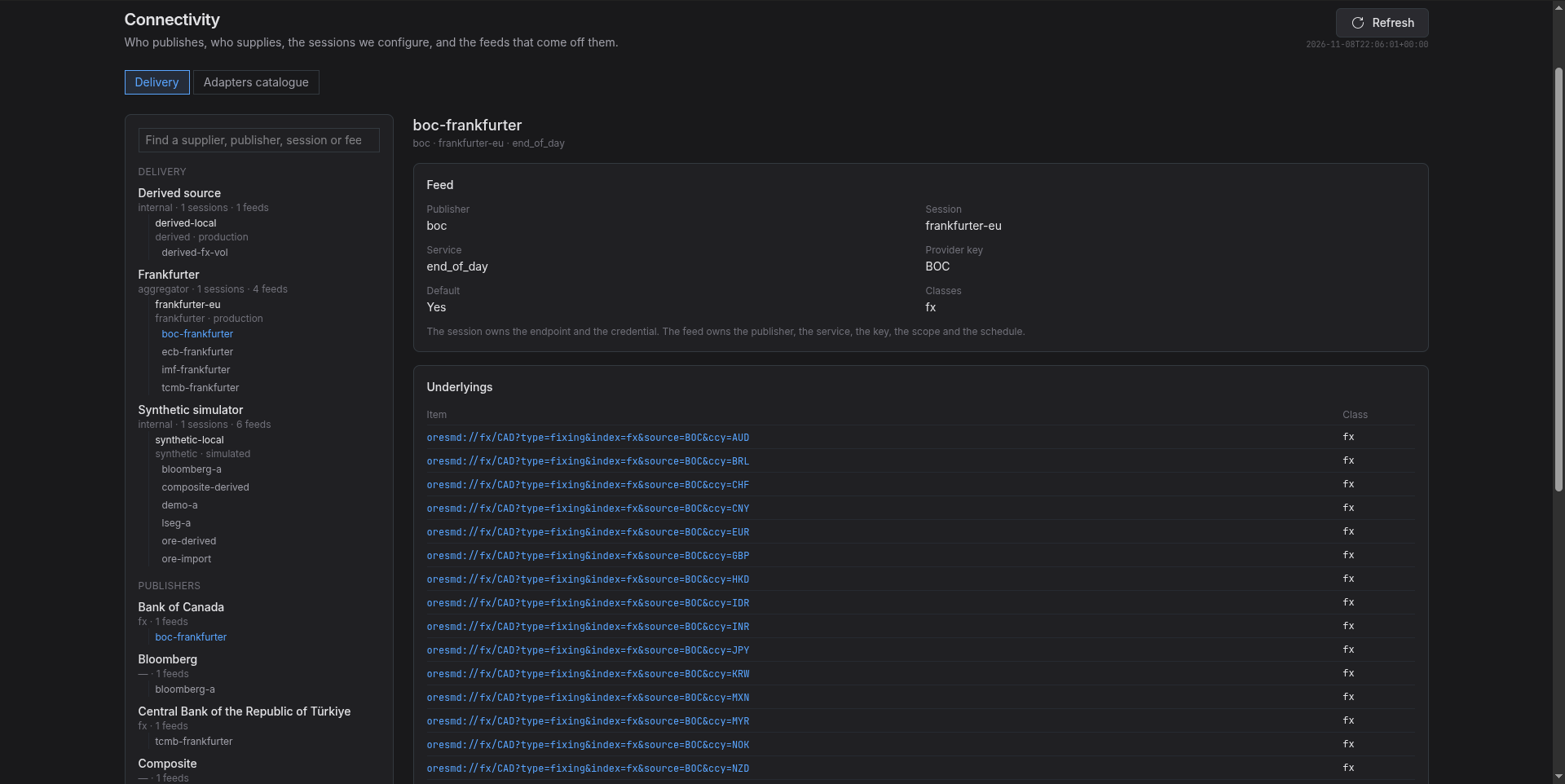 ; 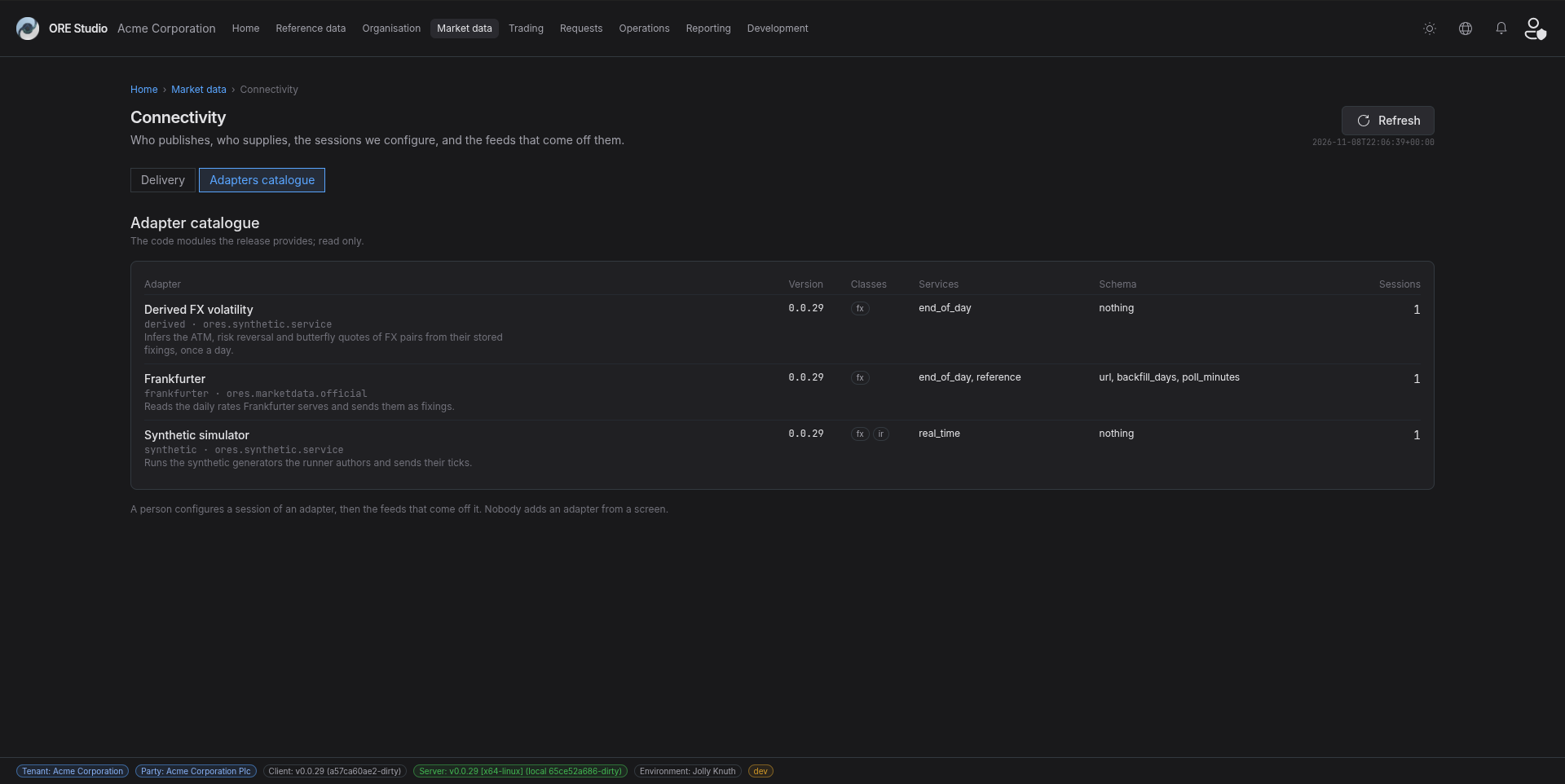 |
3.6. Capture the Public rates screen
- Open
http://localhost:20802/market-data/public-rates. - Show the publishers with their freshness.
- Save the screenshot as
assets/images/ore_studio-v0.0.29-public-rates.png. - Caption for the release notes: Public rates shows each publisher and its freshness.
3.6.1. Result
| Field | Value |
|---|---|
| Status | PASS |
| Notes | 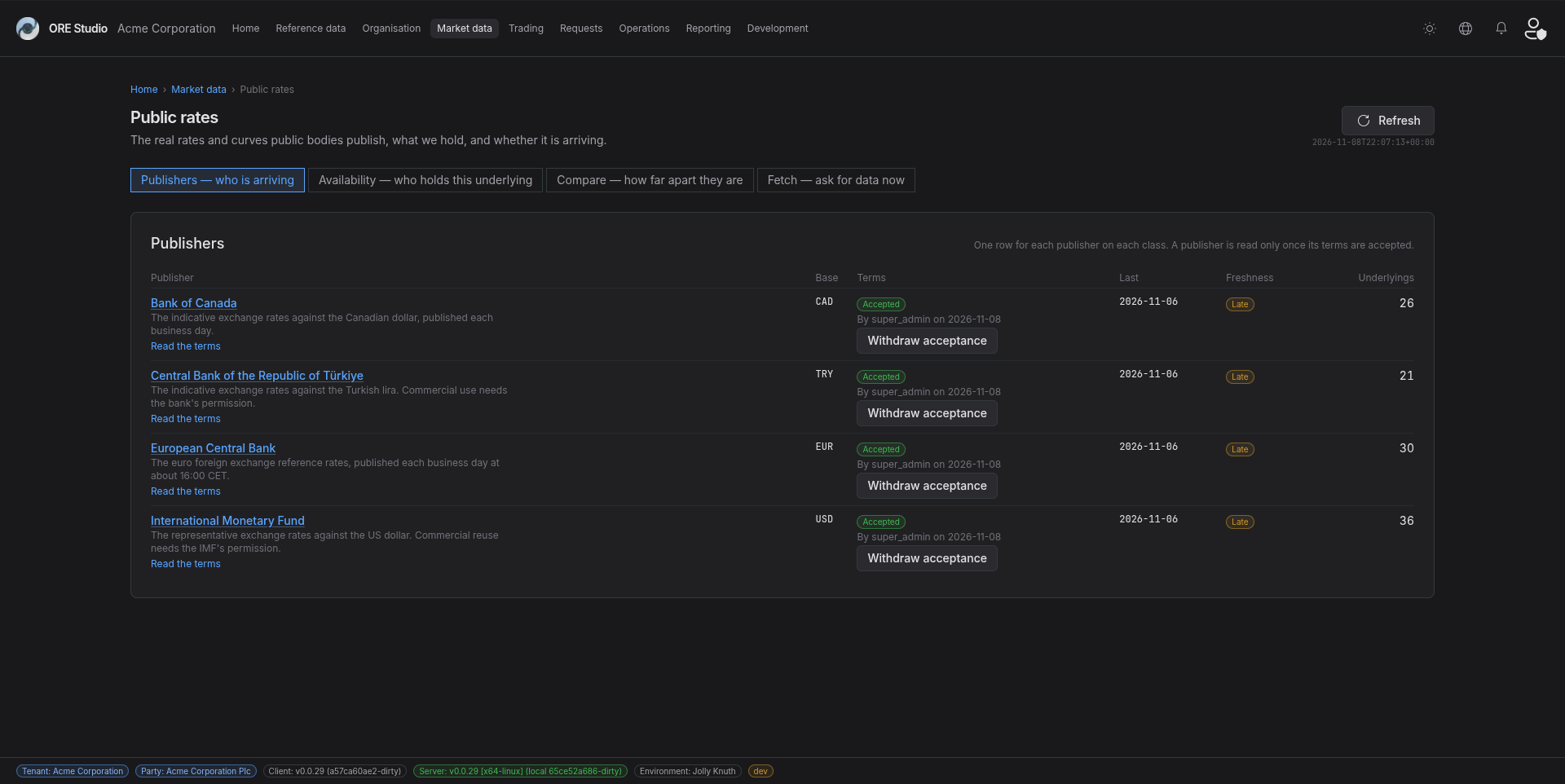 ; ; ; 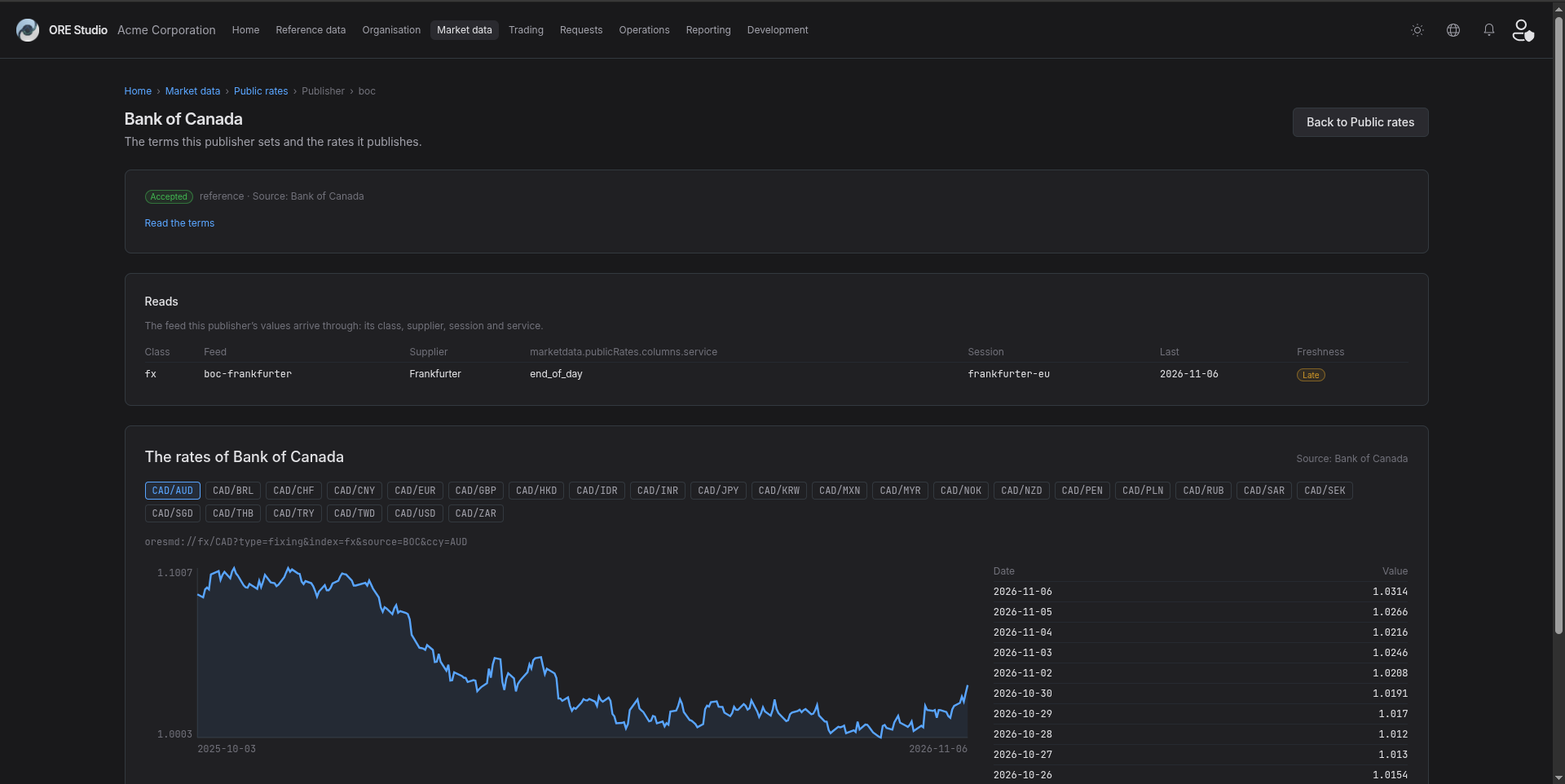 |
3.7. Capture the fixing series
- Open
http://localhost:20802/market-data/fixings?uri=oresmd%3A%2F%2Ffx%2FEUR%3Ftype%3Dfixing%26index%3Dfx%26source%3DECB%26ccy%3DCNY. - Open a series with history if one exists.
- Record FAIL if no fixings exist.
- Save the screenshot as
assets/images/ore_studio-v0.0.29-fixings.png. - Caption for the release notes: Public fixings are published through an adapter.
3.7.1. Result
| Field | Value |
|---|---|
| Status | PASS |
| Notes | 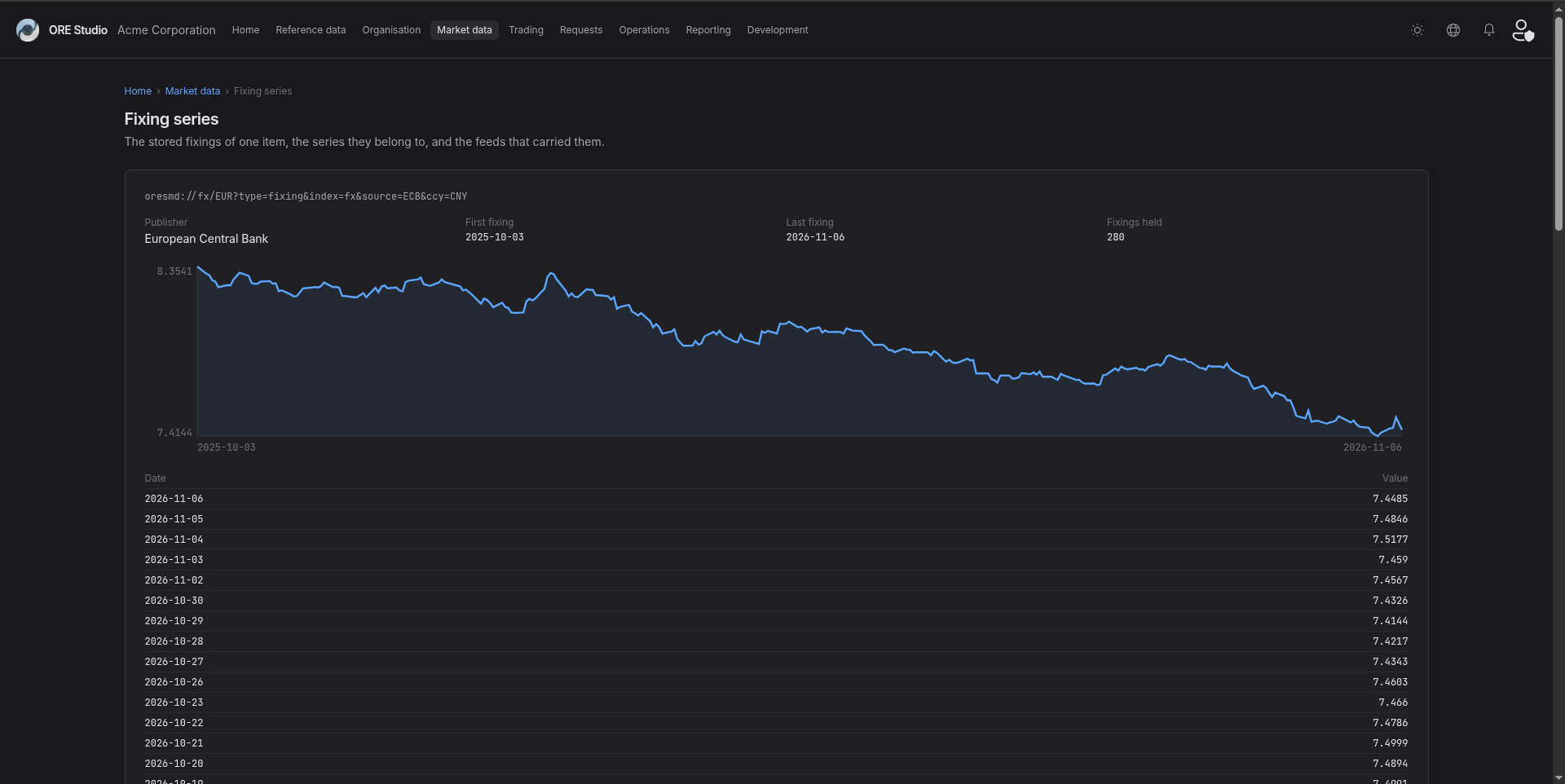 |
3.8. Capture the synthetic feeds
- Open
http://localhost:20802/market-data/synthetic. - Open a running feed if the tree holds one.
- Save the screenshot as
assets/images/ore_studio-v0.0.29-synthetic-feeds.png. - Caption for the release notes: Synthetic feeds, with the richer tick arrival models.
3.8.1. Result
| Field | Value |
|---|---|
| Status | PASS |
| Notes | 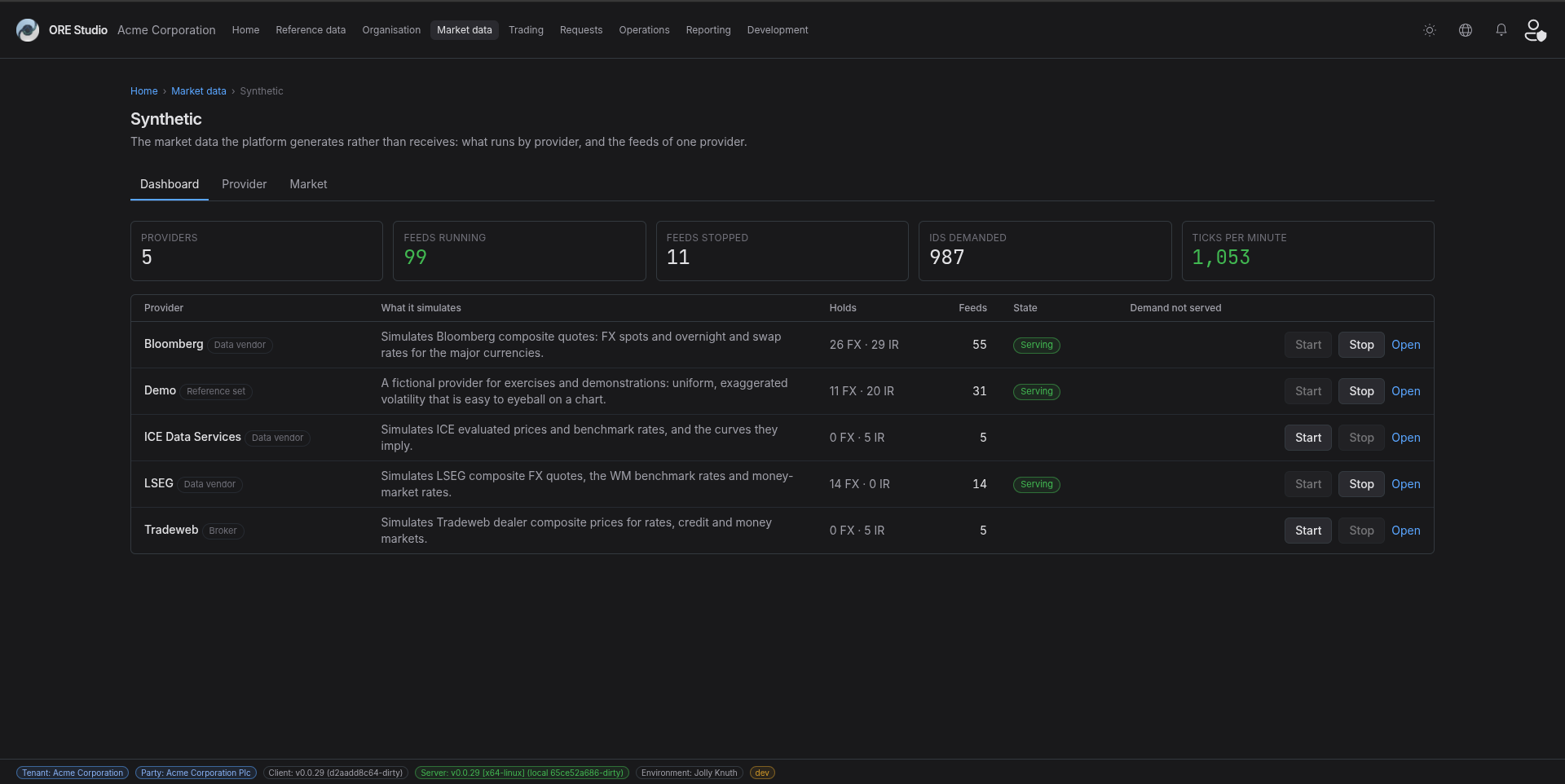 ; ; 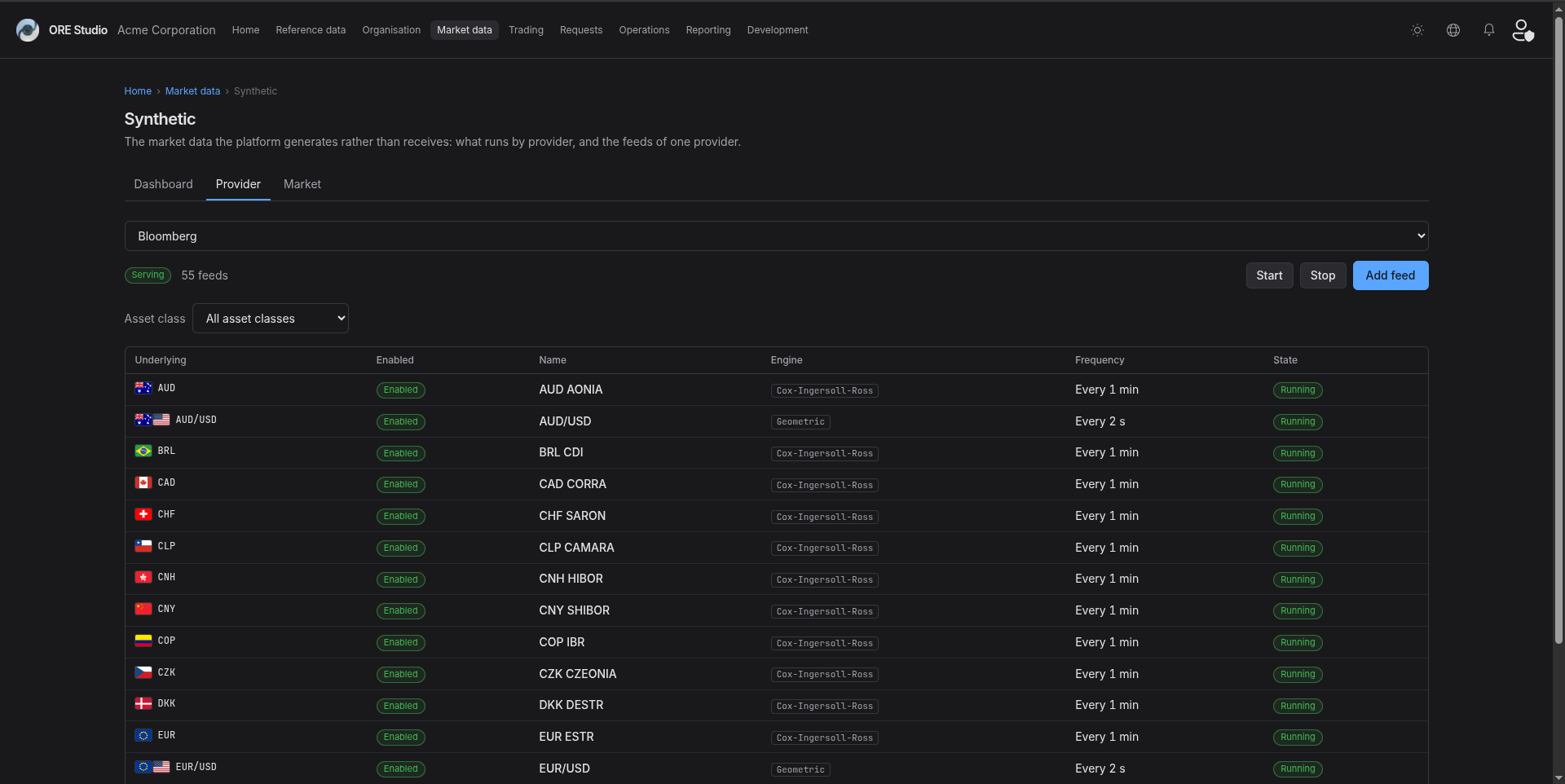 ; ; ; ; 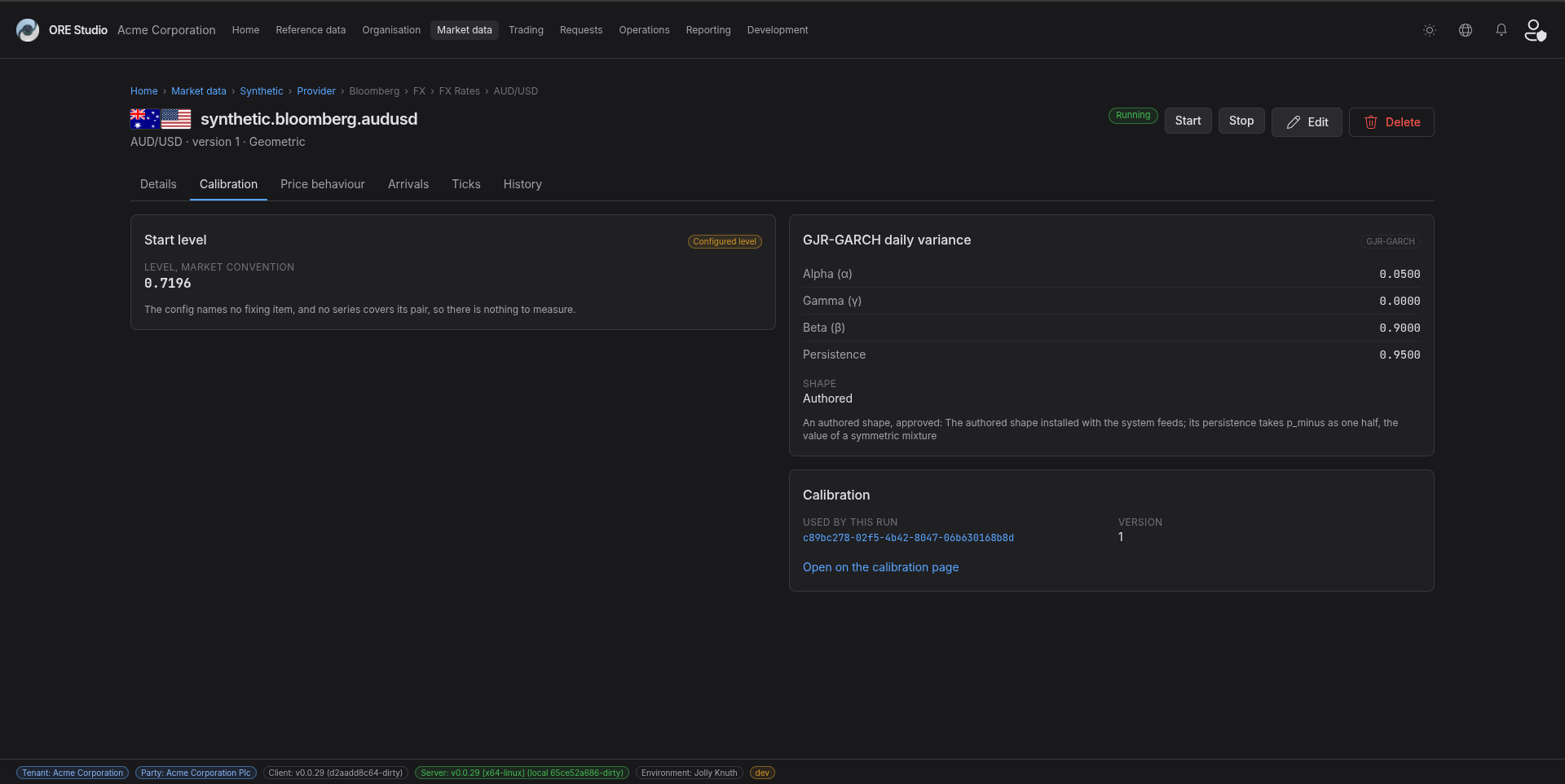 |
3.9. Capture a convention record
- Open
http://localhost:20802/refdata/conventions. - Open one family, then one convention.
- Show the record page with its sections.
- Save the screenshot as
assets/images/ore_studio-v0.0.29-convention.png. - Caption for the release notes: A convention is drawn to the one standard for ORE leaves.
3.9.1. Result
| Field | Value |
|---|---|
| Status | PASS |
| Notes | 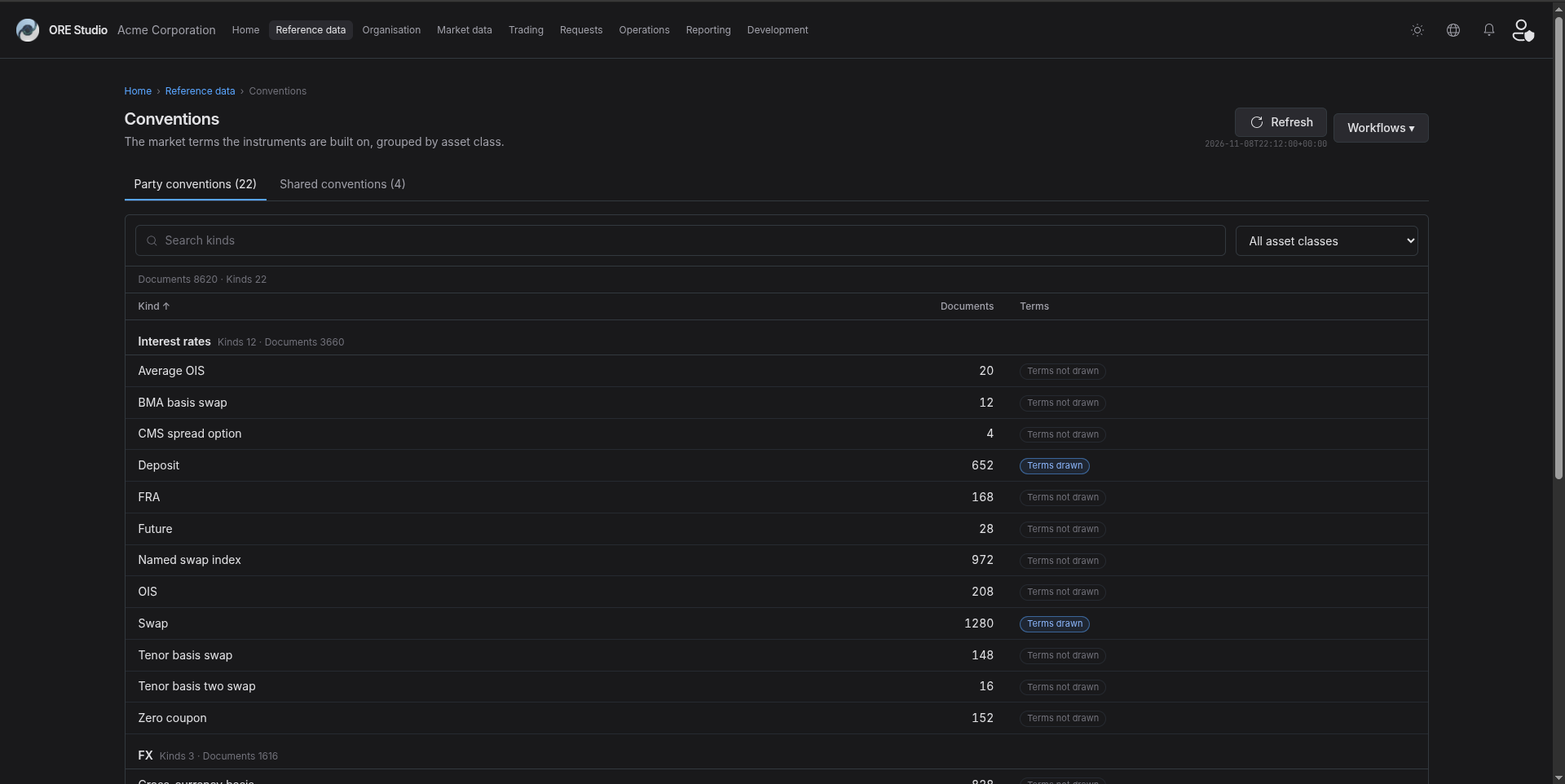 ; ; ; ; 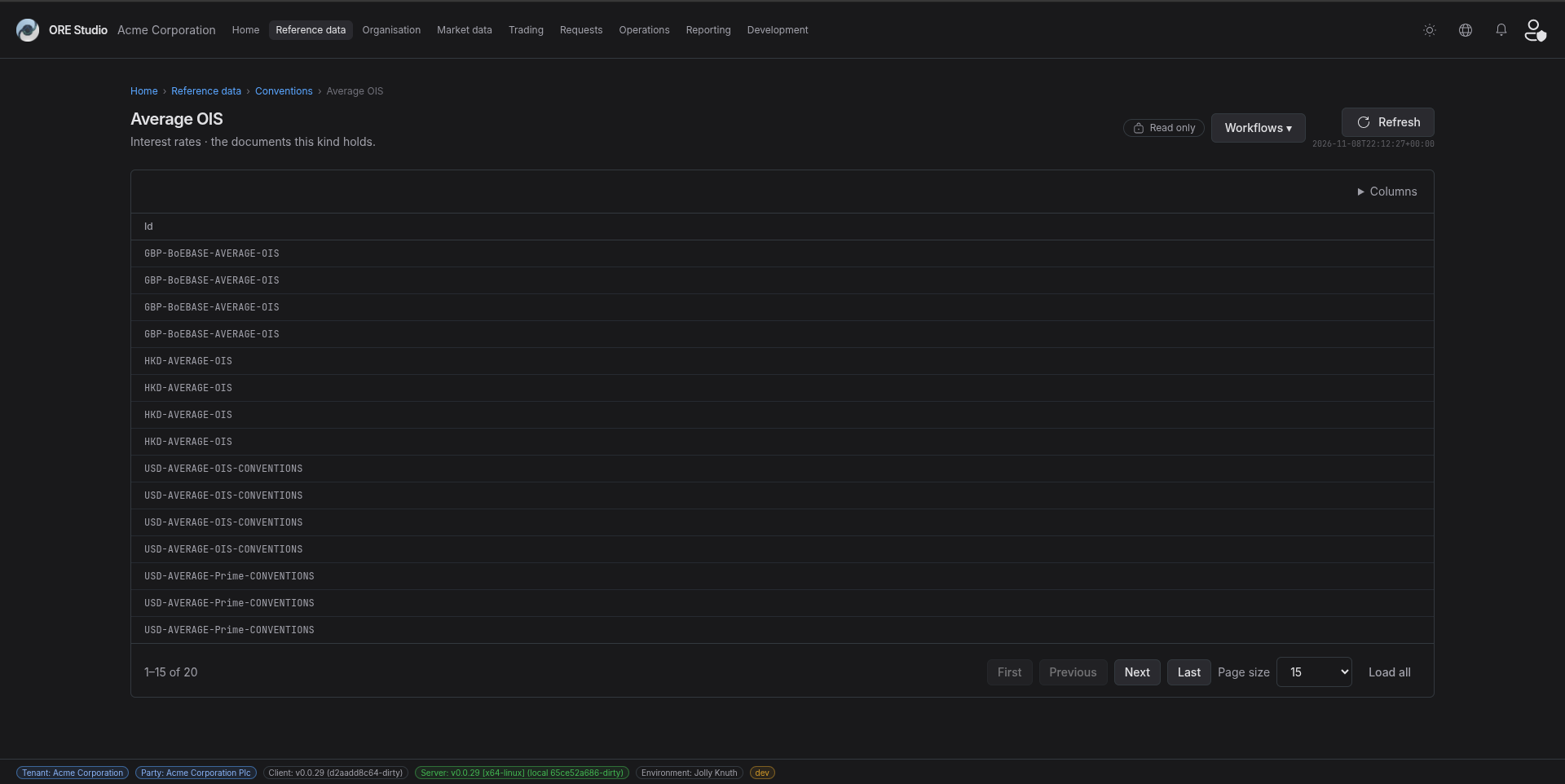 ; 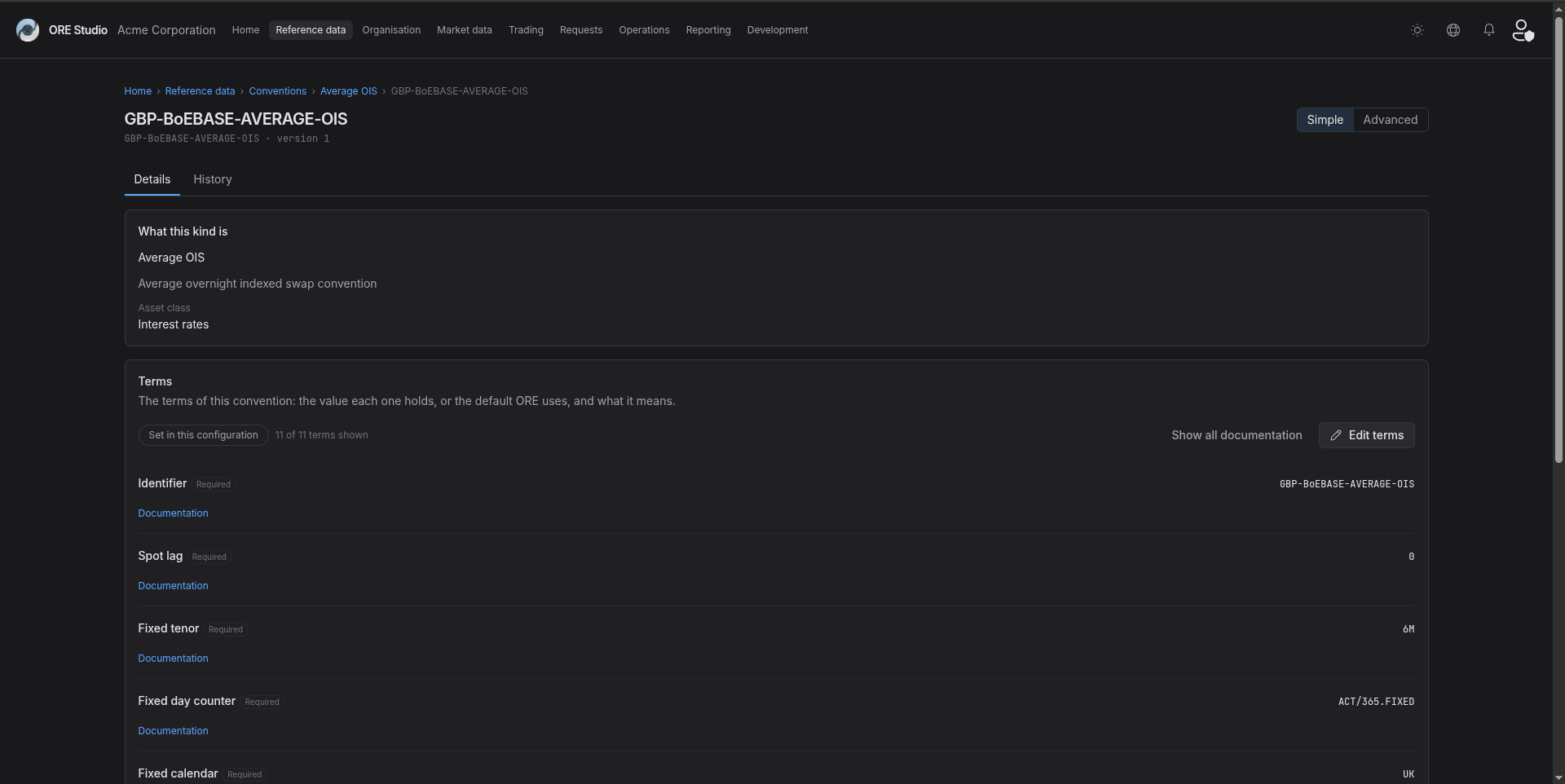 |
3.10. Capture a curve configuration
- Open
http://localhost:20802/reporting/curve-configurations. - Open one configuration.
- Show the same list and record layout as the other configurations.
- Save the screenshot as
assets/images/ore_studio-v0.0.29-curve-configuration.png. - Caption for the release notes: Curve configurations follow the one configuration screen standard.
3.10.1. Result
| Field | Value |
|---|---|
| Status | PASS |
| Notes | 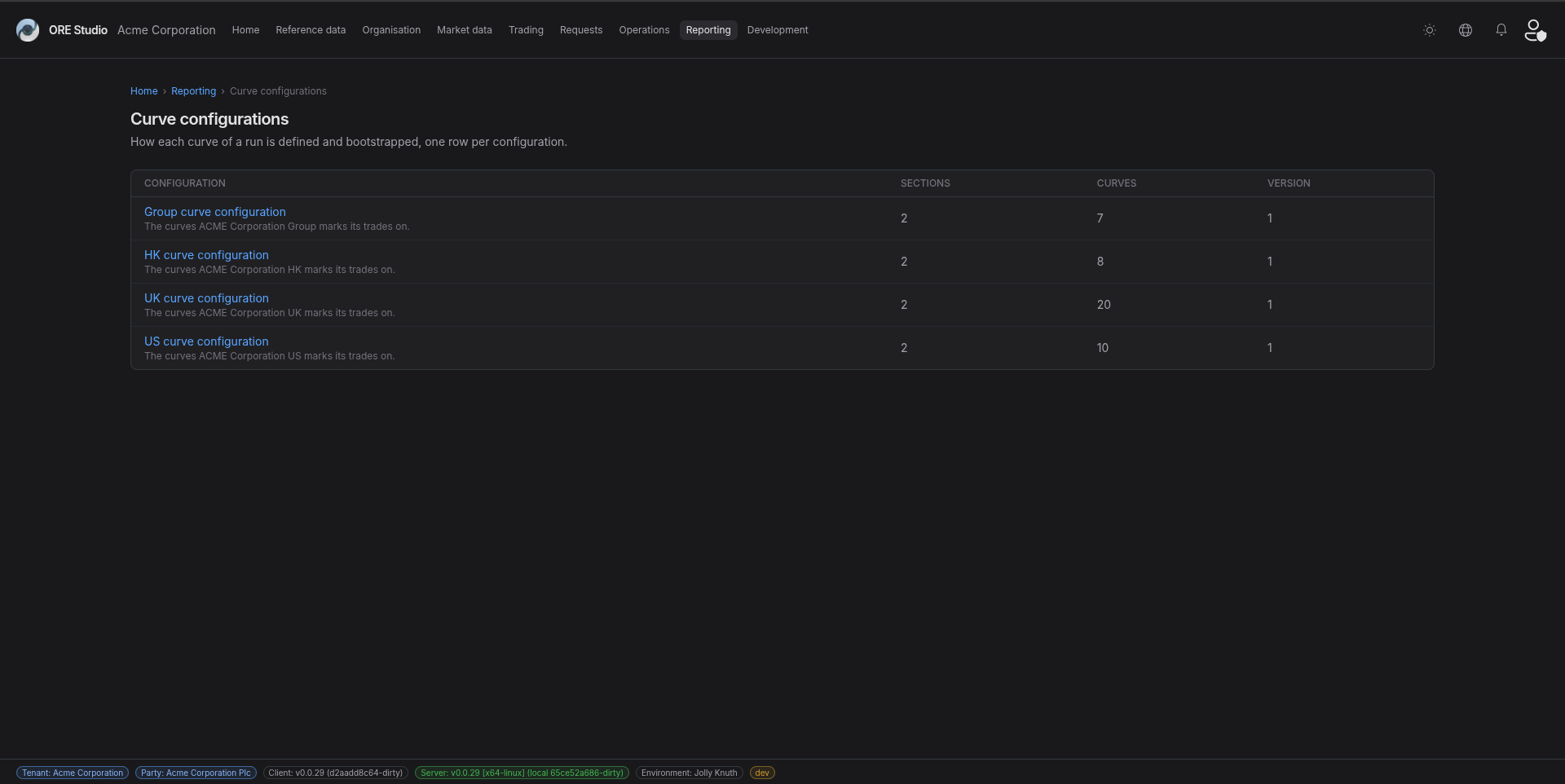 ; ; ; 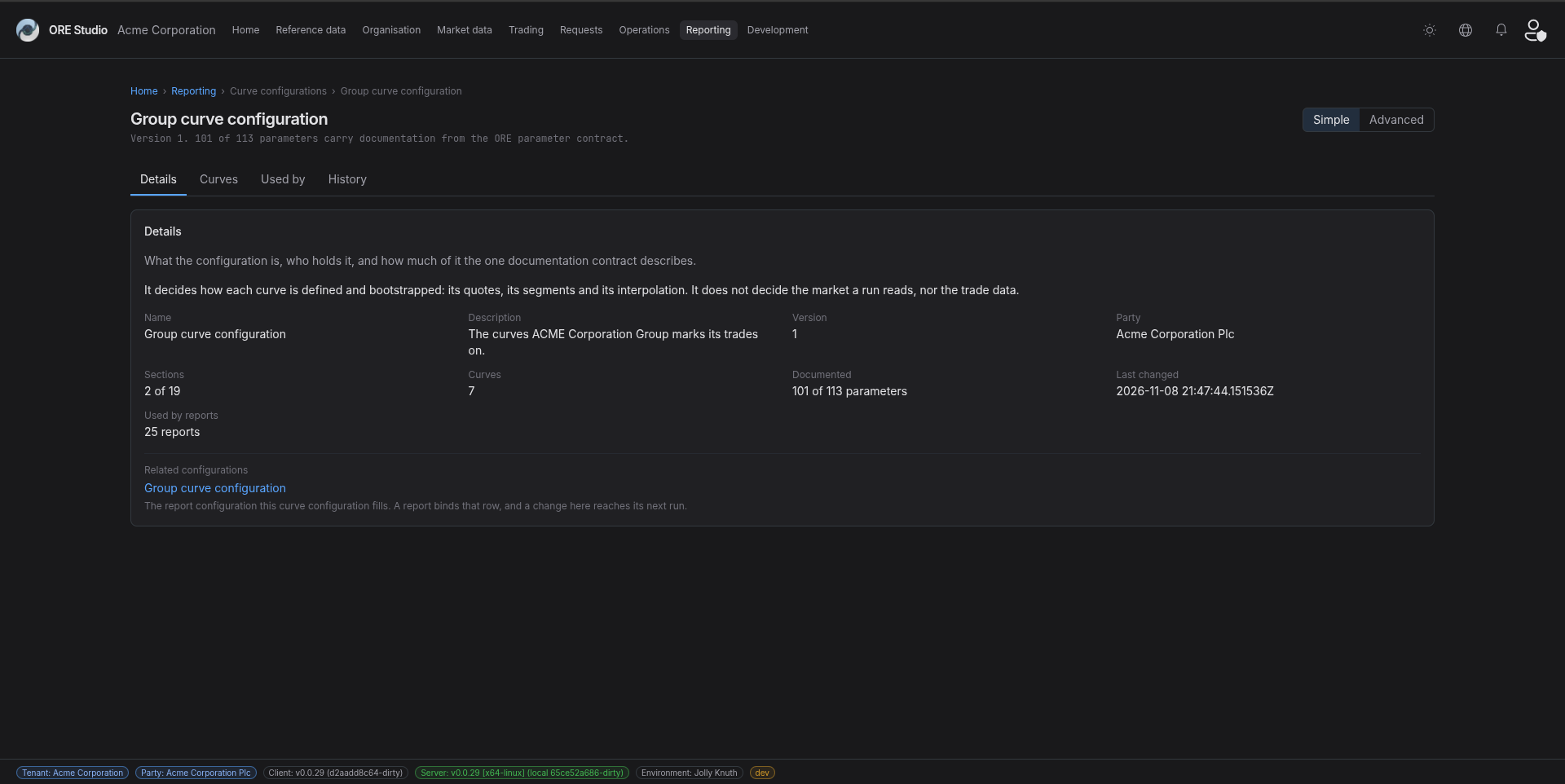 ; 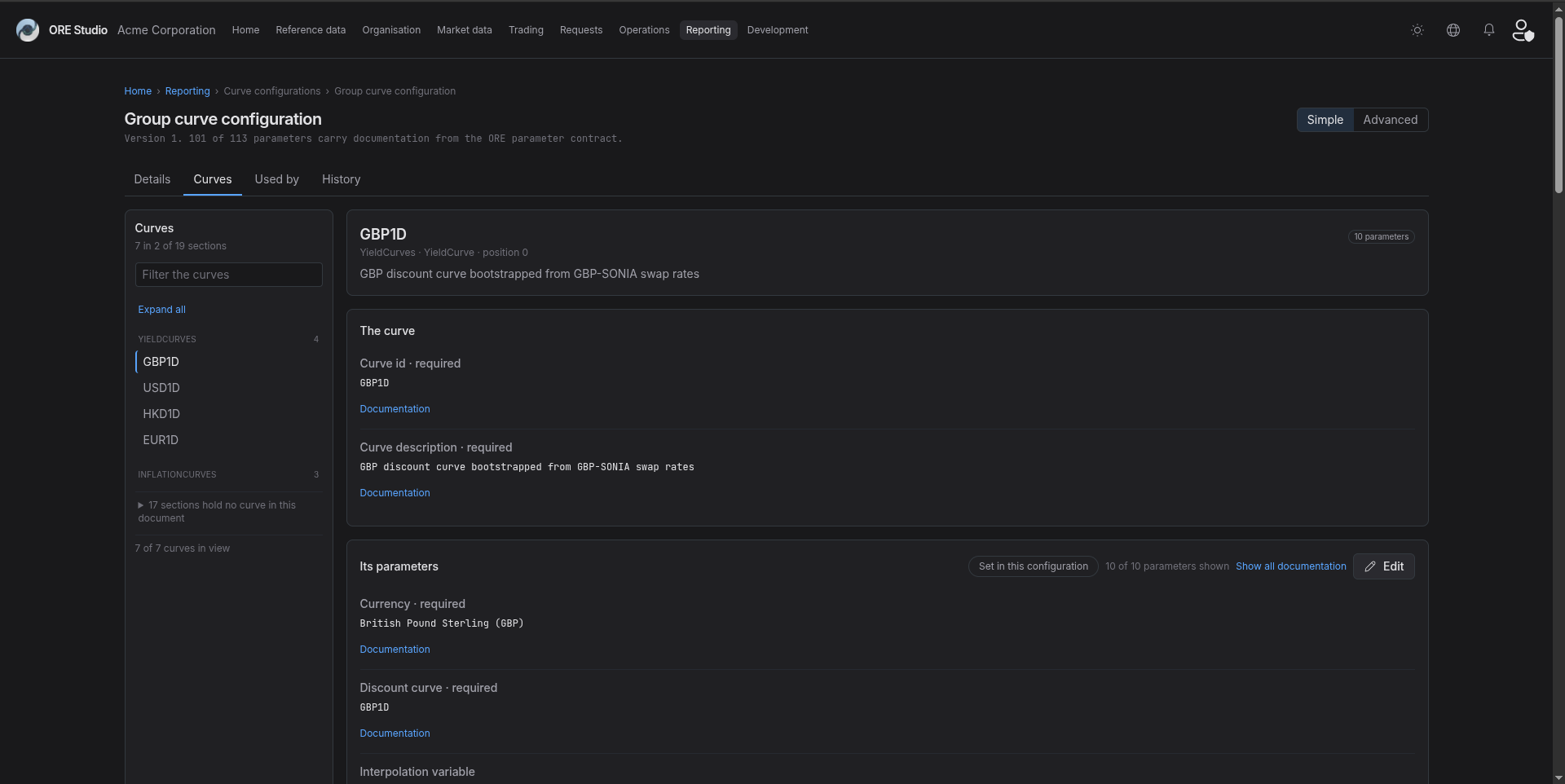 |
3.11. Capture a currency record
- Open
http://localhost:20802/refdata/currencies. - Open
USD. - Show the record page from the screen pipeline.
- Save the screenshot as
assets/images/ore_studio-v0.0.29-currency.png. - Caption for the release notes: Currencies went through the screen pipeline.
3.11.1. Result
| Field | Value |
|---|---|
| Status | PASS |
| Notes | 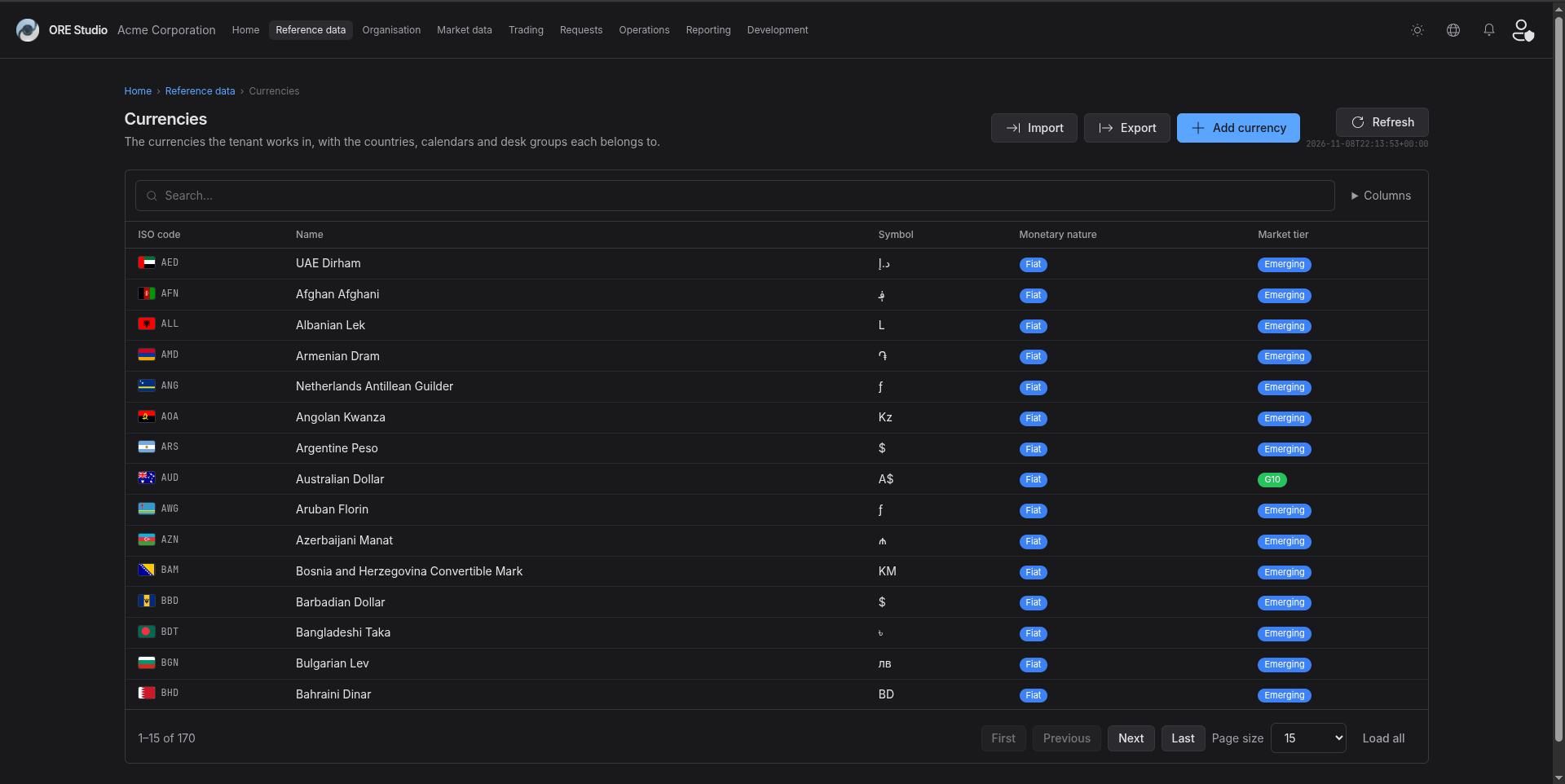 ; ; ; 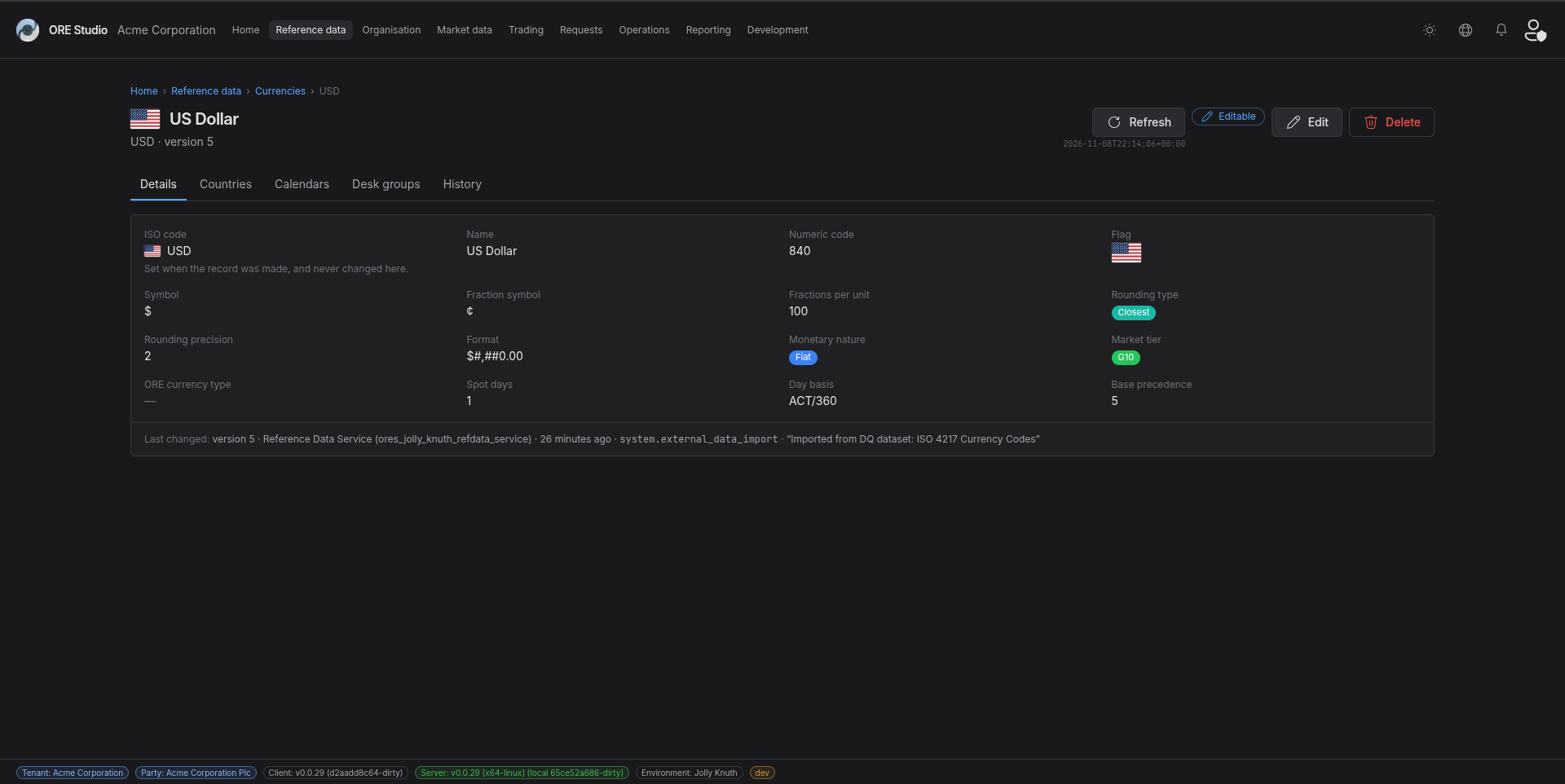 |
3.12. Capture the dark theme
- Open
http://localhost:20802/refdata/currencies. - Switch to the dark theme from the header.
- Open the language menu in the header, so that it shows in the image.
- Return to the light theme after the capture.
- Save the screenshot as
assets/images/ore_studio-v0.0.29-dark-theme.png. - Caption for the release notes: The interface switches between light and dark and chooses its language from the header.
3.12.1. Result
| Field | Value |
|---|---|
| Status | PASS |
| Notes | 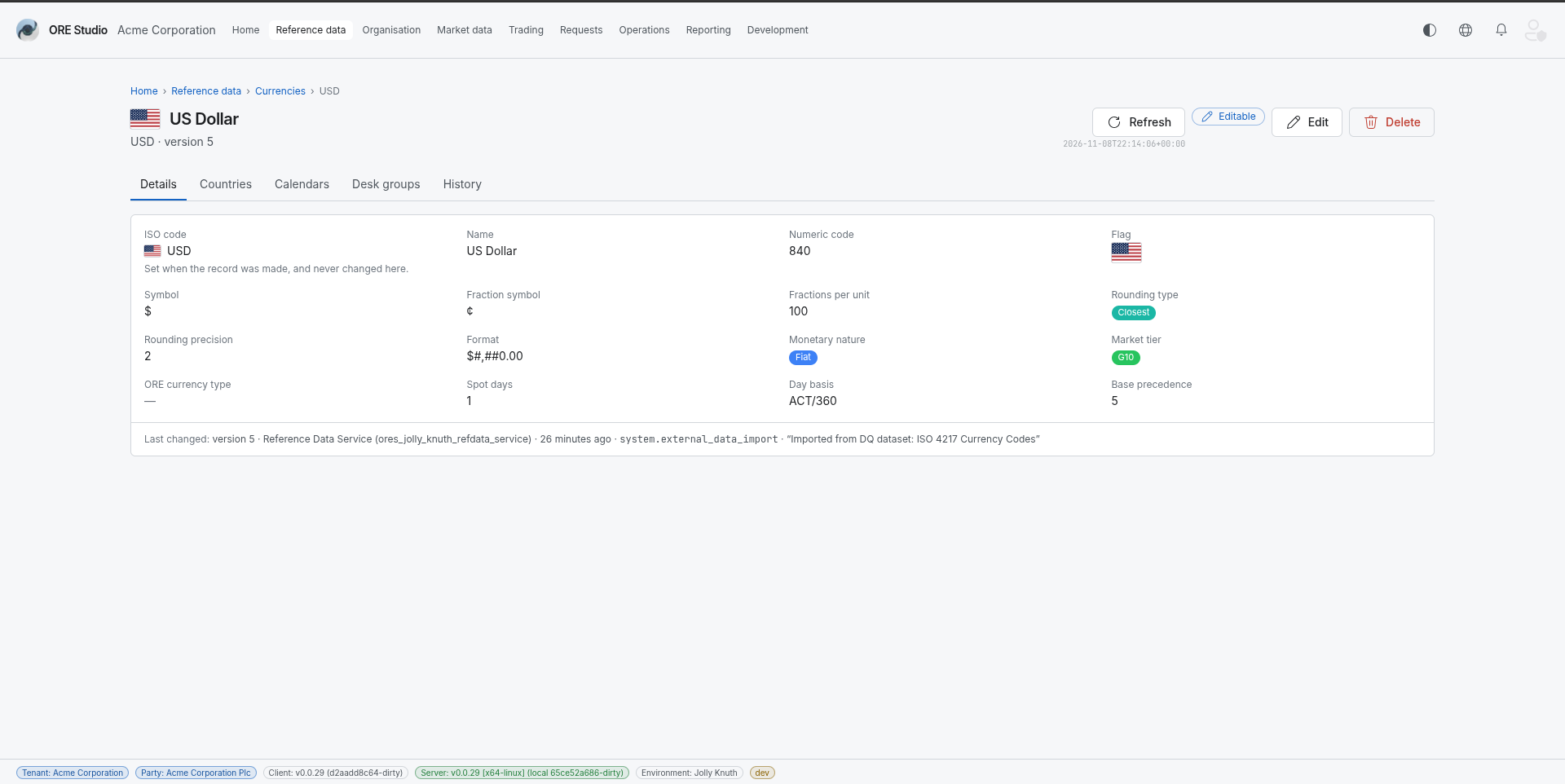 ; ; ; 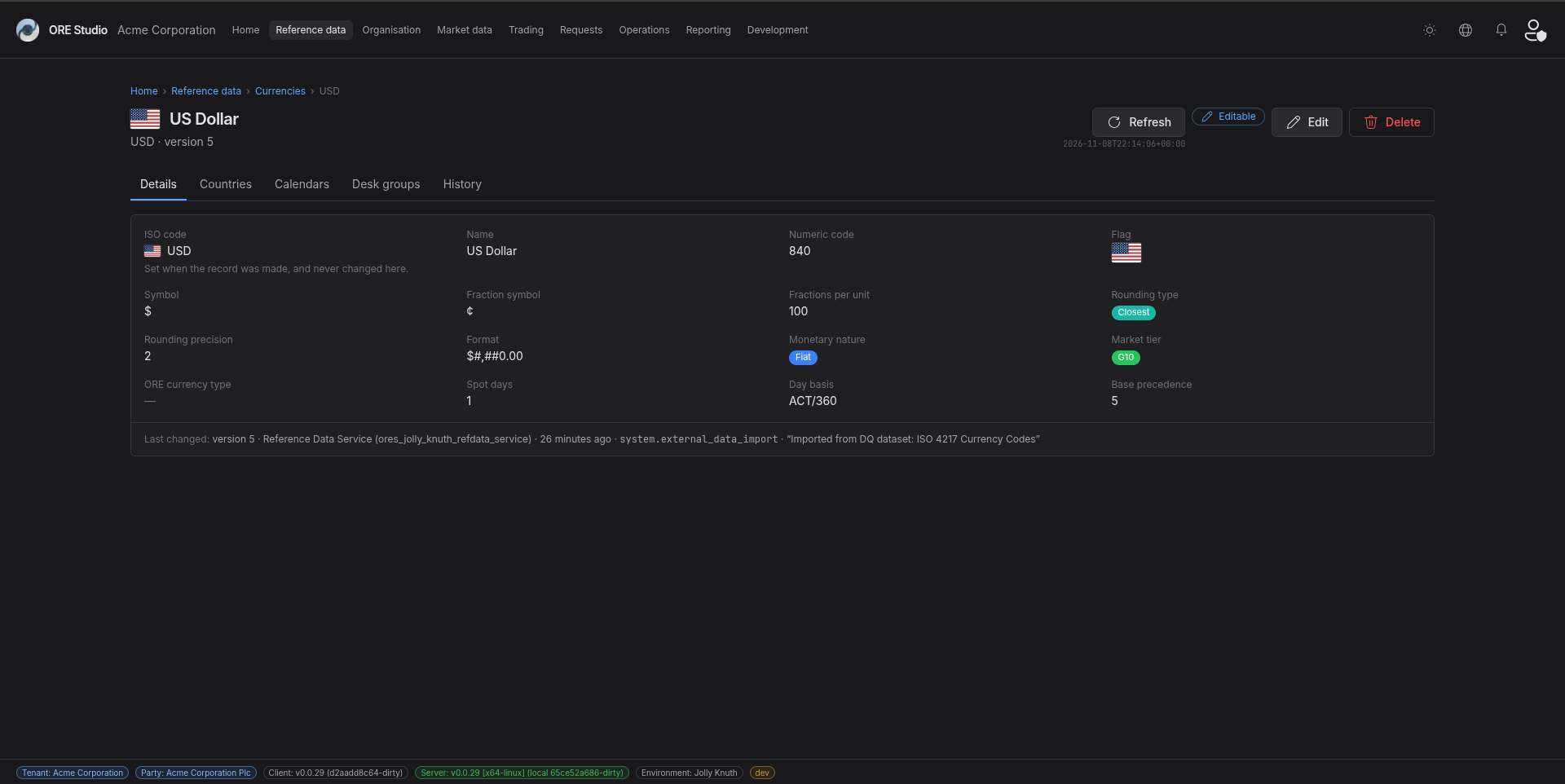 |
3.13. Capture the release hero image
- Open
http://localhost:20802/operations. - Show a populated overview.
- Choose the screen you think best represents the release, if another is better.
- Save the screenshot as
assets/images/ore_studio-v0.0.29-hero.png. - Caption for the release notes: ORE Studio at the end of sprint 29.
3.13.1. Result
| Field | Value |
|---|---|
| Status | PASS |
| Notes | 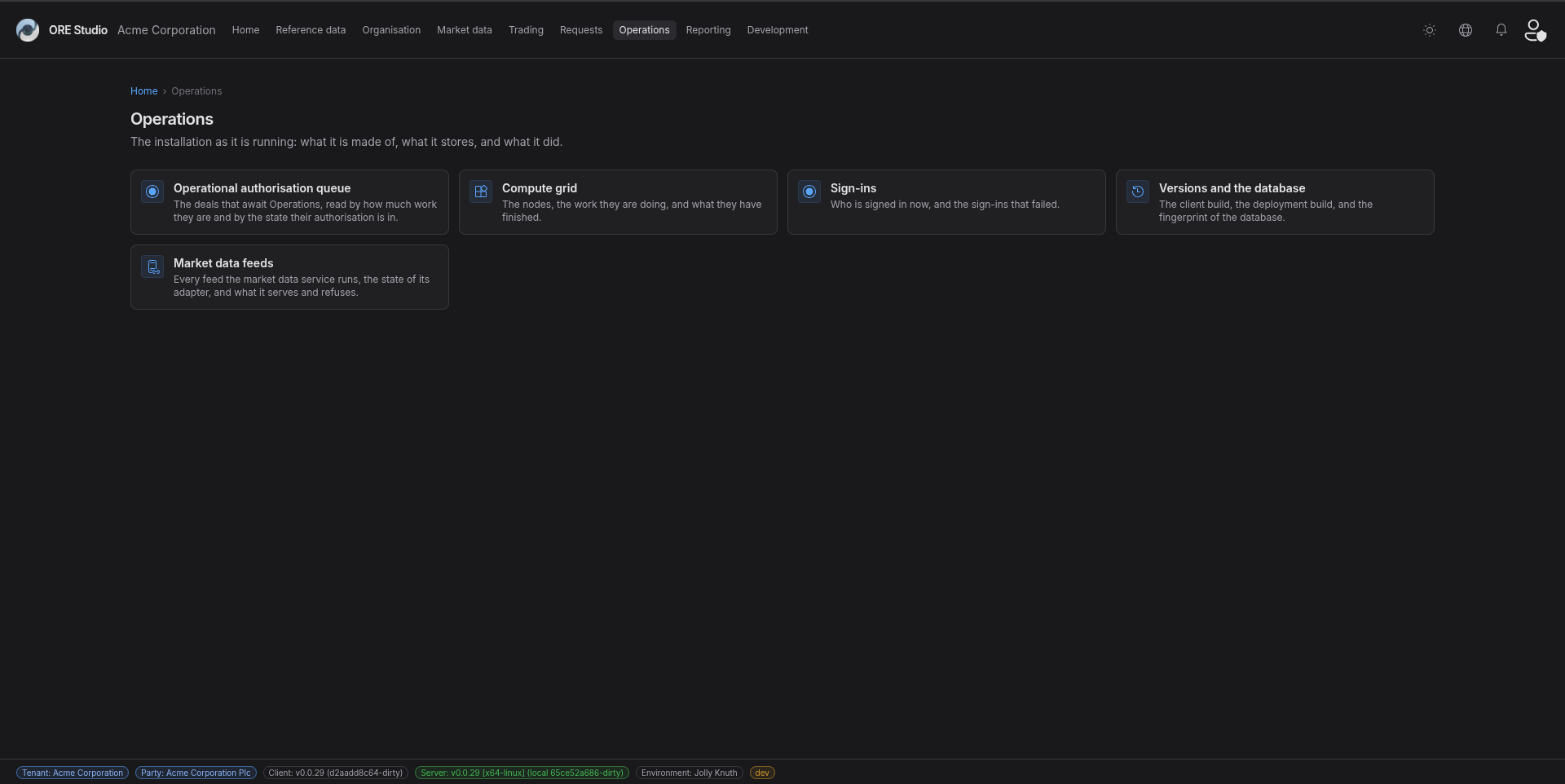 ; ; ; 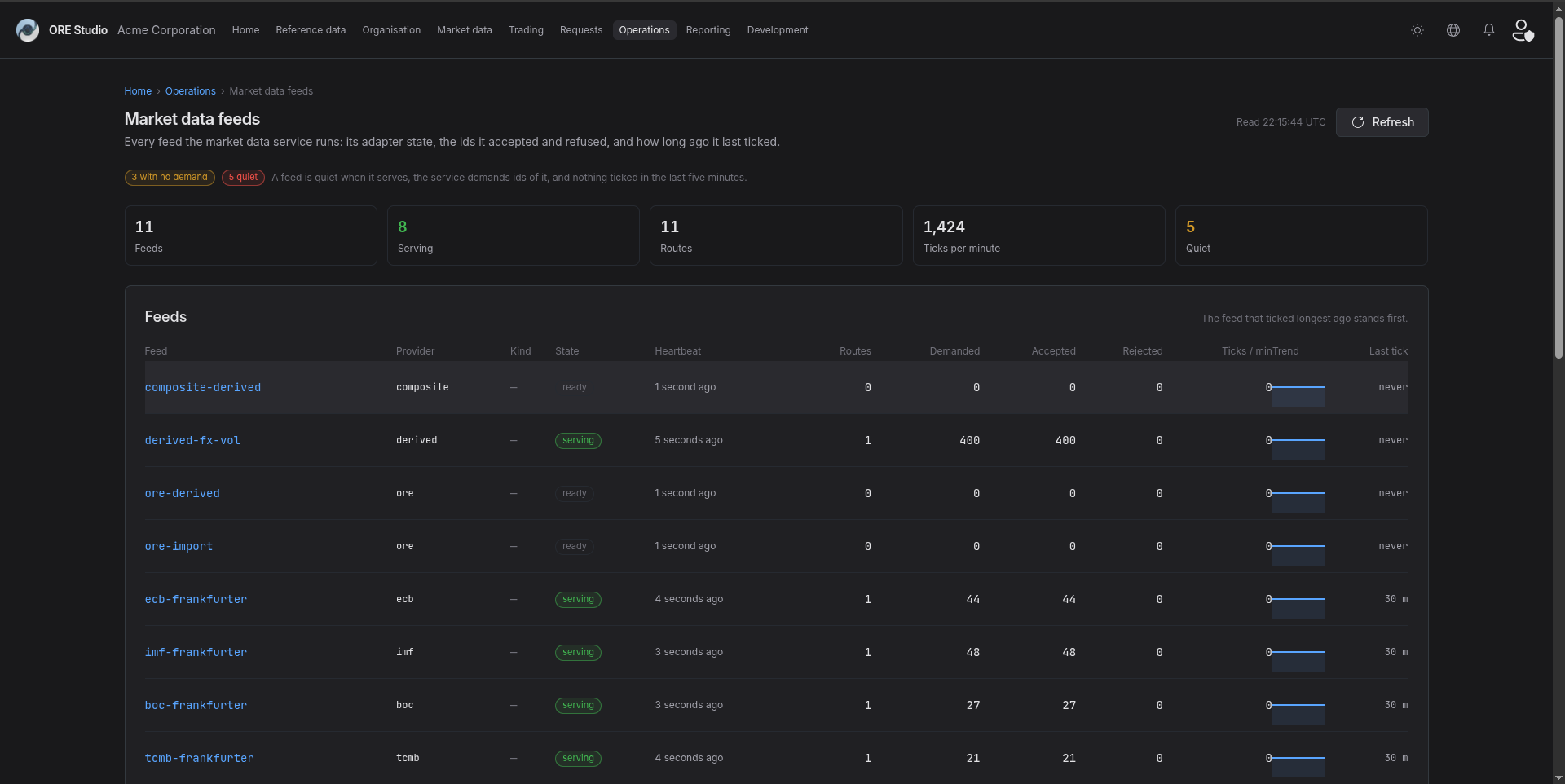 ; ; ; 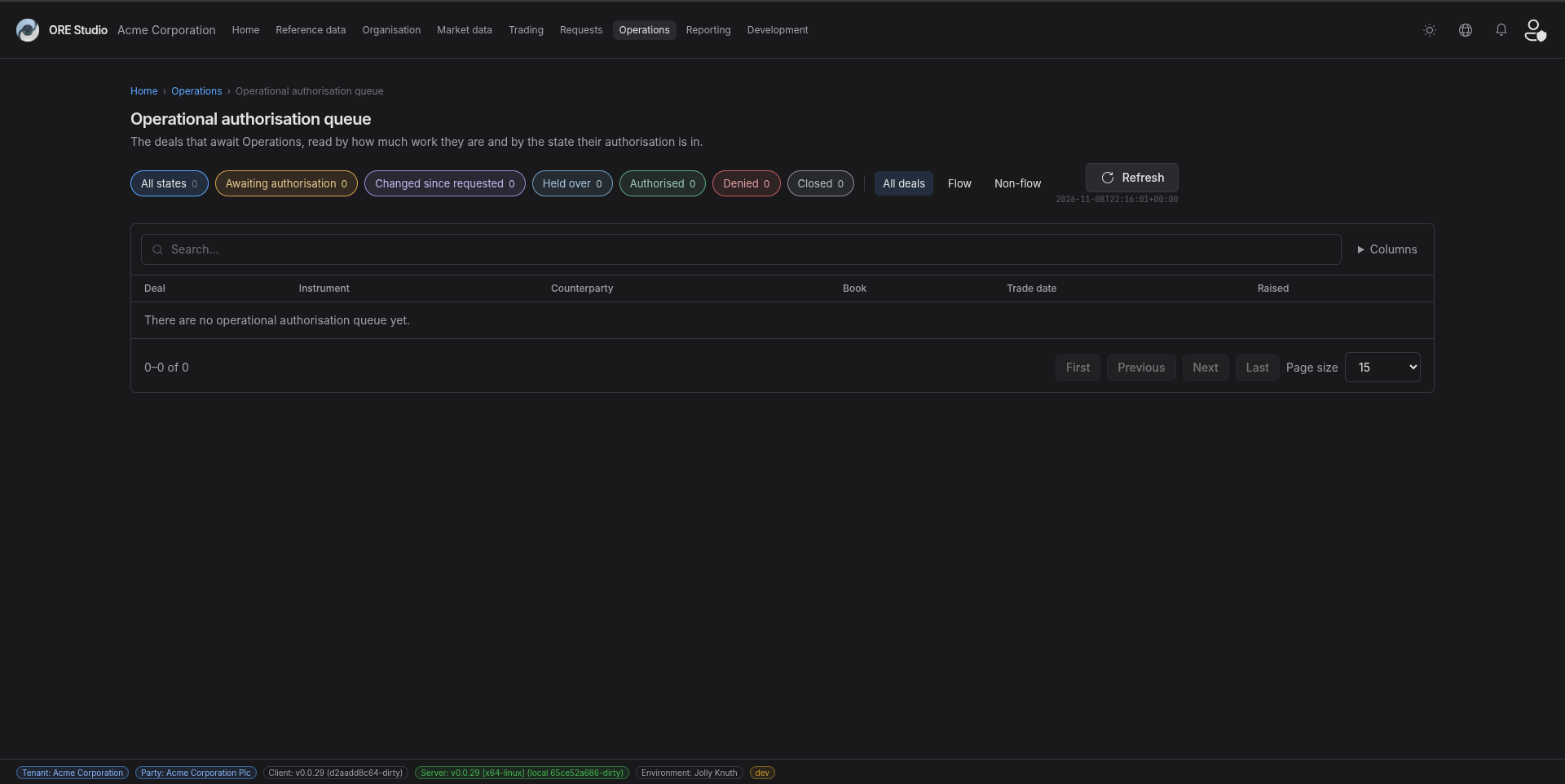 |
4. Results
| Field | Value |
|---|---|
| Status | PASSED |
| Completed at | 2026-11-08T22:16:16Z |
| Branch | |
| Commit | |
| Worktree |
5. Notes
- No web route exists for volatility surfaces or for the product type page, so this scenario has no step for them.
- The streaming work has no still image. A short recording of a list that updates by itself shows it better.
- After the captures, add each image and its caption to the release notes, then export the notes and update the draft release.