User Journey: Protect my account
Table of Contents
This page documents a user journey: A member changes their password and sees where their account is signed in.
A user journey describes what one person is trying to do, before anything is built. It is a design document that outlives any sprint, so it names the screens, the entity fields each screen shows, and the operations and messages each step needs.
1. Goal
"I want to keep my account safe, and know where it is signed in." The member changes their own password, then reads the state of the account: the last sign-in, the failed attempts, whether the account is locked, and whether a password change is required. The journey is done when the new password works and the sign-in panel reads as the member expects.
2. Actor and trigger
The member: an account of type user, signed in, acting on their own record.
The trigger is a password prompt, a security reminder, or an unfamiliar entry
in the sign-in panel. It starts when the member opens Security from the
account menu, and ends when they leave it.
This is the self-service half of the credentials topic. An administrator who must restore somebody else's access runs Rescue access instead, and the record of who signed in is Audit sign-ins.
3. Steps
- Open Security. The member chooses Security from the account menu. The system shows one screen: the password panel, the sign-in state, and the places the account is signed in.
- Change the password. The member enters the current password, the new password twice, and reads the strength hint. The system checks the new password against the policy, rejects a password equal to the current one, stores the new hash, and clears the password-reset flag.
- Read the sign-in state. The member reads the last sign-in, the failed attempt count, the lock state and the reset flag. The panel is read-only, because the service writes that state as a side effect of signing in.
- See where the account is signed in. The member reads the active sign-ins: client, address, country and start time. The system shows one row for each session that has no end time.
- Sign out. The member ends the current session with Sign out. There is no control to end one other session, so a member who sees an unfamiliar sign-in can only change the password and sign out.
- Leave. The member goes back. The account menu shows the account as it is.
4. Screens and wireframes
One screen. The password form, the sign-in state and the active sign-ins are panels of that screen rather than separate screens, because the member thinks of them as one thing.
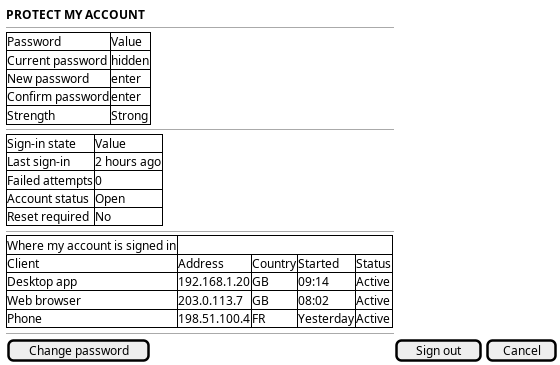
Figure 1: Protect my account: the password form, the sign-in state, and the places the account is signed in.
5. Entities composed
| Entity | What it contributes | Model |
|---|---|---|
account |
Username and account type; the row the password change writes | ores.iam.account |
login_info |
Last sign-in, failed attempts, locked, online, reset required, last addresses | ores.iam.login_info |
session |
Client, address, country, start time and end time for each sign-in | ores.iam.session |
Three account columns must never reach this screen: password_hash,
password_salt and totp_secret. The password panel writes a hash; it never
reads one back.
6. Operations and messages
| Step | Operation | Subject | Status |
|---|---|---|---|
| Open Security | Read my account | iam.v1.accounts.get |
exists |
| Read the sign-in state | Read my login record | iam.v1.login_info.get |
exists |
| Change the password | Set a new password for myself | iam.v1.accounts.change-password |
exists |
| See where I am signed in | List my active sessions | iam.v1.sessions.active |
partial |
| Sign out | End my own session | iam.v1.auth.logout |
exists |
| End one other sign-in | End a chosen session | none | missing |
| Turn on two-factor authentication | Enrol a TOTP secret | none | missing |
| See statistics over time | Read the session statistics | none | missing |
iam.v1.accounts.change-password takes the account from the caller's token, so
the member needs no administrator permission. The subject is declared in
ores.iam.account_messages. The
request carries current_password, but the handler reads only new_password.
The screen may ask for the current password, and must not claim the server
proves it.
iam.v1.sessions.active is partial: the subject exists in
ores.iam.session_messages, and
the handler replies with success, but it returns no sessions. The BFF answers
/api/v1/sessions/active from the session repository, so the browser has a
working read today and the NATS path is a stub.
7. What is missing
- No way to end one session.
iam.v1.auth.logoutends only the caller's own session. A member who sees an unfamiliar sign-in cannot end it. The candidate isiam.v1.sessions.end, restricted to the caller's own sessions. - No TOTP enrolment.
account.totp_secretexists as a column, andiam.v1.accounts.saveaccepts a secret when the account is created, but nothing enrols, replaces or clears a secret for an existing account. The candidate isiam.v1.accounts.enrol-totp, plus a read that states whether two-factor authentication is on. The secret itself never reaches the screen. iam.v1.sessions.activereturns nothing. The subject exists and is a stub. Until it reads the table, the screen must call the BFF route.- No session statistics.
ores_iam_session_stats_daily_vwand its hourly and aggregate siblings exist as TimescaleDB continuous aggregates, with no subject. The candidate isiam.v1.sessions.statistics. - The current password is not verified. The change-password handler ignores
current_password. A stolen token is enough to set a new password. The screen should treat the field as a confirmation, and the server should verify it.
8. Related journeys
- Sign in — where this password is used, and where a forced change happens
- Rescue access — the administrator's route back in when the account is locked and the member cannot sign in
- Audit sign-ins — the tenant-wide view of the sessions this screen shows for the member alone