Accounts and Roles
Table of Contents
Every person and process that talks to OreStudio does so through an account. This chapter examines day-to-day account management: the Accounts window and how it differs between administrator identities, the account detail dialog and each of its tabs, the flow for creating a new account, and the roles and permissions that govern what an account may do — OreStudio's industry-standard Role-Based Access Control model, which ties identity to capability.
1. Overview
The chapter advances the argument that managing accounts well means understanding the population of accounts you administer, the individual record and what it carries, how a new one is brought into being, and finally the model that decides what any of them may do — and it proceeds in that order. It begins by surveying the body of records in The Accounts window, where the list reflects who you are logged in as and updates live as others make changes; this establishes the administrator's vantage point the rest of the chapter works from. From there it narrows to a single record in The account detail dialog and its six tabs — general identity, security, login status, roles, parties, and provenance — the dialog that serves equally for inspection and editing. It then turns to bringing a new account into being in Creating an account, the same dialog in create mode, with the password, role, and party steps and the warnings that guard them. Finally it sets out the model underneath it all in Roles and permissions — the Role-Based Access Control scheme by which accounts hold roles and roles bundle permissions — distinguishing the service roles that run OreStudio's own machinery from the domain roles modelled on a financial institution's desks. The Conclusion draws these steps together.
2. The Accounts window
Open the Accounts window from the Administration submenu of the System menu. The Administration menu is only present for accounts that hold administrative permissions.
The provisioning wizards described in the Initial Setup chapter create the first accounts for you — the platform administrator during system provisioning and the tenant administrator during tenant creation. Those wizards are a one-time bootstrap: every account after that is created and managed in the Accounts window described here. Accounts come in four types, shown as coloured badges throughout the UI: User for people, Service for OreStudio's own backend services, Algorithm for automated processes, and LLM for large language model agents. What an account is allowed to do is determined by the roles assigned to it; which data it can see is determined by the tenant it belongs to and the parties it is assigned (see Initial Setup for the tenant and party model).
The window lists every account visible to your login identity, one row per account. Alongside the username and email, badge columns show the account type, the login status (Online, Recent, Old, or Never for accounts that have never logged in), and whether the account is locked. The remaining columns carry the record version and provenance — who last modified the record and when.
The toolbar follows the standard entity-window layout (Reload, Add, Edit, Delete, History) and adds four account-specific actions: Lock and Unlock to suspend and restore login access, Reset Pwd to set a new password, and Sessions to inspect the account's login sessions.
2.1. What you see depends on who you are
Account visibility follows tenant isolation. Logged in as the platform
administrator on the system tenant, the window shows the full
machinery of the platform — the super_admin account plus the service
accounts that OreStudio's backend components use to talk to each
other:
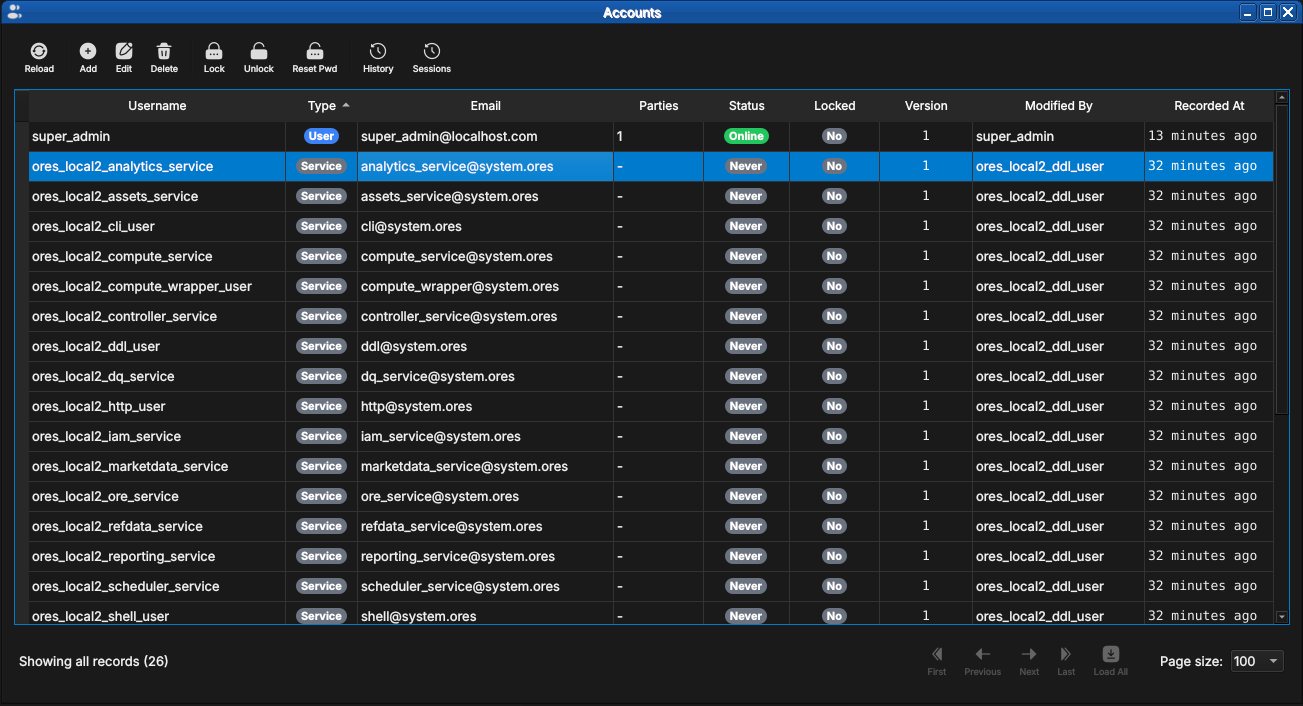
Figure 1: The Accounts window as seen by the platform administrator. Most rows are service accounts — one per backend component — shown with the teal Service type badge. Note the gray Never login-status badges: service accounts authenticate with certificates rather than interactive logins.
Logged in as a tenant administrator, the same window shows only the accounts belonging to that tenant — a freshly provisioned tenant contains exactly one, the tenant administrator itself:
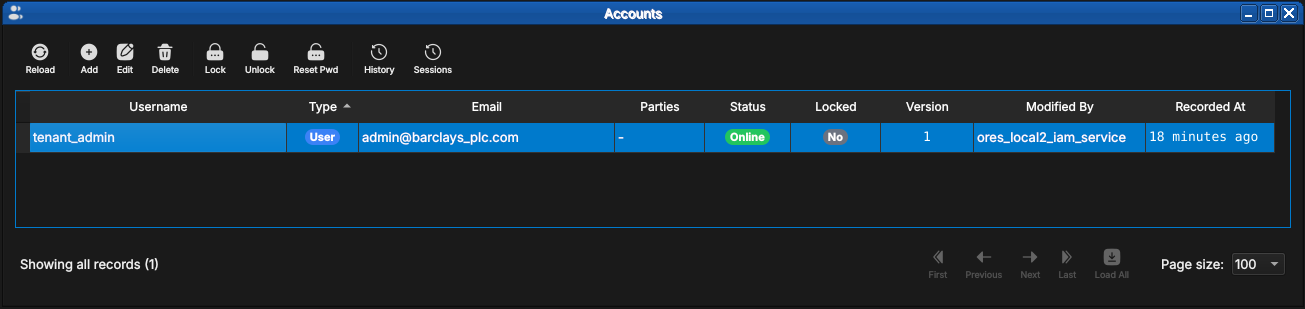
Figure 2: The same window as seen by a tenant administrator immediately after tenant provisioning. Only the tenant's own accounts are visible — here just tenant_admin, currently Online.
2.2. Live updates
Like all OreStudio entity windows, the Accounts list updates in response to changes made elsewhere — another administrator creating an account in a different session, for example. When unseen changes are pending, the Reload button carries a yellow stale indicator; recently changed rows are highlighted until you have seen them.
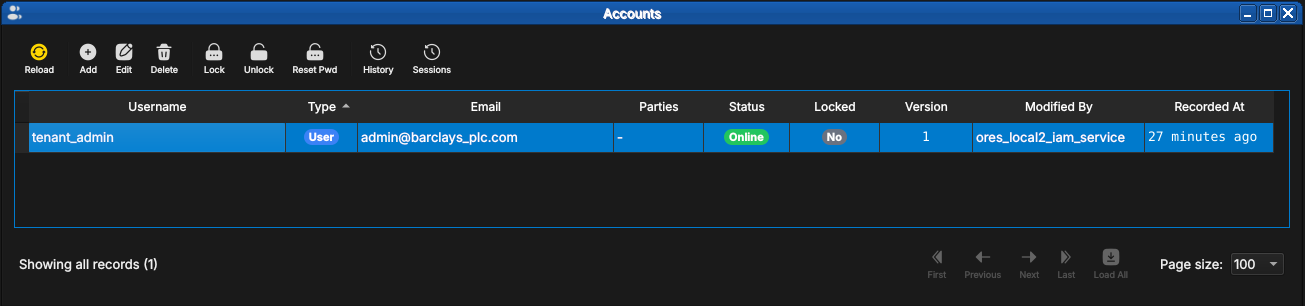
Figure 3: The Reload button showing the yellow stale indicator: the account list has changed since it was last loaded.
After a reload, rows that changed since you last looked stay highlighted until acknowledged, so a batch of new arrivals stands out from the records you have already reviewed:
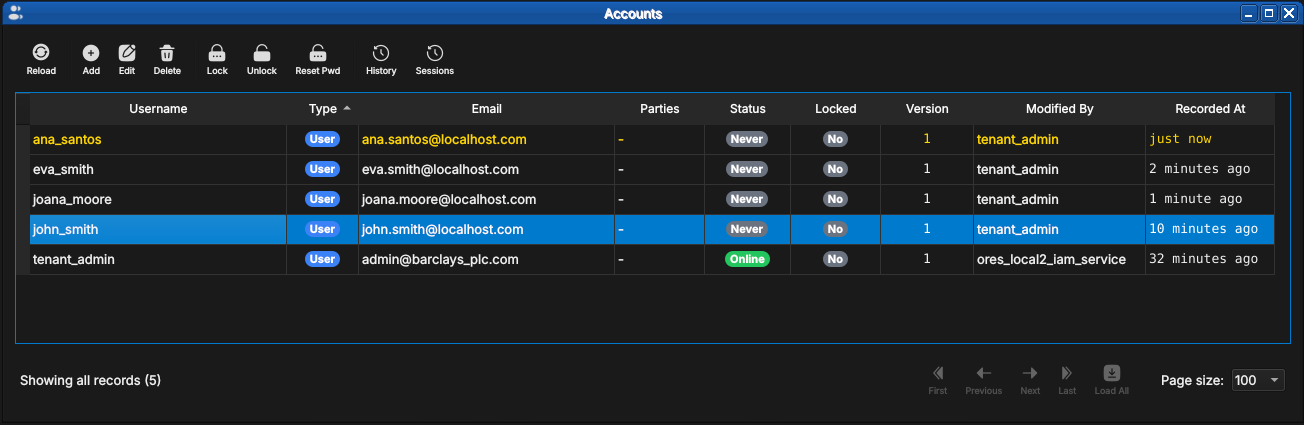
Figure 4: Newly created accounts highlighted in the list. The ana_santos row was recorded "just now" and remains highlighted until acknowledged.
3. The account detail dialog
Double-click an account (or select it and press Edit) to open the detail dialog. The dialog has six tabs; the same dialog serves creation, editing, and read-only inspection of historical versions.
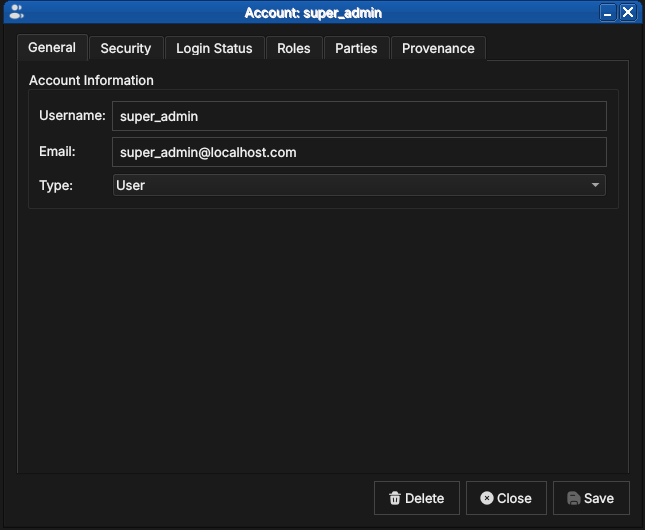
Figure 5: The General tab for super_admin, showing the username, email address, and account type.
- General — username, email, and the account type. The type is chosen at creation time and is read-only afterwards.
- Security — set or change the account password (see the new-account flow below).
- Login Status — read-only login telemetry: whether the account is online, locked, its failed login count, last login time, and last known IP addresses.
- Roles — the roles assigned to this account (next section).
- Parties — the parties this account may log in to.
- Provenance — who changed this record version, when, and why.
3.1. Roles and parties tabs
The Roles tab lists the roles currently assigned to the account, and is where capabilities are granted and revoked: pick a role in the combo box below the list and add it, or select an assigned role and remove it. Changes take effect on the account's next login.
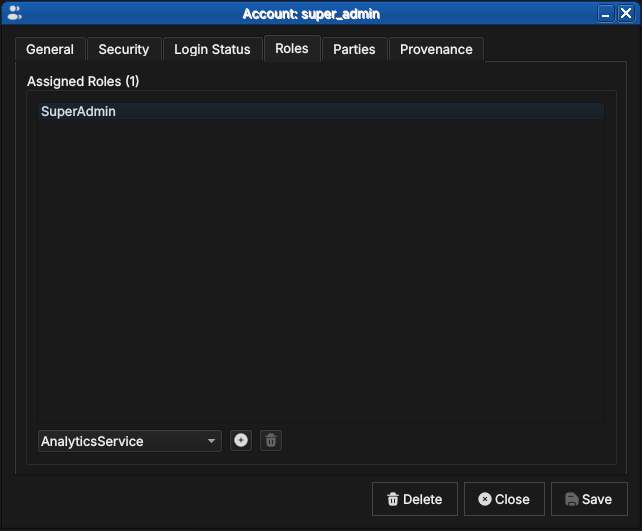
Figure 6: The Roles tab for super_admin, holding the single SuperAdmin role. The combo box below the list adds further roles; the buttons alongside add and remove the selection.
The Parties tab works the same way but governs visibility rather than capability: the parties listed here are the party contexts the account may select at login, as described in Initial Setup.
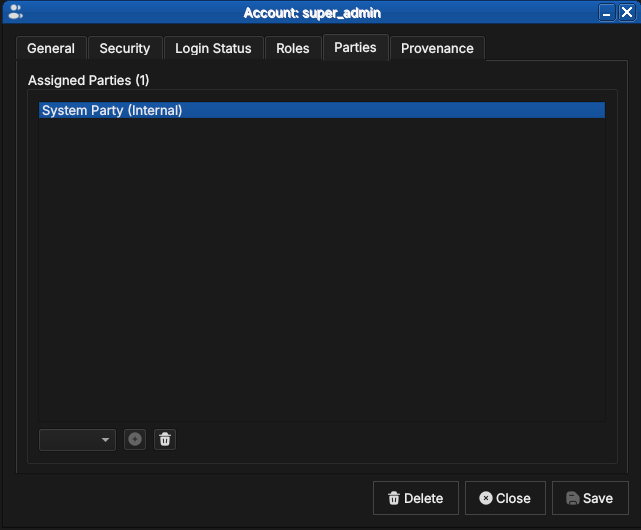
Figure 7: The Parties tab for super_admin, assigned to the internal System Party. Party assignment determines which party contexts the account may select at login.
An account with no party assignment cannot log in to any party context — the dialog warns you if you try to save one (see the new-account flow below).
For an account assigned to more than one party, the Default Party combo below the list picks which of the assigned parties is offered automatically at login — the party the Log in to default party checkbox on the login dialog selects without prompting (see Connecting to ORE Studio). Leaving it unset falls back to the manual Select Party dialog every time.
3.2. Provenance
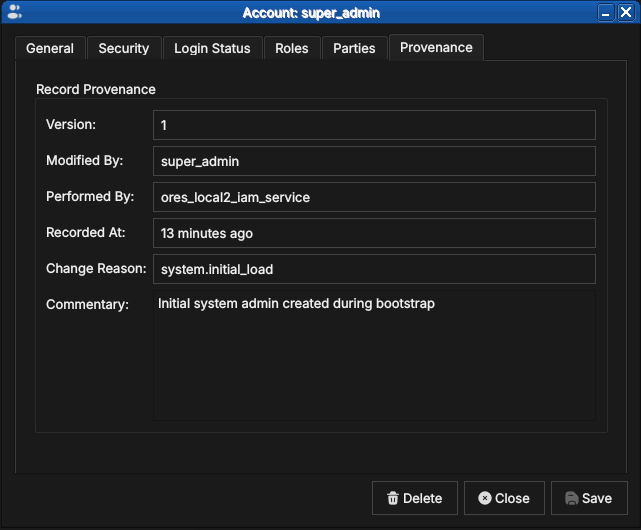
Figure 8: The Provenance tab for super_admin at version 1: modified by super_admin, performed by the IAM service, with the system.initial_load change reason and the bootstrap commentary.
Every account record is versioned and carries full provenance, following the same conventions as all OreStudio entities — see the Provenance section of the Reference Data chapter. Note the distinction visible in the screenshot: Modified By is the account on whose behalf the change was made, while Performed By records the backend service that executed it.
4. Creating an account
Press Add in the Accounts window toolbar to open the same detail dialog in creation mode, titled New Account.
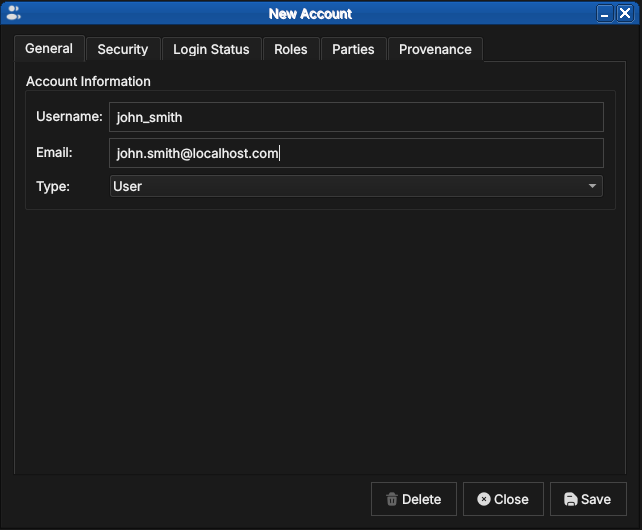
Figure 9: Creating john_smith: username, email, and account type on the General tab.
Passwords are set on the Security tab. The confirmation field outlines green once both entries match; tick Show passwords to verify what you typed before saving.
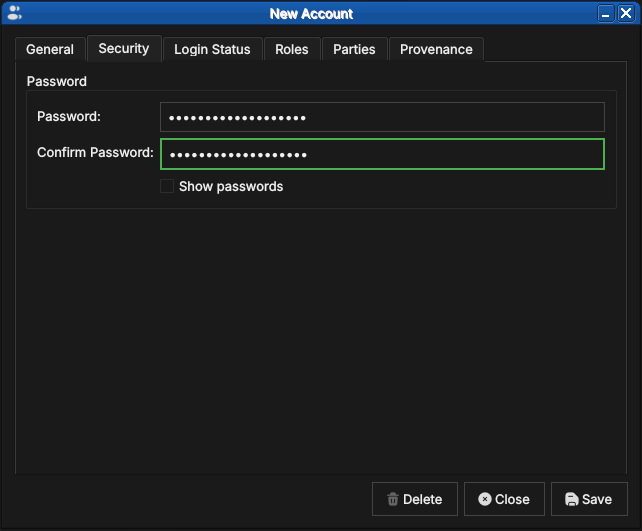
Figure 10: Setting the initial password. The green outline on the confirmation field indicates the two entries match.
Passwords are entered masked; ticking Show passwords reveals both fields, useful when setting an initial password you are about to hand to the new user:
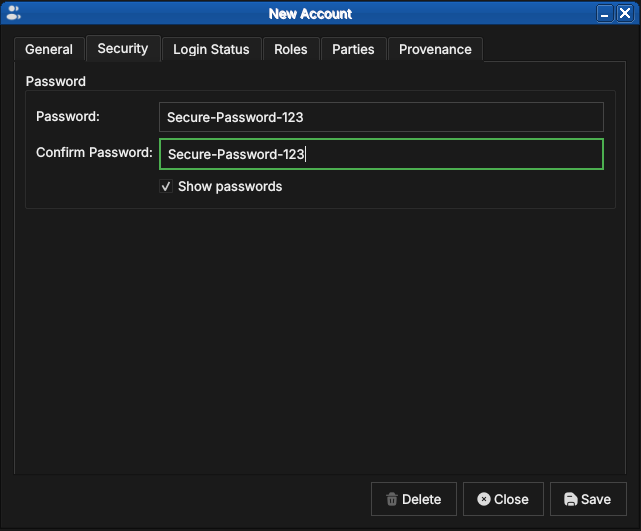
Figure 11: The same tab with Show passwords ticked, revealing the password text for visual verification.
Next, assign at least one role on the Roles tab — without one the account will hold no permissions (see the note below):
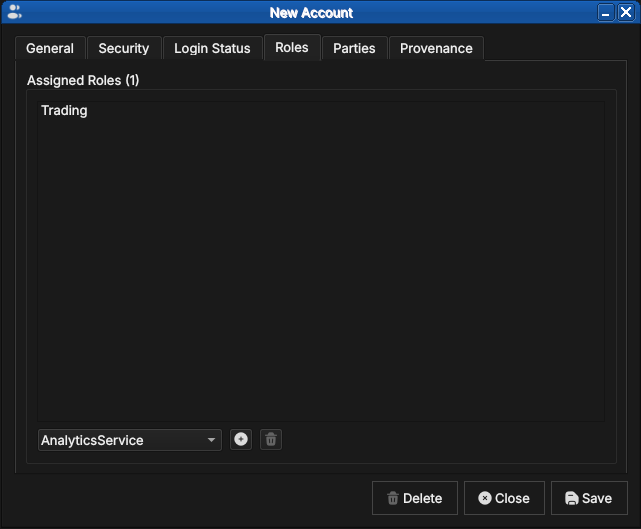
Figure 12: Assigning the Trading role to the new account. The combo box offers every role defined in the tenant.
For accounts that should log in to a party context, assign at least one party on the Parties tab; the combo box offers the tenant's party hierarchy:
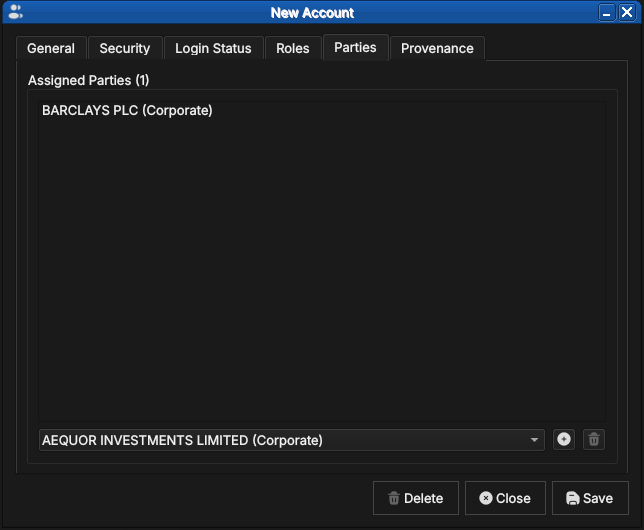
Figure 13: Assigning the new account to BARCLAYS PLC. The combo box lists the tenant's party hierarchy.
If you save without assigning a party, OreStudio asks for confirmation — such accounts exist but cannot enter any party context at login:
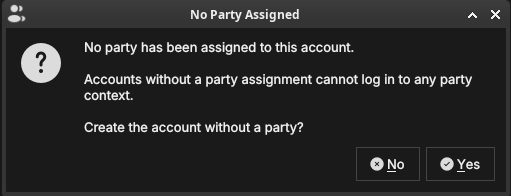
Figure 14: The confirmation shown when saving an account with no party assignment.
At present there is no equivalent warning for roles: OreStudio lets you save a new account with no role assignment and stays silent. Such an account can log in but holds no permissions, so almost every operation will be denied. Until a warning is added, double-check the Roles tab before saving a new account.
5. Roles and permissions
OreStudio implements industry-standard Role-Based Access Control (RBAC). RBAC separates three concepts that are easy to conflate:
- An account is an identity — it answers "who is this?". It carries credentials (a password for users, certificates for services) and is the thing that logs in, appears in provenance records, and gets locked or unlocked. An account grants nothing by itself.
- A permission is the atomic unit of capability — it answers "what
single thing may be done?". Permissions are fine-grained strings
following a
domain::resource:actionpattern:refdata::currencies:readallows reading currency records,iam::tenants:createallows creating tenants. A trailing wildcard covers a whole domain —analytics::*grants every analytics permission — and the bare wildcard*grants everything. - A role is a named bundle of permissions — it answers "what job does this identity do?". Roles are the only bridge between the two: accounts never hold permissions directly, they hold roles, and every permission an account exercises arrives through one of its roles.
This indirection is what keeps administration tractable: when a new
permission is needed by everyone in trading, it is added to the
Trading role once rather than to every trader's account, and an
account's capabilities can be read at a glance from its role list.
Open the Roles window from the Administration submenu of the System menu to see the bundles:
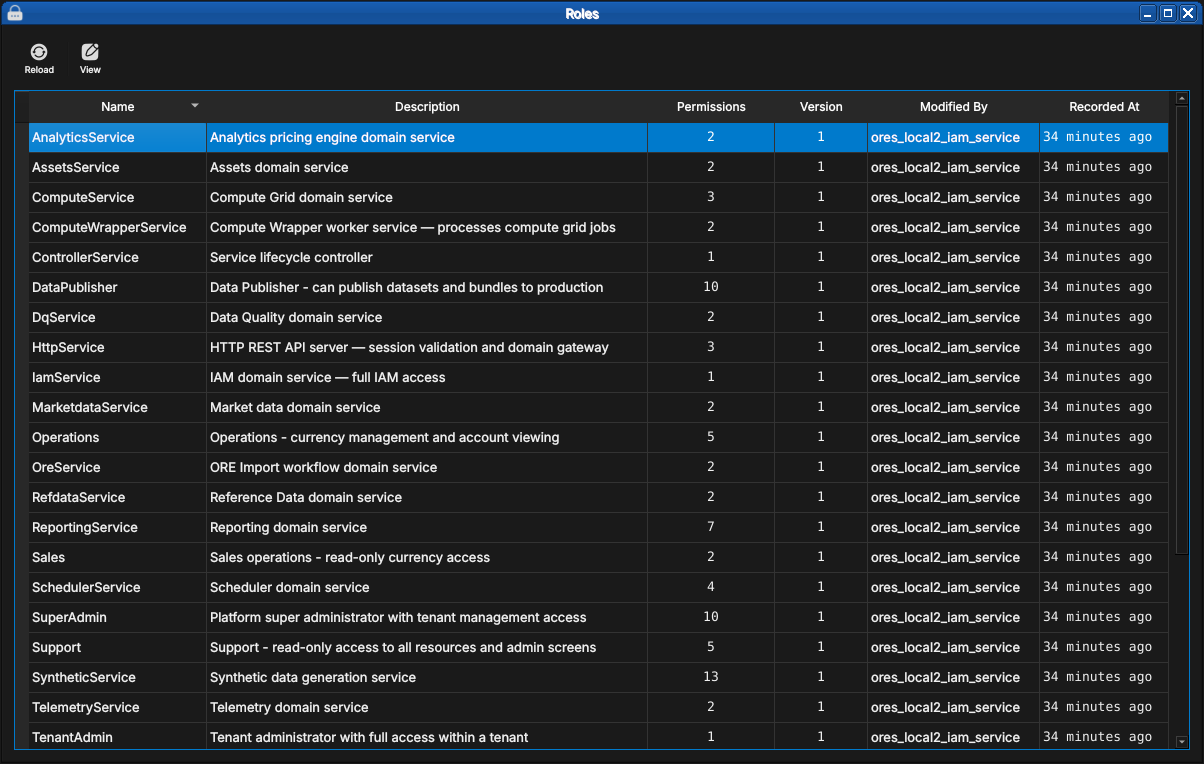
Figure 15: The Roles window listing the built-in roles — one per backend domain service plus the administrative and operational roles — with their permission counts and provenance.
5.1. Service roles
Every backend component runs under a dedicated service account (the
teal-badged accounts seen earlier in the system tenant), and each
service account holds exactly one matching service role —
IamService, RefdataService, AnalyticsService, ComputeService,
WorkflowService and so on, one per component. The bundle gives the
component full access to its own domain and read access to whatever
else it legitimately needs: the AnalyticsService role seen below
holds analytics::* plus iam::tenants:read, because the pricing
engine owns the analytics domain but only ever reads tenant records.
This is the principle of least privilege applied to OreStudio's own
machinery — a compromised or misbehaving component cannot reach beyond
its role.
5.2. Domain roles
For human users, OreStudio seeds operational roles modelled on the desks and functions of a financial institution:
| Role | Intended for |
|---|---|
SuperAdmin |
Platform administrators |
TenantAdmin |
Tenant administrators |
Trading |
Traders |
Sales |
Sales desks |
Operations |
Middle/back office |
Support |
Support staff |
Viewer |
Auditors, casual consumers |
DataPublisher |
Data stewards |
Each role's capability profile:
SuperAdmin— everything, plus the tenant lifecycle: create, suspend, terminate, reset.TenantAdmin— everything within their own tenant.Trading— read reference data; create, modify, archive and delete workspaces.Sales— read-only reference data.Operations— manage reference data (read, write, delete); view accounts.Support— read-only across resources and admin screens: accounts, roles, login info.Viewer— basic read-only access to domain data and workspaces.DataPublisher— publish curated datasets and bundles to production tables.
The profiles embody a simple gradient: Viewer and Sales observe,
Trading works within its own workspaces, Operations maintains the
shared data everyone depends on, and Support sees administrative
state without being able to change it. The two administrator roles
differ in scope rather than degree — TenantAdmin is omnipotent
inside one tenant, while SuperAdmin additionally manages the tenants
themselves from the system tenant.
The seeded roles are a starting point, and their capability profiles will grow as more of the system is brought under permission control. Roles are inspected through a read-only detail dialog:
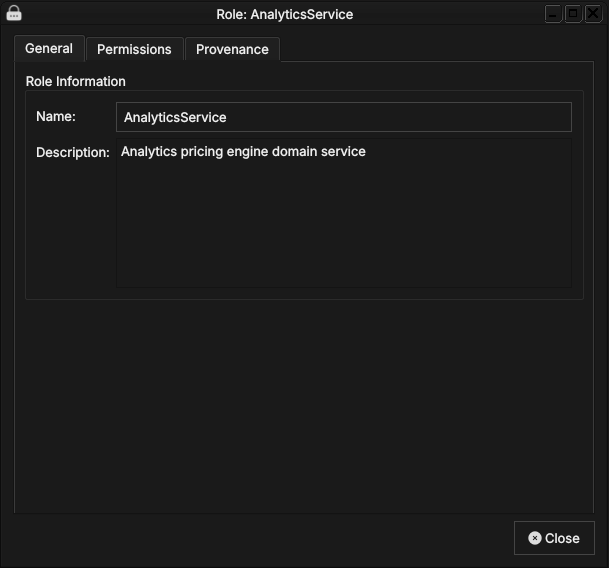
Figure 16: The AnalyticsService role: name and description.
The General tab carries only the role's name and a description of its
purpose — a role has no other state of its own. The substance lives on
the Permissions tab, which lists the permission strings the role
bundles. Reading them is the quickest way to understand exactly what a
role grants — here, analytics::* (every analytics permission) plus
iam::tenants:read (read-only access to tenant records), the
least-privilege profile of the pricing engine discussed above.
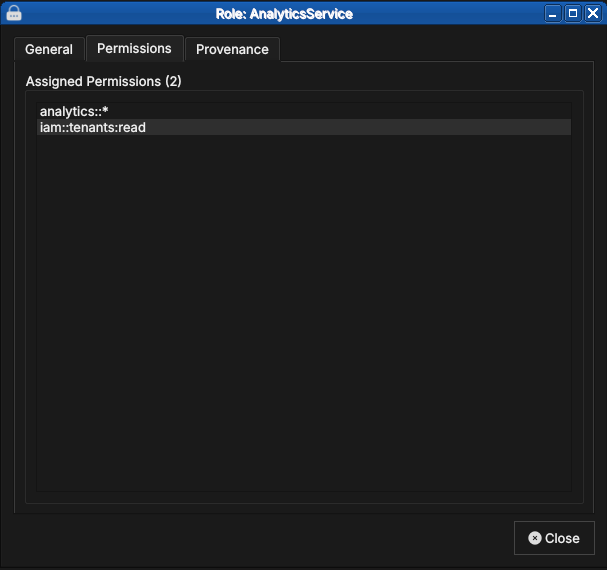
Figure 17: The role's two permissions, following the domain::resource:action pattern.
Finally, the Provenance tab shows that role records are versioned with full provenance like every other entity — changes to what a role grants are part of the audit trail.
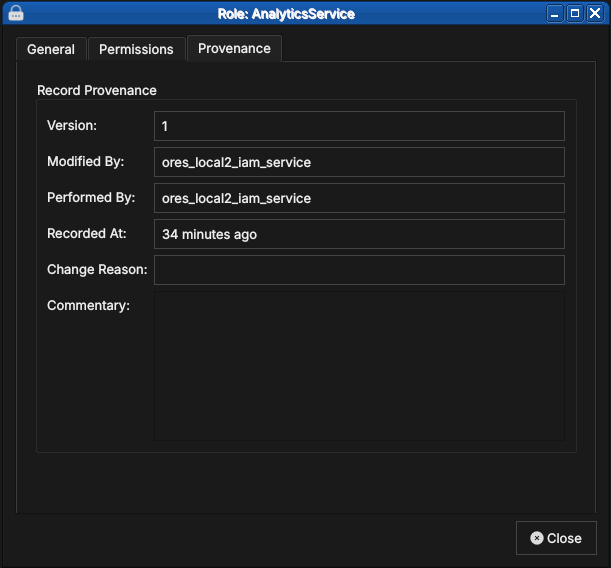
Figure 18: Role records carry the same versioned provenance as every other entity.
6. Conclusion
The chapter set out to show that managing accounts well follows from understanding the population you administer, the individual record, the flow that creates one, and the model that governs them all in turn, and it has traced exactly that path. The Accounts window presented every account your login identity may see — the platform administrator sees the system tenant's service machinery, a tenant administrator only their own tenant — and the detail dialog then managed a single account's credentials, roles, parties, and provenance across its six tabs. Creating an account proved to be the same dialog in create mode, with the party warning (and the silent role gap noted above) to watch for. Underneath it all, the RBAC model tied identity to capability: accounts are identities, permissions are atomic capabilities, and roles are the named bundles that bridge them — service roles for OreStudio's own components, domain roles for the desks and functions of a financial institution. The next chapter completes the administration picture with the tenants those accounts live in.
7. See also
- Initial Setup — the tenant and party model, the provisioning wizards that create the first accounts, and party selection at login.
- Tenants — managing the tenants that accounts belong to.
- Reference Data — the provenance and change-reason conventions shared by all entity windows.
- Role-Based Access Control — the general RBAC model behind OreStudio's roles and permissions.