Counterparties
Table of Contents
This chapter examines the counterparty as a reference-data entity in ORE Studio. A counterparty is the external mirror of a party — sharing almost the same shape but modelling the opposite side of a relationship — and the chapter sets out where the two genuinely diverge, the identifiers and contact information a counterparty carries, and the complete lifecycle of managing counterparty records through the Qt interface.
1. Overview
The chapter advances the argument that managing a counterparty well means first understanding how it differs from the party chapter this one mirrors, then the interface that governs its lifecycle. It begins by establishing what a counterparty is in What is a Counterparty?, leaning on the Parties chapter for everything the two entities share rather than repeating it. From there it sets out The counterparty hierarchy — a real structural difference from a party's single house-root rule — before surveying the body of records in The Counterparties window and narrowing to a single record in Counterparty Details and its General, Identifiers, Contact Information, Hierarchy, and Provenance tabs. It then turns to changing a record under audit — Editing, Deleting, and Counterparty history — culminating in reverting to an earlier version, the point at which the bitemporal audit trail does its work. The Conclusion draws these steps together.
2. What is a Counterparty?
A counterparty is an external legal entity the organisation trades with — a bank, a broker-dealer, a corporate, a fund — as distinct from a party, which represents the organisation's own internal structure. The two entities are deliberately near-identical in shape — full name, short code, party type, status, business center, identifiers, contact information, a hierarchy field — because both are answering the same underlying question (what legal entity is this, and how do we recognise it consistently), just for opposite sides of a trade. Everything about legal-entity identification — GLEIF, the LEI standard, why identification is hard, the identifier schemes OreStudio recognises — is covered once in the Parties chapter's What is a Party? section and not repeated here.
Two field-level differences are worth calling out because they
reflect a genuine modelling choice, not an oversight. First, a
counterparty has no codename — the auto-generated, immutable,
per-party message-queue and scheduled-job identifier a party carries
— because that machinery exists to namespace a party's own
processing (its queues, its scheduled reports), and a counterparty
has none of its own to namespace. Second, a counterparty's full
name is explicitly not unique within a tenant, unlike a party's:
the same external legal name can legitimately recur across distinct
branches or booking entities of the same institution, each with its
own short code, so OreStudio indexes full name for search without
constraining it to be distinct.
3. The counterparty hierarchy
A counterparty's parent_counterparty_id lets counterparties form
group structures too — a subsidiary counterparty pointing at its
parent institution — but the resemblance to a party's hierarchy
ends there. A party's hierarchy is a single tree per tenant with
exactly one designated house root, enforced by a database constraint;
a counterparty's hierarchy has no such constraint at all. Any number
of counterparties may have no parent, because each represents an
independent external organisation — Barclays' counterparties include
many unrelated banks and corporates, and there is no reason to force
them into one shared tree the way a tenant's own internal structure
is.
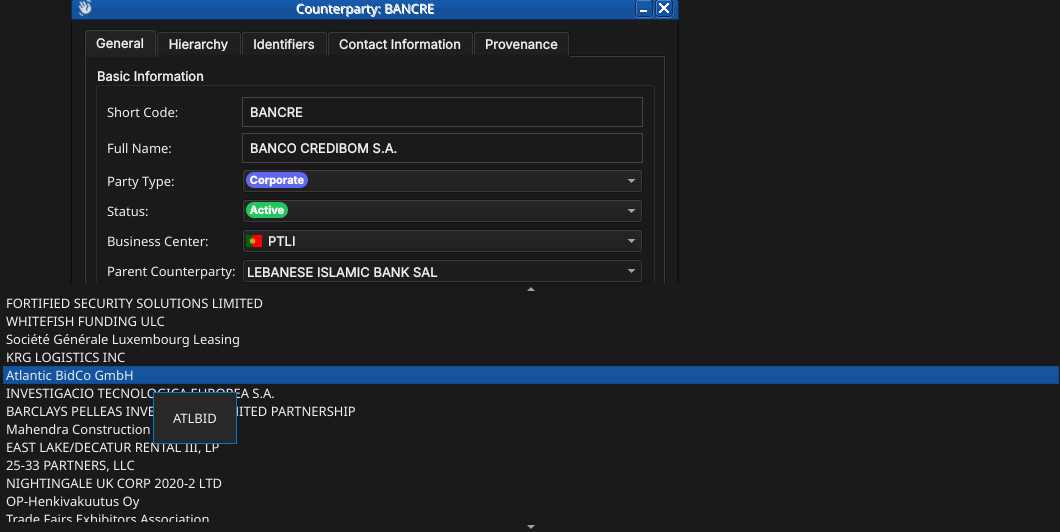
The Parent Counterparty combo reflects that directly: alongside every other counterparty, it offers a leading No Parent entry, and choosing it is a completely ordinary, unconstrained choice here — unlike a party's equivalent No Parent choice, nothing in the database restricts how many counterparties may have no parent. A standalone institution with no group structure to nest under is created or edited through this dialog like any other, simply by leaving Parent Counterparty set to No Parent.
4. The Counterparties window
Open the Counterparties window from the Reference Data menu. It lists all counterparties defined in the tenant, one row per counterparty, each row carrying the short code, full name, party type, status, business center, version, last modifier, and when the record was last recorded — the same column layout as the Parties window.
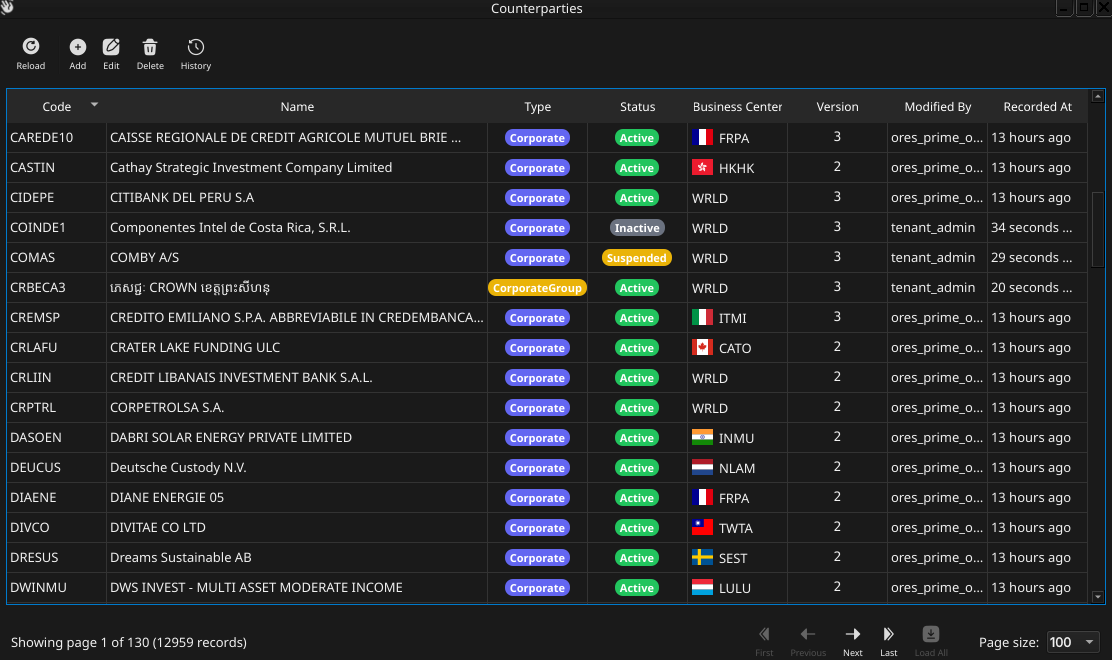
Figure 1: The Counterparties window, showing a page of counterparties. Each row shows the short code, name, party type and status badges, business center, version, last modifier, and when the record was last recorded; the status bar shows the current page and total record count.
The list is paginated; use the page controls at the bottom right to navigate. The toolbar buttons reload the list and open the add, edit, delete, and history actions. Double-clicking a row opens the Counterparty Details dialog.
5. Counterparty Details
The Counterparty Details dialog has five tabs — General, Identifiers, Contact Information, Hierarchy, and Provenance — the same set as Party Details. The three action buttons at the bottom — Delete, Close, and Save — apply to the counterparty as a whole.
5.1. General
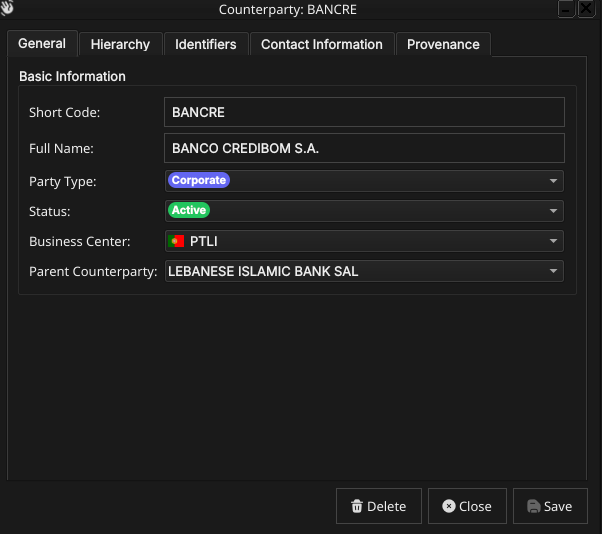
Figure 2: The General tab for a counterparty, showing its short code, full name, the populated Party Type and Status combos, the flagged Business Center combo, and the Parent Counterparty combo.
The General tab carries the core fields of the counterparty:
- Short Code — a brief mnemonic code. This is part of the natural key and cannot be changed after creation.
- Full Name — the counterparty's registered legal name. Unlike a party's, this is not required to be unique — see What is a Counterparty? above.
- Party Type — the counterparty's classification, chosen from the same tenant-configured party types a party uses, shown as a colour-coded badge once selected.
- Status — the counterparty's operational status, chosen from the same tenant-configured party statuses a party uses, shown as a colour-coded badge once selected.
- Business Center — the counterparty's primary location, chosen from a flagged combo of business center codes (see Business Centres).
Parent Counterparty — the counterparty's immediate parent, chosen from a combo listing a leading No Parent entry followed by every other counterparty by full name. When editing an existing counterparty, the counterparty being edited is excluded from its own list of candidate parents. See The counterparty hierarchy above for why No Parent is a completely ordinary choice here, unlike the equivalent choice for a party.
# Capture: open Counterparty Details, click the Parent Counterparty combo, and
5.2. Identifiers
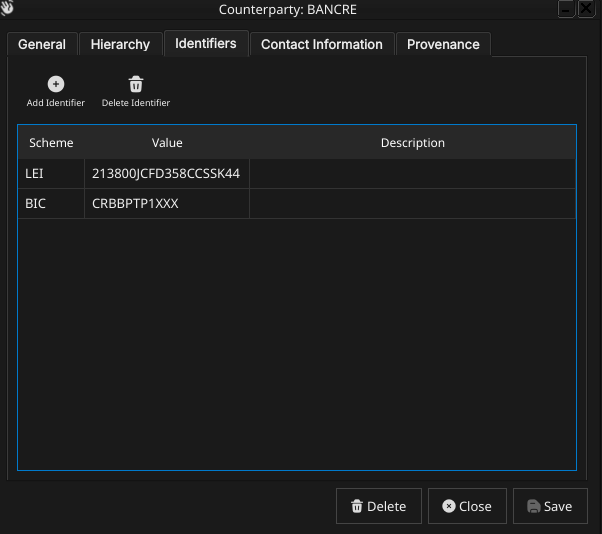
Figure 3: The Identifiers tab, listing the external identifiers held against a counterparty.
The Identifiers tab works exactly as a party's does — the same editable table, the same Identification Scheme, Identifier Value, and Description fields, the same ten schemes (LEI, BIC, and so on) — see Parties' Identifiers section for the full scheme table; it is not repeated here. A counterparty may hold at most one identifier per scheme, but as many different schemes as apply to it.
5.3. Contact Information
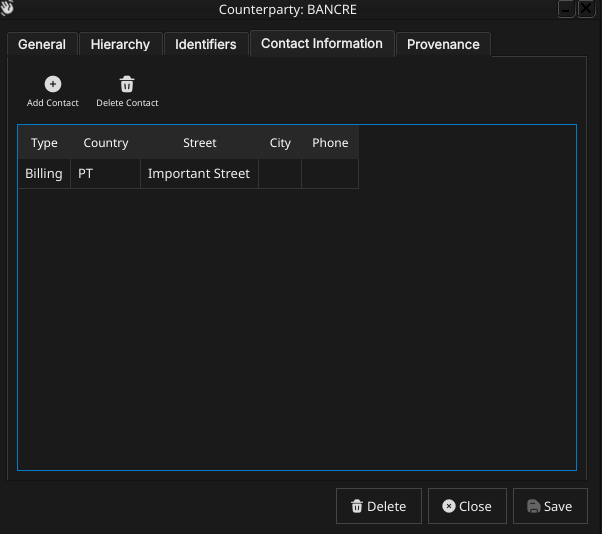
Figure 4: The Contact Information tab, listing the addresses and contact points held against a counterparty.
The Contact Information tab is, again, identical in shape to a party's: Contact Type, an optional street address, city, state, postal code, phone, and email, plus an optional flagged Country combo. A counterparty may hold more than one contact record, one per contact type.
5.4. Hierarchy
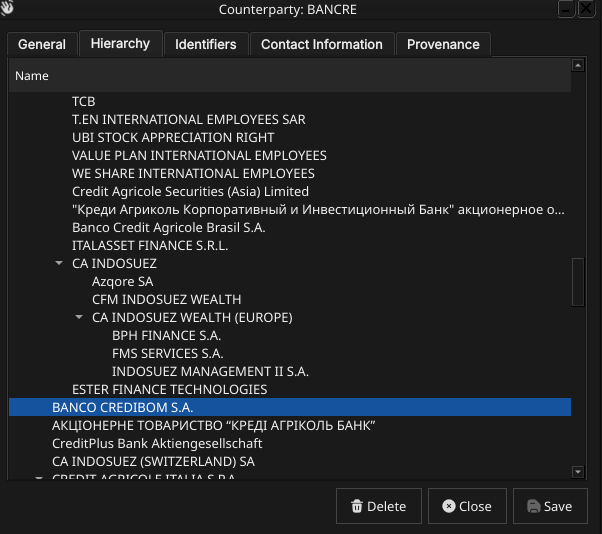
Figure 5: The Hierarchy tab for a counterparty, showing its chain of ancestors (if any) and its immediate children (if any).
The Hierarchy tab is read-only and shows this counterparty's position in whatever group structure it belongs to, if any — its chain of ancestor counterparties and its immediate children. Unlike a party's Hierarchy tab, there is no guarantee of a single connected tree reaching back to one root: an unrelated counterparty with no parent simply shows no ancestors at all. See The counterparty hierarchy above for why.
5.5. Provenance
The Provenance tab is read-only and shows the audit metadata for the current version. See the Reference Data — Provenance section for a full description of the provenance fields common to all reference data entities.
6. Editing a counterparty
To edit a counterparty, open it in the Counterparty Details dialog, make your changes, and click Save. Before the record is written, ORE Studio prompts for a change reason — the same Change Reason Required dialog shown in the Currencies chapter, and not repeated here. Select a Reason from the drop-down and add optional Commentary, then confirm. Every save creates a new version; the previous version is never overwritten.
7. Deleting a counterparty
To delete a counterparty, open it and click Delete. ORE Studio asks for confirmation before the record is closed off. Deletion is a soft close — the record's history is preserved and remains visible in the History dialog.
8. Counterparty history
To view the full change history, open the details dialog and click the history icon in the title bar, or right-click the row and choose History.
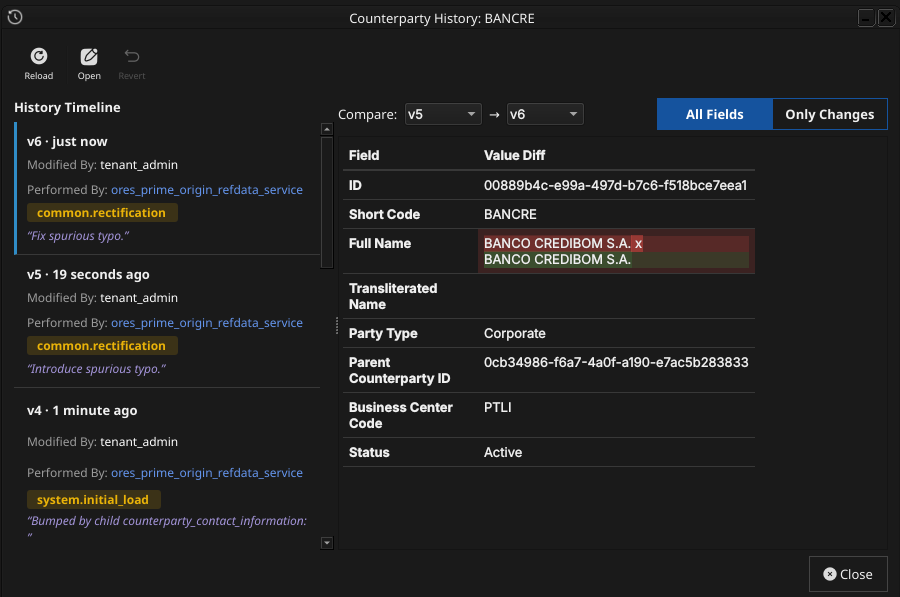
Figure 6: The History dialog for a counterparty, comparing two versions. The All Fields/Only Changes toggle narrows the field list to what actually differs between the two selected versions.
Pick the two versions to compare from the Compare drop-downs. The All Fields / Only Changes toggle switches between showing every field and showing only the fields that differ between the two selected versions. The Revert button reinstates any historical version as a new version, preserving the full audit chain — the old version is never rewritten.
9. Conclusion
The chapter set out to show that managing a counterparty well
follows from understanding how it differs from the party it mirrors,
and it has traced exactly that path. A counterparty shares a party's
full name, short code, type, status, business center, identifiers,
and contact information almost verbatim, but diverges in two real
ways: it carries no codename, since it has no processing of its own
to namespace, and its hierarchy has no single-root constraint, since
each counterparty represents an independent external organisation
rather than a branch of the tenant's own structure. Building on that,
the Qt interface took the record from the list view through its
General, Identifiers, Contact Information, Hierarchy, and Provenance
tabs, and through the editing, deleting, and history workflows, where
reverting to an earlier version demonstrated the same bitemporal
audit trail described in the Reference Data chapter. Shell and
command-line access to counterparties is not yet implemented beyond
the provision tenant GLEIF import path.
10. See also
- Parties — the internal mirror of this chapter; legal-entity identification, GLEIF/LEI, and the full identifier scheme table all live there rather than being duplicated here.
- Reference Data — the shared data quality and audit framework this chapter builds on.
- Currencies — the template chapter this one mirrors, including the Change Reason Required dialog.
- Business Centres — the business center a counterparty links to.
- Temporal Composite Entity Versioning — the architecture behind the Identifiers and Contact Information child tables.