Parties
Table of Contents
This chapter examines the party as a reference-data entity in ORE Studio. A party is an internal legal entity — the organisation itself and each of its subsidiaries — and, barring the tenant's own house root, every party sits somewhere beneath another in a single corporate hierarchy tree; the chapter sets out that hierarchy rule, the identifiers and contact information a party carries, and the complete lifecycle of managing party records through the Qt interface.
1. Overview
The chapter advances the argument that managing a party well means first understanding what it represents and how it fits into the organisation's structure, then the interface that governs its lifecycle. It begins by establishing what a party is in What is a Party?, then shows that a party's type and status are themselves configurable lookups with their own windows in Party types and statuses. From there it surveys the body of records in The Parties window before narrowing to a single record in Party Details and its five tabs — General, Identifiers (where the ten schemes a party can carry turn out to be a configurable lookup in their own right), Contact Information, Hierarchy (where the house-root rule introduced early in the chapter finally gets its screen), and Provenance. It then turns to changing a record under audit — Editing, Deleting, and Party history — culminating in reverting to an earlier version, the point at which the bitemporal audit trail does its work. The Conclusion draws these steps together and names what is deliberately still missing.
2. What is a Party?
A party is an internal legal entity participating in financial transactions — the organisation's own top-level entity and each of its subsidiaries, branches, and other group-structure members. See the Tenants chapter's Parties section for the conceptual model this chapter builds on: the house/counterparty distinction, the administrative system party, and how a user's position in the party hierarchy determines their data visibility. This chapter does not repeat that model; it picks up from it to document the Qt interface for managing individual party records.
A party is, first and foremost, a stand-in for a real legal entity — a registered company, a bank, a branch — and real legal entities are notoriously hard to identify consistently: the same organisation can appear under different names, registration numbers, and codes across different jurisdictions, counterparties, and vendor systems, with no single authority reconciling them all.
Because no single identifier scheme covers every counterpart a party might need to be recognised by, a party can carry more than one — see Identifiers below for the full set of schemes OreStudio recognises, including the LEI and BIC schemes GLEIF publishes.
Every party carries a full name (its official registered legal
name) and a short code (a brief mnemonic used elsewhere in the
system for quick reference), both of which participate in the
party's natural key alongside its surrogate id. A party also carries
a codename — a globally unique, immutable, human-readable
identifier (adjective_noun, e.g. swift_falcon) auto-generated on
creation and used internally as the party's per-party message-queue
prefix and scheduled-job namespace; it plays no role in the Qt UI and
is not user-editable.
A party's type classifies what kind of entity it is (e.g. Corporate), chosen from the tenant's configured party types, and its status tracks where it sits in its own operational lifecycle (e.g. Active), chosen from the tenant's configured party statuses — both shown as colour-coded badges once selected. A party also carries a business center — an FpML business center code identifying the entity's primary location, the same code list documented in the Business Centres chapter.
3. Party types and statuses
A party's type and status are not fixed enumerations built into OreStudio; they are themselves tenant-configured reference-data lookups, each with its own list and detail window under the Reference Data menu, alongside the Party Types and Party Statuses entries. Both follow the same small shape — a Code (the value stored against the party), a Name (the label shown in the combo and, once selected, on the colour-coded badge), an optional Description, and a Display Order controlling where the value falls in the combo's drop-down list — plus the standard Provenance tab described in Provenance below.
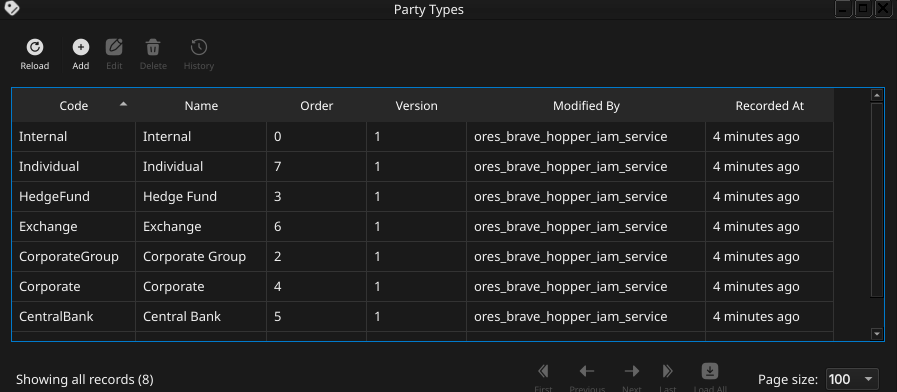
Figure 1: The Party Types window, listing the tenant's configured party types by code, name, order, version, last modifier, and when the record was last recorded.
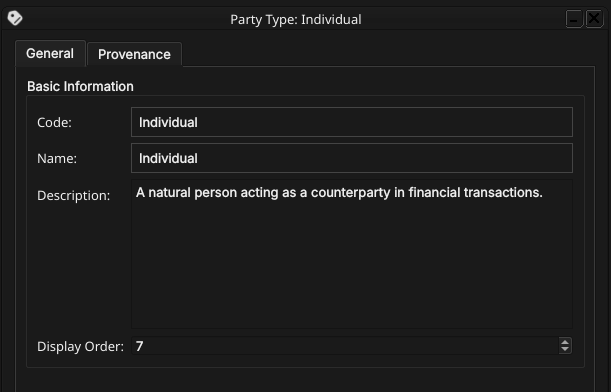
Figure 2: The Party Type Details dialog, showing its General tab (Code, Name, Description, Display Order) and Provenance tab.
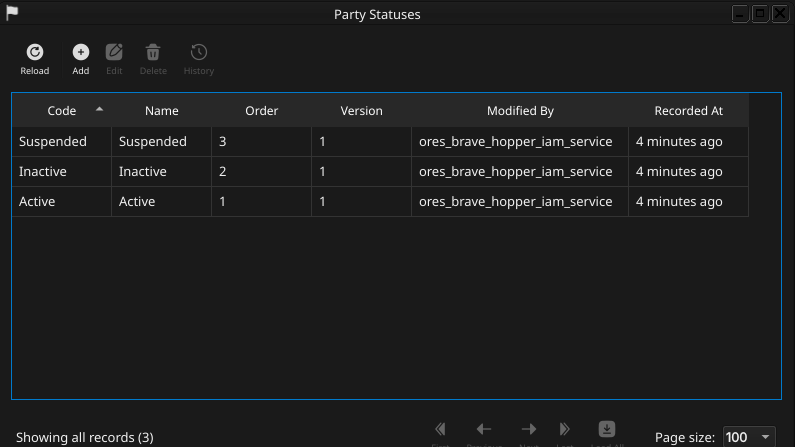
Figure 3: The Party Statuses window, listing the tenant's configured party statuses by code, name, order, version, last modifier, and when the record was last recorded.
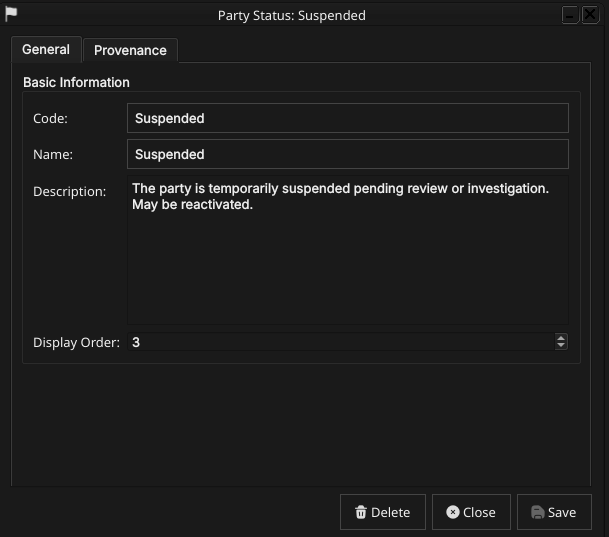
Figure 4: The Party Status Details dialog, showing its General tab (Code, Name, Description, Display Order) and Provenance tab.
Editing, deleting, and history for party type and party status records follow the same pattern described later in this chapter for the party record itself — a change reason on save, a soft close on delete, and a full version history with revert. Because both lookups are shared across every party (and, for status, every counterparty too — see the Counterparties chapter), changing a code or renaming a value here is immediately visible wherever that type or status is displayed.
With type and status established as configurable lookups in their own right, the rest of this chapter turns to the interface OreStudio provides for the party record itself — starting with the Parties window, which lists every party in the tenant.
4. The Parties window
Open the Parties window from the Reference Data menu. It lists all parties defined in the tenant, one row per party, each row carrying the short code, full name, party type, status, business center, version, last modifier, and when the record was last recorded.
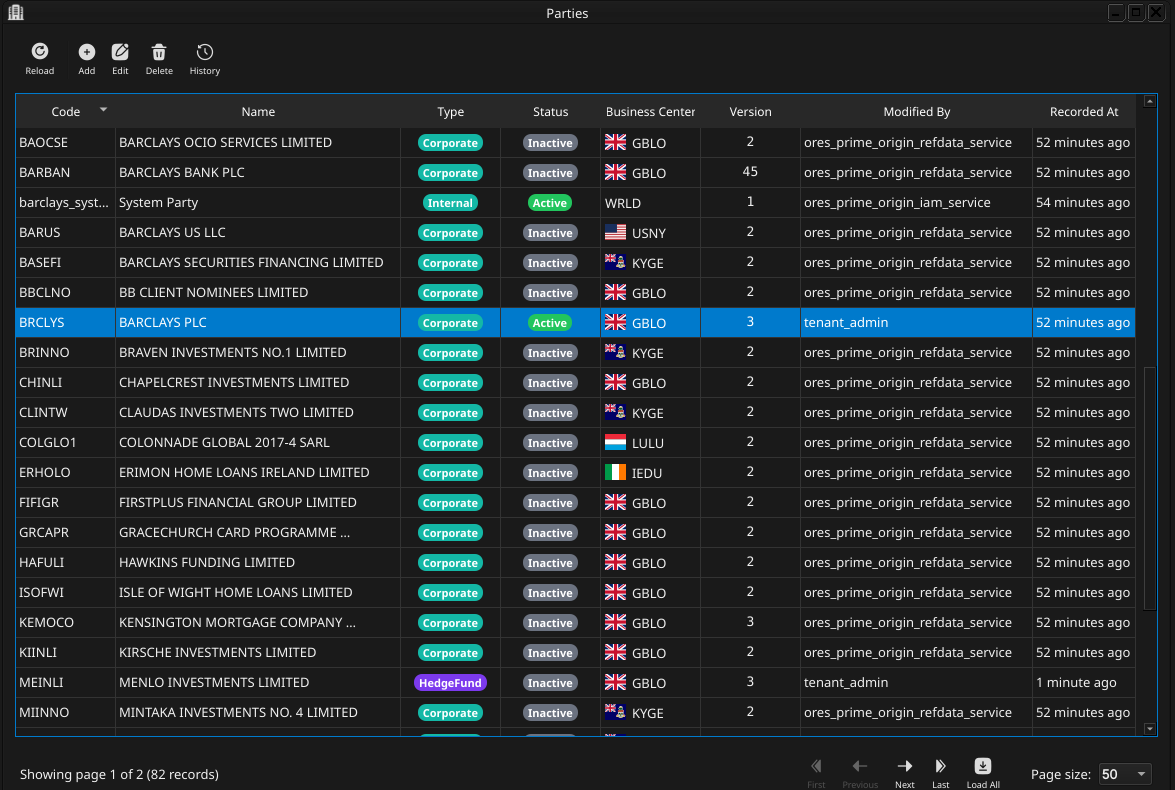
Figure 5: The Parties window, showing a page of parties. Each row shows the short code, name, party type and status badges, business center, version, last modifier, and when the record was last recorded; the status bar shows the current page and total record count.
The list is paginated; use the page controls at the bottom right to navigate. The toolbar buttons reload the list and open the add, edit, delete, and history actions. Double-clicking a row opens the Party Details dialog.
5. Party Details
The Party Details dialog has five tabs — General, Identifiers, Contact Information, Hierarchy, and Provenance. The three action buttons at the bottom — Delete, Close, and Save — apply to the party as a whole.
5.1. General
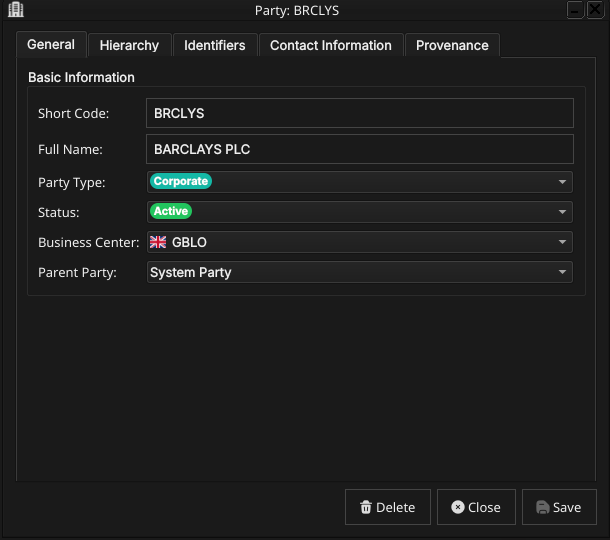
Figure 6: The General tab for a party, showing its short code, full name, the populated Party Type and Status combos, the flagged Business Center combo, and the Parent Party combo.
The General tab carries the core fields of the party:
- Short Code — a brief mnemonic code. This is part of the natural key and cannot be changed after creation.
- Full Name — the party's official registered legal name.
- Party Type — the party's classification, chosen from a combo populated from the tenant's configured party types and shown as a colour-coded badge once selected.
- Status — the party's operational status, chosen from a combo populated from the tenant's configured party statuses and shown as a colour-coded badge once selected.
- Business Center — the party's primary location, chosen from a flagged combo of business center codes (see Business Centres).
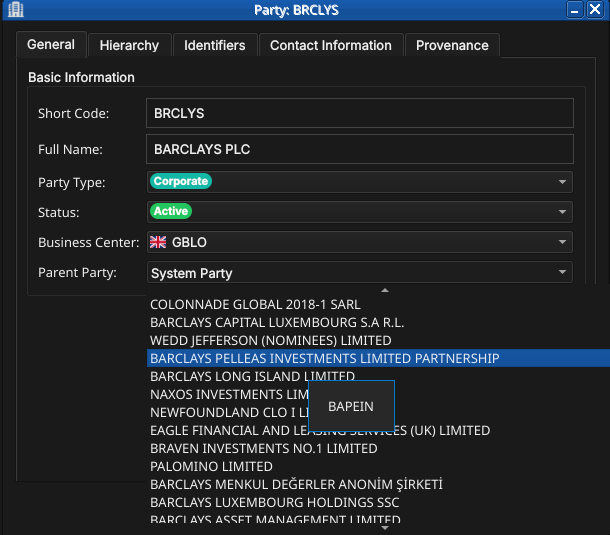
Parent Party — the party's immediate parent in the hierarchy, chosen from a combo listing every other party by full name, plus a leading No Parent entry. When editing an existing party, the party being edited is excluded from its own list of candidate parents, since a party can never be its own ancestor. No Parent is a genuinely valid choice — it is how the tenant's house root itself is represented — but saving a second party with no parent is rejected by the database's single-root constraint; see Hierarchy below for the full rule and how it plays out on that tab.
# Capture: open Party Details, click the Parent Party combo, and screenshot it open
5.2. Identifiers
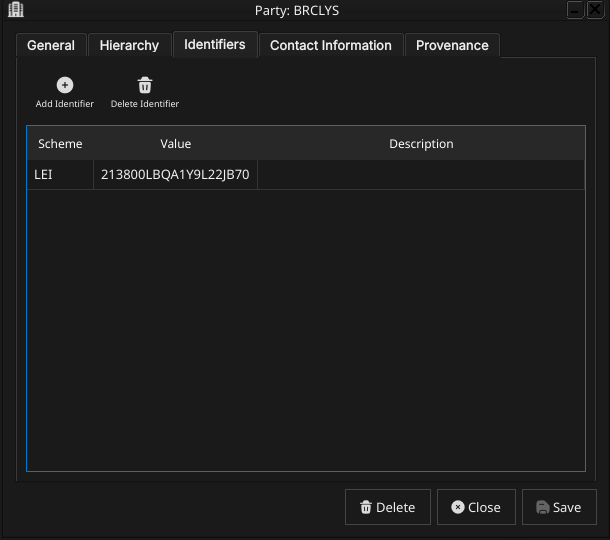
Figure 7: The Identifiers tab, listing the external identifiers held against a party.
The Identifiers tab is an editable table of external identifiers held against the party. Each row carries an Identification Scheme (chosen from the tenant's configured schemes), an Identifier Value (the actual code or string within that scheme), and an optional free-text Description. A party may hold at most one identifier per scheme, but may hold identifiers under as many different schemes as apply to it. Use the row toolbar to add, edit, or remove identifier rows; changes to this tab are saved together with the rest of the party record when Save is clicked.
The ten schemes OreStudio recognises span a spectrum from globally standardised to purely internal, reflecting how fragmented legal entity identification remains in practice: even the LEI, the closest thing to a universal answer, only reaches back to 2012 and still leaves gaps that jurisdiction-specific and venue-specific schemes fill.
| Scheme | Standard / issuer | What it identifies |
|---|---|---|
LEI |
ISO 17442 / GLEIF | Any legal entity, globally, mandated for MiFID II/EMIR/Dodd-Frank/Basel III reporting. |
BIC |
ISO 9362 / SWIFT | Banks and financial institutions on the SWIFT network. |
MIC |
ISO 10383 / SWIFT | Trading venues (e.g. XNYS, XLON), where a party also acts as a venue. |
NATIONAL_ID |
Jurisdiction-specific | Passport, tax ID, or national ID card — covers MiFID II client identification. |
CEDB |
CFTC (US) | CFTC Entity Directory code for non-LEI entities in swap data reporting. |
NATURAL_PERSON |
Not standardised | Individuals (employee ID, trader ID); value interpreted contextually. |
ACER |
EU Agency for Energy Regulation | Non-LEI energy market participants, for REMIT reporting. |
DTCC_PARTICIPANT_ID |
DTCC (US) | Member firms in US clearing and settlement systems. |
MPID |
FINRA (US) | Broker-dealers and ATSs in US equities markets (also known as AII). |
INTERNAL |
Proprietary | A party's own OMS, CRM, or clearing-system client ID. |
GLEIF and the Legal Entity Identifier (LEI)
The Global Legal Entity Identifier Foundation (GLEIF) is a not-for-profit organisation that oversees the global LEI system on behalf of financial regulators. A Legal Entity Identifier (LEI) is a 20-character alphanumeric code that uniquely identifies a legal entity participating in financial markets — a bank, a corporation, a fund, a branch. LEIs are mandated by major regulatory frameworks including MiFID II, EMIR, Dodd-Frank, and Basel III for trade reporting and counterparty identification.
GLEIF publishes the full registry of LEI entities and their corporate hierarchies (parent-child relationships) as open data. OreStudio uses the GLEIF dataset to seed counterparties and, when a party's root LEI is selected during tenant provisioning, to populate the initial party hierarchy from real organisational data — see Hierarchy below.
A BIC (Bank Identifier Code, ISO 9362) is an 8 or 11 character code identifying a specific financial institution, used in SWIFT messaging for settlement routing. GLEIF publishes a LEI-to-BIC mapping dataset that OreStudio also imports, allowing settlement systems to resolve a counterparty's BIC from its LEI.
These ten schemes are seeded on tenant provisioning, but the table
above is not a fixed list either — the Identification Scheme combo
itself is populated from the Party Id Schemes lookup, its own
reference-data entity with a list and detail window under the
Reference Data menu. Each scheme record carries a Code (LEI,
BIC, and so on — the value stored against each identifier row), a
Name, an optional Description, a Coding Scheme field (an
external coding-scheme identifier, used where the value needs to
resolve against an outside standard such as an FpML scheme URI), a
Display Order, and a Max Cardinality field (an optional cap on
how many identifiers under this scheme a single party may hold, left
(unset) for schemes with no such limit), plus the standard
Provenance tab.
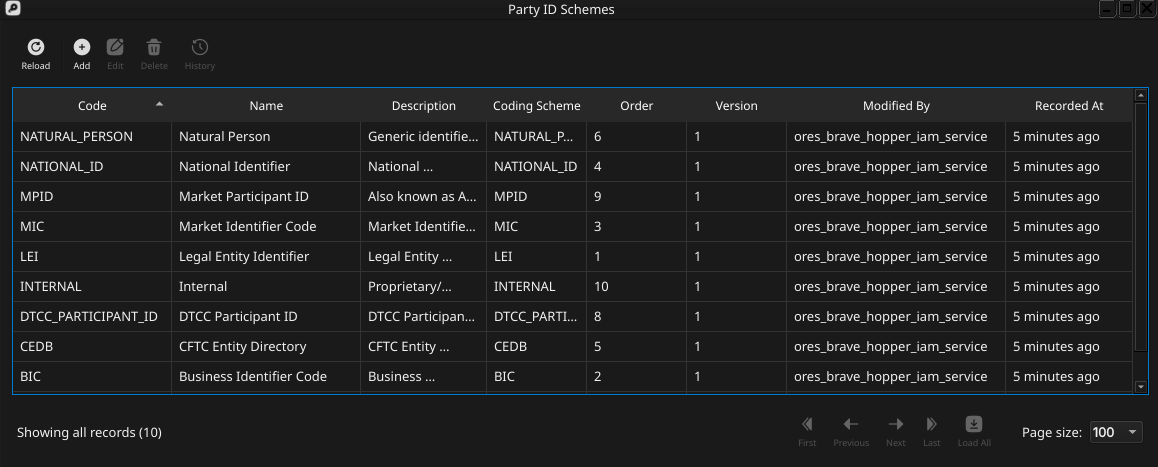
Figure 8: The Party Id Schemes window, listing the tenant's configured identification schemes by code, name, description, coding scheme, order, version, last modifier, and when the record was last recorded.
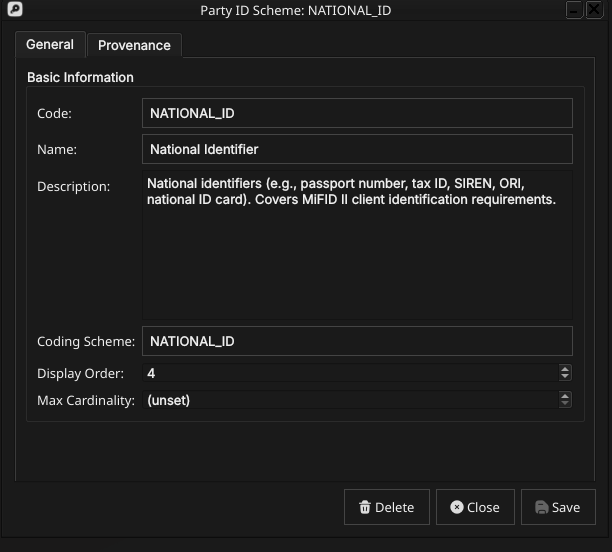
Figure 9: The Party Id Scheme Details dialog, showing its General tab (Code, Name, Description, Coding Scheme, Display Order, Max Cardinality) and Provenance tab.
A tenant can add, edit, or retire schemes here rather than being limited to the ten in the table above; editing, deleting, and history for a scheme record follow the same change-reason, soft-close, and revert pattern as the party record itself, described later in this chapter.
5.3. Contact Information
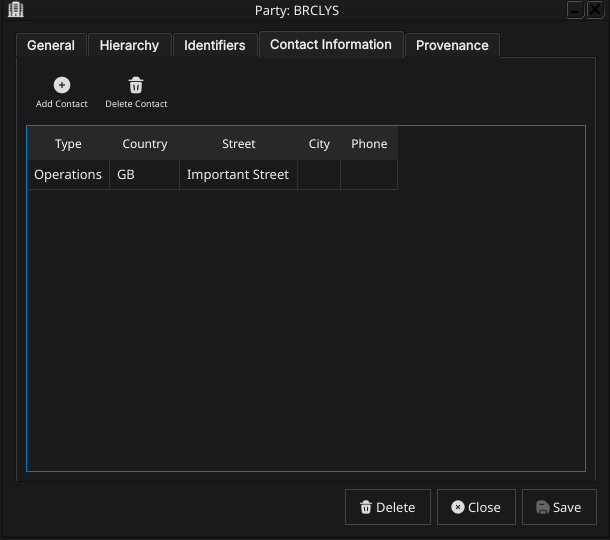
Figure 10: The Contact Information tab, listing the addresses and contact points held against a party.
The Contact Information tab is an editable table of addresses and contact points held against the party. Each row carries a Contact Type (e.g. Legal, Operations, Settlement, Billing — distinguishing, for instance, a registered legal address from an operational one) and an optional street address, city, state, postal code, phone, and email, plus an optional Country chosen from a flagged combo of ISO 3166-1 alpha-2 country codes. A party may hold more than one contact record, one per contact type. Use the row toolbar to add, edit, or remove rows; changes to this tab are saved together with the rest of the party record when Save is clicked.
5.4. Hierarchy
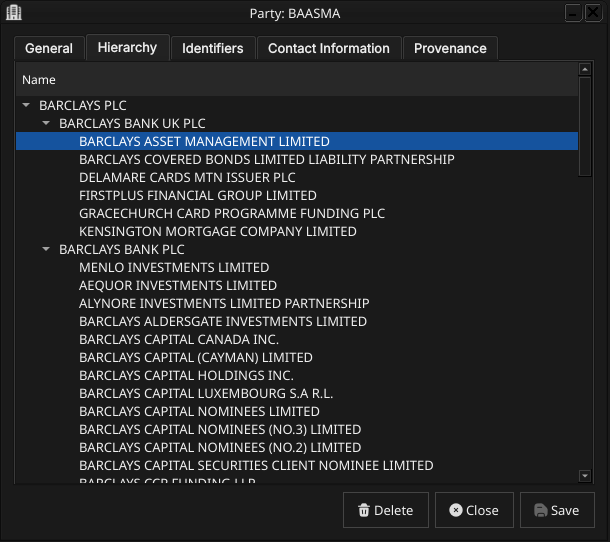
Figure 11: The Hierarchy tab for a party, showing its chain of ancestors up to the tenant's root party and its immediate children.
The Hierarchy tab is read-only and shows this party's position in the tenant's single corporate tree: its chain of ancestor parties up to the root, and its immediate children, if any. This is the screen that makes the party hierarchy rule introduced earlier in the chapter concrete, and it is worth spelling that rule out in full here.
Every tenant has, at most, two parties with no parent: the system party created automatically during provisioning (administrative only, never part of the business hierarchy), and — among the operational parties that actually own trades, books, and analytics results — exactly one house root, the organisation's own top-level legal entity. This is enforced structurally, not just by convention: the database carries a unique index that permits at most one operational party per tenant with no parent. Once that one slot is taken by the house root, every other operational party must supply a parent — a second attempt to create a rootless operational party is rejected outright.
The practical consequence for the General tab's Parent Party combo
(see General above) is that it does offer a No Parent choice, but
the database enforces the rest: saving a second party with no parent
is rejected outright, so in practice No Parent only succeeds for the
tenant's one house root. A business entity newly onboarded into ORE
Studio almost always needs to attach somewhere in the one tree that
already exists for its tenant — a party can also be created from the
shell's provision party command, which is not bound by any
particular UI's field requirements.
In practice, most parties never go through the manual Create dialog at all: the shell-driven GLEIF (Global Legal Entity Identifier Foundation) reference data pipeline resolves an entity's real-world corporate-hierarchy relationships and assigns each imported party's parent automatically, level by level, from that external data. The manual Create dialog exists for the smaller number of parties added or corrected by hand outside that pipeline — and this Hierarchy tab is where the result of either path, automatic or manual, becomes visible for a given party.
5.5. Provenance
The Provenance tab is read-only and shows the audit metadata for the current version. See the Reference Data — Provenance section for a full description of the provenance fields common to all reference data entities.
6. Editing a party
To edit a party, open it in the Party Details dialog, make your changes, and click Save. Before the record is written, ORE Studio prompts for a change reason — the same Change Reason Required dialog shown in the Currencies chapter, and not repeated here. Select a Reason from the drop-down and add optional Commentary, then confirm. Every save creates a new version; the previous version is never overwritten.
7. Deleting a party
To delete a party, open it and click Delete. ORE Studio asks for confirmation before the record is closed off. Deletion is a soft close — the record's history is preserved and remains visible in the History dialog.
8. Party history
To view the full change history, open the details dialog and click the history icon in the title bar, or right-click the row and choose History.
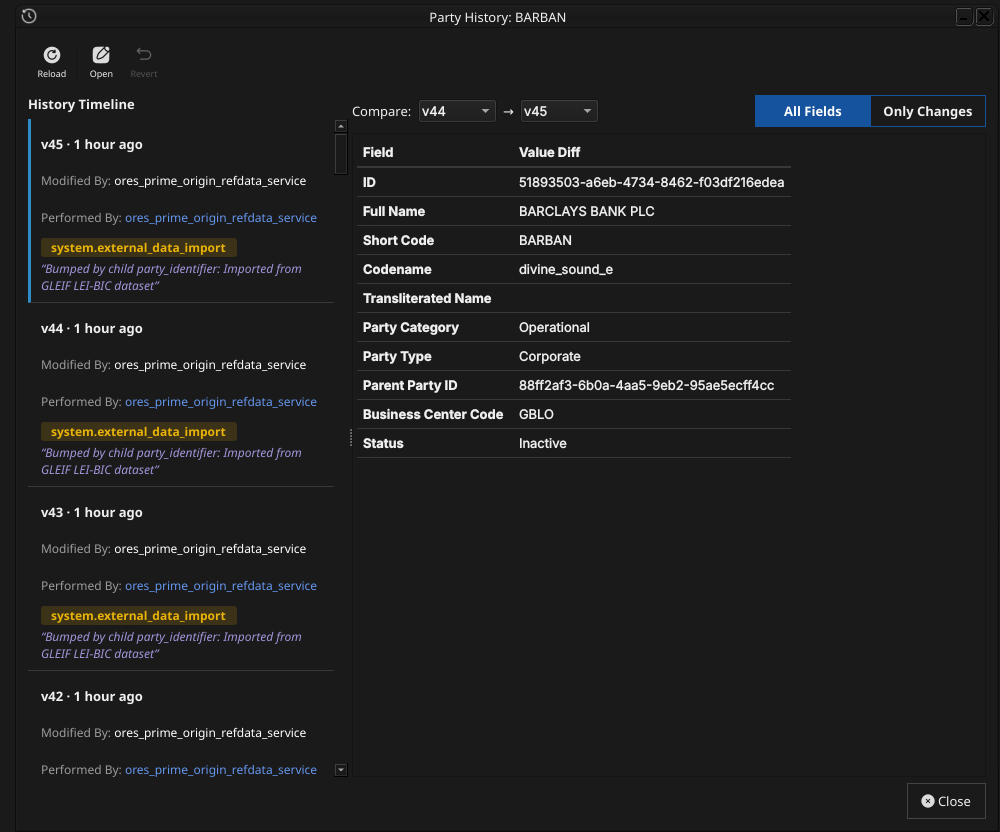
Figure 12: The History dialog for party BARCLAYS BANK PLC, comparing version 44 against version 45. The Only Changes toggle narrows the field list to what actually differs between the two selected versions.
Pick the two versions to compare from the Compare drop-downs on the right. The All Fields / Only Changes toggle switches between showing every field and showing only the fields that differ between the two selected versions. The Revert button reinstates any historical version as a new version, preserving the full audit chain — the old version is never rewritten.
9. Conclusion
The chapter set out to show that managing a party well follows from
understanding what it represents and how it fits into the
organisation's structure, and it has traced exactly that path. A
party is an internal legal entity identified by a short code and full
name, carrying a type and status, and sitting beneath a parent party
in a single corporate hierarchy tree — with the sole exception of the
tenant's own house root; the Parent Party combo's No Parent choice
exists precisely for that one narrow exception, with the database
rejecting any second attempt to use it. Building on that, the Qt
interface took the record from the list view
through its General, Identifiers, Contact Information, Hierarchy, and
Provenance tabs, and through the editing, deleting, and history workflows, where
reverting to an earlier version demonstrated the same bitemporal
audit trail described in the Reference Data chapter. The shell's
provision party command covers bulk/GLEIF onboarding (see
Hierarchy above), but general-purpose shell/CLI commands
for adding, editing, deleting, or viewing the history of an
individual party are not yet implemented — tracked separately rather
than glossed over here. See the Counterparties chapter for the
external-facing mirror of this one.
10. See also
- Tenants — the multi-tenant, multi-party conceptual model (house vs counterparty, the system party, hierarchy-based data visibility) this chapter assumes and builds on.
- Reference Data — the shared data quality and audit framework this chapter builds on.
- Currencies — the template chapter this one mirrors, including the Change Reason Required dialog.
- Counterparties — the external-facing mirror of this chapter.
- Business Centres — the business center a party links to, and the country flag a contact record may carry.
- Temporal Composite Entity Versioning — the architecture behind the Identifiers and Contact Information child tables.