Portfolios
Table of Contents
This chapter examines the portfolio as a reference-data entity in ORE Studio. A portfolio is the logical grouping node that organises books for risk management; the chapter sets out what a portfolio represents alongside the book it sits next to, the interface that governs its lifecycle, and the meaning of its fields — a self-referencing hierarchy, a purpose classification, and an operational status.
1. Overview
The chapter advances the argument that managing a portfolio well means first understanding what it represents relative to the book it sits alongside, then the interface that governs it. It begins by establishing Portfolios and books — the core distinction between the two, and the hierarchy portfolios alone carry — before turning to What is a Portfolio? and the fields a portfolio record actually carries. From there it surveys the body of records in The Portfolios window before narrowing to a single record in Portfolio Details and its General and Provenance tabs. It then turns to changing a record under audit — Editing, Deleting, and Portfolio history — culminating in reverting to an earlier version, the point at which the bitemporal audit trail does its work. Before concluding, it turns to the lookup entity backing the portfolio's own purpose classification field in Purpose Types. The Conclusion draws these steps together.
2. Portfolios and books
A portfolio is a trading concept, not an accounting one: it is an arbitrary hierarchy that traders and desks shape however makes sense for risk management, and it is never reflected into the general ledger. This sets it apart from a book, which must map onto the firm's ledger and is created by Finance rather than by the trading system itself. A useful shorthand for the pair is that books are the physical representation of trading activity and portfolios the logical one — or, borrowing a filesystem analogy, a portfolio is a folder and a book is a file. A portfolio holds books and other portfolios; it never holds deals directly, just as a folder holds files and other folders but is not itself a file.
This split matters because of where hierarchy lives. In the real-world accounting sense a book can have child books through ledger setup, but ORE Studio deliberately does not model that book-to-book hierarchy — the book record has no parent-book field, and there is no plan to add one. Instead, every layer of grouping that the ledger's own structure would otherwise express — a global root grouping, retired branches, sub-groupings by desk or region — is expressed once, through the portfolio tree. A portfolio carries a self-referencing parent, so portfolios can nest inside other portfolios to any depth, and every book links to exactly one portfolio. Duplicating that structure on the book side would add a second tree to keep in sync for no benefit, since the trading system's only job with respect to books is to hold a view of the ledger, not to manage the ledger's own hierarchy.
Desks group books into portfolios for reasons such as instrument type, valuation complexity, trader seniority, or region — a Head of Desk's portfolio, for instance, can be the superset of all their traders' individual portfolios, nested arbitrarily deep. With the relationship between the two entities established, the rest of this chapter turns from that relationship to the portfolio record itself — what fields it carries and the interface that governs it.
3. What is a Portfolio?
A portfolio is a named grouping node within a party's organisational
structure, identified by a system-generated id and a human-readable
Name — e.g. "Global Rates" or "APAC Credit". Every portfolio belongs
to exactly one party, and, per Portfolios and books above, may
optionally have a parent portfolio, letting portfolios nest to
represent a trading organisation's actual reporting lines. The parent
relationship is not yet exposed as an editable field in the Portfolio
Details dialog described below — a portfolio's place in the hierarchy
is set at creation and read through the record's data rather than
edited from a combo box, the same gap the Book chapter's account of
owner_unit_id describes for the equivalent business-unit field on a
book.
A portfolio carries a purpose type — its classification by intent, chosen from a fixed set of values: Risk (the default, for day-to-day risk-management groupings), Regulatory (portfolios kept for regulatory-reporting purposes), Client Reporting, and Internal. It also carries an optional aggregation currency — the currency P&L and risk figures roll up into at this node — and an optional free-text description. A Virtual flag distinguishes a node that exists purely for on-demand reporting, not persisted into trade attribution, from an ordinary portfolio node; and, like a book, a portfolio carries a status reflecting its position in an operational lifecycle — Active, Inactive, Closed, Frozen, or Pending. Unlike a book's status, whose real-world multi-party opening and closing workflow the Book chapter documents in detail, portfolio status is a simpler field with no equivalent formal workflow documented yet — it is set and changed directly on the record.
With the record's fields established, the rest of this chapter turns from what a portfolio contains to where you go to work with one.
4. The Portfolios window
Open the Portfolios window from the Reference Data menu. It lists every portfolio defined in the tenant, with one row per portfolio.
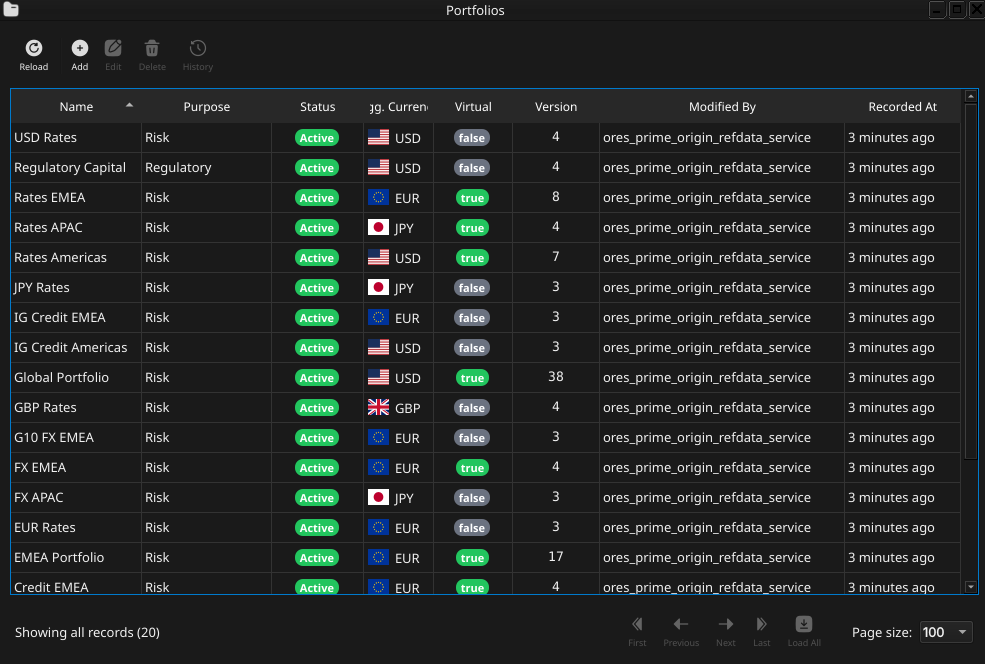
Figure 1: The Portfolios window showing the full list of portfolios in the tenant.
Each row shows the name, purpose type, status (as a colour-coded badge), aggregation currency (with flag icon), the virtual flag (as a colour-coded badge), version number, the identity of the last modifier, and when the record was last recorded. The toolbar buttons reload the list and open the add, edit, delete, and history actions. The list is paginated; use the page controls at the bottom right to navigate. Double-clicking a row opens the Portfolio Details dialog.
5. Portfolio Details
The Portfolio Details dialog has two tabs — General and Provenance. The three action buttons at the bottom — Delete, Close, and Save — apply to the portfolio as a whole.
5.1. General
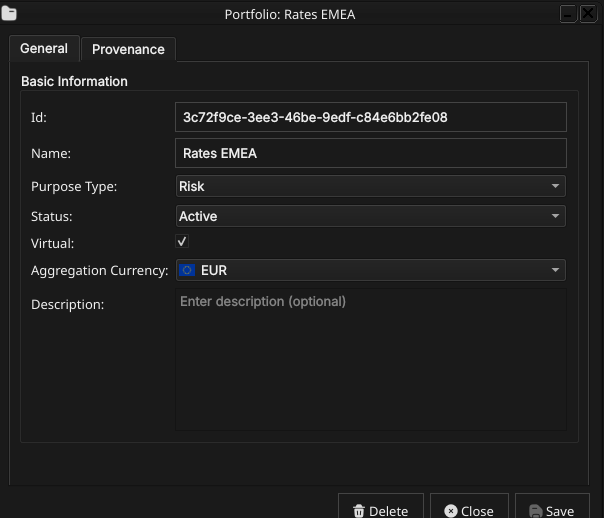
Figure 2: Portfolio Details — General tab, showing the id, name, purpose type, status, aggregation currency, virtual flag, and description fields.
The General tab carries the fields of the portfolio:
- Id — the portfolio's identifier. This is the primary key and cannot be changed after creation.
- Name — the portfolio's display name.
- Purpose Type — the portfolio's classification by intent, chosen from a combo box populated with the tenant's configured purpose types and shown as plain text once selected. See What is a Portfolio? above for what each value means.
Status — the portfolio's position in its operational lifecycle, chosen from a fixed combo box (Active, Inactive, Closed, Frozen, Pending) and shown as a colour-coded badge once selected.
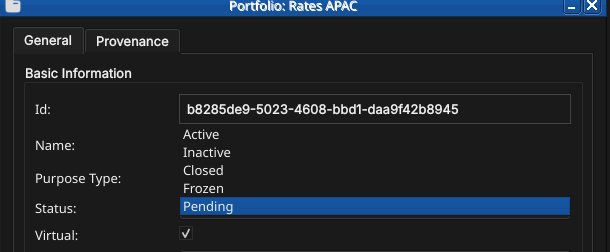
Figure 3: The Status combo box open, showing all five status values.
- Aggregation Currency — the currency P&L and risk figures roll up into at this node, chosen from a combo box populated with ISO currency codes, each shown with its flag icon; c.f. the same combo widget in the Currencies chapter.
- Virtual — a checkbox marking a node that exists purely for on-demand reporting, shown as a colour-coded badge in the list view.
- Description — free-text, optional.
5.2. Provenance
The Provenance tab is read-only and shows the audit metadata for the current version. See the Reference Data — Provenance section for a full description of the provenance fields common to all reference data entities.
6. Editing a portfolio
To edit a portfolio, open it in the Portfolio Details dialog, make your changes, and click Save. Before the record is written, OreStudio prompts for a change reason — the same Change Reason Required dialog shown in the Currencies chapter, and not repeated here. Select a Reason from the drop-down and add optional Commentary, then confirm. Every save creates a new version; the previous version is never overwritten.
7. Deleting a portfolio
To delete a portfolio, open it and click Delete. OreStudio asks for confirmation before the record is closed off. Deletion is a soft close — the record's history is preserved and remains visible in the History dialog.
8. Portfolio history
To view the full change history, open the details dialog and click the history icon in the title bar, or right-click the row and choose History.
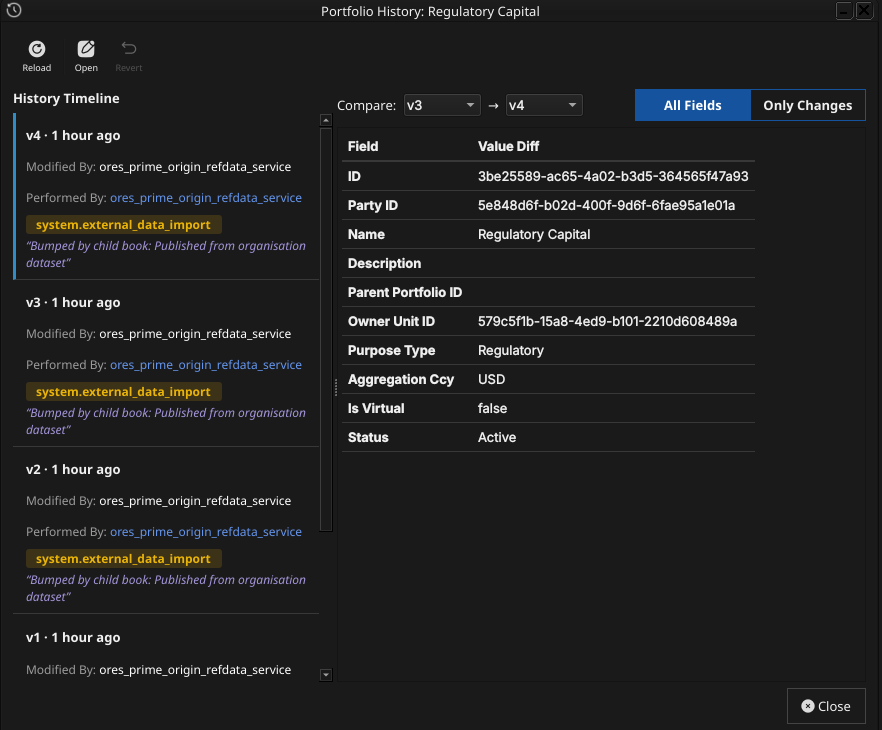
Figure 4: The Portfolio History dialog, comparing two versions of a portfolio.
Pick the two versions to compare from the Compare drop-downs. The All Fields / Only Changes toggle switches between showing every field and showing only the fields that differ between the two selected versions. The Revert button reinstates any historical version as a new version, preserving the full audit chain — the old version is never rewritten.
9. Purpose Types
Where the portfolio record's Purpose Type field (see What is a Portfolio? above) captures a single classification chosen from a combo box, a second, separate window manages the set of values that combo box offers. Purpose types are reference data in their own right — a system-tenant-managed lookup entity, seeded on provisioning with four values (Risk, Regulatory, Client Reporting, Internal) but editable and extensible like any other reference-data record — kept as a distinct entity for the same reason the Currency Pairs chapter kept Currency Pair Conventions separate from the Currency Pair record itself: the set of valid classifications changes at a different rate, and for different reasons, than any individual portfolio that references one.
Open the Purpose Types window from the Reference Data menu.
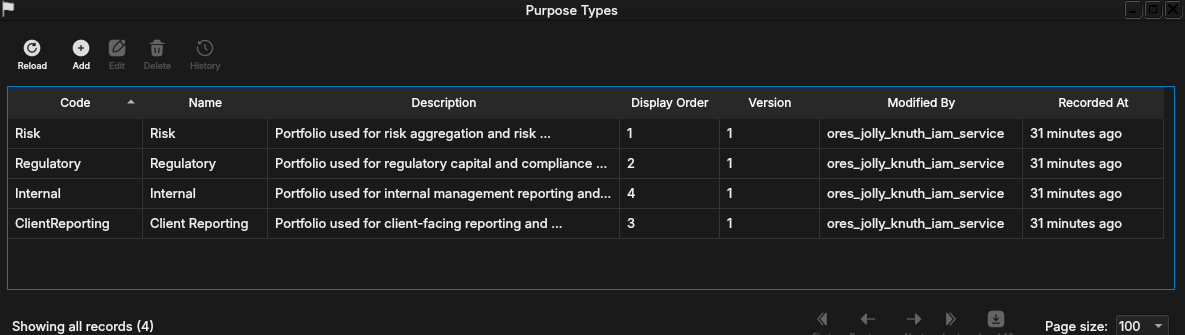
Figure 5: The Purpose Types window, listing the four seeded values (Risk, Regulatory, Client Reporting, Internal) with their display order.
Each row shows the code, name, description, display order, version, and the usual provenance columns. Double-clicking a row opens the Purpose Type Details dialog.
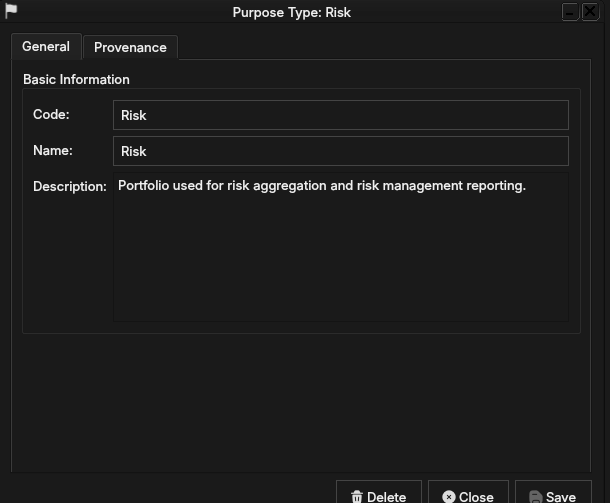
Figure 6: The Purpose Type Details dialog for the Risk purpose type, showing its code, name, and description.
Code is the purpose type's unique identifier and, like a currency's ISO code, locks once the record is created. Name is the human-readable label shown in the Portfolio Details' Purpose Type combo. Description is free-text, explaining what the classification means in practice — the four seeded values' descriptions are the source for the meanings given in What is a Portfolio? above. Display Order is an integer controlling the combo box's ordering, lowest first — shown in the list window's Display Order column; the Details dialog does not yet expose it (tracked in Audit and standardize the display_order field across lookup/code-table entities).
Editing, deleting, and history follow the same pattern as every other reference-data entity in ORE Studio and are not repeated here in full: open the record, change a field, and Save, confirming a change reason as described for currencies in the Currencies chapter; deletion is a soft close preserving history; and the history icon opens the same Compare/Revert workflow described in Portfolio history above. Purpose types have no shell or command-line access — a gap shared by every reference-data entity in ORE Studio, not specific to purpose types, and tracked separately as part of ongoing commissioning work.
10. Conclusion
The chapter set out to show that managing a portfolio well follows from understanding what it represents relative to a book and the interface that governs its lifecycle, and it has traced exactly that path. A portfolio is the logical grouping node in a party's organisational structure — a folder to a book's file — identified by an id and name, optionally nested under a parent portfolio, and carrying a purpose type, an aggregation currency, a virtual flag, and a status. Building on that, the Qt interface took the record from the list view down to a single detail dialog — its currency picker showing flags, its status and virtual flag shown as badges — and through the editing, deleting, and history workflows, where reverting to an earlier version demonstrated the same bitemporal audit trail described in the Reference Data chapter. The chapter then turned to the purpose type lookup entity backing the portfolio's own classification field — a small reference-data record with the same list/detail/ history interface, kept separate for the same reasons a currency pair convention is kept separate from a currency pair. Shell and command-line access to portfolios and purpose types, and an editable parent-portfolio field in the Details dialog, are not yet implemented; all are tracked separately as part of ongoing commissioning work.
11. See also
- Reference Data — the shared data quality and audit framework this chapter builds on.
- Currencies — the aggregation currency a portfolio references, and the Change Reason Required dialog.
- Book — the entity a portfolio groups, and the fuller account of a lifecycle workflow's real-world weight.