User Journey: Keep my details current
Table of Contents
This page documents a user journey: A member keeps their address, telephone and web page up to date.
A user journey describes what one person is trying to do, before anything is built. It is a design document that outlives any sprint, so it names the screens, the entity fields each screen shows, and the operations and messages each step needs.
1. Goal
"I want the system to reach me at the right address." The member keeps the address, city, postcode, telephone and web page that colleagues and the system use. The journey is done when the contact panel reads correctly, and the member stops having to correct a colleague who used an old number.
2. Actor and trigger
The member: an account of type user, signed in, acting on their own contact
record. The trigger is a move, a new telephone number, or a nudge when a record
looks stale. It starts when the member opens My details, and ends when they
leave it.
This is the contact-details half of the profile topic. The identity half is Present myself. An administrator runs the same screen for somebody else, with permission, in Change someone's details.
3. Steps
- Open my details. The member chooses My details from the account menu. The system shows one screen: photo and identity on the left, contact details beside them.
- Read the current record. The system loads the member's own account and the single contact record attached to it, and fills the panel with the current street, city, postcode, telephone, email and web page.
- Correct the address. The member edits the street lines, city, postcode and country. The system validates the country against the tenant's country list.
- Correct how to reach me. The member edits the telephone, the contact email and the web page. The system keeps the contact email separate from the login address.
- Save. The system asks why the record changed, records the reason, and writes a new version of the contact record. The panel shows the new values and the new version.
- Leave. The member goes back. Nothing else changes, because the member does not change their own identity here.
4. Screens and wireframes
One screen. The photo and identity form one panel and the contact details another, because the member reads them together even though only the contact panel is editable here.
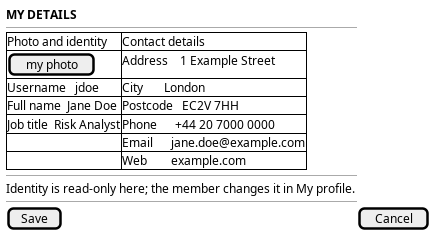
Figure 1: My details: contact details editable beside the read-only identity panel.
5. Entities composed
| Entity | What it contributes | Model |
|---|---|---|
account |
The account the contact record belongs to; username, full name, job title and photo, shown read-only beside the form | ores.iam.account |
account_contact_information |
The street lines, city, state, country code, postal code, phone, email and web page that this journey edits | ores.iam.account_contact_information |
The identity panel is read-only here and belongs to Present myself, because a member does not change their own name or job title from this journey.
6. Operations and messages
| Step | Operation | Subject | Status |
|---|---|---|---|
| Open my details | Read the account | iam.v1.accounts.get |
exists |
| Open my details | Read the contact record | iam.v1.account_contact_informations.list_by_account_id |
exists |
| Save | Write the contact record | iam.v1.account_contact_informations.put |
partial |
| Save | Record the reason, write a new version | shared change-reason flow | exists |
The account subjects come from
ores.iam.account_messages. The
contact subjects are derived from the account_contact_information entity
model, and iam.v1.account_contact_informations.put carries the same shared
change intent as the account write.
iam.v1.account_contact_informations.put exists, but it needs
iam::account_contact_informations:write, a tenant-administrator permission. A
member cannot call it for their own record. So partial here means the
operation exists and the caller may not use it.
7. What is missing
- No self-service update. There is no subject for a member to write their own
contact record. The candidate is
iam.v1.account_contact_informations.update-self, restricted to the caller's own account and to the fields a member owns. Until it exists, the screen must show the contact panel read-only and say that a tenant administrator makes the change. - No image upload. If the screen shows the photo, the member cannot change
it: the BFF serves
/api/imagesand/api/images/:idas reads only, and nothing uploads a new image. The candidate is an upload path intoores.assetsthat returns an image id. - Two email fields.
account.emailis the login address andaccount_contact_information.emailis the contact address. The member can change the first throughiam.v1.accounts.update-email, but not the second. The screen must label them, so the member does not expect one to change the other.
8. Related journeys
- Present myself — the identity panel is read-only here, and the name, job title and photo are edited there.
- Choose where I work — the parties panel sits on this screen, and the party a person acts for is chosen there.
- Protect my account — the login address and password are account credentials, not contact details, so they are changed there.
- Change someone's details — an administrator edits the same contact panel for a colleague who cannot do it themselves.