User Journey: Change someone's details
Table of Contents
This page documents a user journey: A tenant administrator corrects a colleague's profile, photo and contact details.
A user journey describes what one person is trying to do, before anything is built. It is a design document that outlives any sprint, so it names the screens, the entity fields each screen shows, and the operations and messages each step needs.
1. Goal
"I want a colleague's record to be right, without waiting for them." The tenant administrator corrects a colleague's profile, photo and contact details, usually after a move, a name change, or a data-quality report. The journey is done when the colleague's screen reads correctly and the correction is on the record with a reason.
2. Actor and trigger
The tenant administrator: an account that holds iam::accounts:update and
iam::account_contact_informations:write inside its tenant. The trigger is a
support request, a joiner correction, or a data-quality review. It starts when
the administrator finds the colleague on Change someone's details, and ends
when they leave it.
This journey runs the same screen as the two member journeys, with two differences. The administrator first chooses the person, and the permission check passes. That is the whole difference: the member sees the screen and cannot save; the administrator sees the same screen and can. The member journeys are Present myself and Keep my details current.
3. Steps
- Find the person. The administrator searches for the colleague by username or name. The system lists the matches inside the tenant.
- Open the record. The administrator picks a person. The system shows the same screen the member sees: photo and identity on the left, contact details beside them, both editable.
- Correct the profile. The administrator edits the full name, job title and reporting line, and picks a new photo. The reporting line must be another account in the same tenant.
- Correct the contact details. The administrator edits the street, city, postcode, telephone, contact email and web page.
- Save. The system asks why the record changed, records the reason, and writes a new version of the account and of the contact record. Because two records change, the screen shows both new versions.
- Leave. The administrator goes back to the directory. The colleague's screen now reads correctly.
4. Screens and wireframes
One screen, and it is the member's screen with a person search above it. The photo and identity panel and the contact details panel are the same two panels in both journeys; this journey only adds the picker that chooses whose record is in view.
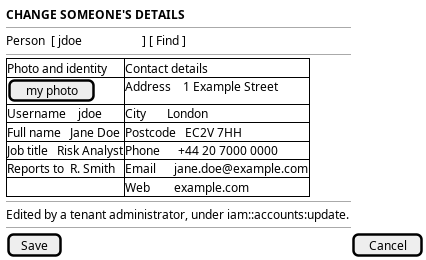
Figure 1: Change someone's details: a person search above the same profile and contact panels the member sees.
5. Entities composed
| Entity | What it contributes | Model |
|---|---|---|
account |
The colleague's name, photo, job title and reporting line; the record the administrator writes | ores.iam.account |
account_contact_information |
The colleague's address, city, postcode, telephone, contact email and web page | ores.iam.account_contact_information |
The picker reads account through the list operation that the directory
journeys also use. The contact panel is the same entity the member journeys
edit; only the caller and the permission differ.
6. Operations and messages
| Step | Operation | Subject | Status |
|---|---|---|---|
| Find the person | List accounts in the tenant | iam.v1.accounts.list |
exists |
| Open the record | Read the account | iam.v1.accounts.get |
exists |
| Open the record | Read the contact record | iam.v1.account_contact_informations.list_by_account_id |
exists |
| Correct the profile | Set full name, job title, reporting line | iam.v1.accounts.update |
exists |
| Replace the photo | Upload an image, receive its id | none | missing |
| Replace the photo | Set the photo on the account | iam.v1.accounts.update |
exists |
| Correct the contact details | Write the contact record | iam.v1.account_contact_informations.put |
exists |
| Save | Record the reason, write a new version | shared change-reason flow | exists |
Both write subjects need a permission the administrator holds.
iam.v1.accounts.update needs iam::accounts:update, and
iam.v1.account_contact_informations.put needs
iam::account_contact_informations:write. The tenant-administrator role holds
both, which is what makes this journey exists where the member's journey is
partial. The account subjects come from
ores.iam.account_messages, and
both writes carry the shared change intent.
7. What is missing
- No image upload. The administrator can set
image_id, but nothing puts a new image there: the BFF serves/api/imagesand/api/images/:idas reads only. The candidate is an upload path intoores.assetsthat returns an image id. Until it exists, the picker can only offer images the tenant already holds. - Two records, two writes, no single save. The profile and the contact
details live in different records, so one Save sends
iam.v1.accounts.updateandiam.v1.account_contact_informations.putas separate requests, and nothing makes the pair atomic. Until a composite operation exists, the screen must send both and say which record failed. - Two email fields.
account.emailis the colleague's login address andaccount_contact_information.emailis the contact address.iam.v1.accounts.updatewrites the first and the contact put writes the second, so the screen must label them, or the administrator changes the wrong one.
8. Related journeys
- Present myself — this is the same screen as the person sees it, so an administrator goes there to check what they will see.
- Keep my details current — the contact half of this screen, which the person keeps for themselves when they can.
- See who has access — the roster is where the person is picked, and it shows the roles this screen does not.
- Change someone's access — the access half of the same colleague record, changed from the same place.
- Draw the reporting line — the reporting line is a field on this screen, and the tree shows the shape it sits in.