User Journey: Present myself
Table of Contents
This page documents a user journey: A member shows who they are: photo, name, job title and reporting line.
A user journey describes what one person is trying to do, before anything is built. It is a design document that outlives any sprint, so it names the screens, the entity fields each screen shows, and the operations and messages each step needs.
1. Goal
"I want the system to show me as I actually am." The member sets the photo, name, job title and reporting line that other people see. The journey is done when the member's own screen reads correctly, and the next record they touch carries the right name in its provenance.
2. Actor and trigger
The member: an account of type user, signed in, acting on their own record.
The trigger is the account menu, or a nudge to supply a photo. It starts when
the member opens My profile, and ends when they leave it.
This is the self-service half of the profile topic. An administrator runs the same screen for somebody else — see Change someone's details.
3. Steps
- Open my profile. The member chooses My profile from the account menu. The system shows one screen: identity and photo on the left, contact details and sign-in state beside them.
- Replace the photo. The member picks a new image. The system shows the current picture, opens the shared image picker, and previews the new picture at the size other screens will show it.
- Correct the identity. The member edits the full name and job title. These are the fields that appear in provenance, so a correction here changes how history reads.
- Save. The system asks why the record changed, records the reason, and writes a new version. The screen shows the new values and the new version.
- Leave. The member goes back. The account menu now shows the new name and photo.
4. Screens and wireframes
One screen. The photo, the identity fields, the contact details and the sign-in summary are panels of that screen rather than separate screens, because the member thinks of them as one thing.
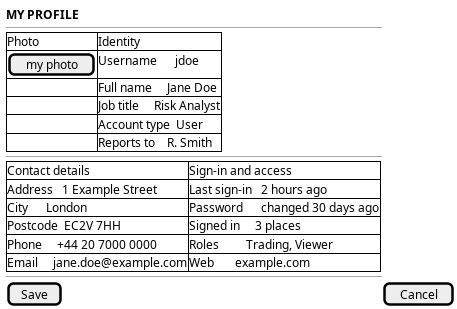
Figure 1: My profile: identity and photo on the left, contact details and sign-in beside them.
5. Entities composed
| Entity | What it contributes | Model |
|---|---|---|
account |
Photo, username, full name, job title, account type, reporting line | ores.iam.account |
account_contact_information |
Address, city, postcode, telephone, web page | ores.iam.account_contact_information |
login_info |
Last sign-in, password age, whether the account is online | ores.iam.login_info |
Two panels are read-only here and belong to other journeys: the contact details are Keep my details current, and the sign-in summary is Protect my account.
6. Operations and messages
| Step | Operation | Subject | Status |
|---|---|---|---|
| Open my profile | Read the account | iam.v1.accounts.get |
exists |
| Open my profile | Read the contact record | iam.v1.account_contact_informations.list_by_account_id |
exists |
| Replace the photo | Upload an image, receive its id | none | missing |
| Replace the photo | Set the photo on the account | iam.v1.accounts.update |
partial |
| Correct the identity | Set full name and job title | iam.v1.accounts.update |
partial |
| Save | Record the reason, write a new version | shared change-reason flow | exists |
iam.v1.accounts.update exists, but it needs iam::accounts:update, which is a
tenant-administrator permission. A member cannot call it for their own record.
So partial here means the operation exists and the caller may not use it.
7. What is missing
- No self-service update. There is no subject for a member to change their
own profile. The candidate is
iam.v1.accounts.update-self, restricted to the caller's own account and to the fields a member owns:full_name,job_title,image_id, and the contact record. - No image upload. The BFF serves
/api/imagesand/api/images/:idas reads only. Nothing uploads a new image, so the photo cannot be changed at all. The candidate is an upload path intoores.assetsthat returns an image id. - No size or format rule. Nothing states the accepted image formats or the maximum size, so the picker has nothing to enforce.
- Two email fields.
account.emailandaccount_contact_information.emailboth exist. The screen must show one, and which is authoritative is undecided. This is a modelling error the journey exposes.
8. Related journeys
- Keep my details current — the contact panel sits on this screen, and the address and telephone are edited there.
- Protect my account — the sign-in summary is a read-only panel here, and the password and sign-in state live there.
- Change someone's details — an administrator runs this same screen for a colleague, so a person goes there when the record is not their own.
- Draw the reporting line — the reporting line is one of the identity fields here, and the tree shows the shape it makes.