User Journey: See the tenants
Table of Contents
This page documents a user journey: A system administrator reads the tenants a deployment holds: their code, name, hostname, type and status.
A user journey describes what one person is trying to do, before anything is built. It is a design document that outlives any sprint, so it names the screens, the entity fields each screen shows, and the operations and messages each step needs.
1. Goal
"I want to know what tenants this deployment holds." The system administrator reads one screen and gets one row per tenant. The journey is done when every row answers five questions: what code names the tenant, what name it shows, what hostname serves it, what type it is, and whether it is in service.
2. Actor and trigger
The system administrator: an account that holds the SuperAdmin role and acts
from the system tenant. The shell calls this context system administration
mode: the session's tenant is the system tenant, so every request it sends is
scoped to the deployment and not to a customer. A tenant administrator is
signed in inside their own tenant, and the shell offers them no Tenants area,
so they cannot reach this screen.
The trigger is a question about the deployment: which tenants exist, or which one to act on next. The administrator opens the Tenants area in the system administration context, and the journey ends when they have read what they came for.
This journey writes nothing. The roster is now its own journey, and Retire or reset a tenant picks its tenant from it, so the destructive journey no longer has to be opened to find out what exists.
3. Steps
- Open the roster. The administrator opens the Tenants area in the system administration context. The system shows one screen: a read-only table with one row per tenant. The administrator expects to find every tenant the deployment holds.
- Read the tenants. The system lists the tenants and gives each row five columns. The code is the tenant's stable name in a request. The name is what a person reads. The hostname is the address that routes to the tenant. The type is the kind of tenant it is. The status is its place in the lifecycle. The type and the status are painted with the badge their rows name, and the words are the rows' own.
- An installation with none. The deployment is provisioned but holds no tenant of its own yet. This is the state right after the system administrator is created. The roster answers an empty table and says that no tenant exists, rather than showing a failure. The way out is New tenant.
- A tenant that is not active. The status column reads one of four codes.
bootstrappingmeans the provisioning has not finished.activemeans the tenant is in service.suspendedmeans sign-in is refused.terminatedmeans the data is still there and the tenant is unusable. The roster states the status; it does not act on it. - Find one among many. The administrator pages through the roster with the offset and the page size, and reads the total. A search field narrows the roster over the code, the name and the hostname, so a large deployment does not need many pages of reading. Two filters keep one tenant type and one status, from the deployment's own type and status rows.
- Leave test tenants out. Tenants of the type
automationare test infrastructure: the type table describes them so, and the test fixtures write them. The roster hides them by default and says how many it hid; a Show test tenants toggle shows them, and asking for that type by name shows them too. The server leaves them out, so the page and its total agree. - Leave, or go on. The administrator leaves the roster, or picks a tenant and goes on to another operation on it: retiring or resetting it, or adding a party to it. The roster carries the chosen row into that operation. Each row has one menu of actions. Open, and the tenant's name, lead to See one tenant. Resume setup opens the tenant's provisioning run when that run did not complete. Retire or reset shows as not built yet until its journey exists.
The roster shows the system tenant like any other row, so a system
administrator can open the deployment's own tenant. The tenant registry is
system-scoped: the table's own check requires every row to carry the system
tenant in tenant_id, so that column names the owner of the registry and never
the tenant a row describes. A row's identity is its id, and the deployment's
own bookkeeping is the row whose id is
ffffffff-ffff-ffff-ffff-ffffffffffff. That row is not a tenant somebody set
up, so the home page does not count it. A reader who filters on tenant_id instead of
id asks the wrong question and gets an empty list for a deployment full of
tenants. The rule is the one
projects/ores.iam/core/include/ores.iam.core/service/tenant_presence.hpp
states in has_tenant_of_its_own().
4. Screens and wireframes
One screen. The roster table, the search field, the paging controls and the empty state are panels of that screen, because the administrator reads them as one answer. The screen is read-only: it creates nothing, changes nothing and destroys nothing.
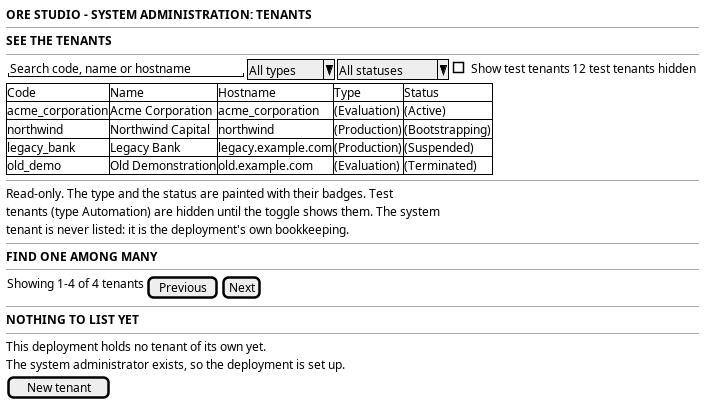
Figure 1: See the tenants: the roster, the search and paging controls, and the empty state.
5. Entities composed
| Entity | What it contributes | Model |
|---|---|---|
tenant |
Code, name, hostname, type and status, read-only here; the row's identity is its id |
ores.iam.tenant |
tenant_type |
The codes that classify tenants | ores.iam.tenant_type |
tenant_status |
The four lifecycle codes the status column reads | ores.iam.tenant_status |
The row the server returns carries more than the five columns. It also carries
version, id, description, is_registration_default, modified_by,
performed_by, change_reason_code, change_commentary and recorded_at.
The roster shows five of them and drops the audit columns, because a roster
names each tenant and says what state it is in, and nothing on it is about who
last edited the row.
6. Operations and messages
| Step | Operation | Subject | Status |
|---|---|---|---|
| Open the roster | List the tenants the deployment holds | iam.v1.tenants.list |
exists |
| Read the tenants | Read the row's code, name, hostname, type and status | carried by iam.v1.tenants.list |
exists |
| An installation with none | Answer an empty page | carried by iam.v1.tenants.list |
exists |
| A tenant that is not active | Read the lifecycle status | carried by iam.v1.tenants.list |
exists |
| Find one among many | Page, search and filter the roster | iam.v1.tenants.list |
exists |
| Leave test tenants out | Hide the automation type unless asked | iam.v1.tenants.list |
exists |
| Leave, or go on | Read the chosen tenant for the next operation | iam.v1.tenants.get |
exists |
iam.v1.tenants.list is the generated list of the tenant registry, on the
list contract. The model guards its reads, so it checks iam::tenants:read.
Its filter record carries a search over the code, the name and the hostname,
a type and a status, and a list of the types a row may have; its response
carries one page in code order and the total that match.
The browser reads it through the BFF route GET /api/tenants. The route names
the types a row may have from the deployment's own type rows, leaving out the
automation type unless asked, and reports how many tenants that hid. It reads the type and
status rows through GET /api/tenant-types and GET /api/tenant-statuses,
and each row's provisioning run with one read that names the tenants on the
page.
iam.v1.tenants.get is the read the next operation uses to take up the tenant
the roster chose.
7. What is missing
- Closed: search, filters and paging.
iam.v1.tenants.listsearches the code, the name and the hostname, filters by type and status, keeps the types it is given, pages and counts every match (Search and page the tenant roster, Filter the tenant roster by type and status). - Closed, then reversed: the system tenant on the roster. The roster first left the system tenant out. It now lists it, because a system administrator wants to see the deployment's own tenant (Make the shell speak to people plainly).
- Closed: the list read checks the permission. The tenant model guards its
reads, so
iam.v1.tenants.listandiam.v1.tenants.getcheckiam::tenants:read, as the search did. - The roster cannot show the tenant's administrator. The tenant row carries no administrator, and no read joins a tenant to the account that runs it. So "who runs this tenant" is not answerable from the roster, and a review has to open each tenant in turn. The candidate is an administrator column on the row, or a joined read.
- Closed: the system tenant row is readable. The roster lists it and its screen opens like any other, so its status can be confirmed. Removing it is not offered, and the database refuses it. See Retire or reset a tenant.
8. Related journeys
- See one tenant — opened from a row: the tenant's details, setup run and parties
- New tenant — the empty roster's way out: create the tenant this screen would list
- Retire or reset a tenant — picks its tenant from this roster, then suspends, terminates or resets it
- Tune the tenant — maintains the tenant details this roster reads
- New party — adds a party to the tenant just chosen here
- First run — the state the empty roster describes, where the first tenant is created
- See who has access — the same read-only roster pattern, inside one tenant