ORE Studio User Manual Introduction Connecting to ORE Studio Initial Setup Provisioning from the Shell Acme Corporation Accounts and Roles Tenants Reference Data Currencies Currency Pairs Countries Business Centres Portfolios Books Parties Counterparties
Table of Contents
- 1. Status
- 2. Introduction
- 3. Connecting to ORE Studio
- 3.1. Overview
- 3.2. Getting started
- 3.3. The main window before login
- 3.4. The Connection Browser
- 3.4.1. Adding a new connection
- 3.4.2. Editing a connection
- 3.4.3. Deleting a connection
- 3.4.4. Organising connections into folders
- 3.4.5. Protecting your credentials with a master password
- 3.4.6. Environments
- 3.4.7. Tags
- 3.4.8. Where your connections are stored
- 3.4.9. Backing up and restoring your connections
- 3.5. Connecting and logging in
- 3.6. Connection status and reconnection
- 3.7. The status bar
- 3.8. Starting ORE Studio from the command line
- 3.9. Finding the application version
- 3.10. Running in the background and the system tray
- 3.11. Logging out
- 3.12. Conclusion
- 4. Initial Setup
- 5. Provisioning from the Shell
- 6. Acme Corporation
- 6.1. Overview
- 6.2. What is Acme Corporation
- 6.3. The organisational model: parties, business units, portfolios, and books
- 6.4. The holding-group structure
- 6.5. The holding company's own treasury footprint
- 6.6. Departments and segregation of duties
- 6.7. Staff and accounts
- 6.8. Provisioning Acme Corporation
- 6.9. Conclusion
- 6.10. See also
- 7. Accounts and Roles
- 8. Tenants
- 9. Reference Data
- 10. Currencies
- 10.1. Overview
- 10.2. Money, currency, and cash
- 10.3. Currency lifecycle
- 10.4. ISO 4217 and its limitations
- 10.5. The Currencies window
- 10.6. Currency Details
- 10.7. Editing a currency
- 10.8. Currency history
- 10.9. Auxiliary Data
- 10.10. Shell commands
- 10.11. Conclusion
- 10.12. See also
- 11. Currency Pairs
- 11.1. Overview
- 11.2. Currency pairs and market conventions
- 11.3. The Currency Pairs window
- 11.4. Currency Pair Details
- 11.5. Editing a currency pair
- 11.6. Currency pair history
- 11.7. Currency Pair Conventions
- 11.8. Editing a currency pair convention
- 11.9. Currency pair convention history
- 11.10. Conclusion
- 11.11. See also
- 12. Countries
- 13. Business Centres
- 14. Portfolios
- 15. Books
- 16. Parties
- 17. Counterparties
1. Status
This manual documents the Qt desktop client, which was retired. The ores.qt
tree is gone, so the screens, menu paths and dialogs the chapters below describe
no longer exist.
The chapters are kept as the record of what that client did, and as the source of
the domain material, which is still current. Read them for the domain rather than
for the interface. The interface is being rebuilt in ores.web.
2. Introduction
This chapter introduces ORE Studio and frames the manual that follows. It examines what the application is and the problem it solves, the open-source quantitative finance engines it builds upon, the audience it is written for, the functional areas through which it is organised, the boundaries of what it does and does not attempt, and the conventions used throughout this book. Its scope is orientation rather than operation: by the end the reader should understand where ORE Studio sits in the risk-technology landscape and how to navigate the remainder of the manual.
2.1. Overview
The chapter advances the argument that the reader should understand what ORE Studio is before learning how to use it, and it builds that understanding in layers. It begins by establishing identity in What is ORE Studio?, which explains the application and the open-source engines it rests upon; this is the premise the rest of the chapter depends on. From there it considers for whom the manual is written in Audience, before mapping the territory the application covers in Functional Areas. It then draws the boundary in What ORE Studio Is Not, distinguishing a learning environment from a production system, and shows how the book itself is laid out in How This Manual Is Organised. Finally it sets expectations with two cautions — the Early-Stage Software Notice on the maturity of the software and A Note on This Document on how the manual was produced. The Conclusion draws these steps together.
2.2. What is ORE Studio?
ORE Studio is a desktop application for exploring, configuring, and running quantitative finance calculations, backed by a set of headless services and a database rather than doing any of that work itself. The Qt client you interact with is a thin presentation layer: it renders what you see and forwards every action to the appropriate backend service, which does the actual work and persists the result. It provides a graphical environment built around the Open Source Risk Engine (ORE)1, 2, a widely-used open-source library for pricing derivatives and measuring financial risk, which is itself built on QuantLib3, 4. ORE Studio handles the data — storing trades, market data, and model configurations, and presenting the results — while ORE and QuantLib provide the mathematics. You cannot understand ORE Studio without understanding these two engines beneath it, so it is worth being precise about what each one is and where ORE Studio sits relative to them.
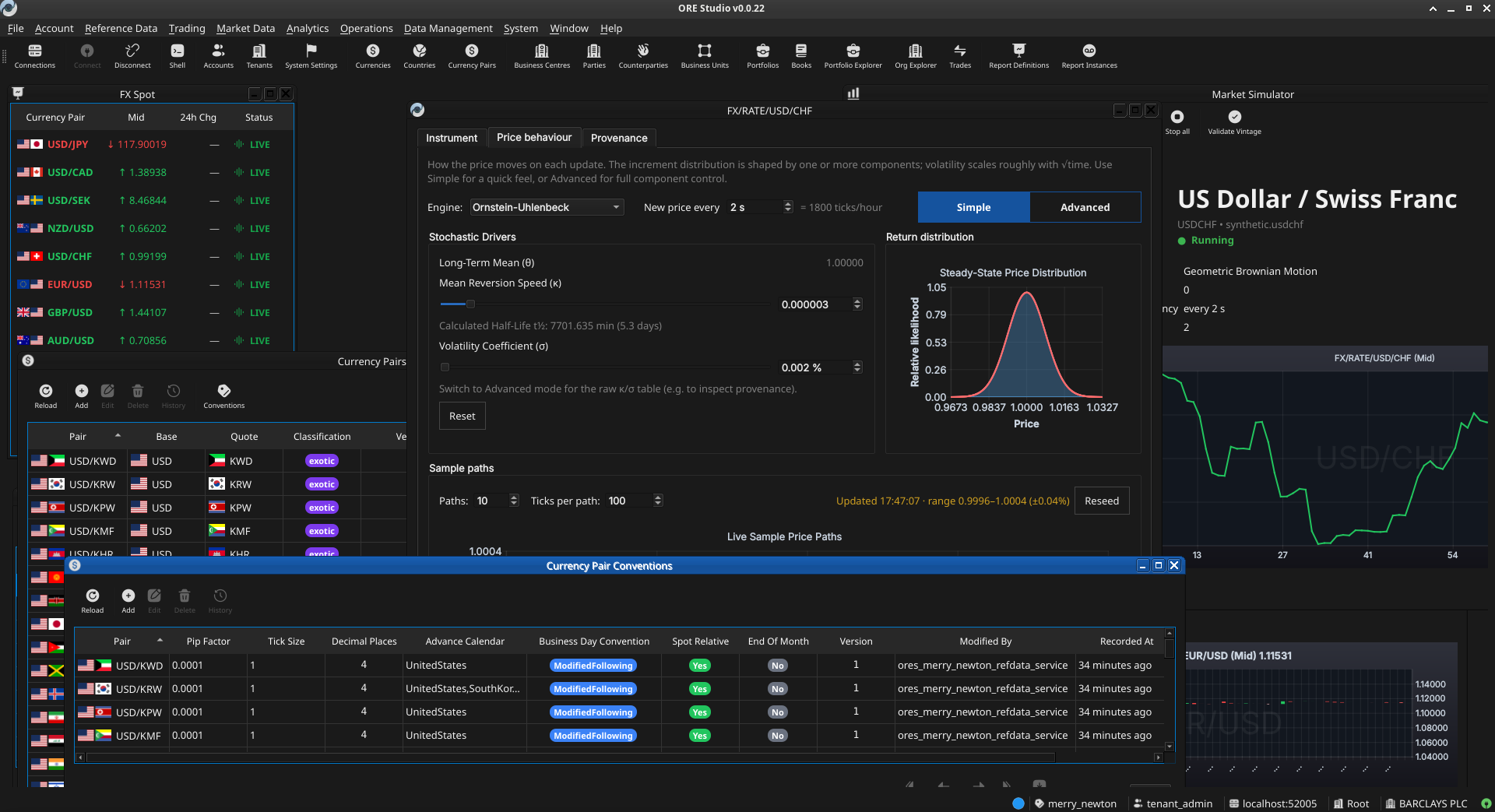
Figure 1: ORE Studio v0.0.22 — the main workspace showing the instrument and trade management views.
2.2.1. The Open Source Risk Engine
The Open Source Risk Engine is a C++ library for pricing and risk analytics maintained by Acadia, an LSEG (London Stock Exchange Group) business5. It builds on QuantLib and extends it with industry-grade valuation adjustments (XVA), sensitivities, regulatory scenarios, and a broad set of financial instruments, together with interfaces for trade and market data and system configuration via API and XML. ORE Studio is a graphical wrapper around ORE: it imports ORE's XML inputs — trade definitions, market data, model configuration, conventions, fixings, calendars — into a persistent database, drives ORE execution from the configuration you assemble in the interface, and renders ORE's outputs (net present value, XVA, sensitivities, scenarios) back to you. It does not reimplement or modify ORE's pricing and risk models; it inherits ORE's models, conventions, and limitations as they are. ORE Studio is independent of, and unaffiliated with, the ORE project.
2.2.2. QuantLib
QuantLib is a free, open-source library aimed at providing a comprehensive software framework for quantitative finance — modelling, trading, and risk management. It has been the de-facto standard quantitative-finance library in C++ for over twenty years, and ORE is built directly on top of it. For ORE Studio, QuantLib is two hops upstream: nothing in ORE Studio calls QuantLib directly, and QuantLib's instruments, day-count conventions, and calendars appear in our data only because ORE surfaces them. As with ORE, ORE Studio neither extends nor modifies QuantLib, and inherits any of its conventions or limitations as-is.
2.3. Audience
This manual is written for several kinds of reader:
- Analysts, traders, quants, and middle-office staff who want to explore financial instruments and risk calculations through a graphical interface. No programming experience is required.
- Students and researchers learning quantitative finance. ORE Studio makes it possible to experiment with derivative pricing, yield curve construction, and risk measures without writing code.
- LLM-based agents and coding assistants that interact with ORE Studio on a user's behalf, help configure workspaces, interpret results, or draft analytical reports. Multimodal models — those capable of processing both text and images — are preferred, as the manual makes extensive use of screenshots to describe the user interface.
The focus throughout is on what you can do through the application itself: entering trades, configuring market data, running analytics, and understanding the results.
2.4. Functional Areas
ORE Studio is organised around a set of functional areas accessible from the main menu:
- Reference data — currencies, business calendars, counterparties, and market conventions that form the foundation for everything else.
- Instruments and trades — define, store, and manage financial instruments and their terms.
- Market data — yield curves, volatility surfaces, fixing histories, and other inputs to pricing and risk models.
- Model configuration — choose and parameterise pricing engines, simulation models, and sensitivity specifications.
- Analytics — run calculations and view results: net present value, sensitivities (Greeks), credit and funding valuation adjustments (XVA), Monte Carlo simulations, and stress tests.
All data is stored persistently, so trades, curves, and configurations can be saved, revisited, and reused across sessions.
2.5. What ORE Studio Is Not
ORE Studio is a learning and exploration environment, not a production trading or risk system. It is independent of and unaffiliated with ORE, QuantLib, or any financial institution. For the key valuation cases, the quantitative mathematics are provided by ORE and QuantLib; ORE Studio is the surface through which they are configured and their results explored. ORE Studio does reimplement a small subset of QuantLib for its own internal purposes, but that reimplementation is not used by the engine's valuation code. Users who need production-grade performance, real-time market data feeds, or regulatory reporting should look to enterprise risk platforms.
2.6. How This Manual Is Organised
The chapters follow the natural order of first use. After this introduction, Connecting to ORE Studio covers launching the application, establishing a connection to the backend, and orienting yourself in the main window; Initial Setup then covers provisioning the system, tenants, and parties. Later chapters cover each functional area in turn. You do not need to read the manual cover to cover; each chapter can be read independently once the system is up and running.
2.7. Early-Stage Software Notice
Early-stage software. ORE Studio is currently in active development (version 0.x). Features, workflows, and this documentation are all evolving and may change between releases. Numbers produced by the system are for learning and exploration only — they must not be used for real trading, risk management, or any financial decision-making.
2.8. A Note on This Document
This manual was generated entirely by large language models (LLMs) working under human supervision. While every effort has been made to ensure accuracy, LLM-generated content can contain errors, omissions, or descriptions that do not match the actual software behaviour. If you find a discrepancy between this manual and the application, trust the application. Please report inaccuracies via the project issue tracker so they can be corrected.
2.9. Conclusion
The chapter set out to orient the reader before any operation begins, and it has done so in layers. It established what ORE Studio is — a desktop surface over the open-source ORE and QuantLib engines — and for whom this manual is written, then mapped the functional areas through which the application is organised and drew a firm boundary around it as a learning and exploration environment rather than a production trading or risk system. With that frame in place it described how the book is arranged for first use and tempered expectations with two cautions: that the software is early-stage and evolving, and that the manual itself was generated by language models under human supervision. The takeaway is a sense of place: the reader now knows where ORE Studio sits in the risk-technology landscape and how to read the chapters that follow, which take up each functional area in turn.
3. Connecting to ORE Studio
Connecting to a backend is the first task of every session, and the subject of this chapter. It traces the path from launching the application in its disconnected state to an authenticated session against a running backend. Along the way it sets out the Connection Browser and the full lifecycle of connection definitions — adding, editing, organising, securing, and storing them — the connect-and-login sequence and the ways it can fail, the status bar's account of the live connection, and the supporting material around a session: command-line options, the application version, the system tray, and logging out.
3.1. Overview
This chapter advances the argument that reaching a working session means starting the application, teaching it about the backends it may talk to, authenticating against one of them, and learning to read the session's state — and it proceeds in that order. It begins with Getting started, which launches the application and explains the disconnected state in which it first appears, and The main window before login, which describes what is and is not available until a login succeeds. From there it turns to The Connection Browser, the central place where backends are defined, walking through adding, editing, and deleting a connection, organising connections into folders, protecting credentials with a master password, grouping by environments and tags, and where the connection store lives and how to back it up. With a connection in place it moves to Connecting and logging in — selecting the active connection, the login screen, filtering Quick Connect by label, the distinct ways a connection can fail, the first login and default account, and registering a new account. It then covers Connection status and reconnection and the vocabulary of The status bar, so the reader can tell the connection's state at a glance. Finally it gathers the operational periphery — Starting ORE Studio from the command line, Finding the application version, Running in the background and the system tray, and Logging out — and the Conclusion draws these steps together.
3.2. Getting started
When you launch ORE Studio a splash screen appears briefly while the application initialises, showing the ORE Studio logo and the build version in its lower-right corner.

Figure 2: The ORE Studio splash screen shown during start-up. The build version appears in the lower-right corner.
Once initialisation completes you are greeted by the main window in its disconnected state. The application is running but has not yet established a connection to the backend service that performs calculations. Before you can work with trades, market data, or analytics, you need to connect to a running ORE Studio backend.
3.3. The main window before login
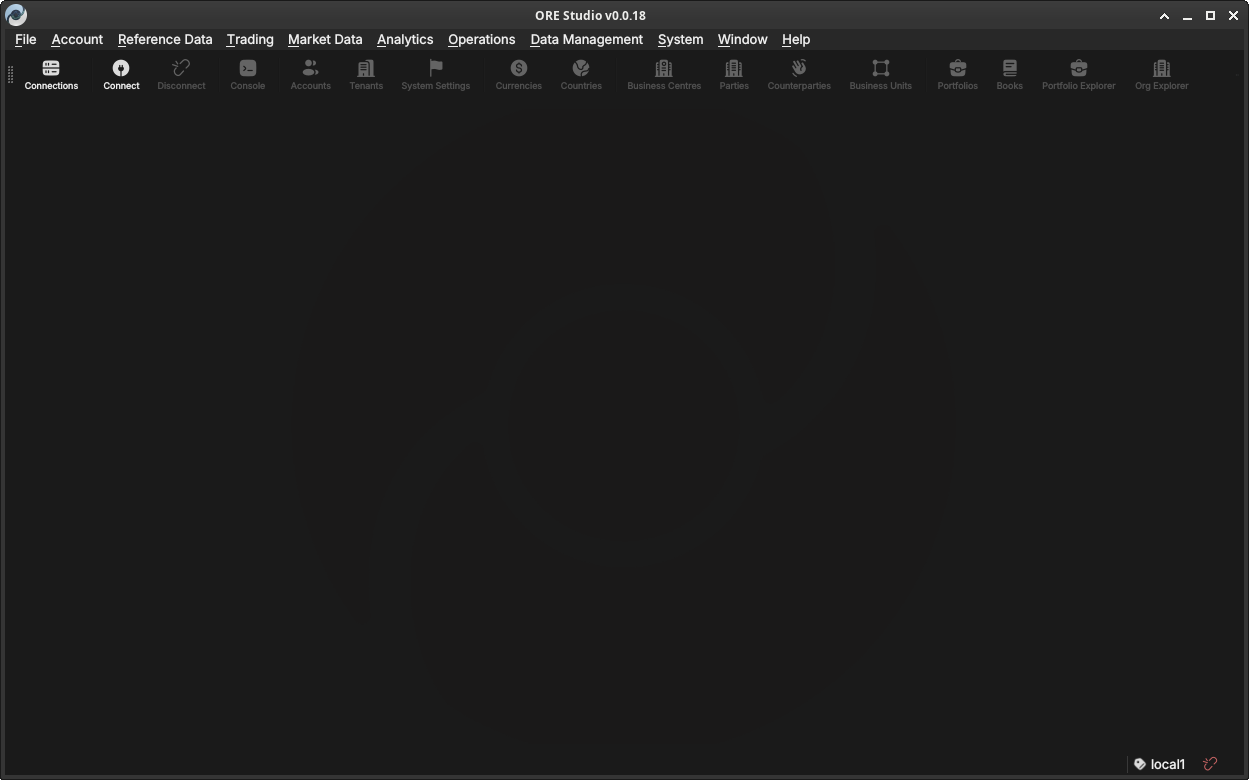
Figure 3: The ORE Studio main window immediately after launch, in the disconnected state. The toolbar shows the Connect and Connections buttons; the workspace area is empty until you log in.
In the disconnected state most of the application is inactive. The menu bar and toolbar are present but workspace panels, trade lists, and analytics views are all unavailable until a successful login. Two toolbar buttons are always accessible:
- Connect — opens the login dialog for the currently selected connection.
- Connections — opens the Connection Browser, where you configure the list of backends ORE Studio knows about.
3.4. The Connection Browser
The Connection Browser is the central place where you maintain the list of ORE Studio backends the application can connect to. You might have a local development backend, a shared team backend, and a staging backend — each appears as a separate entry here. It lets you add, edit, delete, and organise those entries before you attempt a login.
Open it at any time from the toolbar Connections button or from the File menu.
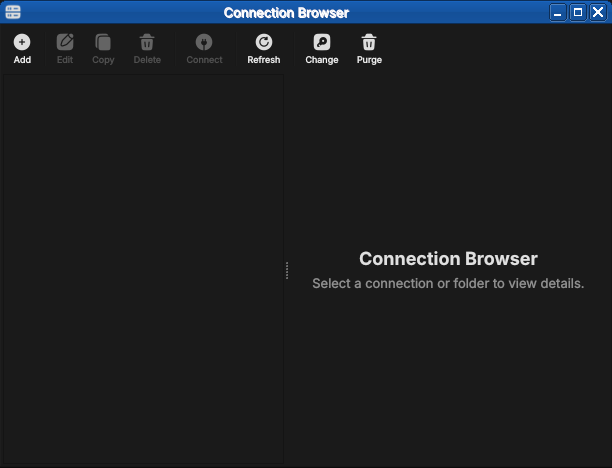
Figure 4: The Connection Browser open with no connections configured. The toolbar exposes Add, Edit, Copy, Delete, Connect, Refresh, Change and Purge; the unusable actions are greyed out until something is selected.
3.4.1. Adding a new connection
Click Add (or the "+" button) to open the New Connection form. Fill in the fields:
- Name — a free-text label you choose, used throughout the UI to identify this backend (e.g. "Local dev", "Team staging"). Must be unique among your saved connections.
- Host — the hostname or IP address of the machine running the ORE
Studio backend (e.g.
localhost,192.168.1.10,ores-staging.example.com). - Port — the TCP port the backend is listening on. The default is
35900; change it only if the backend was started on a different port. - Environment — an optional grouping label (see Environments below). Helps you distinguish development, staging, and production backends at a glance.
- Tags — zero or more free-text labels (see Tags below). Useful for filtering and searching when you have many connections.
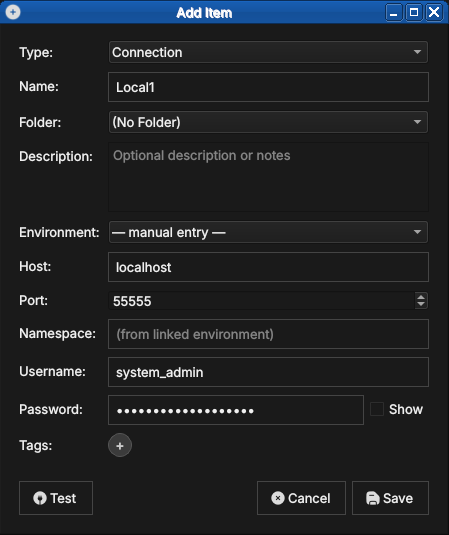
Figure 5: The New Connection form with example values filled in. Type is set to Connection; the Environment may be left as manual entry or linked to a defined environment.
Click Save (or OK) to add the connection to the list. The new entry appears immediately in the Connection Browser list. No network contact is made at this point — ORE Studio simply stores the configuration.
3.4.2. Editing a connection
Select an existing connection in the list and click Edit (or double-click the row) to open the same form pre-populated with the saved values. Change any field and click Save. The connection list updates immediately.
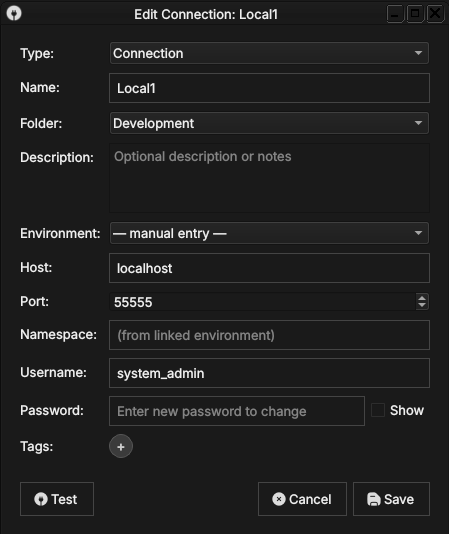
Figure 6: Editing a saved connection. The dialog title shows Edit Connection, the fields are pre-populated, and the password field reads Enter new password to change — the stored password is preserved unless you type a replacement.
3.4.3. Deleting a connection
Select one or more connections in the list and click Delete (or press the Delete key). A confirmation dialog asks you to confirm the removal.
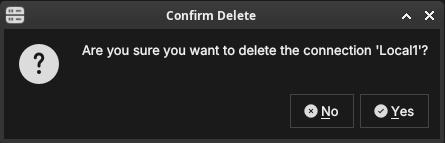
Figure 7: The delete confirmation dialog. ORE Studio names the connection being removed and waits for you to confirm with Yes or cancel with No.
Deleting a connection removes only the saved configuration; it has no effect on the running backend or any data stored there.
3.4.4. Organising connections into folders
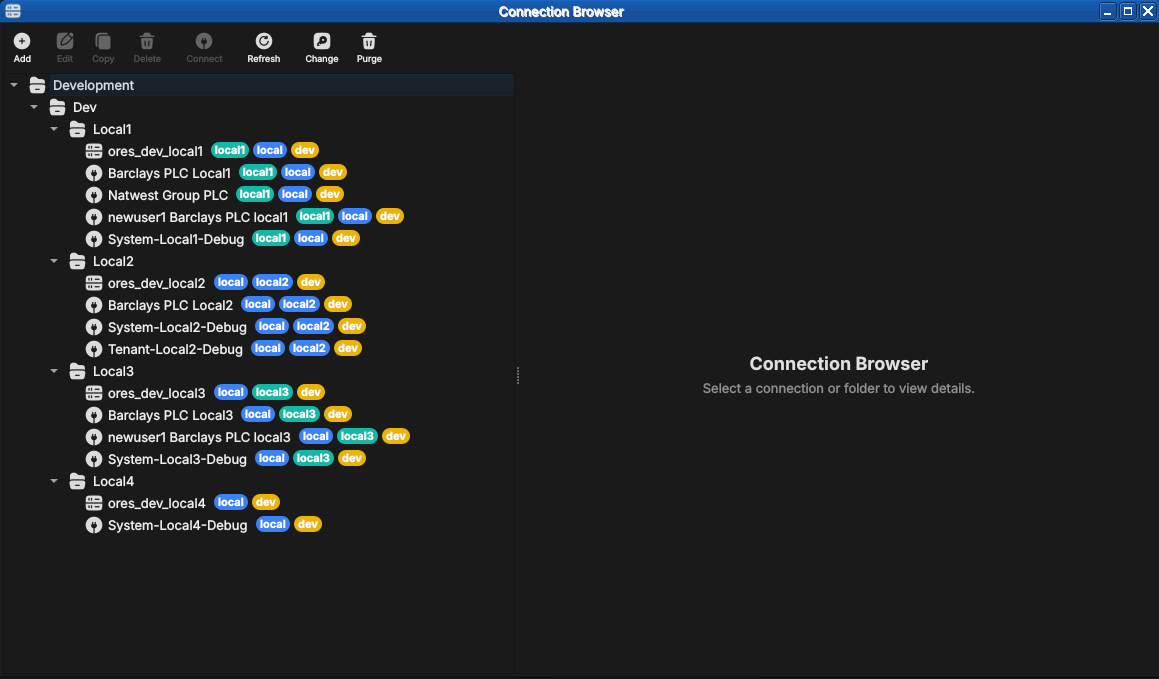
Figure 8: A populated Connection Browser. Connections are grouped under folders (here Development → Dev → Local1…Local4) and each carries coloured chips — the environment and tags — making the tier and purpose of every entry obvious at a glance.
When the list grows, folders keep it manageable. A folder is a named
container you can nest, grouping related connections — by team, by
client, or by environment tier. In the populated browser above, the
connections sit under a Development → Dev → Local1…Local4 folder tree.
To create one, click Add and set Type to Folder. Give it a name and
an optional description, and choose a parent folder (or No Folder to
place it at the top level). Connections are then assigned to a folder
through their Folder field, or by dragging them in the tree.
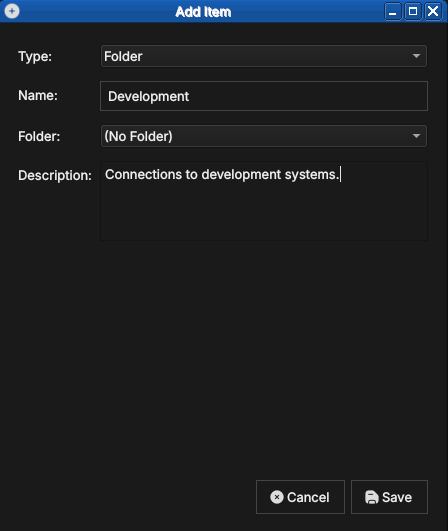
Figure 9: Creating a folder. With Type set to Folder, a folder needs only a name and an optional description; it can be nested inside another folder.
3.4.5. Protecting your credentials with a master password
The passwords you save with a connection are encrypted at rest using a master password that you choose. The first time you save a credential, ORE Studio offers to create one.
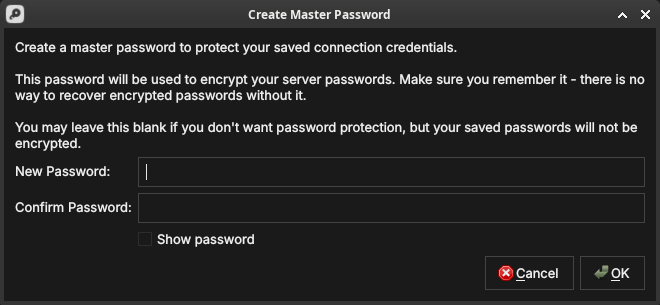
Figure 10: Creating the master password. It encrypts every saved server password; there is no recovery if you forget it, so you may also leave it blank to store passwords unencrypted.
Type the same value into New Password and Confirm Password; the fields turn green when they match. Show password reveals what you typed.
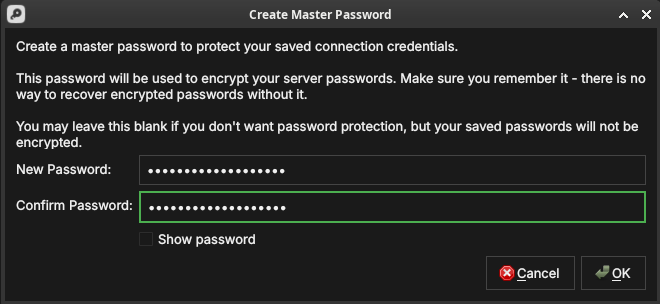
Figure 11: The master password confirmed — both fields match and are outlined in green, ready to accept with OK.
When you next launch ORE Studio and open the Connection Browser, it prompts you to unlock your saved connections by entering the master password. Until you do, the encrypted passwords stay sealed.
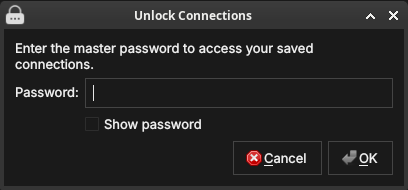
Figure 12: The unlock prompt shown on a later launch. Enter the master password to decrypt your saved connection credentials.
If you leave the master password blank, your connections still work but their passwords are stored unencrypted — acceptable on a personal machine, but not recommended on shared or portable systems.
3.4.6. Environments
An environment is a named grouping that you assign to a connection to
indicate which tier of your infrastructure it belongs to. Typical
values are Development, Staging, and Production, but the list is
fully customisable — you can define any environment names that make
sense for your setup.
Environments appear as a coloured badge or label next to the connection name in the list, making it immediately obvious which tier you are about to connect to. This is a safety feature: it is easy to accidentally connect to production when you meant staging; a clearly labelled environment badge prevents that.
See the populated Connection Browser figure under Organising connections into folders above — the same coloured chips shown there are the environment and tag labels described below.
To manage the available environment names, open the Environments section within the Connection Browser settings (or the dedicated menu item). From there you can:
- Add a new environment name and choose its display colour.
- Rename an existing environment (all connections using it update automatically).
- Delete an environment (connections that used it revert to Unassigned).
An environment is itself created from the Connection Browser: click Add
and set Type to Environment. An environment carries its own host,
port, HTTP port, namespace and tags — these become the connection details
that any connection linked to it inherits.
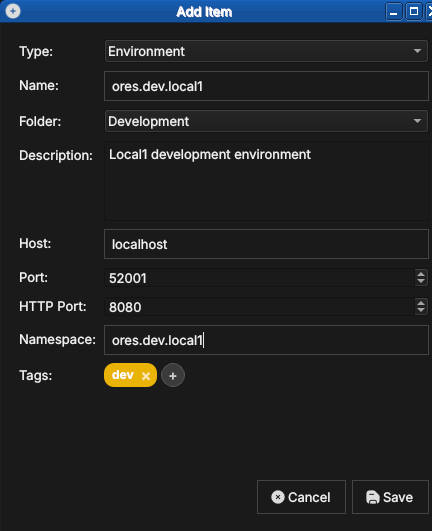
Figure 13: Creating an environment. With Type set to Environment, you give it a name, folder, host, ports, namespace, and tags (here a dev tag).
Once an environment exists, a connection can link to it by selecting it in the connection's Environment field instead of manual entry. The connection then inherits the environment's host, port, and namespace, so you maintain those details in one place.
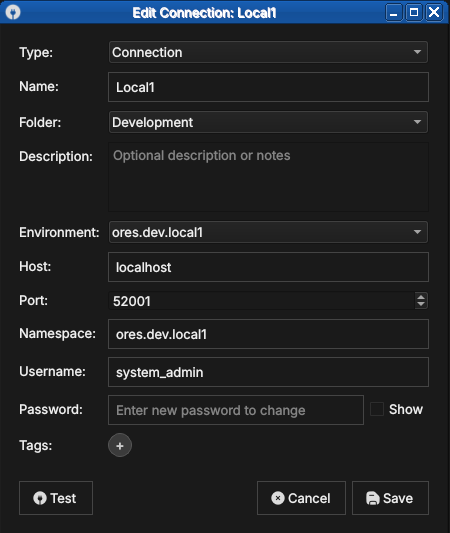
Figure 14: A connection linked to an environment. Selecting ores.dev.local1 in the Environment field populates the host, port and namespace from that environment.
3.4.7. Tags
Tags are free-text labels you attach to a connection to enable
flexible filtering and search. Unlike environments (which represent a
single tier), a connection can carry any number of tags. Examples:
personal, client-acme, read-only, high-memory.
Tags are displayed inline with the connection name in the list. The Connection Browser provides a tag filter bar at the top of the list: type or select a tag to show only the connections that carry it.
To add or remove tags, open the Edit form for the entry and use the Tags field. Type a new tag name and press Enter (or comma) to add it; click the × on an existing tag chip to remove it. Tags are created on first use — there is no separate tag management screen.
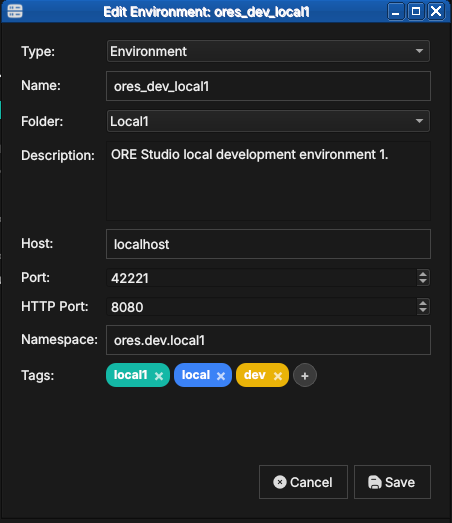
Figure 15: Tags shown as coloured chips in an entry's Edit form (here the ores_dev_local1 environment, tagged local1, local and dev). Add tags in the Tags field, remove one with the × on its chip, or click + to add another.
3.4.8. Where your connections are stored
ORE Studio keeps your connections — together with their environments,
folders, and tags — in a single local SQLite database file named
connections.db. Your UI settings (preferences and window layout) are
stored separately, in the operating system's standard settings store.
Neither leaves your machine.
- Linux:
- settings in
~/.config/OreStudio/; - database at
~/.local/share/ores.qt/connections.db.
- settings in
- macOS:
- settings in
~/Library/Preferences/; - database at
~/Library/Application Support/ores.qt/connections.db.
- settings in
- Windows:
- settings in registry:
HKCU\Software\OreStudio\OreStudio; - database at
%APPDATA%\ores.qt\connections.db.
- settings in registry:
If connections.db is missing when ORE Studio starts, it creates a new
empty one — so the Connection Browser simply opens with no entries.
3.4.9. Backing up and restoring your connections
Because everything you configure here lives in that one connections.db
file, backing it up is a file copy:
- Quit ORE Studio, so the database is fully written and not locked.
Copy
connections.dbfrom the location above to a safe place — on Linux, for example:cp ~/.local/share/ores.qt/connections.db ~/connections-backup.db
To restore, quit ORE Studio and copy the backup back over
connections.db. To move your connections to another machine, copy the
file to the same location there. The file is self-contained, so a single
copy preserves all your connections, environments, folders, and tags.
3.5. Connecting and logging in
Once you have at least one connection configured, you can log in.
3.5.1. Selecting the active connection
In the Connection Browser, select the connection you want to use and click Set as active (or double-click it). The selected connection becomes the target for the Connect button in the main toolbar. The status bar at the bottom of the main window shows the name of the active connection.
You do not have to choose in advance, though: clicking Connect opens the login dialog directly, and its Quick Connect selector lets you pick the connection there (see Filtering Quick Connect with labels below).
3.5.2. The login screen
With an active connection selected, click Connect. ORE Studio attempts to reach the backend. If the backend is reachable, the Login dialog appears.
# Capture: open the login dialog for an account with more than one party, so
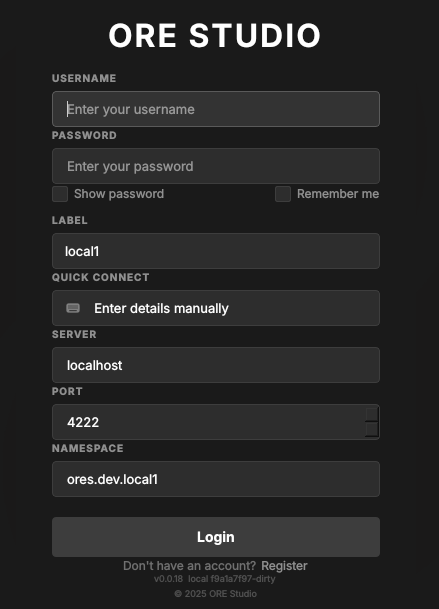
Enter your username and password and click Login. Tick Remember me to have ORE Studio recall the username next time. ORE Studio authenticates against the backend's user database. On success the dialog closes and the main window transitions to the connected state: the workspace panels become active, the menu bar is fully enabled, and the status bar shows your username and the connected backend name.
If your account spans more than one party, Log in to default party (ticked by default) skips the party-selection step and logs you straight in to the party configured as your account's default. Untick it if you want to choose the party explicitly on this login instead.
The fields below the credentials describe which backend you are logging in to:
- Label — the saved connection's name (e.g.
local1). - Quick Connect — pick a saved connection to fill Server, Port and Namespace in one step, or leave it on Enter details manually to type them yourself.
- Server, Port, Namespace — the backend address the login targets.
The Label and Quick Connect fields work together. The Label names
the environment — it defaults from the connection (or from the
--instance-name you launched with); Quick Connect then offers the
connections for that label, and picking one fills in Server, Port and
Namespace so you do not have to type them.
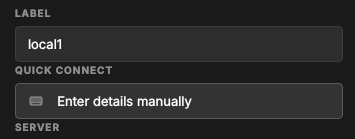
Figure 16: The Label and Quick Connect fields. The Label selects the environment; Quick Connect offers that environment's connections and fills in the server details.
If you do not yet have an account, the Register link in the footer opens account registration. If authentication fails, an error message is shown below the password field. Check that you are using the correct credentials for this backend; each backend maintains its own user database independently.
3.5.3. Filtering Quick Connect with labels
With only a handful of connections, Quick Connect is easy to scan. But a real deployment soon accumulates many — several environments, each with its own system, tenant and per-party logins. Left unfiltered (the Label set to All), the selector lists every one:
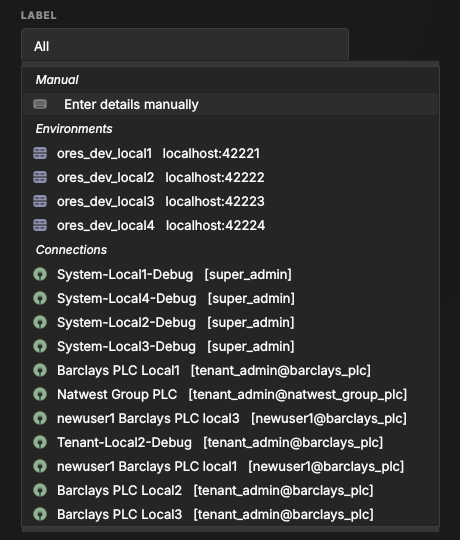
Figure 17: Quick Connect with the Label set to All — every saved connection across all environments and tenants. Hard to pick the right one at a glance.
Each connection carries a label — its environment tag, such as dev,
local1 or local2. The Label selector lists those labels; choosing
one filters Quick Connect to just the connections that carry it:
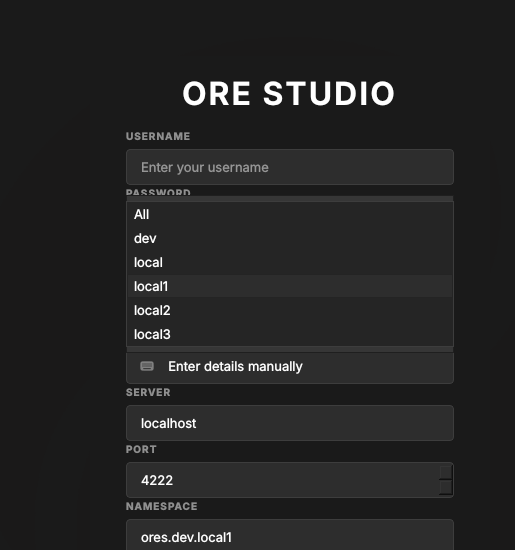
Figure 18: The Label selector lists the labels found on your connections. Pick one to narrow Quick Connect to that environment.
With local1 selected, Quick Connect shows only the local1 entries — the
environment's own database, its system and tenant logins, and its
per-party connections — so you reach the right backend without scrolling
past unrelated ones:
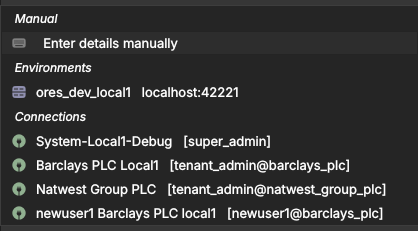
Figure 19: Quick Connect filtered to the local1 label: only that environment's connections remain.
You normally run one client per environment: a client built for local1
should connect to local1, not to staging or production. Rather than pick
the label by hand each time, set it when you launch the client — the
--instance-name command-line option (see Telling windows apart) opens
the client with the Label already set, so Quick Connect is pre-filtered
to that environment. The compass client start command does this
for you, taking the label from ORES_CHECKOUT_LABEL in your .env.
3.5.4. When the connection fails
Not every login failure is a wrong password. ORE Studio talks to the backend over a messaging server (NATS), and if it cannot reach that server — or the services behind it — it tells you which is wrong rather than just reporting "login failed".
If the messaging server itself is unreachable, ORE Studio reports that it cannot connect, along with the host and port it tried:
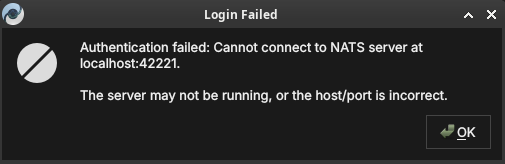
Figure 20: A login failure caused by an unreachable messaging server. The host and port ORE Studio tried are shown; the server is likely not running, or the host/port is wrong.
If the messaging server is running but the application services behind it have not started, ORE Studio says so explicitly — the fix is to start the backend services, not to change your connection:
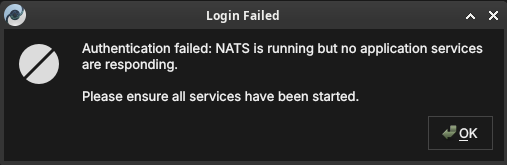
Figure 21: A login failure where the messaging server is up but no application services are responding. Ensure the backend services have been started.
In both cases your saved connection is fine; correct the backend (start the server or its services) and click Connect again.
3.5.5. First login and the default account
On a freshly initialised backend the only account that exists is the default administrator account. Your system administrator will have provided the initial credentials. After first login it is strongly recommended to change the password immediately via Settings → Account.
Once a tenant has been provisioned (covered in the next chapter,
Initial Setup), you log in with that tenant's administrator account —
the username takes the form user@tenant_code. Picking the connection
from Quick Connect fills in the server, port and namespace for you:
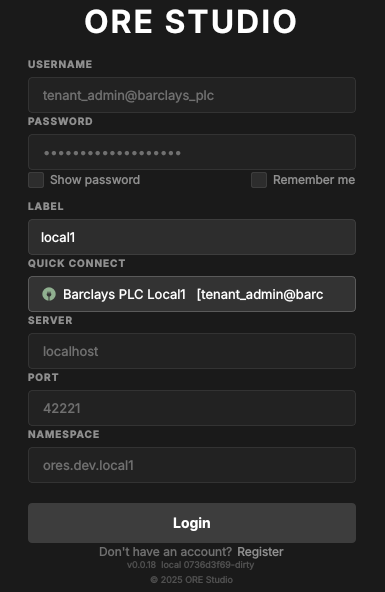
Figure 22: Logging in as a tenant administrator (tenant_admin@barclays_plc), with the connection chosen from Quick Connect.
3.5.6. Registering a new account
If your deployment allows it, the Register link in the login dialog footer opens the Create Account form. Fill in a username, email, and password (with confirmation), check the Server and Port point at your backend, and click Create Account. The Log in link returns to the login dialog.
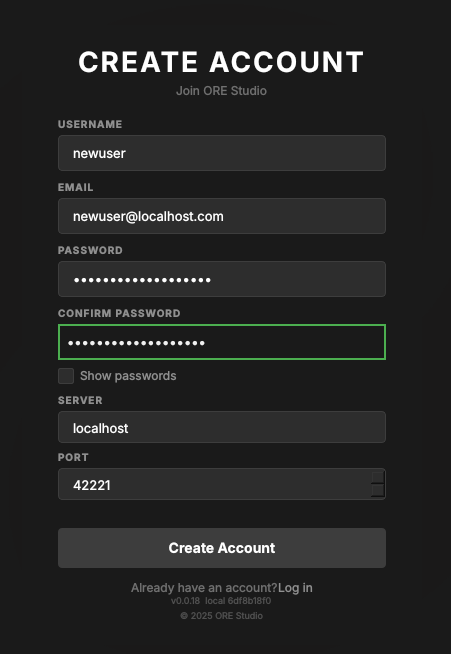
Figure 23: The Create Account form, opened from the Register link in the login dialog footer.
Self-registration is not always available: the backend must be set up to permit new users to register themselves. Where it is disabled, accounts are created for you by an administrator instead (see First login and the default account).
Account registration currently fails with Account creation failed: NATS
connect failed: SSL Error — the registration path's NATS/TLS connection
does not succeed. Until this is fixed, ask an administrator to create your
account. The fix is tracked in Fix account registration NATS SSL error.
3.6. Connection status and reconnection
The status bar always shows whether you are connected. After a deliberate log-out — or once a stopped backend is running again — use the Connect button to re-establish the session: your saved connection is retained, so you only re-enter your password.
ORE Studio does not yet reliably detect a backend that drops while you are logged in. If the messaging server (NATS) or the services behind it are stopped mid-session, the client may keep looking connected until your next action fails or hangs. Detecting the drop and showing a clear connection-lost state is planned work, tracked in Detect and report NATS disconnection.
3.7. The status bar
The status bar runs along the bottom of the main window and provides a continuous read on the application's connection state. It is always visible regardless of what is open in the workspace.

Figure 24: The status bar in the fully connected, logged-in state: from left to right, the environment marker (local1), the username (super_admin), the server (localhost:42221), the active party (Root / System Party), and the green connected indicator.
The status bar is divided into zones from left to right:
- Connection name — the name of the active connection as entered in the Connection Browser (e.g. "Local dev"). Clicking this zone opens the Connection Browser directly.
- Environment badge — the coloured environment label (e.g.
Productionin red) if one is assigned to the active connection. Absent when no environment is set. This is the most prominent safety indicator: always glance at the environment badge before performing any write operation. - Username — the account name of the currently logged-in user. Absent in the disconnected state.
- Server — the backend address (host and port) the session is
connected to, e.g.
localhost:42221. - Active party — the party context for the session (e.g.
Root/System Party), set at login when your account spans multiple parties. - Connection indicator — a coloured icon at the right showing the live link state (green when connected).
The status bar changes appearance to reflect the connection state:
- Disconnected (no active connection) — grey; shows "Not connected".
- Connecting (handshake in progress) — animated indicator; shows "Connecting to /name/…".
- Connected and logged in — normal; shows all zones as described above.
A distinct connection lost state for a backend that drops mid-session is planned but not yet implemented — see Connection status and reconnection above.
In the disconnected state the strip is reduced to the environment marker and the connection label, with the broken-link icon on the right:
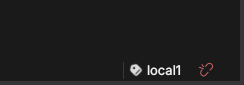
Figure 25: The status bar in the disconnected state, showing the environment marker, the connection label (local1), and the broken-link indicator.
The connected state is shown at the start of this section. Compare it with the disconnected strip above to recognise at a glance which state the application is in.
3.8. Starting ORE Studio from the command line
ORE Studio can be launched directly from a terminal, which is useful for
scripting, for telling several windows apart, or for pointing the
application at a non-default configuration directory. Run ores --help
to see the full list of accepted options for your installed version; the
most commonly used ones are documented below.
ores --help
3.8.1. Telling windows apart (instance colour and name)
When you run more than one ORE Studio window at once — for example against different backends, or from separate checkouts — you can give each window a distinct identity so you can tell them apart at a glance. This is not a light/dark theme; it is purely a per-window marker.
--instance-color HEXdraws a small coloured circle in the status bar in that colour (a 6-digit RGB hex, e.g.F44336for red). Give each window a different colour.--instance-name NAME(short form-n) labels the window with a name, also shown in the status bar, so you can see which window is which.
ores --instance-name "Local dev" --instance-color 2196F3
--instance-name does more than label the window: it also sets the
login dialog's Label field on start-up, pre-filtering Quick
Connect down to just that label's connections instead of showing
every saved connection across every environment — see Filtering Quick
Connect with labels above.
The colour and the name are independent: the colour is only a visual
marker, and the name is what identifies the instance. If you launch via
compass client start, its --colour red|green|blue|<hex>
sets the marker colour and --name sets the instance name; when you omit
--name, the name comes from ORES_CHECKOUT_LABEL in your .env — never
from the colour.
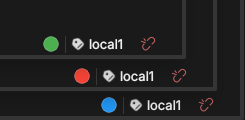
Figure 26: The status bars of three windows running the same local1 instance, each given a different --instance-color (green, red, blue) so you can tell them apart at a glance.
3.8.2. Configuration directory
By default ORE Studio stores its UI settings — preferences and window
layout — in the operating system's standard settings store. The exact
per-OS locations are listed under Where your connections are stored;
your saved connections live separately in connections.db. To use a
different directory:
ores --config-dir /path/to/config
This is useful when running multiple isolated instances, or when keeping configuration under version control for team-shared settings.
3.8.3. Selecting a connection at startup
To bypass the Connection Browser and connect immediately to a named connection:
ores --connection "Local dev"
ORE Studio will start, set the named connection as active, and open the login dialog automatically. The connection name must match exactly (case-sensitive) a saved entry in the Connection Browser.
3.8.4. Logging and diagnostics
For troubleshooting, verbosity can be increased:
ores --log-level debug    # verbose output to stdout
ores --log-file /tmp/ores.log  # write log to a file instead
Log output includes connection lifecycle events, authentication
attempts, and backend protocol messages. The debug level is intended
for issue reporting and development; it produces high-volume output and
should not be left enabled during normal use.
3.9. Finding the application version
Knowing exactly which build you are running matters when reporting an issue or checking client/backend compatibility. ORE Studio shows its version in several places.
The title bar of the main window always shows the version next to the application name:

Figure 27: The version in the main window title bar, alongside the full menu bar and toolbar of the connected application.
It also appears in the lower-right corner of the splash screen at start-up:
Figure 28: The build version in the lower-right corner of the splash screen.
…and in the footer of the login dialog, below the Register link:
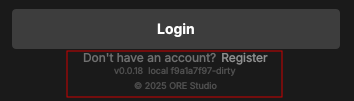
Figure 29: The version string in the login dialog footer, beneath the Register link.
From the command line, ores --version prints the client version string
(e.g. ORE Studio 0.0.19) and exits — handy in scripts or when filing a
bug report.
ores --version
3.10. Running in the background and the system tray
While ORE Studio is running it places an icon in your desktop's system tray (notification area). The icon keeps the application reachable when its window is minimised or hidden, and shows the instance name so you can tell multiple windows apart.

Figure 30: The ORE Studio icon in the system tray, labelled with the instance name so you can identify the window it belongs to.
3.11. Logging out
To end your session, choose File → Log Out or click the Disconnect toolbar button. ORE Studio closes the connection to the backend and returns to the disconnected main window. Your saved connection configurations are preserved; you can log back in at any time.
Logging out does not stop the backend service — it only terminates your client session. Other users connected to the same backend are unaffected.
To close the application entirely, quit the window (or choose File → Exit). ORE Studio asks you to confirm so you do not lose an active session by accident:
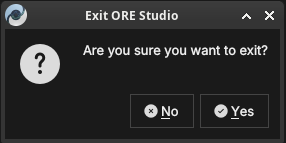
Figure 31: The exit confirmation. Click Yes to close ORE Studio, or No to keep working.
3.12. Conclusion
The chapter set out to show that reaching a working session follows from starting the application, defining the backends it may talk to, authenticating against one, and reading the session's state in turn, and it has traced exactly that path. It began at the disconnected main window, where nothing but the Connect and Connections actions is available, and used the Connection Browser to build up the set of known backends — adding and editing entries, organising them into folders, sealing their credentials behind a master password, and grouping them by environment and tag, all held in a single local store that travels with a file copy. Building on that, the connect-and-login sequence took a configured connection through to an authenticated session, with Quick Connect and labels narrowing the choice and the distinct failure messages distinguishing a wrong password from an unreachable server. The status bar then gave the session a continuous, glanceable account of its own state, and the command-line options, version markers, system tray, and log-out path filled in the operational periphery. The reader can now reach a live backend; the next chapter covers what must happen before a brand-new backend is usable at all: provisioning.
4. Initial Setup
Before first use, a fresh ORE Studio installation must be provisioned — a one-time sequence this chapter describes in full. It sketches the model the steps rest on — tenants as units of isolation, parties as the organisational hierarchy within them — then walks the fixed three-wizard sequence in order: the System Provisioner creates the platform administrator and the first tenant; the Tenant Provisioner seeds a tenant with reference data and, at its first step, forks between the ready-made Acme Corporation reference entity and a Manual path that builds your own house party hierarchy; and the Party Provisioner equips each manually-created party with counterparties and report definitions. The chapter closes with party selection at login, the point where provisioning ends and daily use begins.
4.1. Overview
The chapter advances the argument that provisioning a fresh installation is a fixed sequence that follows from the data model it serves, and it proceeds in that order. It begins by sketching that model in The model in brief, establishing the tenant as the unit of isolation and the party as the organisational hierarchy within it; this is the premise the rest of the chapter builds on. From there it lays out the The provisioning sequence as a whole — the three steps and the login identity each one requires — before working through each wizard in turn. It walks the System Provisioner, which creates the platform administrator and the first tenant; then the Tenant Provisioner, whose first page forks between the ready-made Acme Corporation reference entity and a Manual path that seeds a tenant with reference data and its own house party hierarchy; and then the Party Provisioner, which equips a single manually-created party with counterparties and report definitions. Finally it shows where provisioning hands over to daily use in Choosing a party at login, and the Conclusion draws these steps together.
4.2. The model in brief
ORE Studio organises data around two concepts that the provisioning wizards exist to create. A tenant is a fully isolated organisational space — its users, reference data, and results are invisible to every other tenant; typically one per organisation. Within a tenant, parties form the organisational hierarchy: the house — your own legal entities, desks, and booking centres — alongside the external counterparties it trades with. Users log in to a specific party, and their position in the hierarchy determines what they can see. The full model — tenant types, the system tenant and system party, hierarchy visibility, and the house versus counterparty distinction — is covered in the Tenants chapter.
4.3. The provisioning sequence
A freshly installed ORE Studio backend goes through a fixed sequence before it is ready for normal use. Each step requires a specific login identity:
- System provisioning — no login is needed; the backend is in provisioning mode and the System Provisioner wizard launches automatically the first time any client connects. This step creates the platform administrator account and provisions the first tenant and its tenant administrator. Until it completes, no normal user logins are accepted.
- Tenant provisioning — log out of the system administrator session (or simply connect as a new user) and log in as the tenant administrator created in step 1. OreStudio detects that this account has never logged in before and launches the Tenant Provisioner automatically. Here the path forks: choosing Acme Corporation (full sample bank) populates the tenant with the system's ready-made reference entity in one step (see the Acme Corporation chapter); choosing Manual setup instead seeds the tenant with reference data and creates your own house party hierarchy, step by step, as described below.
- Party provisioning — log in to a specific house party using the tenant administrator account, or any operational account that holds party setup permissions for that party. OreStudio detects that the party has not yet been provisioned and launches the Party Setup wizard. Repeat this step for each party in the hierarchy that needs its own counterparties, books, and reports.
Each step has a corresponding wizard in the ORE Studio UI. The following sections walk through each one.
4.4. The System Provisioner wizard
The first time you connect to a backend that has never been initialised, ORE Studio detects provisioning mode and launches the New System Provisioner automatically. This one-time wizard creates the platform administrator account, chooses a single- or multi-tenant layout, and provisions the first tenant together with its own administrator.
4.4.1. Welcome
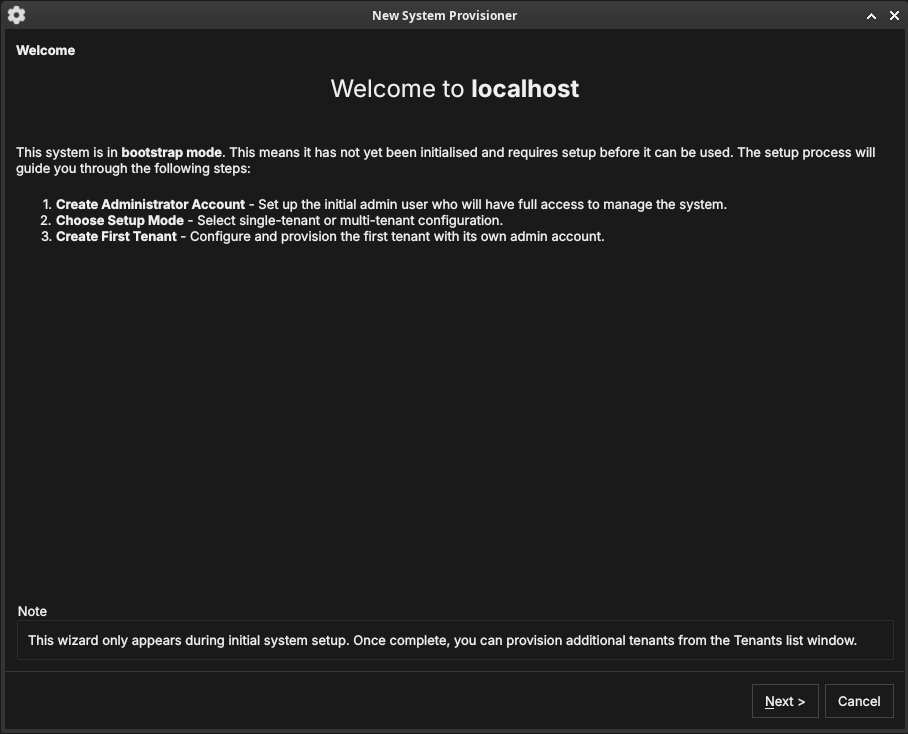
Figure 32: The System Provisioner welcome page, shown when the backend is in provisioning mode. It lists the three setup steps.
The welcome page confirms the system is in provisioning mode and outlines the steps: create the administrator account, choose the setup mode, and create the first tenant. Click Next.
4.4.2. Create the administrator account
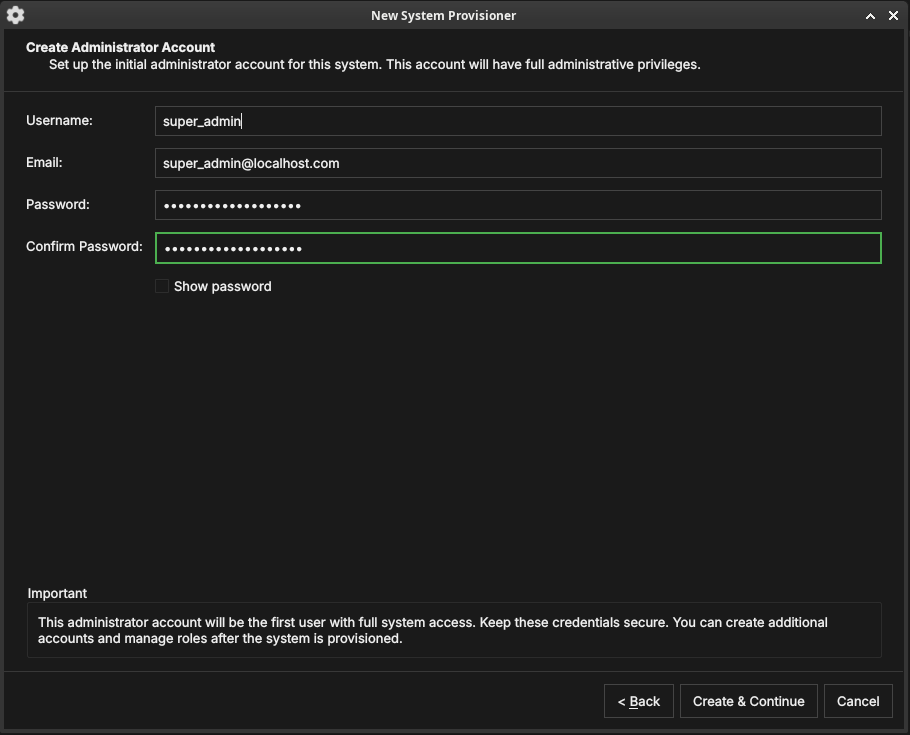
Figure 33: Creating the platform administrator account — the first account, with full administrative privileges over the whole deployment.
Enter a username, email, and password (with confirmation) for the platform administrator. Keep these credentials safe — this account has unrestricted access to the entire deployment. Click Create & Continue.
4.4.3. Choose the setup mode
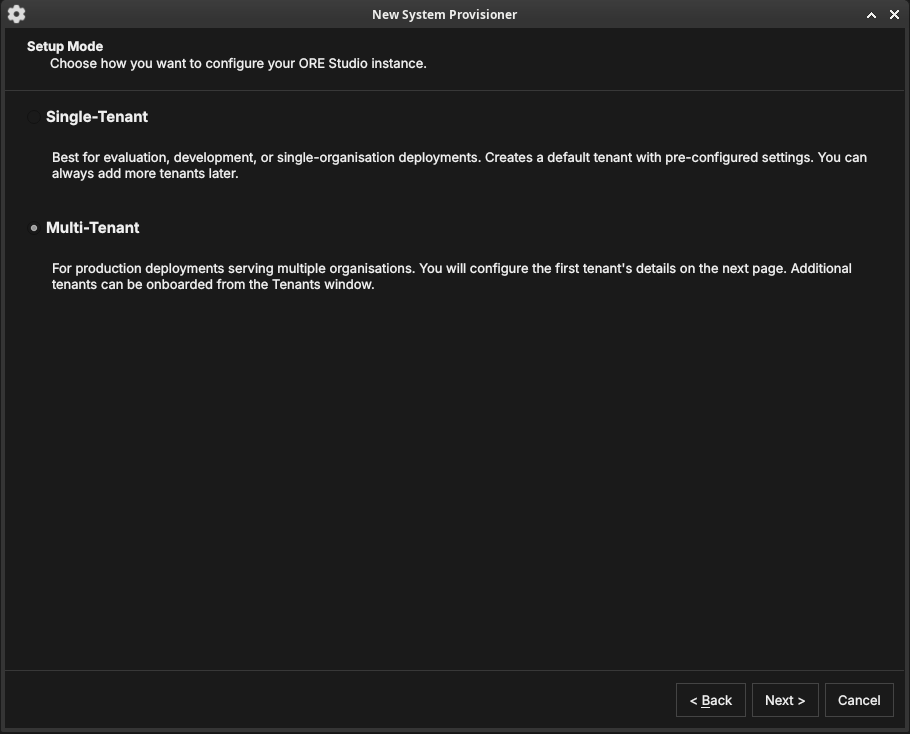
Figure 34: The Setup Mode page. Single-Tenant creates a default tenant with pre-configured settings; Multi-Tenant lets you configure the first tenant in detail and onboard more later.
Choose how the deployment is organised:
- Single-Tenant — best for evaluation, development, or a single organisation. Creates a default tenant with sensible defaults; you can add more tenants later.
- Multi-Tenant — for production deployments serving several organisations. You configure the first tenant's details on the next page and onboard additional tenants from the Tenants window.
Click Next.
4.4.4. Tenant details
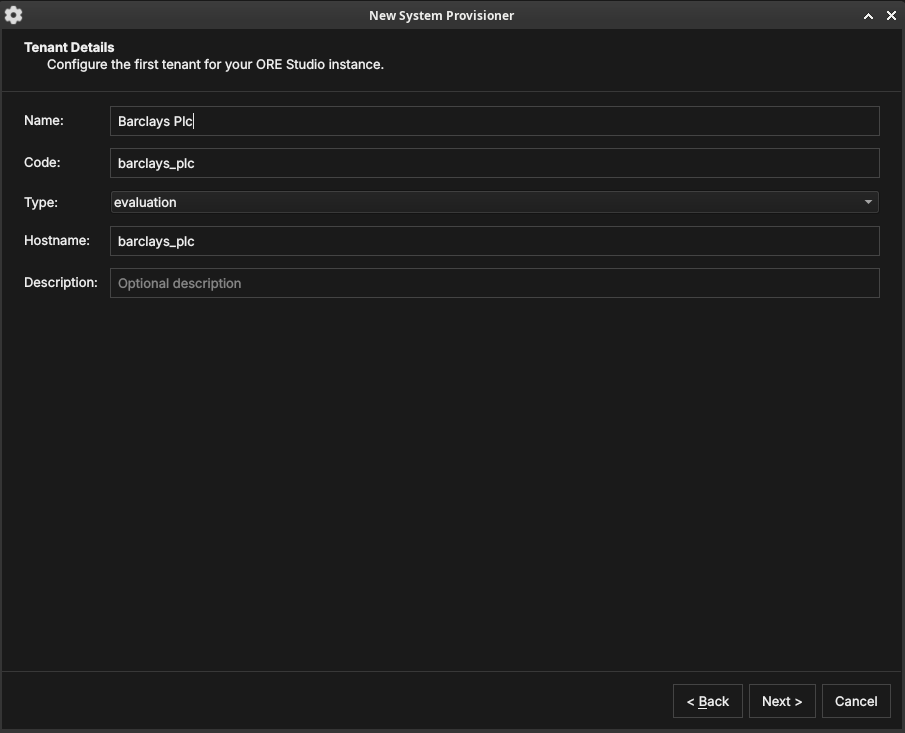
Figure 35: The first tenant's details: a display name, a short code, a tenant type, and a hostname.
Configure the first tenant:
- Name — the organisation's display name (e.g. "Barclays Plc").
- Code — a short machine code used internally (e.g.
barclays_plc). - Type — the tenant type (see Tenant types): System, Production, Evaluation, or Automation.
- Hostname — the host identifier for the tenant.
Click Next.
4.4.5. Tenant administrator account
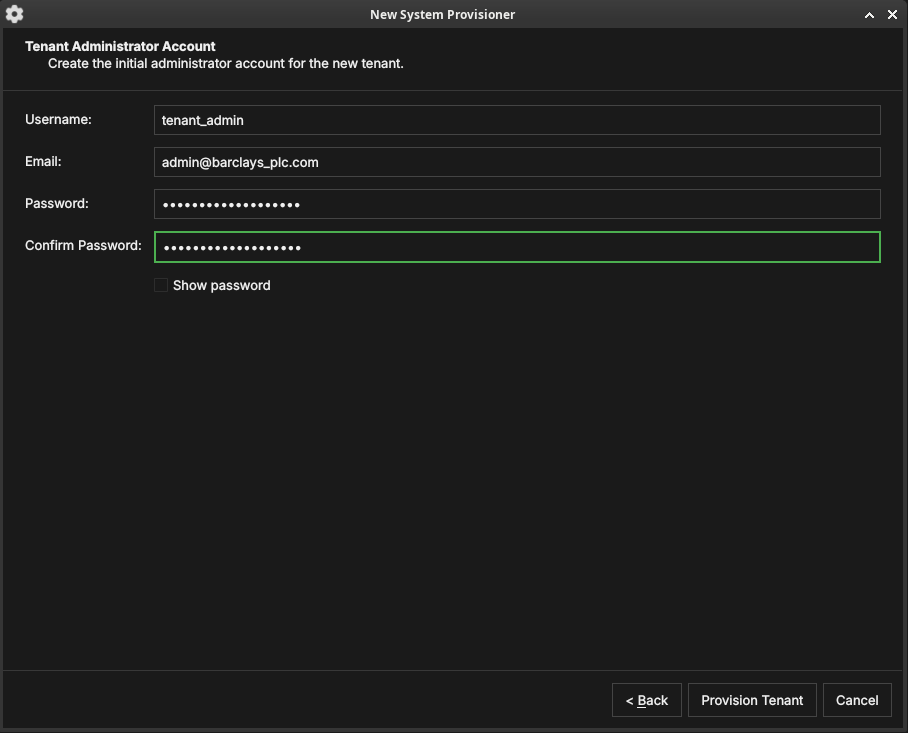
Figure 36: The tenant administrator account. This account administers the new tenant and is independent of the platform administrator.
Create the initial administrator for the new tenant — a username,
email, and password. This account is given the TenantAdmin role:
full control within the tenant, but no cross-tenant access. Click
Provision Tenant.
4.4.6. Provisioning
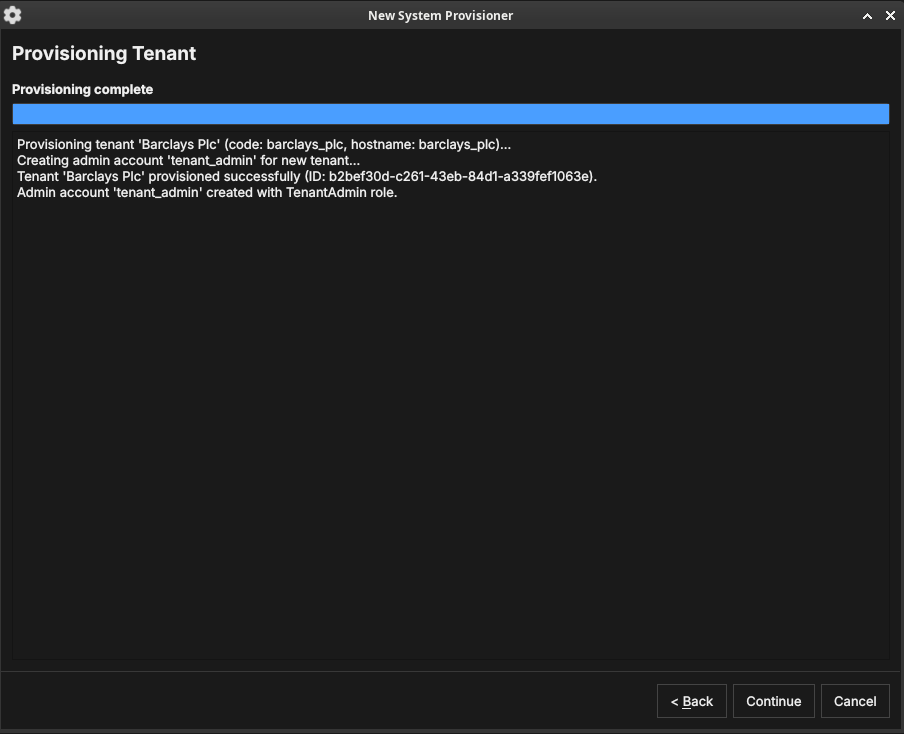
Figure 37: The provisioning step. ORE Studio creates the tenant and its administrator, logging progress as it goes.
ORE Studio provisions the tenant and creates its administrator account, logging each step. When it finishes, click Continue.
4.4.7. Setup complete
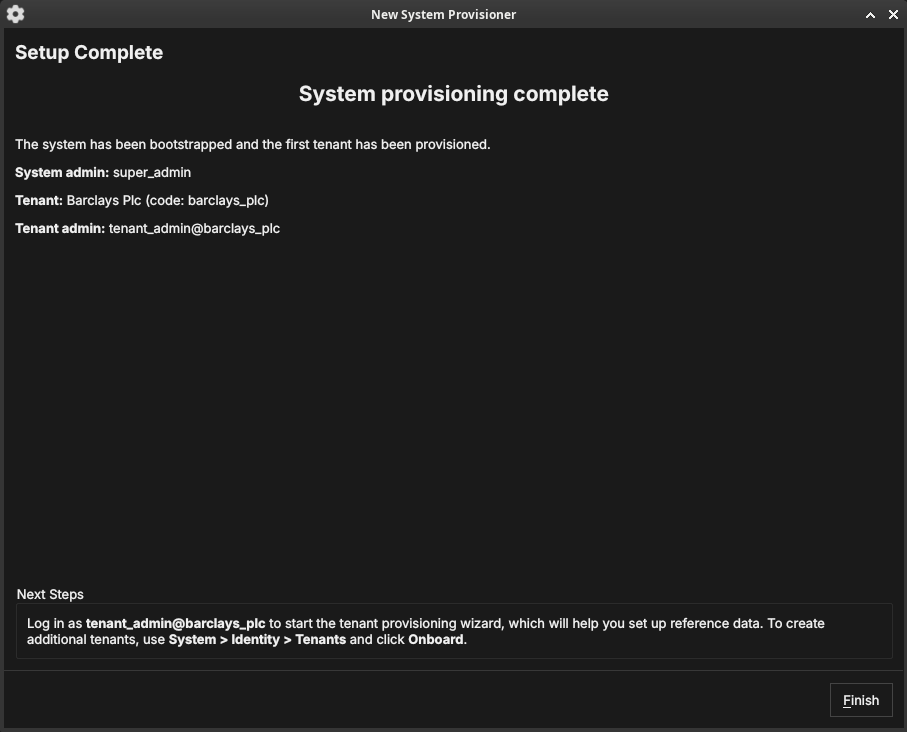
Figure 38: The System Provisioner summary: the platform admin, the first tenant, and the tenant admin that were created, with next-step guidance.
The final page summarises what was created and tells you the next step: log in as the tenant administrator to run the Tenant Provisioner. To create further tenants later, use System → Identity → Tenants and click Onboard. Click Finish — the backend leaves provisioning mode and the login dialog appears.
4.5. The Tenant Provisioner wizard
The first time you log in as a tenant administrator, ORE Studio launches the New Tenant Provisioner. It seeds the tenant with reference data and, optionally, an initial party hierarchy. You can skip it with Cancel and set everything up by hand later from the Data Librarian and Parties windows.
4.5.1. Welcome: Acme Corporation or Manual setup
Before anything else, the welcome page offers a choice between two entirely different paths:
- Acme Corporation (full sample bank) — the fastest way to a fully populated, realistic installation. Selecting it skips every other step in this wizard (catalogue selection, data source, party setup) and hands the whole build to the server: a four-legal-entity holding group with business units, portfolios, books, and fifty-eight staff accounts, imported and published in one step. This is the recommended path if your goal is exploring ORE Studio rather than modelling your own organisation — see the Acme Corporation chapter for what you get and why.
- Manual setup — build the tenant up yourself: choose a reference-data catalogue, choose how to seed your own party hierarchy (from the real GLEIF registry or generated synthetic data), and optionally run the Party Setup wizard per party. Choose this path when you want to model your own organisation rather than explore a pre-built one. The rest of this section walks that path step by step.
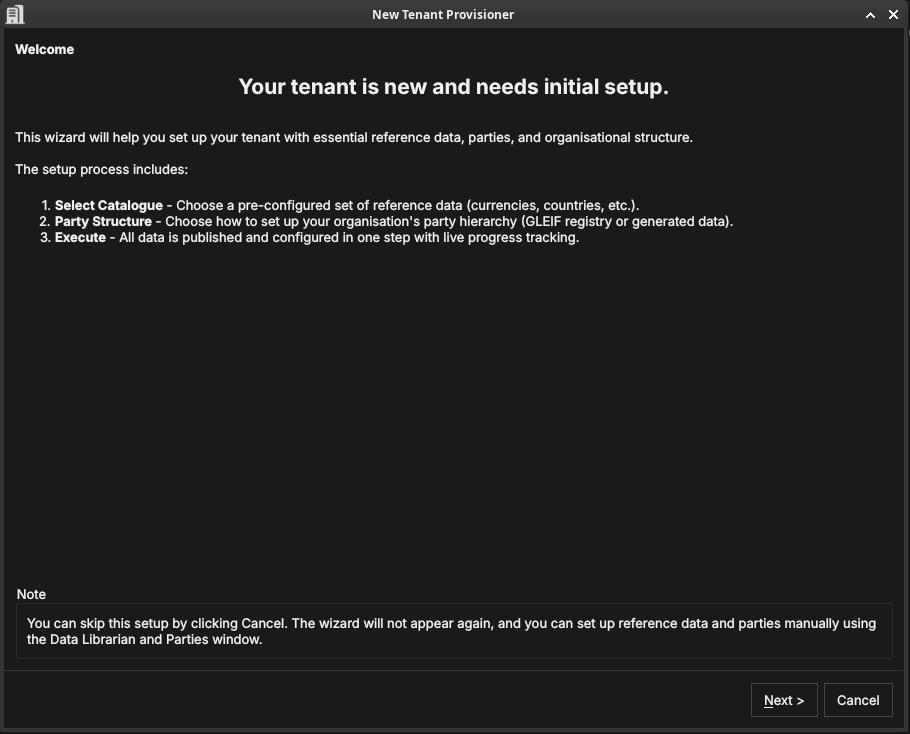
Figure 39: The Tenant Provisioner welcome page, listing its three steps: select a reference-data catalogue, choose a party structure, and execute. This capture predates the Acme Corporation vs Manual setup choice described above and needs retaking.
Selecting Manual setup and clicking Next moves on to catalogue selection, described next.
4.5.2. Select a catalogue
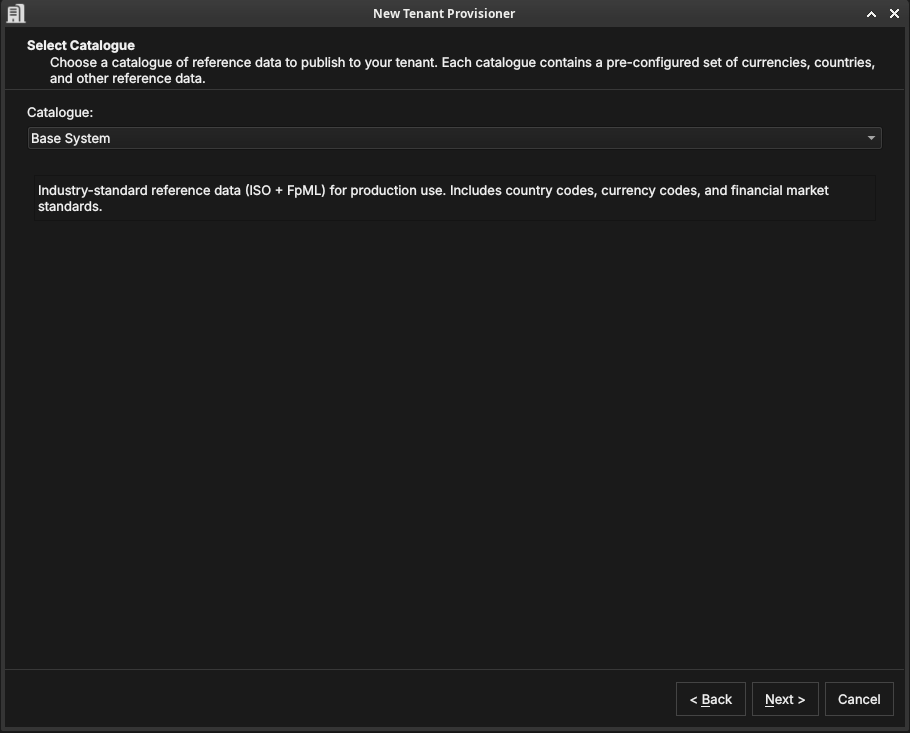
Figure 40: Selecting a reference-data catalogue — a pre-configured set of currencies, countries, and market standards.
A catalogue is a ready-made bundle of reference data. The Base System catalogue provides industry-standard ISO and FpML data — country codes, currency codes, and financial-market standards — suitable for production use. Choose a catalogue and click Next.
4.5.3. Choose a data source
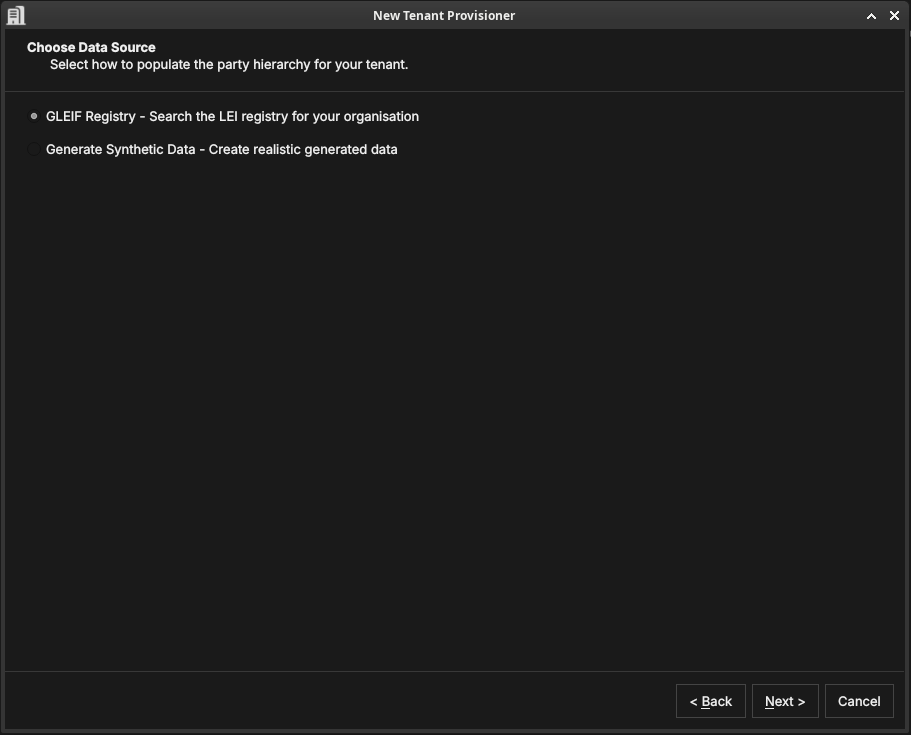
Figure 41: Choosing how the tenant's internal party hierarchy — your organisation's own legal entities and business units — will be seeded.
This step seeds the internal party hierarchy: the legal entities and business units that represent your own organisation — what practitioners call the house. As described in Parties, these are the operational parties that own trades, books, and analytics results.
The data source choice does not affect counterparties (the external entities your organisation trades with — those are imported separately in the Party Setup wizard). It only determines how the house structure is created.
In a group context — for example a bank holding company with separate London and New York subsidiaries — the house hierarchy reflects the corporate structure. The root party is the top-level legal entity; its children are the subsidiary entities; their children are trading desks, books, or booking centres. Each node in this tree represents a real organisational unit, and users log in to the node that corresponds to their own entity.
Two seeding methods are available:6
- GLEIF Registry — searches the global LEI registry for your real organisation. The entity you select becomes the root party, and its corporate descendants in the GLEIF hierarchy — subsidiaries, branches, and related entities — are created automatically as child parties. This is the recommended approach for production deployments: the GLEIF data provides real legal entity names, LEI codes, and verified corporate relationships.
- Generate Synthetic Data — creates a realistic but fictional party hierarchy using generated names. Use this for evaluation tenants, demonstrations, or testing where you want a plausible structure without importing real organisational data.
Click Next.
4.5.4. Party setup (optional)
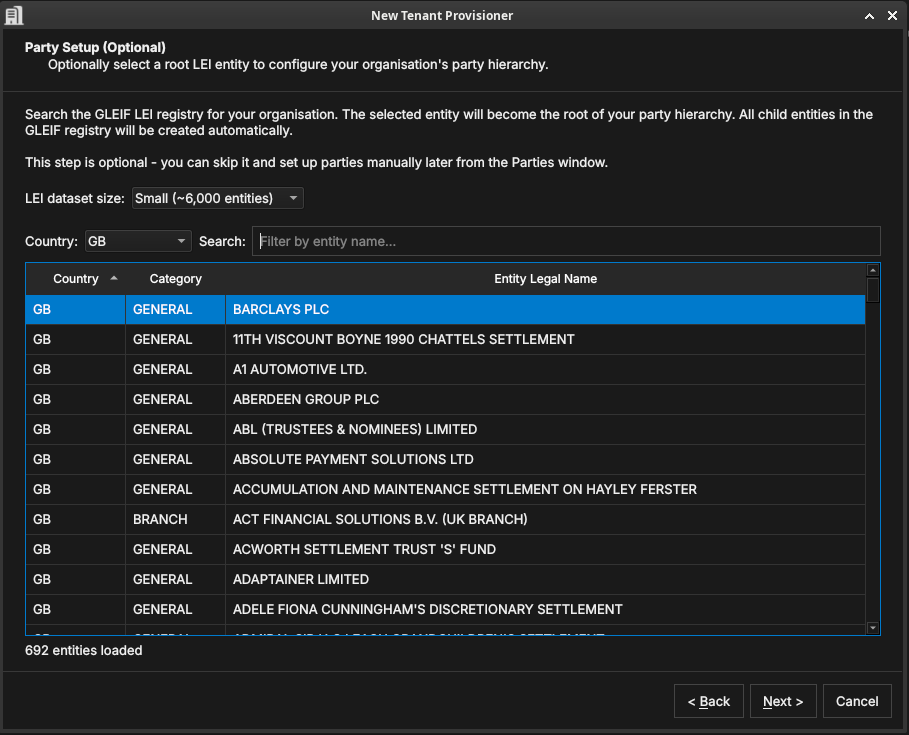
Figure 42: The optional Party Setup step. Search the GLEIF LEI registry for your root entity (here Barclays PLC); its corporate descendants are created as child parties automatically.
It helps to be clear about what this step does and does not do.
What it creates: the party nodes — the named entries in the hierarchy that represent your legal entities and business units. Each node gets a name, a LEI code, and a position in the tree. After this step OreStudio knows that "Barclays PLC" exists as a party, that it is the parent of "Barclays Bank UK PLC", and so on. The hierarchy structure is in place.
What it does not create: the operational content within each party — the books, portfolios, business units, counterparties, and report definitions that each party uses day-to-day. That content is added separately, after provisioning, by the Party Setup wizard (described in The Party Provisioner wizard below). Think of this step as building the org chart; the Party Setup wizard then stocks each office.
To use the GLEIF registry, pick an LEI dataset size (which controls how much of the registry is loaded for searching), filter by Country if needed, and search by entity name. The entity you select becomes the root house party — the top of your internal hierarchy. Its corporate children and grandchildren in the GLEIF registry (subsidiaries, branches, booking centres) are created automatically as child operational parties. You do not need to build the structure by hand; the GLEIF corporate hierarchy data does it for you.
This step is optional — skip it to create parties manually later from the Parties window. Click Next.
4.5.5. Publishing
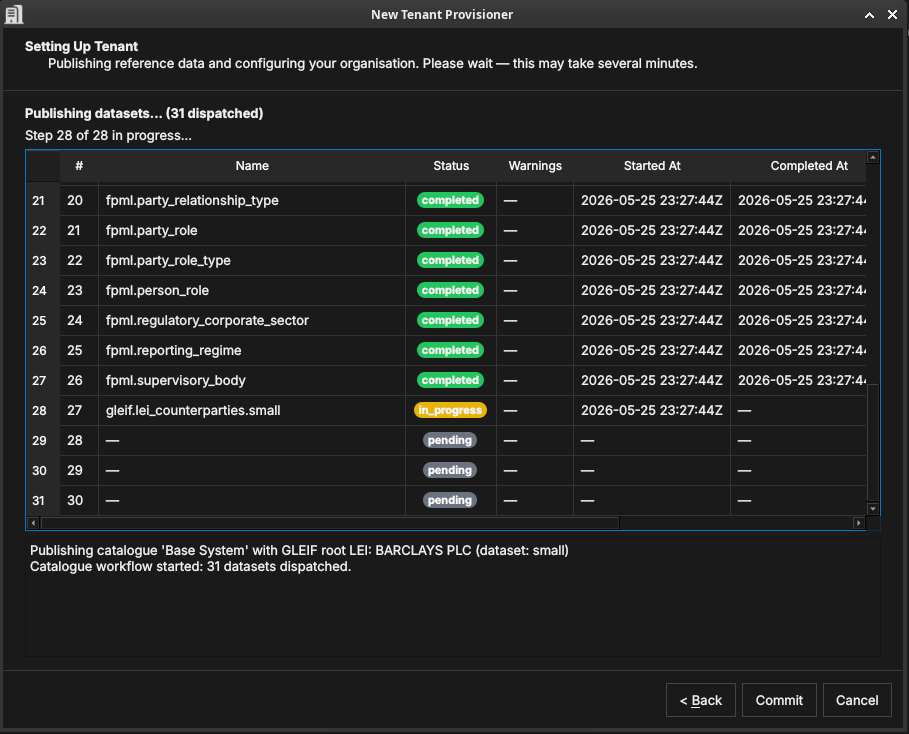
Figure 43: The publishing step, showing 31 datasets being dispatched in dependency order. Dataset 28 (gleif.lei_counterparties.small) is in progress; datasets 29–31 are pending.
OreStudio runs a multi-step publishing pipeline to populate the tenant with all the data selected in the previous steps. The pipeline dispatches datasets in the correct dependency order — classification tables before the entities that reference them, catalogue data before GLEIF data — and shows live progress in the table.
Each row in the table is one dataset. The columns are:
- # — the dataset's position in the dependency graph (zero-based). Datasets with lower numbers are prerequisites for those with higher numbers.
- Name — the dataset identifier, in
source.datasetform. The prefix identifies the data source:iso.*datasets contain ISO standard data (currencies, countries);fpml.*datasets contain FpML reference classifications (party types, roles, regulatory sectors);gleif.*datasets contain GLEIF LEI entity data (counterparties, house parties). - Status —
pending(not yet started),in_progress(actively loading), orcompleted(finished successfully). A red status indicates a failure. - Warnings — any non-fatal issues encountered during that dataset's load, displayed as a count. Click the row to see details.
- Started At / Completed At — UTC timestamps for the dataset's execution window.
The log panel at the bottom provides a running narrative: which catalogue is being published, how many datasets were dispatched, and the final outcome for each phase (reference data, organisation, activation).
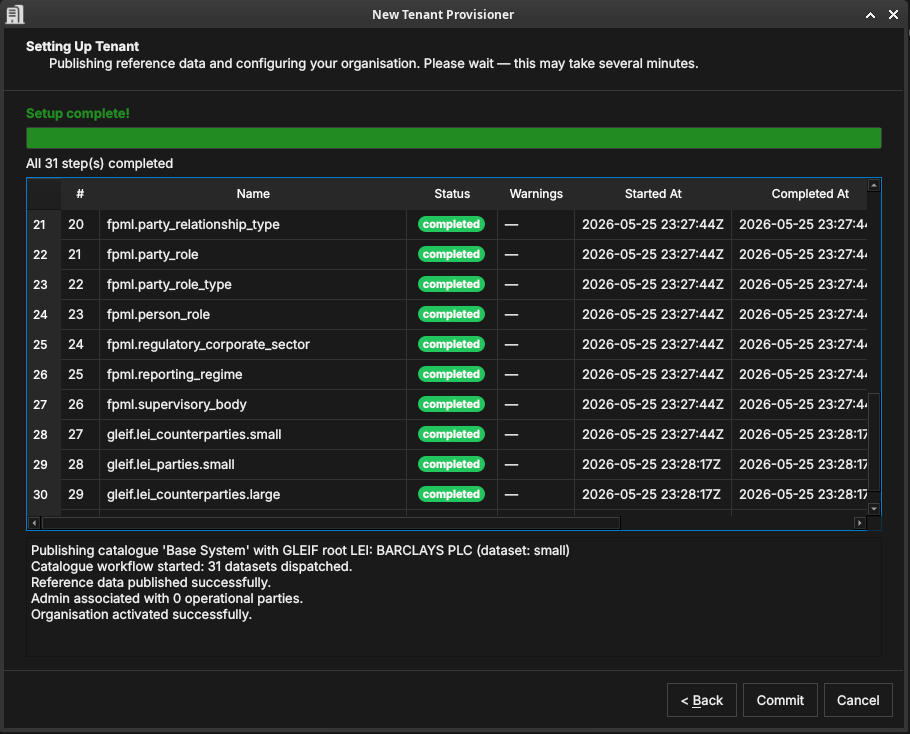
Figure 44: All 31 datasets completed. The log confirms: reference data published, organisation associated with parties, and the tenant activated.
When all rows show completed and the log ends with "Organisation
activated successfully", click Commit to finalise the setup, or
Back to change your selections.
4.5.6. Setup complete
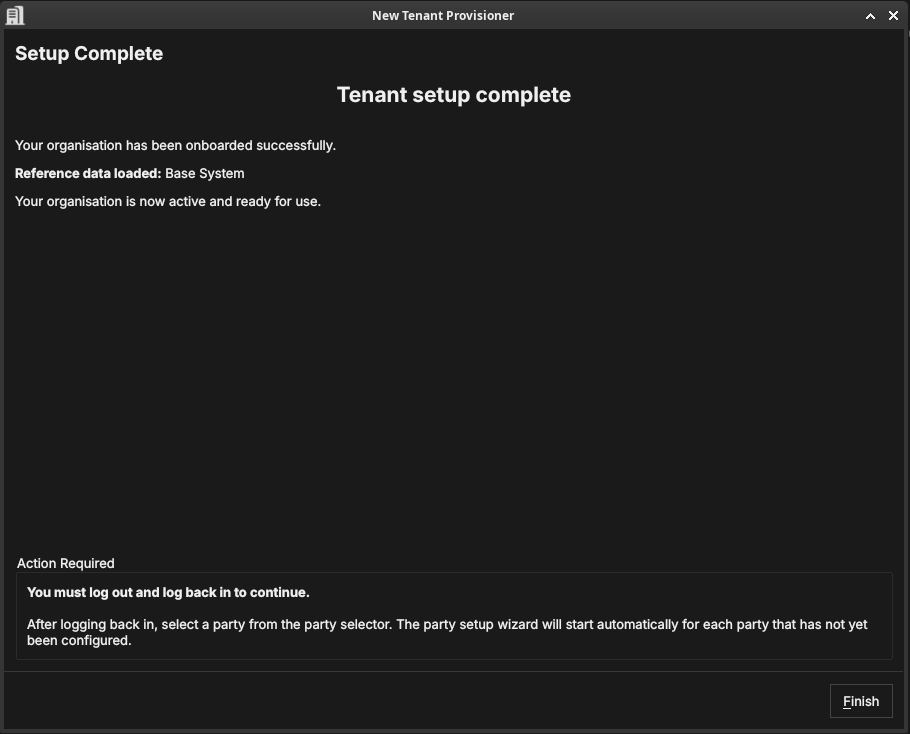
Figure 45: The Tenant Provisioner summary, confirming the reference data and parties that were set up.
The final page confirms what was created. Click Finish. The tenant now has its reference data and party hierarchy in place.
4.6. The Party Provisioner wizard
Where the Tenant Provisioner establishes the party hierarchy, the Party Setup wizard configures the operational structure within a party: it imports counterparties, then publishes every party-scoped data bundle the party needs — risk management (business units, portfolios, books, and a standard set of risk-report definitions), synthetic market data configuration, and curated FX driver rates. It runs for a party that needs initial setup, and can be skipped with Cancel (counterparties and bundles can be configured later from the application menus).
4.6.1. Welcome
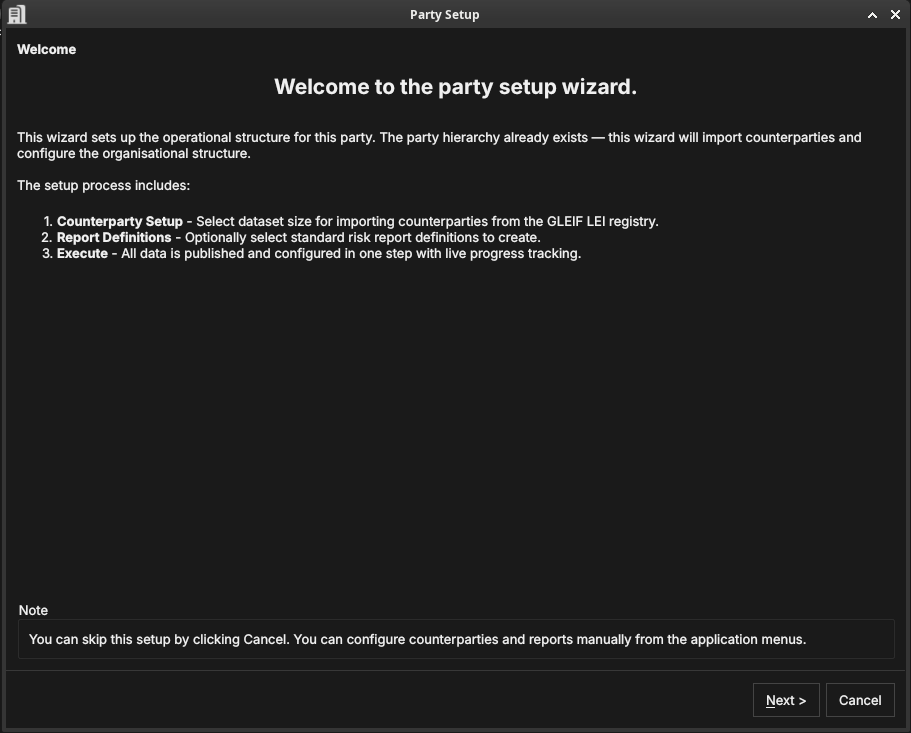
Figure 46: [SCREENSHOT OUTDATED — retake needed] The Party Setup welcome page, listing its steps: counterparty import and execute.
By this point the house hierarchy — the party nodes representing your organisation's legal entities — already exists. This wizard populates one specific party within that hierarchy: it attaches the external counterparties that this party trades with, then publishes its operational structure, risk reports, and market data configuration in one step. Click Next.
4.6.2. Counterparty import
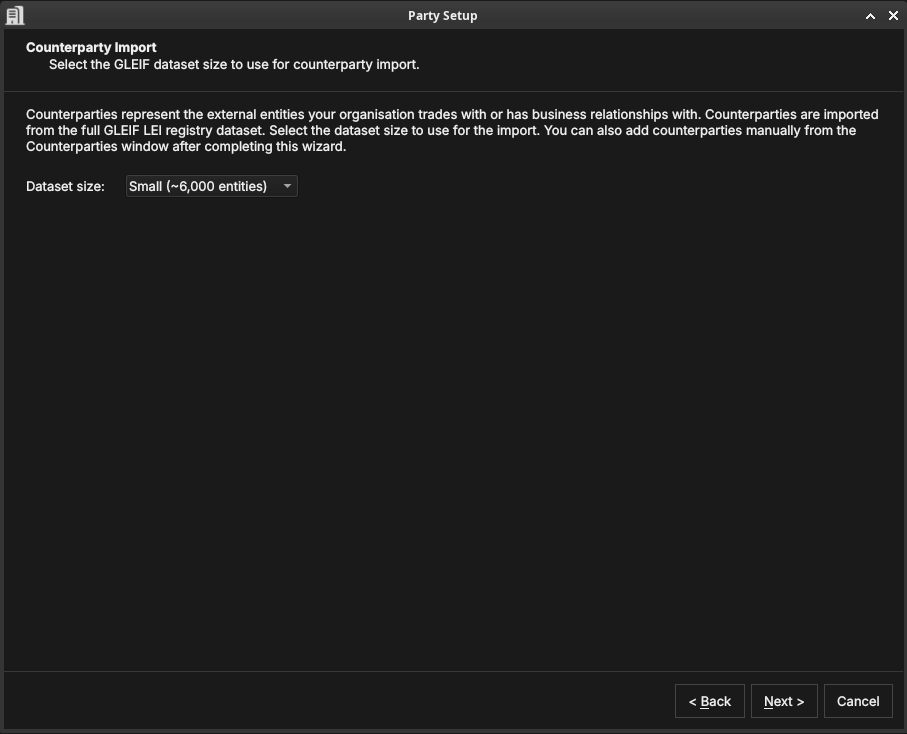
Figure 47: Choosing the GLEIF dataset size for importing counterparties. The dataset size controls how many real-world legal entities are loaded from GLEIF as counterparties.
Counterparties are the external legal entities your organisation trades with — banks, broker-dealers, corporates, funds. Where parties (the house) represent your own organisational structure, counterparties represent the other side of your trades. The distinction is important: house parties own books and positions; counterparties appear on trade tickets as the facing entity.
OreStudio imports counterparties from the GLEIF LEI registry. This is a deliberate design choice: GLEIF contains over two million real legal entities with verified names, LEI codes, countries of incorporation, and corporate relationships. Importing from GLEIF means your OreStudio instance starts with a realistic, authoritative counterparty population rather than a hand-crafted list. In an evaluation or demonstration tenant this is especially valuable — trades booked against real counterparty names (Deutsche Bank, JP Morgan, BlackRock) look and behave exactly as they would in production, making scenario testing meaningful.
The dataset size controls how many GLEIF entities are loaded: smaller sizes load a representative subset quickly; larger sizes import a more complete global population. You can add individual counterparties later from the Counterparties window regardless of which size you choose. Click Next.
4.6.3. Execute
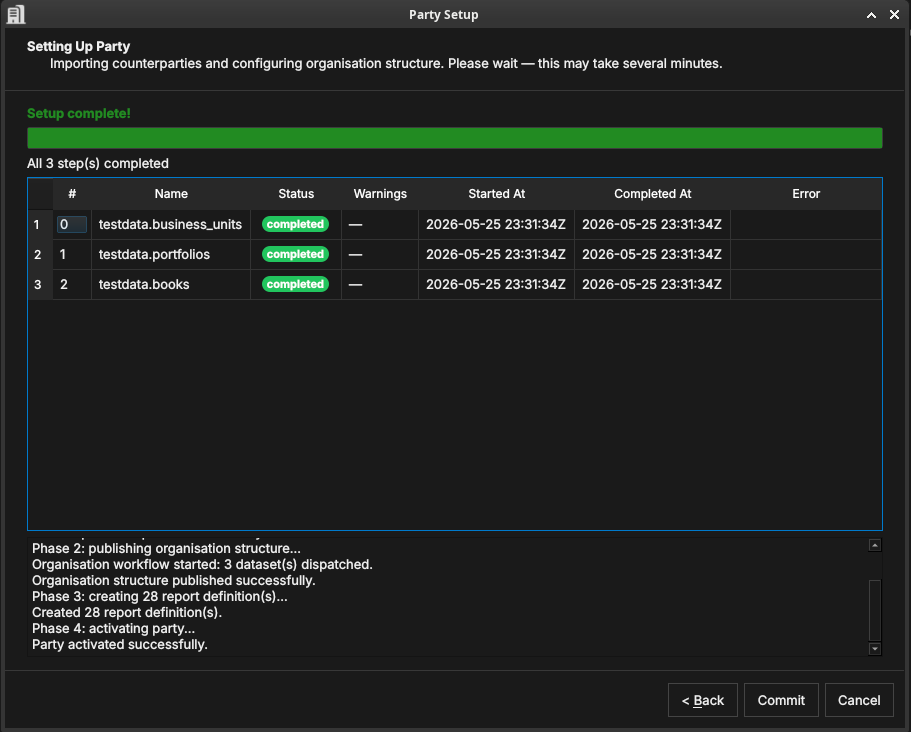
Figure 48: [SCREENSHOT OUTDATED — retake needed] The execute step showing the risk_management bundle's datasets completed: testdata.business_units, testdata.portfolios, testdata.books, and ore.report_definitions. The log below shows the five phases completed in sequence.
OreStudio runs the party setup in five phases, shown in the log panel:
- Phase 1: importing counterparties — loads the selected GLEIF
counterparty dataset into the party's counterparty table. The
progress table shows one row per dataset (e.g.
gleif.lei_counterparties.small), with the same Status / Started At / Completed At columns as the Tenant Provisioner publishing step. - Phase 2: publishing risk management — publishes the
risk_managementbundle in full: business units (testdata.business_units), portfolios (testdata.portfolios), books (testdata.books) — the lowest-level containers that own individual trades and positions — and the standard set of risk-report definitions (ore.report_definitions), since reports reference the book/portfolio tree. - Phase 3: publishing synthetic market data configuration —
publishes the
synthetic_realistic_2026bundle in full: the "2026 Realistic" theme's FX spot and IR curve generation configs, and any further asset class added to the bundle in future. Two other themes exist –synthetic_ore_samples_2016("2016 ORE Samples", matching the conventions ORE's own sample data comes from) andsynthetic_uniform_demo(a simple, non-vintage demo/exercise archetype) – publish those separately (e.g. viaores.shell) if you want them available too. Only one theme's feeds should ever run at once: the Market Simulator's Start action at the collection root prompts you to pick a theme rather than starting them all. - Phase 4: publishing FX driver rates — publishes the curated
marketdata.reference_vintage_2016_02_05bundle so the party has real market series/observations to browse. - Phase 5: activating party — marks the party as operational so users can log in to it and begin booking trades.
When the log ends with "Party activated successfully", click Commit.
4.6.4. Setup complete
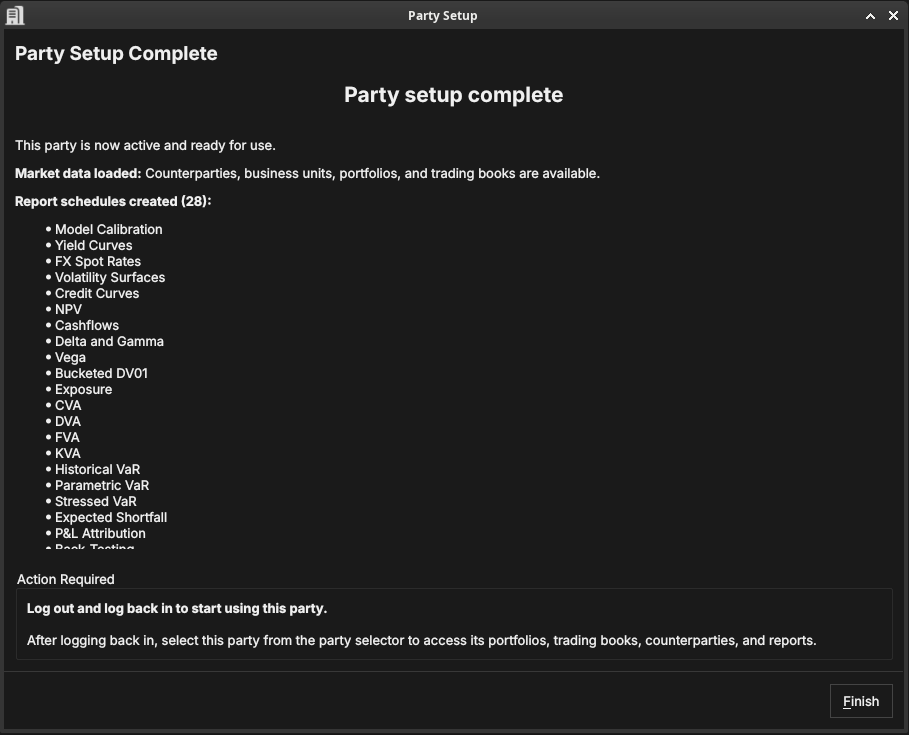
Figure 49: [SCREENSHOT OUTDATED — retake needed] The Party Setup summary, confirming the party is active and ready for use.
The final page confirms the party is now fully operational: it has counterparties, an organisational structure, scheduled risk reports, and market data configuration.
4.7. Choosing a party at login
Some accounts are associated with more than one party — for example a group administrator who can act for several entities. When you log in with such an account, ORE Studio asks which party context to use for the session.
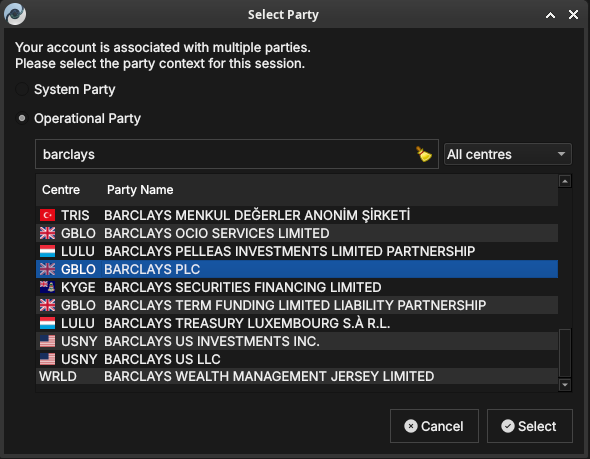
Figure 50: The Select Party dialog. Choose the System Party or an Operational Party; filter by booking centre or search by name.
Choose System Party for administrative work, or Operational Party to work within a specific business entity. Filter the list by booking centre, or type in the search box to narrow it.
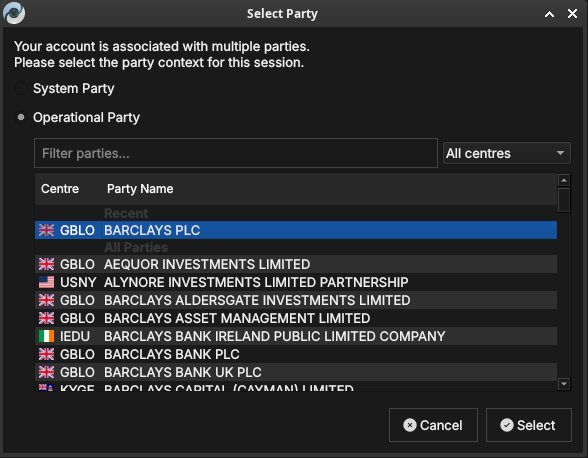
Figure 51: The Select Party dialog with a recently used party listed under Recent at the top for quick access.
Select a party and click Select. Your data visibility for the session is determined by the party you choose and its position in the hierarchy.
4.8. Conclusion
The chapter set out to show that provisioning a fresh installation is a fixed sequence that follows from the data model it serves, and it has traced exactly that path. The tenant and party model came first — the tenant as the unit of isolation, the party as the hierarchy within it, with the full treatment reserved for the Tenants chapter — because the provisioning steps exist to create precisely those structures. Building on that premise, the three wizards did the work in turn: the System Provisioner created the platform administrator and the first tenant, the Tenant Provisioner forked between the ready-made Acme Corporation reference entity and a Manual path seeding the tenant with reference data and its own house party hierarchy, and the Party Provisioner equipped each manually-created party with counterparties, an organisational structure, and report definitions. Each step required its own login identity, and each ran once. Provisioning ends where daily use begins — choosing a party at login — and the accounts the wizards created, like every account after them, are managed through the windows described in the next chapter.
5. Provisioning from the Shell
Everything the wizards do, the shell can do too. This
chapter covers the same ground as the provisioning wizards from the
command line, where a complete system can be provisioned with three
commands — or with one script, run end to end without touching the
desktop application. It sets out the provision commands and how each
maps onto its wizard, the supporting commands they are built from, the
script library that ties them together, and two complete worked
examples — the fast Acme Corporation path and the generic path for
building your own organisation — showing that scripted provisioning
is repeatable: the same script against a fresh installation always
produces the same system.
5.1. Overview
The chapter advances the argument that provisioning a complete system
from the command line means understanding the client that runs the
commands, then each provisioning command in the order it must be run,
then the smaller commands they are built from, and finally how to tie
them together into a repeatable script — and it proceeds in that order.
It begins by establishing the client and the rules it enforces in
The shell and provisioning, which explains how the shell speaks to the
backend and why provisioning follows a fixed sequence; this is the
premise the rest of the chapter builds on. From there it walks the
sequence one stage at a time — Provisioning the system, then
Provisioning a tenant, then Provisioning a party — each command standing
in for the wizard it replaces. It then opens up the machinery in
The supporting commands, the smaller commands the provision phases
call and that you can run by hand to inspect the system or recover a
failed run, before showing in Scripts how the shell runs those commands
unattended from a file. Finally A complete example runs the fast
Acme Corporation path from a single shipped script, and A custom
example: your own organisation points to the equivalent script for
building your own house instead, before the Conclusion draws these
steps together.
5.2. The shell and provisioning
ores.shell is ORE Studio's interactive command-line client. Like
the desktop application it speaks to the backend services over the
message bus, so anything it does respects the same validation, audit
trail, and permissions. Start it, connect, and type help to see the
available commands; every command described here also explains its
own arguments through the shell's built-in help.
Provisioning from the shell follows exactly the sequence described in the previous chapter — system, then tenant, then party — including the logouts and logins between the stages, because each login is what refreshes your session's view of the system's state. The difference is that each wizard collapses into a single command whose options carry the same defaults the wizard pre-fills, so the common case needs very few of them.
5.3. Provisioning the system
provision system performs the System Provisioner's work: it checks
the installation is in bootstrap mode, creates the platform
administrator, logs in as that account, and provisions the first
tenant together with its tenant administrator.
provision system super_admin Secure-Password-123 admin@localhost.com --tenant-admin-password Secure-Password-123 --tenant-hostname default
logout
exit
The tenant administrator's password is the only option without a
default — everything else mirrors the wizard's single-tenant mode:
tenant code default, name Default Tenant, type evaluation, and
the tenant administrator named tenant_admin with the e-mail address
admin@<code>.com. To provision a custom tenant instead — what the
wizard calls multi-tenant mode — override what you need with
--tenant-code, --tenant-name, --tenant-type,
--tenant-hostname, --tenant-description, --tenant-admin and
--tenant-admin-email.
The command validates everything before touching the backend, refuses to run when you are already logged in or the system is not in bootstrap mode, and on success prints the login for the next stage:
./projects/ores.compass/compass.sh shell << 'EOF'
<<shellprov-system>>
EOF
✓ Connected to nats://localhost:42222
⚠ WARNING: System is in BOOTSTRAP MODE
ores-shell> [1/3] Creating initial admin account 'super_admin'...
  Account created (ID: b88d04ec-ac25-4137-981a-ddefb1d92592).
[2/3] Logging in as 'super_admin'...
✓ Login successful!
[3/3] Provisioning tenant 'default'...
✓ System provisioned. Tenant 'Default Tenant' (ID: 93b5d425-...), admin 'tenant_admin'.
Next: logout, then: login tenant_admin@default <password>  — the tenant is in bootstrap mode; run provision tenant.
ores-shell> ✓ Logged out successfully.
ores-shell> Bye!
Note the login principal is the username at the tenant's hostname
(tenant_admin@default above), not its display name.
5.4. Provisioning a tenant
provision tenant performs the Tenant Provisioner's work for the
tenant you are logged in to. Log in as the tenant administrator the
previous stage created — the tenant is in bootstrap mode, which is
exactly what the command requires — and run:
login tenant_admin@default Secure-Password-123
provision tenant --source synthetic --seed 42
logout
exit
./projects/ores.compass/compass.sh shell << 'EOF'
<<shellprov-tenant>>
EOF
ores-shell> ✓ Login successful!
ores-shell> Using bundle 'base' (first available).
[1/4] Publishing bundle 'base'...
  Dispatched 31 dataset(s); workflow instance: 7c059b7f-...
✓ All 31 step(s) completed.
[2/4] Generating synthetic organisation...
✓ Synthetic organisation generated (seed 42):
  parties:             5
  counterparties:      10
  ...
[3/4] Associating 'tenant_admin' with the operational parties...
  5 parties associated.
[4/4] Finalizing tenant provisioning...
✓ Tenant provisioned: bundle 'base', 5 parties associated.
ores-shell> ✓ Logged out successfully.
ores-shell> Bye!
With no options this publishes the first available reference data catalogue and uses the GLEIF registry as the data source, just as the wizard's defaults do. The options mirror the wizard's Welcome-page fork and its Manual sub-pages:
--source acme— the fastest path to a fully populated, realistic installation, matching the wizard's Acme Corporation (full sample bank) choice. Ignores every other option below: it imports Acme Corporation's four-entity LEI hierarchy and publishes all of its business units, portfolios, books, and staff accounts server-side in one command. See the Acme Corporation chapter for what this produces, and A complete example below for the full worked run.--bundle <code>selects a specific reference-data catalogue for the Manual path (bundles listshows what is available).--source gleif(the default when--sourceis omitted) optionally takes--root-lei <lei>to build your own house hierarchy from a real organisation; find the LEI withlei countriesandlei entities <country> --filter <text>.--source syntheticgenerates a realistic but fictional organisation instead, for evaluation or testing without importing real data. All the generation controls from the wizard's synthetic page are available as options with the same defaults (--party-count,--counterparty-count,--portfolio-leaf-countand so on);--seed <n>makes the result reproducible — the same seed always generates the same organisation, names included.
Choose --source acme to explore ORE Studio quickly; choose gleif
or synthetic when you want to model your own organisation instead.
The command publishes the catalogue and waits while the backend works through its datasets, printing each step as it completes; generates the synthetic organisation when selected; associates your administrator account with every operational party; and finally marks the tenant active. As with the wizard, log out and back in afterwards so your session picks up the now-active tenant.
5.5. Provisioning a party
provision party performs the Party Provisioner's work for one
party. Unlike the wizard — which runs for the party you selected at
login — the command always names its target explicitly, either by its
full name or by its identifier; parties list --category Operational
shows the candidates:
login tenant_admin@default Secure-Password-123
provision party "Lloyds Wealth Management Ltd"
logout
exit
./projects/ores.compass/compass.sh shell << 'EOF'
<<shellprov-party>>
EOF
ores-shell> ✓ Login successful!
ores-shell> [1/5] Importing counterparties (dataset small)...
✓ All 1 step(s) completed.
[2/5] Publishing organisation structure and risk reporting...
✓ All 4 step(s) completed.
[3/5] Publishing synthetic market data configuration...
✓ All 2 step(s) completed.
[4/5] Publishing FX driver rates...
✓ All 1 step(s) completed.
[5/5] Activating party 'Lloyds Wealth Management Ltd'...
✓ Party 'Lloyds Wealth Management Ltd' provisioned and active.
ores-shell> ✓ Logged out successfully.
ores-shell> Bye!
The only option is --dataset-size small|large, selecting the
counterparty import size (small is the default). The command imports
the counterparties, then publishes every party-scoped bundle in turn
– risk management (business units, portfolios, books, and report
definitions; reports reference the book/portfolio tree, so both
publish together), synthetic market data configuration (FX, IR curve,
and any future asset class – adding one is a data change in
dq_dataset_bundle_member_populate.sql, never a shell code change),
and the curated FX driver-rate dataset – and finally activates the
party.
5.6. The supporting commands
The provision commands are built from smaller commands you can use
on their own — to inspect the system, to recover when a step fails,
or to assemble a custom flow. Each provision phase prints which of
these it is performing, so a failed run tells you where to pick up by
hand.
| Command | Purpose |
|---|---|
bundles list |
The reference data catalogues available for publication. |
bundles publish <code> [--wait] |
Publish a catalogue; --wait blocks until the backend finishes. |
workflow_steps by-workflow-id <id> / workflow wait <id> |
Inspect or wait on a long-running backend operation. |
lei countries / lei entities <country> |
Browse the GLEIF registry for a --root-lei value. |
synthetic generate |
Generate a synthetic organisation (all controls as options). |
parties list |
List parties, with --category and --status filters. |
account-parties add <account> <party> |
Grant an account access to a party. |
tenants complete-provisioning |
Mark the logged-in tenant's provisioning complete. |
reports templates |
The standard report definitions seeded in the risk_management bundle. |
The provision commands call these in sequence; you can call them
individually to inspect the system or to recover a failed run from
where it stopped.
5.7. Scripts
The shell runs scripts with the load command: one command per line,
# starts a comment, and blank lines are ignored. A script stops at
the first command that fails — so a run that reaches the end has
genuinely succeeded — and reports the failing line and command.
When you want a script to press on regardless, for example while
exploring, pass --continue-on-error:
load my_script.ores
load my_script.ores --continue-on-error
ORE Studio ships a small library of provisioning scripts in
projects/ores.shell/scripts/. Each .ores script in the library is
generated from a documentation file alongside it that explains, step
by step, what the script does and what it expects of the system —
read that file before running a script for the first time. Treat the
shipped scripts as templates: copy one and adjust the copy rather
than editing the original, which the build regenerates.
5.8. A complete example
The library's
how_do_i_provision_the_system_with_acme_corporation_holding_group.ores
provisions a complete system from a fresh installation with a single
--source acme call: platform administrator, an Acme Corporation
tenant, and all four of its legal entities — business units,
portfolios, books, staff accounts, and market data — server-side
orchestrated in one step. It is the quickest way to a fully populated
installation and the recommended starting point for exploring ORE
Studio; see the Acme Corporation chapter for what it produces. It
expects a fresh installation in bootstrap mode, all services running,
and a connected, logged-out session.
load projects/ores.shell/scripts/library/provisioning/how_do_i_provision_the_system_with_acme_corporation_holding_group.ores
exit
An error-free run ends with all four legal entities active (the excerpt below elides most of the per-entity dataset/bundle detail — the full output reports every step for all four companies as it lands):
./projects/ores.compass/compass.sh shell << 'EOF'
<<shellprov-acme>>
EOF
ores-shell> Loading script: .../how_do_i_provision_the_system_with_acme_corporation_holding_group.ores
> provision system super_admin Secure-Password-123 super_admin@localhost.com ...
✓ System provisioned. Tenant 'Acme Corporation' ...
> login tenant_admin@acme_corporation Secure-Password-123
✓ Login successful!
> provision tenant --source acme
Step 1: Publishing base reference data: ... completed
Step 2: Importing Acme Corporation LEI hierarchy: ... completed
Step 3: Publishing group-level staff: ... completed
Step 4: Publishing ACME Corporation UK plc: ... completed
Step 5: Publishing ACME Corporation US Inc: ... completed
Step 6: Publishing ACME Corporation HK Ltd: ... completed
Step 7: Granting cross-entity access: ... completed
✓ Acme Corporation holding group provisioned.
> logout
✓ Logged out successfully.
Script complete: 6 commands executed.
Unlike the generic provision party flow, --source acme handles
every one of Acme's four legal entities internally — there is no
per-party stage to call separately, and no seed to track: the same
script against a fresh installation always produces the same four
entities, the same fifty-eight staff, and the same structure.
Log in — from the shell or the desktop application — as
tenant_admin@acme_corporation, select one of the four operating
companies, and daily use begins, just as at the end of the previous
chapter.
5.9. A custom example: your own organisation
Where the Acme Corporation script above is the fast path, building
your own house from scratch — modelling a real organisation, or a
synthetic one shaped to your own testing needs — uses the generic
three-stage sequence Provisioning the system through Provisioning a
party set out earlier: provision system, then provision tenant
--source gleif (or --source synthetic), then provision party for
each party that needs its own counterparties and bundles. The
library's barclays_system_provision.ores is the worked example of
this path — real GLEIF-imported data rather than Acme's curated
dataset — and follows exactly the same =load=/logout/login shape as
the Acme example above, just with more stages since each party is
provisioned individually.
5.10. Conclusion
The chapter set out to show that a complete system can be provisioned
from the command line by understanding the client, the provisioning
commands in sequence, the supporting commands beneath them, and the
scripts that tie them together, and it has traced exactly that path.
The shell speaks to the same backend services as the desktop
application, so it enforces the same validation, audit trail, and
permissions, and provisioning follows the same fixed sequence — system,
then tenant, then party — with the logouts and logins between stages
that refresh the session's view of the system. Each provision command
collapses a wizard into a single line whose options carry the same
defaults, and each is built from smaller supporting commands that can be
run by hand to inspect the system or recover a failed run. The load
command then runs those commands unattended from a file, and the
shipped script library showed both paths executing end to end from a
fresh installation: --source acme for the fast, fully populated
Acme Corporation entity, and the generic gleif=/=synthetic sequence
for building a house of your own. Because the same script against the
same starting point always produces the same system, scripted
provisioning is the natural tool for development environments,
testing, and automation — everything the wizards do, reproducibly and
without the desktop.
6. Acme Corporation
Every screenshot in this manual, and every worked example in every other chapter, needs somewhere to point. This chapter introduces the entity that gives them one: Acme Corporation, a synthetic four-legal-entity holding group standing in for a real global investment bank, provisioned with a single command and ready to explore the moment it lands. It sets out what Acme Corporation is, the organisational model its holding-group structure is built from, the structure itself, the departments that populate it and why they are kept separate, and how to provision it yourself.
6.1. Overview
The chapter advances the argument that understanding Acme Corporation means first knowing what it is, then the organisational model its structure is built from, then the structure itself, then the departments within it, and finally how to stand it up — and it proceeds in that order. It begins by establishing the premise in What is Acme Corporation. From there The organisational model: parties, business units, portfolios, and books sets out the two hierarchies — organisational and portfolio — that every party's structure is built from, the premise the rest of the chapter assumes. Building on that model, The holding-group structure walks Acme's four legal entities and the trading floor each one carries, The holding company's own treasury footprint sets out what the group centre itself carries and how that differs from an operating company's trading floor, Departments and segregation of duties explains why a trading floor is never a single undifferentiated team, and Staff and accounts introduces the people who staff those desks and the org-chart view that renders their reporting lines. Finally Provisioning Acme Corporation shows how to stand the whole entity up yourself, from the Qt wizard or the shell, before the Conclusion draws these steps together.
6.2. What is Acme Corporation
Acme Corporation is ORE Studio's reference entity: a synthetic four-legal-entity investment-bank holding group, fully populated with business units, portfolios, books, and staff, provisioned in one command and ready to explore the moment it lands. Every screenshot in this manual and every worked example in every other chapter needs a populated system to point at, and Acme Corporation is that system — a fully populated organisational structure to walk through rather than a single flat party.
"Acme" is the archetypal fictional-company name — from the Acme
Corporation, the mail-order supplier of absurdly over-engineered
products in Looney Tunes' Road Runner cartoons, now a byword for
any generic placeholder business. Reusing it here signals plainly, to
anyone browsing the data, that Acme Corporation is a synthetic
reference/demo entity, not a real institution. Acme Corporation is
designed to integrate with the system's real reference data rather
than to stand apart from it. Its four legal entities carry
LEIs that are fake but well-formed — real, checksum-valid (ISO 17442
/ mod-97) 20-character codes built on GLEIF's reserved 9695
pre-LOU test prefix, which GLEIF explicitly sets aside for
non-production use and will never assign to a real entity — stored
in exactly the same refdata_party_identifiers_tbl rows a real
GLEIF-imported LEI occupies, so nothing in the schema or the UI needs
to special-case a "fake" identifier. Acme's counterparties, in turn,
are not synthetic at all: they are the real, GLEIF-imported
counterparty universe — Deutsche Bank, Barclays, and every other
institution the GLEIF registry supplies — so Acme's own trades can
reference real-world institutions exactly as a production tenant's
would.
With the premise established — a synthetic house trading real counterparties — the rest of the chapter turns to the model that gives Acme's own structure its shape.
6.3. The organisational model: parties, business units, portfolios, and books
ORE Studio organises trading activity around two hierarchies that
share a common root but serve different audiences. The first is
organisational: a party — a legal entity or organisational
subdivision — owns a tree of business units, typed and geographically
anchored, that mirrors the bank's actual reporting lines. A division
sits above business areas, which sit above trading desks and cost
centres, each carrying a business-centre code (GBLO for London,
USNY for New York, and so on) that ties it to a physical trading
location. This hierarchy is what risk and middle office read: which
desk, in which jurisdiction, is accountable for a given position.
The second hierarchy is portfolio: books, the atomic unit to which every trade is booked, sit beneath physical portfolios that aggregate their risk and P&L, which in turn can sit beneath virtual portfolios — reporting overlays with no organisational meaning of their own, used to build cross-desk or cross-region views such as "Global Rates" spanning both London and New York. This is the hierarchy traders and front office read: not who is accountable, but how risk rolls up for management reporting. The two hierarchies are independent but linked at the book level — every book carries both an owning business unit and a parent portfolio — which is precisely how a bank practises "follow the sun" trading without a single book ever appearing to move between cities: London's book and New York's book are two separate books, each owned by its own desk, reconciled at end of day through an interbook trade, and reunited only in a virtual portfolio's consolidated view.
Both hierarchies are scoped to a party within a tenant, following the same tenant isolation and party-visibility rules set out in the Tenants chapter. Acme Corporation's four legal entities are four such parties, each the root of its own pair of hierarchies — which is exactly the shape the next section walks in concrete terms.
6.4. The holding-group structure
Acme Corporation comprises four legal entities: Acme Corporation Plc,
the group holding company, and three regional operating companies —
ACME Corporation UK plc, ACME Corporation US Inc, and ACME Corporation
HK Ltd — each booking business in its own jurisdiction (London, New
York, and Hong Kong respectively). Every entity carries its own
checksum-valid, 9695-prefixed LEI, and the three operating companies
are children of the holding company in the party hierarchy: a real
corporate shape built from fake-but-valid identifiers.
Acme Corporation Plc              (party, root — group holding company)
  ├─ ACME Corporation UK plc      (party — booking entity, GBLO)
  ├─ ACME Corporation US Inc      (party — booking entity, USNY)
  └─ ACME Corporation HK Ltd      (party — booking entity, HKHK)
Each operating company carries its own trading floor, modelled on a global investment bank's Markets division: a Global Markets division split into Rates, Credit, and FX trading desks, alongside a Risk Management division and Middle Office and Market Risk cost centres — the follow-the-sun pattern the previous section introduced, expressed concretely. ACME Corporation UK plc's Global Markets division goes further, with EMEA, Americas, and APAC business areas beneath it — the London entity is where Acme's global trading footprint is broadest, reflecting a UK head office coordinating trading across time zones rather than each region booking in total isolation. Today only the EMEA business area is actually staffed; the Americas and APAC business areas exist as structural placeholders for that footprint to grow into, with desks defined but no accounts or books under them yet.
Every desk owns one book, sitting beneath a physical portfolio scoped
to that desk; every operating company's business units, portfolios,
and books carry the company_code that ties them back to their
owning legal entity, since each of the four entities needs its own
independent organisational structure. Open the Parties window on a
freshly provisioned Acme Corporation tenant and the hierarchy above is
what you see, four levels deep and fully populated.
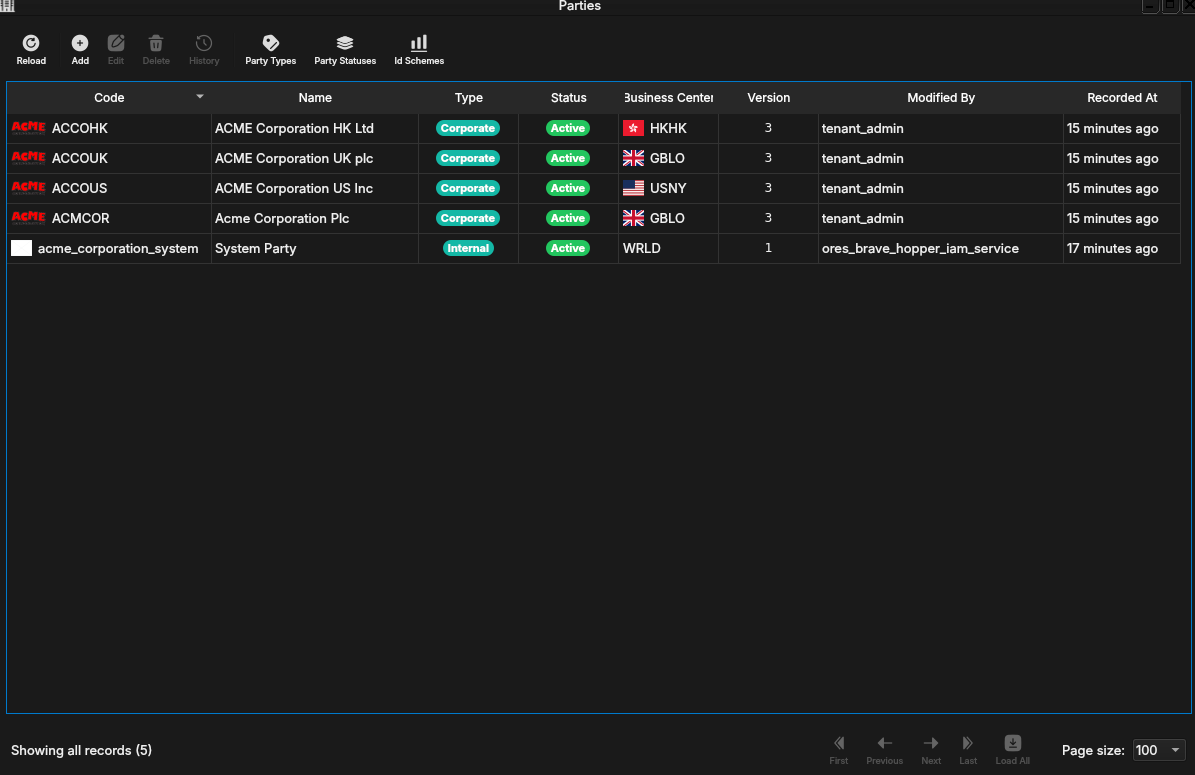
Figure 52: The Parties window on a freshly provisioned Acme Corporation tenant: all four legal entities (Acme Corporation Plc and its three operating companies), each flagged by its business centre, alongside the tenant's own system party.
With the corporate shell and its trading floors in place, the chapter turns first to the holding company's own footprint at the group centre, before turning to why a trading floor is divided the way it is.
6.5. The holding company's own treasury footprint
Acme Corporation Plc is not a pure legal shell sitting above the three operating companies with nothing of its own underneath it — unlike a holding company with zero market-data footprint, it carries genuine parent-level treasury activity: FX visibility into the rates its subsidiaries trade in, for remittance and hedging decisions, and a Group Treasury book/portfolio for the intercompany loans and FX hedges the parent itself carries. This is what distinguishes a real holding company from a passive legal wrapper, and it is deliberately modelled differently from an operating company's trading floor rather than as a fourth, smaller copy of one.
This section is currently text-only: the Cross-Rates Matrix and Org Explorer screenshots that illustrate it elsewhere in this manual are pending and will be added in a follow-up pass.
FX visibility works without the holding company needing a feed of its
own: the Cross-Rates Matrix, opened at Acme Corporation Plc, shows
live cross rates across GBP, USD, and HKD — the three operating
companies' own currencies — fed entirely by the offices' FX feeds. A
EUR/USD print is the same real-world rate regardless of which
office's feed_binding happens to be subscribed to it, so FX driver
ticks are tenant-wide for CRM-matching purposes rather than scoped to
whichever party's feed produced them; each party's own topology
configuration still governs what it is authorised to see, so this
shares nothing beyond what a real FX rate already is.
Where each operating company's own business unit is a full trading
floor — Global Markets, Risk Management, desks and cost centres, as
the previous section walked — Acme Corporation Plc's own business
unit is a single DIVISION-type unit, "Group Treasury"
(acme_group.treasury), holding one virtual GBP portfolio ("Group
Treasury Portfolio") and two books, both classified Banking rather
than Trading: "Group Intercompany Loans" (GL-TREAS-001) and
"Group FX Hedges" (GL-TREAS-002), both carrying cost centre
CC-GROUP-TREASURY and rates centre GBLO. Neither book is a
held-for-trading desk. "Group Intercompany Loans" carries the
loans and deposits between the holding company and its subsidiaries;
"Group FX Hedges" carries the forwards and swaps that hedge the
group's remittance and translation exposure back to GBP, the group's
own reporting currency — the Banking classification is the correct
prudential treatment for financing and for hedges of non-trading
exposure, not the Trading classification an operating company's
desks carry.
Consolidated group-level risk reporting — rolling the three operating companies' books up into a single group-level NPV/VaR/XVA view at the holding company — is the natural next question a real group treasury function would ask, and the underlying data-visibility a report like that would need already exists (a session scoped to the holding party already sees every subsidiary's books and trades, the same mechanism that grants staff cross-entity access during provisioning); building and exposing that view is not yet in place.
With the holding company's own footprint established alongside its three operating companies, the chapter turns from structure to why a trading floor is divided the way it is.
6.6. Departments and segregation of duties
A trading floor is never a single undifferentiated team, and Acme Corporation's structure exists to make that concrete rather than abstract. Each operating company separates three functions that never report through one another: the desks that take positions, Middle Office, which processes and reconciles what the desks book, and Market Risk, which independently measures and monitors the resulting exposure. This three-way split — front office takes risk, middle office processes it, risk management measures it — is the standard shape of a bank's control environment: no single function both takes a position and marks or monitors it, so no single individual's error or misconduct can go unchecked by construction of the org chart alone. The rest of this section walks each department in turn — what it does, who staffs it, and which of ORE Studio's seeded roles its accounts hold — before the following section on leadership and the caveat about what this buys you today.
6.6.1. Front office: the trading desks
Each operating company's staffed trading floor runs three desks —
Rates, Credit, and FX — the instrument classes a follow-the-sun
trading floor is built around (ACME Corporation UK plc's Americas and
APAC business areas define four further desks structurally, but
carry no staff yet, per the note above). A Head of Desk leads each
staffed desk (nine across the three operating companies), with a
Senior Trader and a Junior Trader beneath them (nine of each), and
a single Head of Trading per operating company (three total) above
all three desk heads, reporting in turn to the Country Head. The desk
is where risk is actually taken: traders price and execute, the Head
of Desk carries overall accountability for the desk's book, and every
position they book carries the desk's owner_unit_id, tying it to
this business unit for both day-to-day P&L attribution and regulatory
desk-level reporting. Every front office account — Head of Trading,
Head of Desk, Senior Trader, and Junior Trader alike — holds the
Trading role, which grants read access to reference data and the
ability to create, modify, archive, and delete the workspaces a
trader actually works in (see Accounts and Roles for the full
permission profile).
6.6.2. Middle office: processing what the desk books
Middle Office sits alongside the trading desks as its own
COST_CENTRE-typed business unit, not folded into the same branch of
the tree as the desks it processes for. A Head of Middle Office
leads each operating company's function (three total), reporting to
the COO rather than to the trading side at all, and supported by
Senior Analyst and Junior Analyst accounts drawn from the same
shared pool the Market Risk function below also staffs. Middle
Office's job is operational, not directional: confirming trades,
reconciling positions, and keeping the books the desks feed clean and
current — the unglamorous processing work that has to happen
correctly for every downstream report to mean anything. The Head of
Middle Office holds the Operations role — read, write, and delete
on reference data, plus the ability to view accounts — reflecting a
function that maintains shared data rather than takes risk or grants
capability to others; the analysts beneath them hold the read-only
Viewer role.
6.6.3. Market risk: independent measurement
Market Risk is Middle Office's structural sibling, not its
subordinate — its own COST_CENTRE, reporting through a separate
Head of Risk rather than through the COO, precisely so that a
desk's risk cannot be measured by anyone in the same reporting line
that processes that desk's trades. A Head of Market Risk leads each
operating company's function (three total), reporting to the Head of
Risk, again supported by Senior and Junior Analysts. Where Middle
Office confirms that a trade happened, Market Risk measures what
it means: monitoring exposure against limits, running the sensitivity
and P&L-attribution queries the desk-level owner_unit_id tagging
described above exists to support, and flagging breaches
independently of the desk being measured. Role assignment mirrors
Middle Office exactly — Operations for both the Head of Risk and
the Head of Market Risk, Viewer for the analysts beneath them —
because both functions are maintaining and reading shared data rather
than taking positions; what keeps them independent of each other and
of the desks is the organisational hierarchy's separate branches, not
a difference in which role they hold.
6.6.4. Leadership: country heads and the group centre
Each operating company's three departments do not report to their
Country Head directly — each sits under its own intermediate head,
and it is those three who report to the Country Head: the Head of
Trading for the desks, the COO for Middle Office, and the Head of
Risk for Market Risk (three of each, nine accounts total). The
Country Head (three total) carries overall accountability for the
legal entity these nine roll up into. Above the three operating
companies sits a single Group Chief Executive Officer at the
holding-company level, the one account with no company_code of its
own and every Country Head reporting to them — the root of the
fifty-eight-account tree the next section renders as an org chart.
Leadership accounts — Group CEO, Country Head, COO, and Head of Risk
alike — hold the Operations role, the same broad-but-not-
administrative profile Middle Office and Market Risk staff hold:
read, write, and delete on reference data, and visibility into
accounts, without the tenant-wide TenantAdmin or SuperAdmin
capability that provisioning itself required.
6.6.5. What this does and does not enforce
It is worth being precise about what the structure above buys you
today and what it does not. The organisational hierarchy and the job
titles just walked through are real, queryable structure — a Head of
Market Risk's account genuinely sits in a different business unit
from the Head of Desk they monitor, and that separation is visible in
the data and in the org chart. What it is not, yet, is a
per-desk access-control boundary: the Trading, Operations, and
Viewer roles above are seeded at the tenant level, not scoped to an
individual desk or business unit, so two Heads of Desk on different
desks hold the identical Trading role and the identical
capabilities — a login does not currently gain or lose capability by
virtue of which specific business unit its account happens to sit
under, only by which role it holds. The organisational separation
Acme's structure demonstrates is the model a future desk-scoped RBAC
extension would enforce; today it documents who is accountable for
what and groups accounts into the right tenant-wide role for their
function, without yet gating action by desk membership.
With the departmental shape established, the chapter turns to the people who actually staff it.
6.7. Staff and accounts
The fifty-eight accounts the previous section walked by department share a common identity pattern regardless of which one they belong to. Every account's name is generated from the office's own locale — British names for London, American names for New York, Cantonese-appropriate names for Hong Kong — rather than a single Western default stamped across all three, and every account carries a profile picture drawn from a tagged face dataset, loosely matched to the generated name's apparent gender and the office's predominant ethnicity mix. Every generated account shares one fixed demo password, so any of the fifty-eight is immediately usable for exploring party-scoped access without a separate credential to look up per account.
Reporting lines run true to the departmental structure: a trader reports to their Head of Desk, who reports to their Head of Trading; an analyst reports to their Head of Middle Office (under the COO) or Head of Market Risk (under the Head of Risk); every one of those intermediate heads reports to their Country Head, and each Country Head to the Group Chief Executive Officer — so the whole fifty-eight-account structure is one connected tree rather than three disconnected regional trees. Rather than tracing that tree by hand through each account's detail dialog, open it at a glance from User Accounts > Org Chart: a maximisable window that lays every account out top-down as a card — photo, name, job title, office — connected to its manager, with a distinct colour per operating company and the currently logged-in account's own card highlighted.
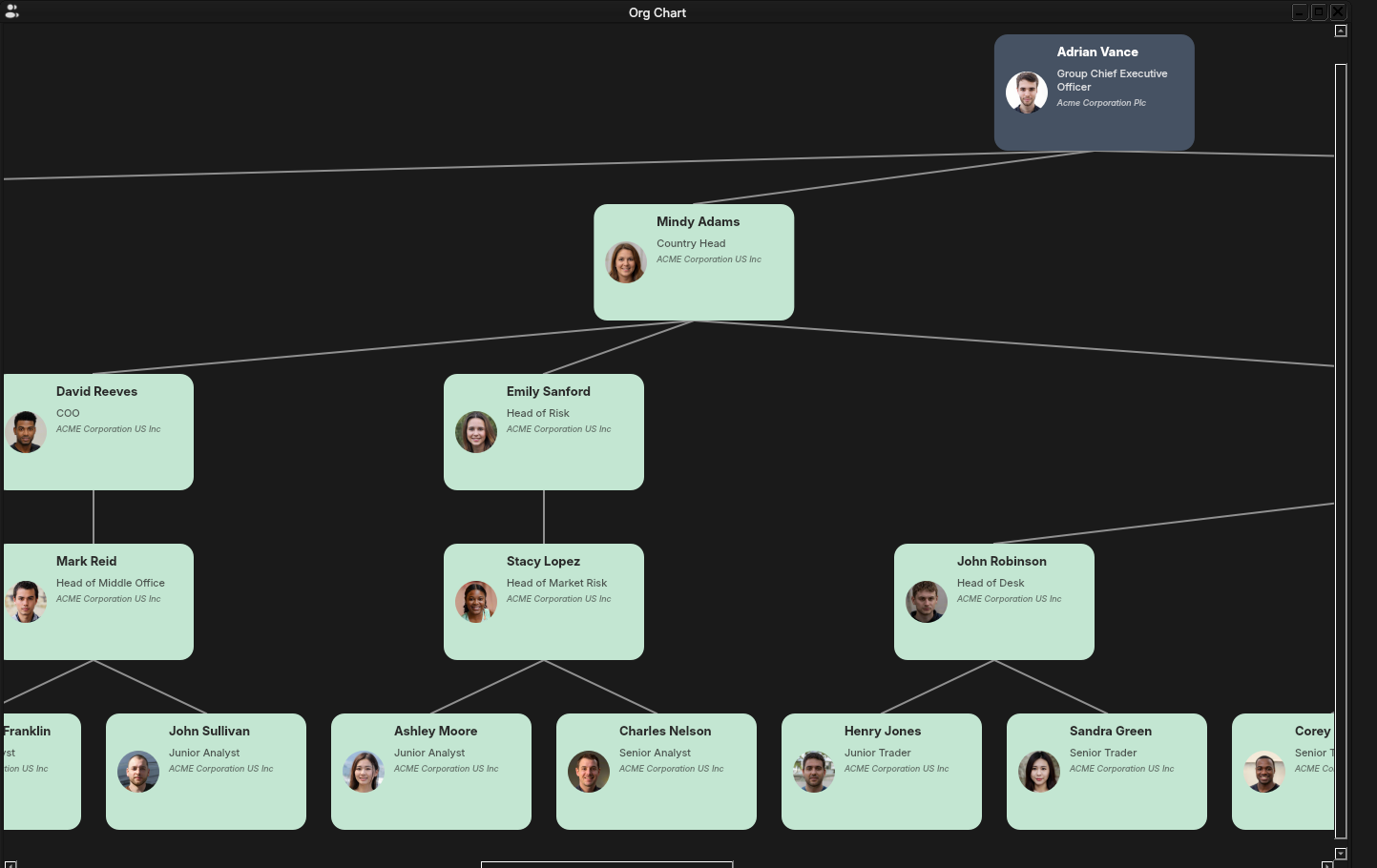
Figure 53: The Org Chart window scrolled to the Group CEO and the full ACME Corporation US Inc branch beneath its Country Head, each card showing photo, name, job title, and office, connected down to the trading floor's traders and analysts.
A multi-party account — tenant_admin, for instance, which carries
cross-entity access to all four legal entities — is not locked to
whichever party it logged in against. The party picker in the
top-level toolbar switches the in-session party context without
logging out, so moving from ACME Corporation UK plc's books to ACME
Corporation US Inc's is a menu selection, not a re-login.
With the people in place, the chapter closes with how to bring this entity into being on your own installation.
6.8. Provisioning Acme Corporation
Acme Corporation is the fastest way to get a fully populated ORE Studio installation: one command, no manual party-by-party setup. It is provisioned the same way any tenant is — through the platform administrator's tenant-creation wizard, or the equivalent shell command — with one difference: rather than the Manual path, where you build up parties, business units, and staff one wizard screen at a time, selecting Acme Corporation (full sample bank) hands the entire holding-group build to the server. One command imports the four-entity LEI hierarchy, publishes every entity's business units, portfolios, books, and accounts dataset, and activates the tenant — no repeated per-party logins, no client-side orchestration to babysit. The choice sits on the tenant-creation wizard's Welcome page, reached via System > Administration > Tenants > Onboard: a simple radio choice between Acme Corporation (full sample bank) and Manual setup — see the Initial Setup chapter for the full wizard walkthrough, including the Manual path for setting up your own organisation instead.
The same choice is available from the shell, for scripted or
repeatable provisioning: bootstrap the platform, then provision the
tenant with --source acme.
provision system super_admin Secure-Password-123 super_admin@localhost.com --tenant-admin-password Secure-Password-123 --tenant-code acme_corporation --tenant-name "Acme Corporation" --tenant-hostname acme_corporation
logout

login tenant_admin@acme_corporation Secure-Password-123
provision tenant --source acme
logout
This follows exactly the shell provisioning sequence the Provisioning from the Shell chapter sets out — system, then tenant, with the logout between stages that refreshes the session's view of the newly active tenant — and the full worked example, runnable end to end against a fresh installation, is documented as its own recipe: How do I provision the system with Acme Corporation (holding group)?. Either path — wizard or shell — ends with the structure this chapter has walked: four legal entities, their trading floors, and fifty-eight staff accounts, ready to log in and explore.
6.9. Conclusion
The chapter set out to show that understanding Acme Corporation means knowing what it is, the organisational model its structure is built from, the structure itself, the departments within it, and how to stand it up, and it has traced exactly that path. Acme Corporation is a synthetic house, identified by fake-but-valid LEIs, integrated into the system's real GLEIF counterparty universe rather than isolated from it. That house's four legal entities are built from the same organisational and portfolio hierarchies every party in ORE Studio uses — business units typed and anchored to a business centre, books aggregating beneath physical and virtual portfolios — and those hierarchies exist to enforce a real control principle: trading, processing, and risk measurement kept organisationally separate, even though that separation is not yet an access-control boundary. The holding company at the group's centre is not a passive shell either: its own Group Treasury business unit, FX visibility across every subsidiary's currency, and Banking-classified books for intercompany funding and remittance hedging show a real parent company's own treasury activity, modelled distinctly from an operating company's trading floor rather than as a smaller copy of one. Populated concretely with fifty-eight staff across Rates, Credit, and FX desks, Middle Office, and Market Risk, whose reporting lines the org-chart view renders at a glance, provisioning — from either the Qt wizard's one-click choice or the equivalent shell command — showed that the whole entity, structure and staff and all, is one command away on any installation. Every other chapter's screenshots and worked examples now have somewhere to point.
6.10. See also
- Trading Structure: Party, Book, Portfolio, Business Unit, Business Centre — the organisational and portfolio hierarchy this chapter's model section draws on, including the FRTB desk-attribution use case.
- Tenants — the tenant/party model Acme Corporation is provisioned into.
- Accounts and Roles — the RBAC model, including the desk-scoping gap noted above.
- Provisioning from the Shell — the shell provisioning sequence Acme Corporation follows.
- Initial Setup — the Qt provisioning wizards, including the Acme Corporation vs Manual choice.
- Acme Corporation (Wikipedia) — the fictional-company namesake the dataset borrows.
7. Accounts and Roles
Every person and process that talks to OreStudio does so through an account. This chapter examines day-to-day account management: the Accounts window and how it differs between administrator identities, the account detail dialog and each of its tabs, the flow for creating a new account, and the roles and permissions that govern what an account may do — OreStudio's industry-standard Role-Based Access Control model, which ties identity to capability.
7.1. Overview
The chapter advances the argument that managing accounts well means understanding the population of accounts you administer, the individual record and what it carries, how a new one is brought into being, and finally the model that decides what any of them may do — and it proceeds in that order. It begins by surveying the body of records in The Accounts window, where the list reflects who you are logged in as and updates live as others make changes; this establishes the administrator's vantage point the rest of the chapter works from. From there it narrows to a single record in The account detail dialog and its six tabs — general identity, security, login status, roles, parties, and provenance — the dialog that serves equally for inspection and editing. It then turns to bringing a new account into being in Creating an account, the same dialog in create mode, with the password, role, and party steps and the warnings that guard them. Finally it sets out the model underneath it all in Roles and permissions — the Role-Based Access Control scheme by which accounts hold roles and roles bundle permissions — distinguishing the service roles that run OreStudio's own machinery from the domain roles modelled on a financial institution's desks. The Conclusion draws these steps together.
7.2. The Accounts window
Open the Accounts window from the Administration submenu of the System menu. The Administration menu is only present for accounts that hold administrative permissions.
The provisioning wizards described in the Initial Setup chapter create the first accounts for you — the platform administrator during system provisioning and the tenant administrator during tenant creation. Those wizards are a one-time bootstrap: every account after that is created and managed in the Accounts window described here. Accounts come in four types, shown as coloured badges throughout the UI: User for people, Service for OreStudio's own backend services, Algorithm for automated processes, and LLM for large language model agents. What an account is allowed to do is determined by the roles assigned to it; which data it can see is determined by the tenant it belongs to and the parties it is assigned (see Initial Setup for the tenant and party model).
The window lists every account visible to your login identity, one row per account. Alongside the username and email, badge columns show the account type, the login status (Online, Recent, Old, or Never for accounts that have never logged in), and whether the account is locked. The remaining columns carry the record version and provenance — who last modified the record and when.
The toolbar follows the standard entity-window layout (Reload, Add, Edit, Delete, History) and adds four account-specific actions: Lock and Unlock to suspend and restore login access, Reset Pwd to set a new password, and Sessions to inspect the account's login sessions.
7.2.1. What you see depends on who you are
Account visibility follows tenant isolation. Logged in as the platform
administrator on the system tenant, the window shows the full
machinery of the platform — the super_admin account plus the service
accounts that OreStudio's backend components use to talk to each
other:
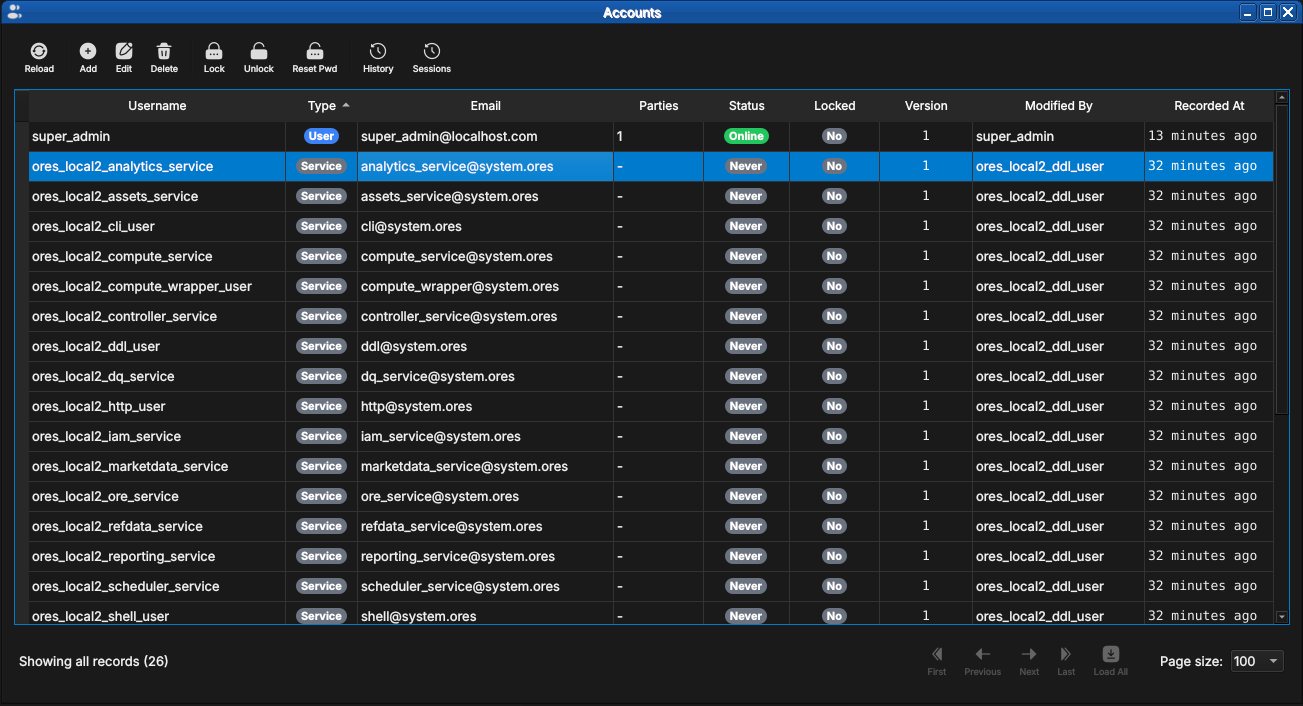
Figure 54: The Accounts window as seen by the platform administrator. Most rows are service accounts — one per backend component — shown with the teal Service type badge. Note the gray Never login-status badges: service accounts authenticate with certificates rather than interactive logins.
Logged in as a tenant administrator, the same window shows only the accounts belonging to that tenant — a freshly provisioned tenant contains exactly one, the tenant administrator itself:
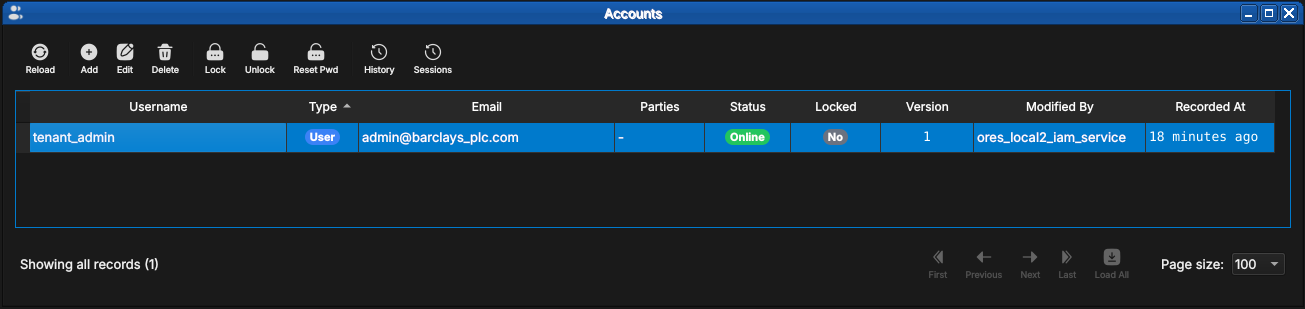
Figure 55: The same window as seen by a tenant administrator immediately after tenant provisioning. Only the tenant's own accounts are visible — here just tenant_admin, currently Online.
7.2.2. Live updates
Like all OreStudio entity windows, the Accounts list updates in response to changes made elsewhere — another administrator creating an account in a different session, for example. When unseen changes are pending, the Reload button carries a yellow stale indicator; recently changed rows are highlighted until you have seen them.
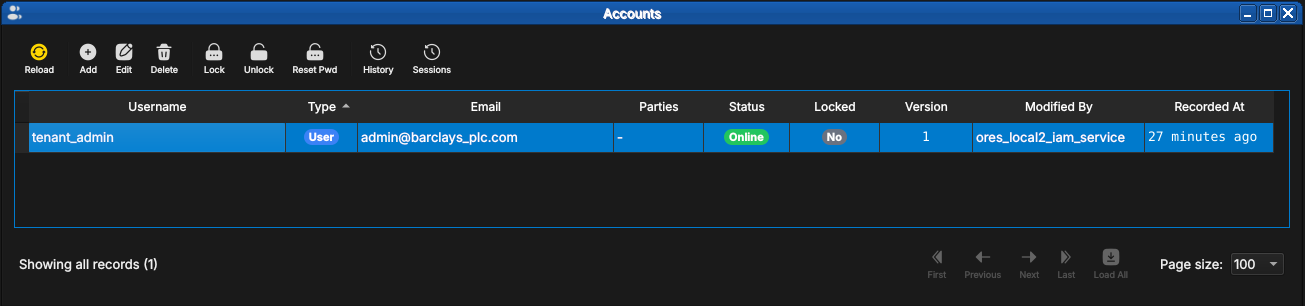
Figure 56: The Reload button showing the yellow stale indicator: the account list has changed since it was last loaded.
After a reload, rows that changed since you last looked stay highlighted until acknowledged, so a batch of new arrivals stands out from the records you have already reviewed:
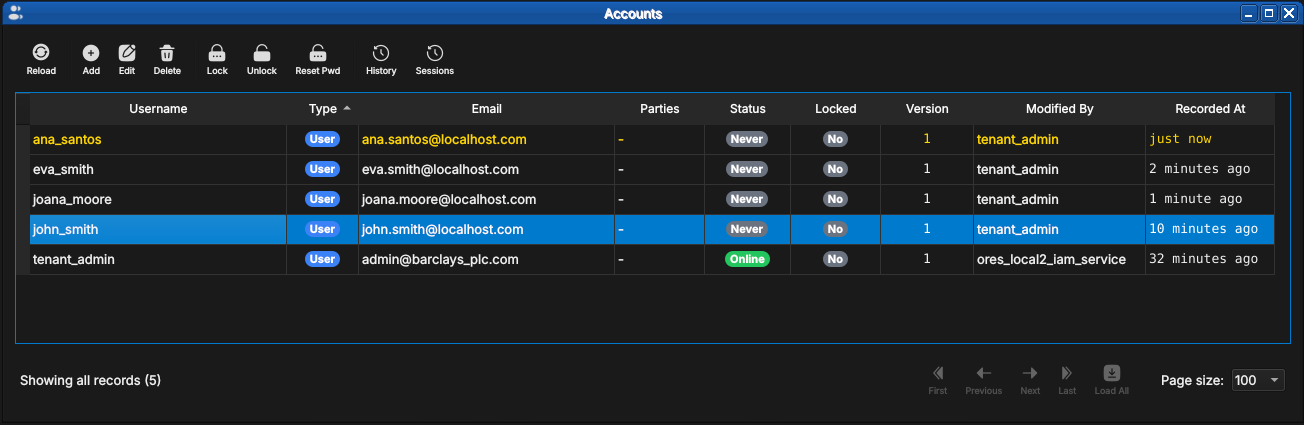
Figure 57: Newly created accounts highlighted in the list. The ana_santos row was recorded "just now" and remains highlighted until acknowledged.
7.3. The account detail dialog
Double-click an account (or select it and press Edit) to open the detail dialog. The dialog has six tabs; the same dialog serves creation, editing, and read-only inspection of historical versions.
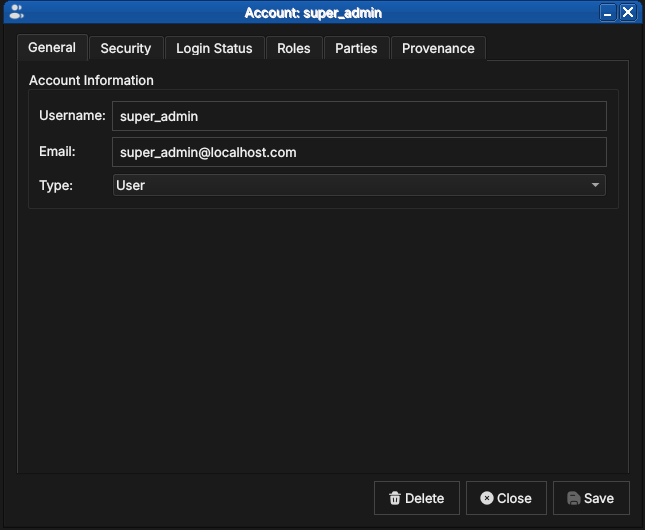
Figure 58: The General tab for super_admin, showing the username, email address, and account type.
- General — username, email, and the account type. The type is chosen at creation time and is read-only afterwards.
- Security — set or change the account password (see the new-account flow below).
- Login Status — read-only login telemetry: whether the account is online, locked, its failed login count, last login time, and last known IP addresses.
- Roles — the roles assigned to this account (next section).
- Parties — the parties this account may log in to.
- Provenance — who changed this record version, when, and why.
7.3.1. Roles and parties tabs
The Roles tab lists the roles currently assigned to the account, and is where capabilities are granted and revoked: pick a role in the combo box below the list and add it, or select an assigned role and remove it. Changes take effect on the account's next login.
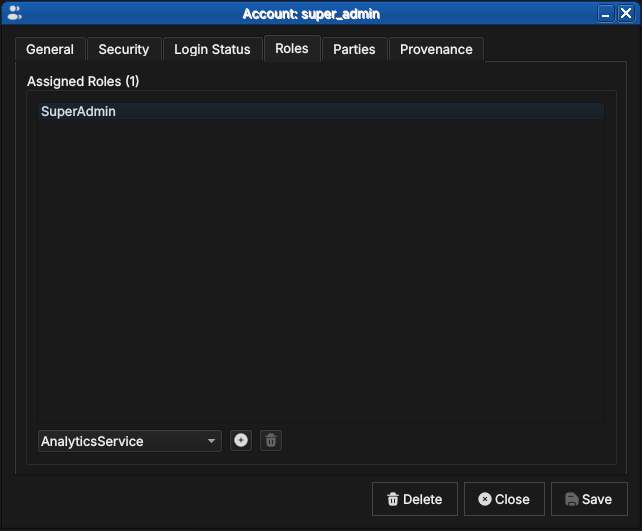
Figure 59: The Roles tab for super_admin, holding the single SuperAdmin role. The combo box below the list adds further roles; the buttons alongside add and remove the selection.
The Parties tab works the same way but governs visibility rather than capability: the parties listed here are the party contexts the account may select at login, as described in Initial Setup.
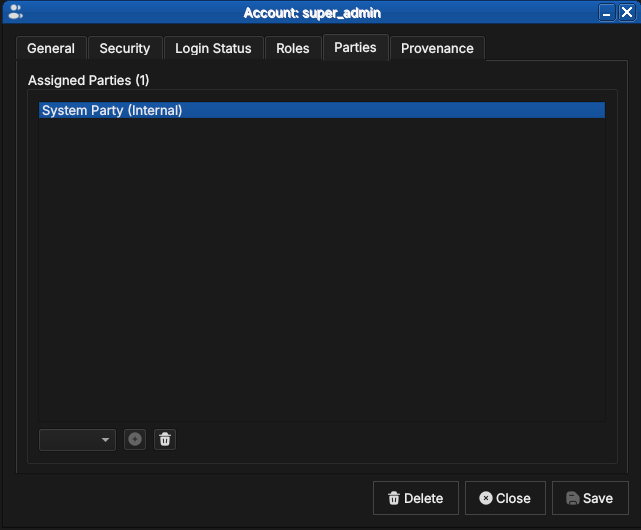
Figure 60: The Parties tab for super_admin, assigned to the internal System Party. Party assignment determines which party contexts the account may select at login.
An account with no party assignment cannot log in to any party context — the dialog warns you if you try to save one (see the new-account flow below).
For an account assigned to more than one party, the Default Party combo below the list picks which of the assigned parties is offered automatically at login — the party the Log in to default party checkbox on the login dialog selects without prompting (see Connecting to ORE Studio). Leaving it unset falls back to the manual Select Party dialog every time.
7.3.2. Provenance
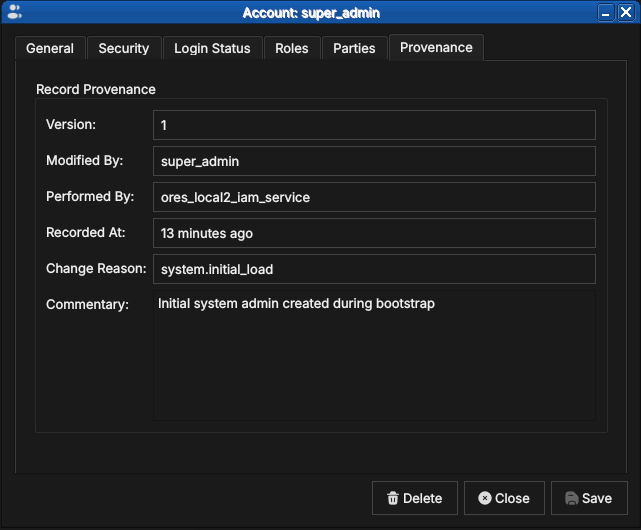
Figure 61: The Provenance tab for super_admin at version 1: modified by super_admin, performed by the IAM service, with the system.initial_load change reason and the bootstrap commentary.
Every account record is versioned and carries full provenance, following the same conventions as all OreStudio entities — see the Provenance section of the Reference Data chapter. Note the distinction visible in the screenshot: Modified By is the account on whose behalf the change was made, while Performed By records the backend service that executed it.
7.4. Creating an account
Press Add in the Accounts window toolbar to open the same detail dialog in creation mode, titled New Account.
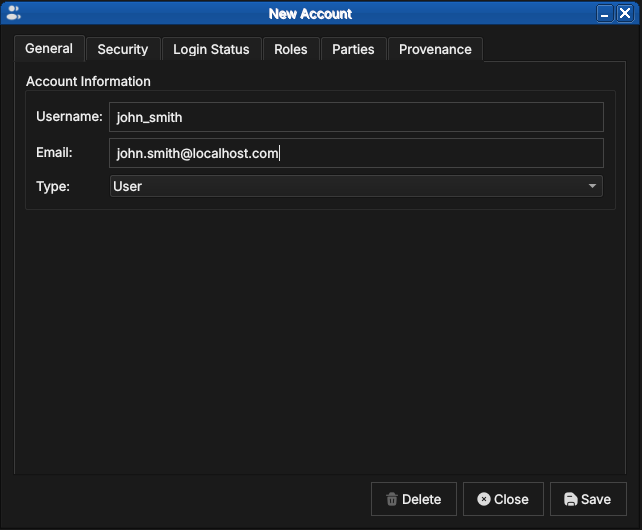
Figure 62: Creating john_smith: username, email, and account type on the General tab.
Passwords are set on the Security tab. The confirmation field outlines green once both entries match; tick Show passwords to verify what you typed before saving.
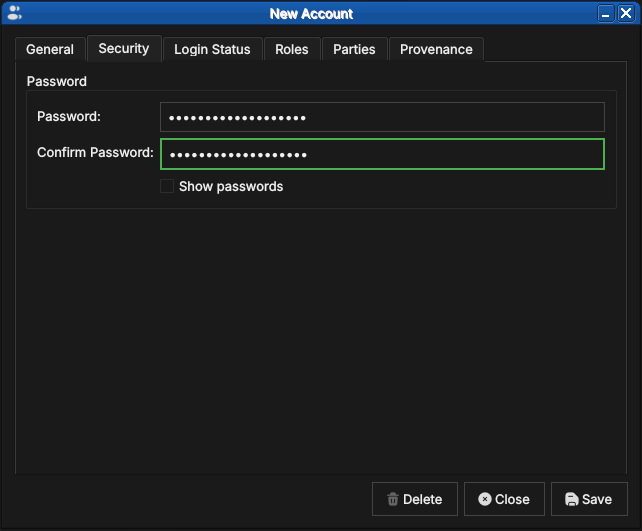
Figure 63: Setting the initial password. The green outline on the confirmation field indicates the two entries match.
Passwords are entered masked; ticking Show passwords reveals both fields, useful when setting an initial password you are about to hand to the new user:
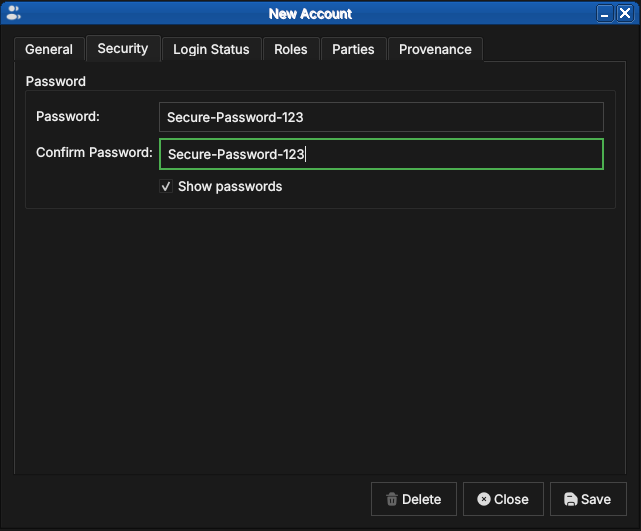
Figure 64: The same tab with Show passwords ticked, revealing the password text for visual verification.
Next, assign at least one role on the Roles tab — without one the account will hold no permissions (see the note below):
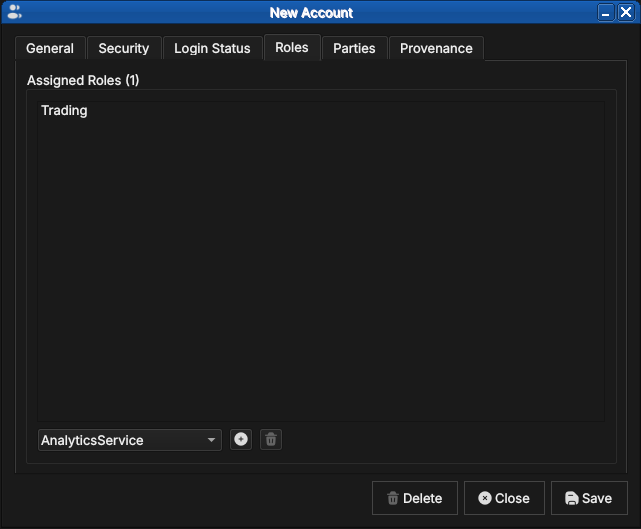
Figure 65: Assigning the Trading role to the new account. The combo box offers every role defined in the tenant.
For accounts that should log in to a party context, assign at least one party on the Parties tab; the combo box offers the tenant's party hierarchy:
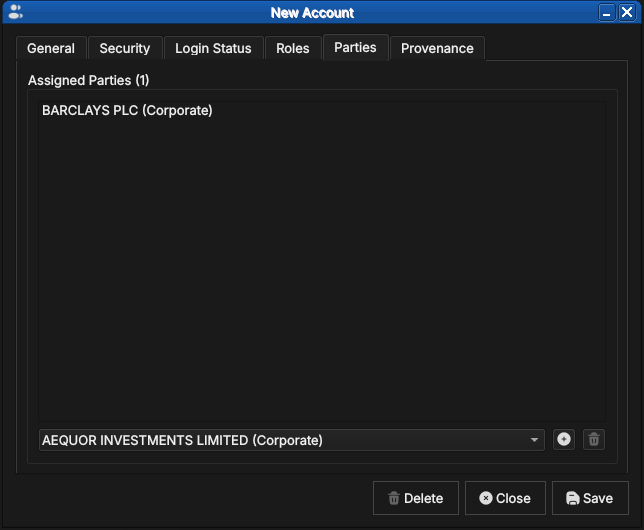
Figure 66: Assigning the new account to BARCLAYS PLC. The combo box lists the tenant's party hierarchy.
If you save without assigning a party, OreStudio asks for confirmation — such accounts exist but cannot enter any party context at login:
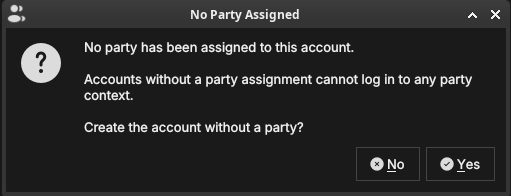
Figure 67: The confirmation shown when saving an account with no party assignment.
At present there is no equivalent warning for roles: OreStudio lets you save a new account with no role assignment and stays silent. Such an account can log in but holds no permissions, so almost every operation will be denied. Until a warning is added, double-check the Roles tab before saving a new account.
7.5. Roles and permissions
OreStudio implements industry-standard Role-Based Access Control (RBAC). RBAC separates three concepts that are easy to conflate:
- An account is an identity — it answers "who is this?". It carries credentials (a password for users, certificates for services) and is the thing that logs in, appears in provenance records, and gets locked or unlocked. An account grants nothing by itself.
- A permission is the atomic unit of capability — it answers "what
single thing may be done?". Permissions are fine-grained strings
following a
domain::resource:actionpattern:refdata::currencies:readallows reading currency records,iam::tenants:createallows creating tenants. A trailing wildcard covers a whole domain —analytics::*grants every analytics permission — and the bare wildcard*grants everything. - A role is a named bundle of permissions — it answers "what job does this identity do?". Roles are the only bridge between the two: accounts never hold permissions directly, they hold roles, and every permission an account exercises arrives through one of its roles.
This indirection is what keeps administration tractable: when a new
permission is needed by everyone in trading, it is added to the
Trading role once rather than to every trader's account, and an
account's capabilities can be read at a glance from its role list.
Open the Roles window from the Administration submenu of the System menu to see the bundles:
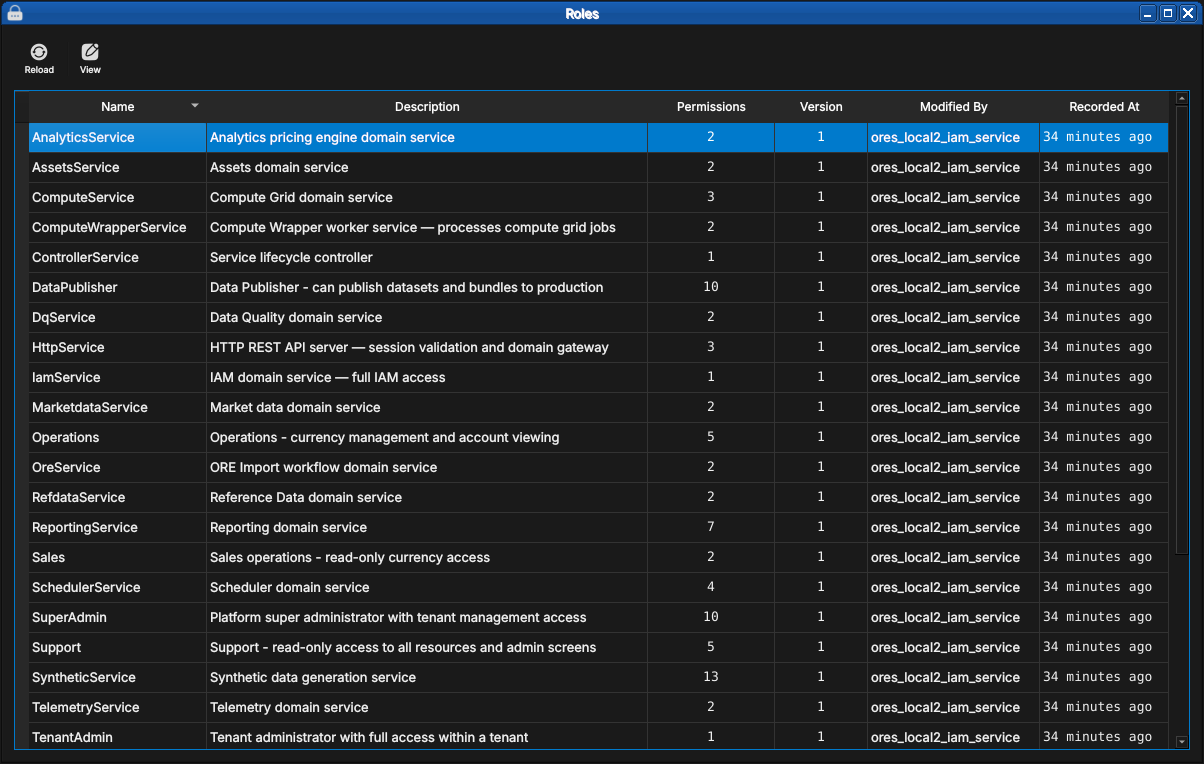
Figure 68: The Roles window listing the built-in roles — one per backend domain service plus the administrative and operational roles — with their permission counts and provenance.
7.5.1. Service roles
Every backend component runs under a dedicated service account (the
teal-badged accounts seen earlier in the system tenant), and each
service account holds exactly one matching service role —
IamService, RefdataService, AnalyticsService, ComputeService,
WorkflowService and so on, one per component. The bundle gives the
component full access to its own domain and read access to whatever
else it legitimately needs: the AnalyticsService role seen below
holds analytics::* plus iam::tenants:read, because the pricing
engine owns the analytics domain but only ever reads tenant records.
This is the principle of least privilege applied to OreStudio's own
machinery — a compromised or misbehaving component cannot reach beyond
its role.
7.5.2. Domain roles
For human users, OreStudio seeds operational roles modelled on the desks and functions of a financial institution:
| Role | Intended for |
|---|---|
SuperAdmin |
Platform administrators |
TenantAdmin |
Tenant administrators |
Trading |
Traders |
Sales |
Sales desks |
Operations |
Middle/back office |
Support |
Support staff |
Viewer |
Auditors, casual consumers |
DataPublisher |
Data stewards |
Each role's capability profile:
SuperAdmin— everything, plus the tenant lifecycle: create, suspend, terminate, reset.TenantAdmin— everything within their own tenant.Trading— read reference data; create, modify, archive and delete workspaces.Sales— read-only reference data.Operations— manage reference data (read, write, delete); view accounts.Support— read-only across resources and admin screens: accounts, roles, login info.Viewer— basic read-only access to domain data and workspaces.DataPublisher— publish curated datasets and bundles to production tables.
The profiles embody a simple gradient: Viewer and Sales observe,
Trading works within its own workspaces, Operations maintains the
shared data everyone depends on, and Support sees administrative
state without being able to change it. The two administrator roles
differ in scope rather than degree — TenantAdmin is omnipotent
inside one tenant, while SuperAdmin additionally manages the tenants
themselves from the system tenant.
The seeded roles are a starting point, and their capability profiles will grow as more of the system is brought under permission control. Roles are inspected through a read-only detail dialog:
Figure 69: The AnalyticsService role: name and description.
The General tab carries only the role's name and a description of its
purpose — a role has no other state of its own. The substance lives on
the Permissions tab, which lists the permission strings the role
bundles. Reading them is the quickest way to understand exactly what a
role grants — here, analytics::* (every analytics permission) plus
iam::tenants:read (read-only access to tenant records), the
least-privilege profile of the pricing engine discussed above.
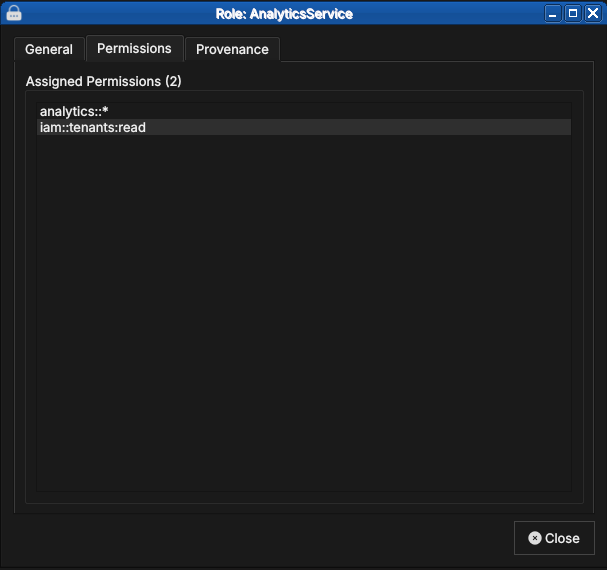
Figure 70: The role's two permissions, following the domain::resource:action pattern.
Finally, the Provenance tab shows that role records are versioned with full provenance like every other entity — changes to what a role grants are part of the audit trail.
Figure 71: Role records carry the same versioned provenance as every other entity.
7.6. Conclusion
The chapter set out to show that managing accounts well follows from understanding the population you administer, the individual record, the flow that creates one, and the model that governs them all in turn, and it has traced exactly that path. The Accounts window presented every account your login identity may see — the platform administrator sees the system tenant's service machinery, a tenant administrator only their own tenant — and the detail dialog then managed a single account's credentials, roles, parties, and provenance across its six tabs. Creating an account proved to be the same dialog in create mode, with the party warning (and the silent role gap noted above) to watch for. Underneath it all, the RBAC model tied identity to capability: accounts are identities, permissions are atomic capabilities, and roles are the named bundles that bridge them — service roles for OreStudio's own components, domain roles for the desks and functions of a financial institution. The next chapter completes the administration picture with the tenants those accounts live in.
7.7. See also
- Initial Setup — the tenant and party model, the provisioning wizards that create the first accounts, and party selection at login.
- Tenants — managing the tenants that accounts belong to.
- Reference Data — the provenance and change-reason conventions shared by all entity windows.
- Role-Based Access Control — the general RBAC model behind OreStudio's roles and permissions.
8. Tenants
This chapter examines the tenant as the unit of isolation in OreStudio and the canonical reference for the organisational model built around it: the multi-tenant, multi-party hierarchy of the house and its counterparties, the type taxonomy and lifecycle that govern a tenant's operational posture, and the Tenants window and detail dialog through which tenants are managed. Tenant administration is a platform concern — the window is available to the platform administrator on the system tenant.
8.1. Overview
The chapter advances the argument that administering a tenant well means first understanding the organisational model it anchors, then the taxonomy that fixes its operational posture, and finally the interface that governs its lifecycle — and it proceeds in that order. It begins by establishing that model in The multi-tenant, multi-party model, which sets out tenant isolation and the party hierarchy of the house and its counterparties; this is the premise the rest of the chapter builds on. From there it turns to Tenant types, the four-way taxonomy that distinguishes the system, production, evaluation, and automation tenants by the controls each carries. It then surveys the body of records in The Tenants window, explaining the list view and its lifecycle status badges, before narrowing to a single record in The tenant detail dialog and its General and Provenance tabs, where an administrator moves a tenant through its lifecycle under the same audit regime as every other entity. This chapter picks up once tenants and parties exist; the Initial Setup chapter walks through the wizards that create them. The Conclusion draws these steps together.
8.2. The multi-tenant, multi-party model
A tenant's isolation extends to everything it contains: its own users, its own reference data (currencies, counterparties, books), and its own analytics results. Data belonging to one tenant is completely invisible to another tenant; there is no cross-tenant data leakage by design.
A typical deployment has one tenant per organisation. If you are running ORE Studio for your own firm, you will create one tenant representing your organisation. A managed-service provider running ORE Studio on behalf of multiple clients might create one tenant per client.
The system tenant is special — it is created automatically during system provisioning and cannot be deleted. It is the home of the platform administrator accounts. There is exactly one system tenant per deployment. All other tenants are created by platform administrators working from the system tenant.
Tenants come in several types with different operational controls; the next section covers the taxonomy.
8.2.1. Parties
Within a tenant, a party is a business unit — a legal entity, a branch, a trading desk, or any other organisational subdivision. Parties form a hierarchy: a parent party can see all data belonging to its children and grandchildren; a child party sees only its own data and that of its own descendants.
Every tenant has exactly one system party, created automatically when the tenant is provisioned. The system party is the administrative home for tenant administrator accounts. It is not a business entity and should not be used for trading activity.
Business parties — the entities that actually own trades, books, and analytics results — are operational parties. You create these after the tenant is provisioned, using the Party Provisioner.
In financial industry usage, the set of operational parties representing your own organisation is called the house. The house hierarchy models your corporate structure: the root party is your top-level legal entity; its children are subsidiaries, branches, or regional offices; their children are individual trading desks or booking centres. Trades, positions, and risk reports all belong to a specific party within the house.
Distinct from the house are counterparties — the external legal entities your house trades with (banks, broker-dealers, corporates, funds). Counterparties are reference data: they are attached to trade tickets to identify the facing entity, but they do not own books or belong to the party hierarchy. The house versus counterparty distinction appears throughout OreStudio's UI and data model; keeping it clear is important when working with trades and risk reports.
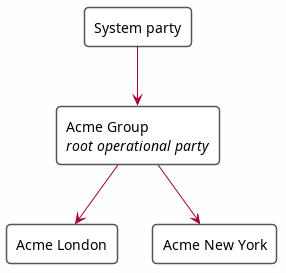
Figure 72: A simple party hierarchy showing the house: the system party at the top, the root operational party (Acme Group) below it, and two child operational parties (Acme London, Acme New York).
A user logs in to a specific party within the house. Their data visibility is determined by their position in the hierarchy: a user logged in at "Acme Group" sees data from both "Acme London" and "Acme New York"; a user logged in at "Acme London" sees only their own data.
8.3. Tenant types
ORE Studio supports four tenant types, each with different operational controls:
- System — platform administration; one per deployment; platform-managed.
- Production — real customer organisations with live data; strict controls.
- Evaluation — demos, UAT, training, and exploratory testing; relaxed controls.
- Automation — programmatic test infrastructure; not for human use; no controls.
The system tenant is created automatically during system provisioning and cannot be deleted. It is the home of the platform administrator accounts; all other tenants are created by platform administrators working from it.
Production tenants are for live operations. They enforce strict controls including four-eyes authorisation for sensitive operations and KYC-gated counterparty onboarding.
Evaluation tenants provide a realistic but relaxed environment for demonstrations, user acceptance testing, and training. Bulk data import from external sources (such as the GLEIF/LEI registry) is available in evaluation tenants but not in production tenants.
Automation tenants exist for programmatic test infrastructure. They carry no operational controls and are not intended for human use.
8.4. The Tenants window
Open the Tenants window from the Administration submenu of the System menu.
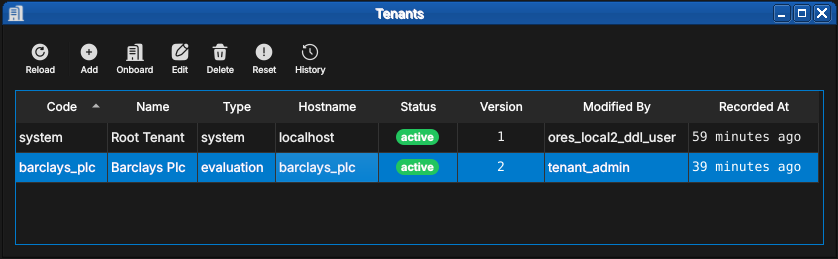
Figure 73: The Tenants window on a freshly provisioned installation: the system root tenant and one business tenant, barclays_plc, both active. Each row shows the tenant code, display name, type, hostname, lifecycle status, and provenance.
Each tenant carries:
- Code — the stable identifier (
system,barclays_plc). - Name — the human-readable display name.
- Type — one of the four tenant types described above;
systemfor the root tenant, hereevaluationfor the business tenant. - Hostname — the hostname the tenant's users connect through, which is how OreStudio routes a login to its tenant.
- Status — the lifecycle state, shown as a badge: bootstrapping while a newly created tenant awaits its provisioning wizard run, active once it is in service, with suspended and terminated closing out the lifecycle.
The toolbar extends the standard entity-window actions with Onboard — which creates a tenant and walks it through provisioning — and Reset, which returns a tenant to its post-provisioning state.
Tenant operations are platform-level and far-reaching: deleting or resetting a tenant affects every account and every record within it. The change-reason dialog applies here as everywhere, so destructive operations leave an audit trail — but there is no undo.
8.5. The tenant detail dialog
Double-click a tenant (or select it and press Edit) to open the detail dialog.
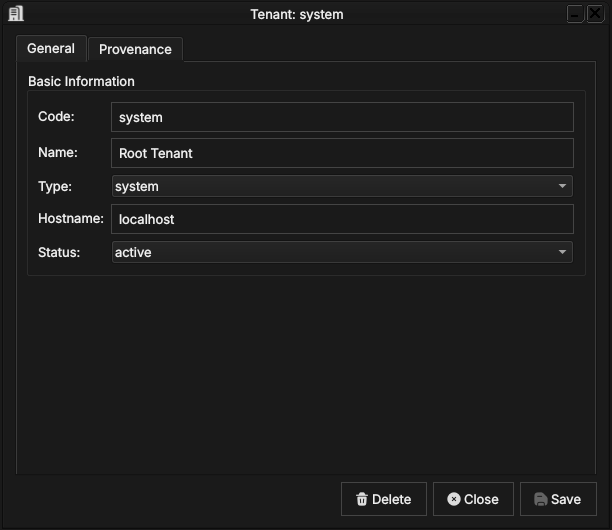
Figure 74: The system root tenant: code, name, type, hostname, and lifecycle status. The status combo is how an administrator suspends or reactivates a tenant.
The General tab carries the fields described above; the status combo is how an administrator moves a tenant through its lifecycle. The second tab holds the record's provenance:
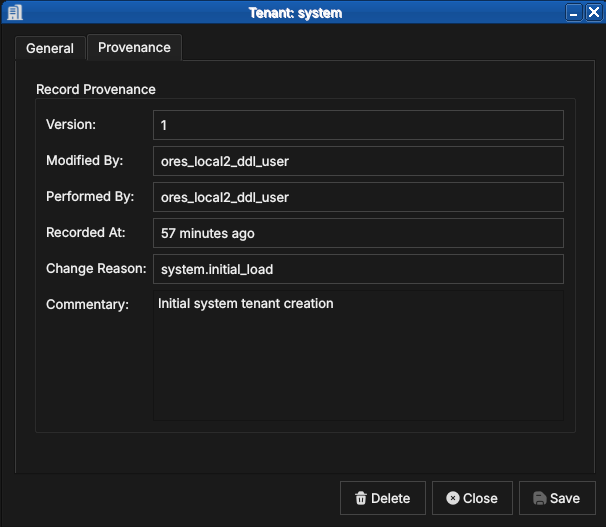
Figure 75: The familiar provenance tab: version, modifier, performing service, change reason and commentary — here the system.initial_load of the root tenant.
Tenant records are versioned with full provenance like every other entity — see the Provenance section of the Reference Data chapter. The History toolbar action shows a tenant's full version history.
8.6. Conclusion
The chapter set out to show that administering a tenant well follows from understanding its organisational model, its type taxonomy, and its interface in turn, and it has traced exactly that path. The multi-tenant, multi-party model supplied the foundation — the tenant as the unit of isolation and the party hierarchy within it, the house and its counterparties, with visibility following the hierarchy. Building on that, the four tenant types fixed the operational posture of each tenant, ranging from the strictly controlled production tenant to the uncontrolled automation tenant. The Tenants window then took the record from the list view, where lifecycle status reads at a glance from the badges, down to the detail dialog, where an administrator edits a tenant's identity and moves it through its lifecycle under the same provenance regime as every other entity. With connection, provisioning, and administration now covered, the manual turns from the system itself to the data it manages: reference data.
8.7. See also
- Initial Setup — the tenant model and the provisioning wizards.
- Accounts and Roles — the accounts that live inside each tenant.
9. Reference Data
Reference data, and the quality framework that governs it, are the subject of this chapter. It establishes what reference data is and how it differs from market data and trades, then sets out the framework that keeps it trustworthy: the six industry-standard DQ dimensions, the bitemporal storage model, versioning and immutable history, provenance tracking, and the structured change reason system. These are the shared foundations on which every subsequent entity chapter rests.
9.1. Overview
The chapter advances the argument that managing reference data well depends first on knowing what it is, and then on the quality framework that governs how it changes — and it proceeds in that order. It begins by establishing the category itself in What is Reference Data?, setting reference data apart from market data and trades and surveying the entity types OreStudio manages; this is the premise the rest of the chapter builds on. From there it turns to Data Quality, the heart of the chapter, which opens with the six industry-standard DQ dimensions and then examines the mechanisms that realise them: bitemporality and its two independent time dimensions, versioning and immutable history, provenance tracking who changed what and why, and the structured change reasons that make every modification an auditable event. The Conclusion draws these foundations together and points to the entity chapters that build on them.
9.2. What is Reference Data?
Reference data is the static or slowly-changing master data that all financial activity depends on. It defines the vocabulary of the system — the currencies a trade is denominated in, the counterparty on the other side of a deal, the book it settles into, the country a legal entity is incorporated in. Without it, nothing else can be described precisely.
OreStudio's reference data covers a wide range of entity types:
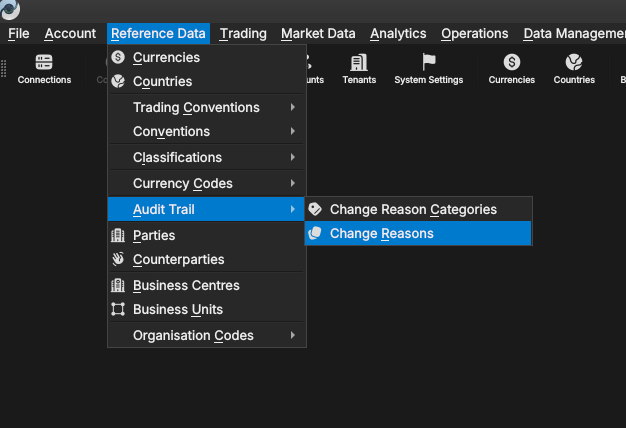
Figure 76: The Reference Data menu showing the full set of entity types managed by OreStudio. The Audit Trail sub-menu provides access to Change Reasons and Change Reason Categories.
- Currencies — ISO 4217 codes, display formatting, and rounding rules.
- Countries — ISO 3166 alpha-2 codes and names.
- Trading conventions and calendars — holiday calendars, settlement day rules, date rolling conventions, and tenor definitions that drive date arithmetic in trade processing and valuation.
- Counterparties — the external legal entities your organisation trades with.
- Books — the internal trading books that own positions.
- Business units and portfolios — the organisational structure within a party.
- Party types and statuses — the classification vocabulary for parties.
- Classifications — supplementary taxonomies such as currency market tiers and monetary natures.
Reference data is distinct from the other two main categories of data in the system:
- Market data — prices, FX rates, yield curves, and volatility surfaces that update continuously throughout the trading day. Market data is time-stamped and immutable once recorded; a new observation does not overwrite an old one.
- Trades — specific financial transactions between parties with defined cashflows, valuation models, and lifecycle states. Trades reference the reference data (they need a currency, a counterparty, a book) but they are not reference data themselves.
The key property of reference data is that it changes slowly and deliberately. A currency's rounding convention is not something that shifts intraday — it is corrected through a controlled, audited process. OreStudio enforces this with a comprehensive data quality framework described in this chapter.
GLEIF and the Legal Entity Identifier (the LEI standard, and how OreStudio uses it to seed parties and counterparties from real organisational data) is covered in the Parties chapter rather than here — legal-entity identification is a property of the parties and counterparties themselves, not of reference data generally.
9.3. Data Quality
Financial calculations are only as reliable as the data they consume. A misspelled currency name is a cosmetic nuisance; an incorrect rounding rule, a wrong counterparty identifier, or a stale market tier classification can silently propagate into risk figures, margin calls, collateral calculations, and regulatory reports. The consequences range from minor reconciliation breaks to significant financial loss or regulatory censure.
OreStudio's reference data layer is designed around the definition of data quality from ISO 8000 and the DAMA Data Management Body of Knowledge (DAMA-DMBOK): data quality is the measure of how well a dataset satisfies the requirements of its intended business use. In financial markets this means data must be not only accurate but also complete, consistent, timely, valid, and unique — the six industry-standard DQ dimensions described below.
9.3.1. The Six Dimensions
Accuracy is the degree to which data values agree with their authoritative golden source. OreStudio seeds currencies from ISO 4217, countries from ISO 3166, and counterparty identifiers from the GLEIF LEI registry. Where a discrepancy arises between a record in OreStudio and its source, the source takes precedence; the system provides tooling to re-import from authoritative datasets.
Completeness means all mandatory attributes are present. The service layer rejects saves that omit required fields and returns a validation error; the Qt UI marks missing mandatory fields visually before a save is attempted.
Consistency is the absence of contradictions between related entities. A currency's rounding type must be drawn from the governed rounding-types table; its market tier from the currency-market-tiers table. Foreign-key constraints in the database enforce this at the persistence layer.
Timeliness means data is available when calculations need it. The tenant provisioner imports standard catalogues at setup time so foundational reference data is ready before any trading activity begins. NATS events propagate updates to all connected clients in real time.
Validity is adherence to business rules and formats. ISO code lengths, numeric code ranges, currency format strings, and rounding precision bounds are all validated at save time.
Uniqueness ensures no duplicate records exist for the same entity. Primary key constraints at the database level prevent duplicates; the service layer surfaces a clear error if a duplicate is attempted.
9.3.2. Bitemporality
The most important architectural property of OreStudio's reference data layer is its use of bitemporality — the recording of two independent time dimensions for every stored fact.
The first dimension is valid time, recorded in valid_from and
valid_to columns on every row. Together they form an open interval
[valid_from, valid_to) bounding the period during which this version
of the record is authoritative. The live (current) row carries
valid_to = 9999-12-31 23:59:59 — a sentinel meaning "no known
expiry". When an update is saved, the database trigger closes the
existing row by setting valid_to to the current time, and inserts a
new row with valid_from = now and valid_to = sentinel. The
application never writes valid_from or valid_to directly — the
trigger owns both columns.
The second dimension is transaction time, surfaced to the application
as the recorded_at field. It records when this version was written to
the database — independently of what period the version is valid for.
Transaction time answers the question "what did the system believe at
a given moment?"
All timestamps in OreStudio are stored and processed as UTC throughout. The Qt UI converts timestamps to your local timezone for display only; every timestamp you see in the application is a local-time rendering of a UTC value stored in the database.
The combination of the two time dimensions allows OreStudio to answer questions that neither alone could answer:
- What is the current record for USD? — the live row has
valid_to = sentinel. - What did the USD record look like on a specific past date t? —
find the row where
valid_from <t < valid_to=. - When did we first record the current name for a currency? —
inspect the
recorded_atof the version where the name field changed. - Revert to an earlier version — inserts a new row copied from the historical version, leaving all intermediate versions intact.
Bitemporality is particularly important for calculation reproducibility. Being able to reconstruct the exact state of all reference data as it existed on a past valuation date is a prerequisite for explaining historical calculation results, for regulatory back-testing, and for resolving disputes about previously reported figures.
9.3.3. Versioning and Immutable History
Every save to a reference data entity creates a new, numbered version. The version counter starts at 1 on the first save and increments monotonically. History is immutable: no version is ever deleted or modified. Even a "revert" operation creates a new version — it does not roll the counter back or remove intermediate history.
This immutability guarantee is deliberate. Compliance frameworks such as MiFID II and EMIR require that firms demonstrate the state of their data at any past point in time. OreStudio's history tables provide this proof unconditionally.
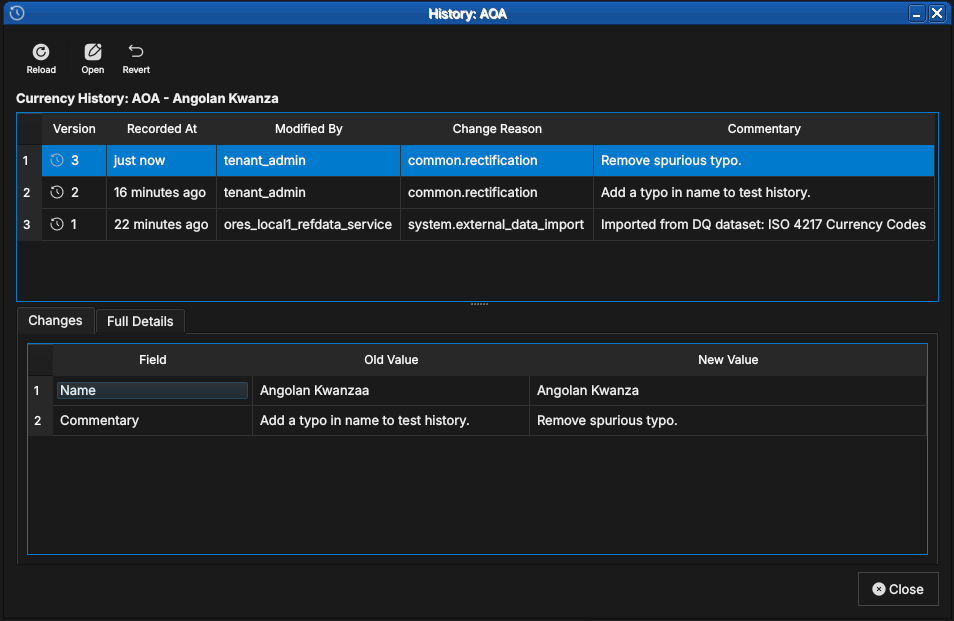
Figure 77: The Currency History dialog for the Angolan Kwanza, showing three versions. The All Fields/Only Changes toggle shows a field-by-field diff for the selected version against its predecessor.
The history dialog, accessible from every detail dialog's title bar or the list window's right-click menu, shows the full version list. Selecting a version populates a detail panel. The Changes tab shows a field-by-field diff; the Full Details tab shows the complete record at that version. The Revert button reinstates a historical version as a new current version.
9.3.4. Provenance
Every version of every reference data record carries six standard provenance fields. The Provenance tab in every detail dialog shows them read-only; it is disabled in create mode since no provenance exists before the first save.
The table below is the at-a-glance map from what you see on the tab to where each value comes from. Note the split: the two facts that must be tamper-proof — the version number and the moment of writing — are set by a database trigger and can never be supplied by the application; the four that carry business meaning are set by the application from your session and your answers to the change reason prompt.
| UI label | Field | Set by |
|---|---|---|
| Version | version |
DB trigger |
| Modified By | modified_by |
Application |
| Performed By | performed_by |
Application |
| Recorded At | recorded_at |
DB trigger |
| Change Reason | change_reason_code |
Application |
| Commentary | change_commentary |
Application |
version- Monotonically increasing integer starting at 1, incremented by the database trigger on every save. Never written by the application.
modified_by- The username of the account that submitted the save request.
performed_by- The username on whose behalf the change was
performed. Usually the same as
modified_by; they differ in automated workflows, where a service account submits a change on behalf of a human operator —modified_bythen identifies the service andperformed_bythe human, preserving accountability at both layers. recorded_at- The UTC wall-clock timestamp at the moment the row was written. Like all timestamps in OreStudio it is stored as UTC and displayed in your local timezone.
change_reason_code- A structured code drawn from the change reasons table identifying the business justification for the change. See Change Reasons below.
change_commentary- A free-text note accompanying the change. Mandatory for some reason codes, optional for others. Displayed in the history dialog and stored permanently with the version.
9.3.5. Change Reasons
Before every save OreStudio prompts for a change reason — a structured code identifying the business justification. Change reasons are organised into categories accessible from Reference Data → Audit Trail.
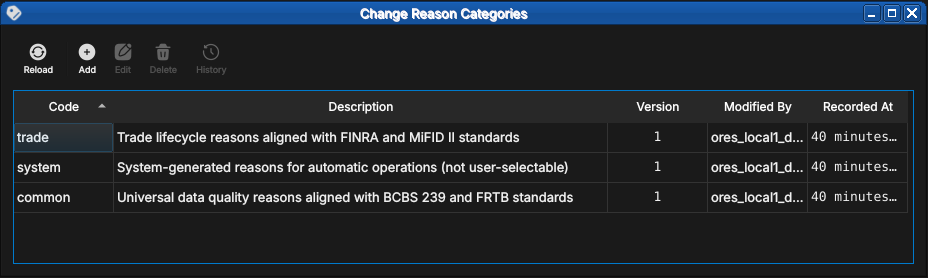
Figure 78: The Change Reason Categories window showing the three built-in category groups and their regulatory alignment.
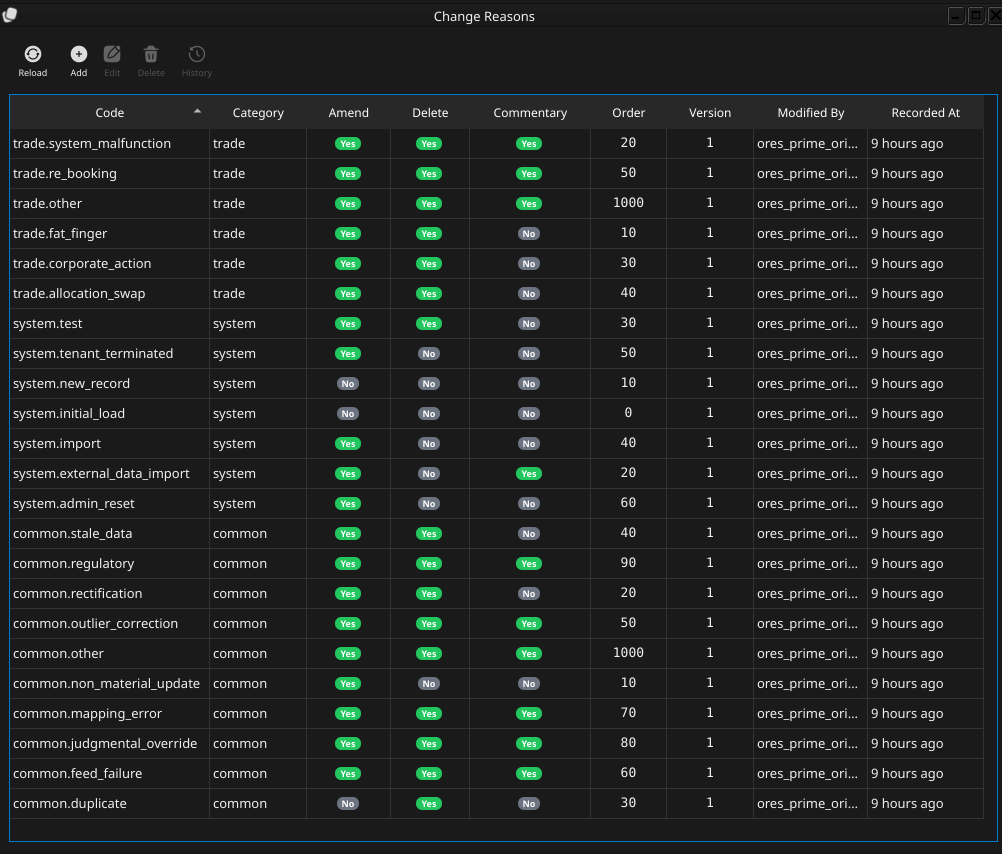
Figure 79: The Change Reasons list window (Reference Data → Audit Trail → Change Reasons), showing change reason codes across the built-in category groups.
Figure 80: The detail dialog for the trade category, showing its regulatory description.
Change reasons serve two purposes: they act as a forcing function against silent undocumented changes, and they make the audit trail machine-readable and regulatorily aligned. The category structure maps directly to BCBS 239, FRTB, MiFID II, and FINRA reporting obligations.
Each category below opens with a matrix of its codes: which operations
each code applies to (create, amend, delete) and whether the code
demands commentary — codes marked required will not save without a
note, the rest take "—" as optional. The full code as stored in the
audit trail is the category-qualified form, category.code — for
example trade.fat_finger; the matrices and descriptions omit the
prefix within each category section.
9.3.5.1. The System Category
System reasons are assigned automatically by the application and services. They are not shown in the change reason prompt and cannot be selected manually.
| Code | Create | Amend | Delete | Commentary |
|---|---|---|---|---|
initial_load |
x | — | ||
new_record |
x | — | ||
external_data_import |
x | required | ||
import |
x | x | — | |
test |
x | x | x | — |
tenant_terminated |
x | — | ||
admin_reset |
x | — |
initial_load- Initial system provisioning or database migration. Used once during deployment.
new_record- Normal operational record creation by the application or a service.
external_data_import- Import from an external data source (ISO feed, GLEIF, vendor file). Commentary must record the data lineage source.
import- Data loaded via the CLI import command.
test- Test data created by automated test suites.
tenant_terminated- Applied when a tenant is marked as terminated.
admin_reset- Data reset by a system administrator during re-provisioning.
9.3.5.2. The Common Category
Common reasons are the universal data quality reasons, aligned with BCBS 239 and FRTB standards. These are the reasons most frequently used by operators during day-to-day data maintenance.
| Code | Create | Amend | Delete | Commentary |
|---|---|---|---|---|
non_material_update |
x | — | ||
rectification |
x | x | — | |
duplicate |
x | — | ||
stale_data |
x | x | — | |
outlier_correction |
x | x | required | |
feed_failure |
x | x | required | |
mapping_error |
x | x | required | |
judgmental_override |
x | x | required | |
regulatory |
x | x | required | |
other |
x | x | required |
non_material_update- A cosmetic or administrative change with no economic impact — a "touch" to refresh a timestamp or correct capitalisation.
rectification- Correction of a user or booking error. The most commonly used reason for fixing a data-entry mistake.
duplicate- Removal of a duplicate record where an equivalent entry already exists.
stale_data- Data not updated within the required liquidity horizon, requiring a refresh or removal.
outlier_correction- Manual override following a plausibility check failure — a value outside acceptable bounds overridden by an operator. Commentary must identify the plausibility rule that triggered the review.
feed_failure- Correction caused by an upstream vendor or API data issue. Commentary must identify the failed feed.
mapping_error- Incorrect identifier translation — for example a wrong ISIN-to-FIGI mapping. Commentary must describe the mapping error.
judgmental_override- Expert judgment applied when market prices or reference values are unavailable and an operator must supply a value manually.
regulatory- Mandatory compliance adjustment required by a regulatory obligation or instruction.
other- Exceptional changes that do not fit any other category. The commentary must fully explain the reason — this code exists as a last resort and should be used sparingly.
9.3.5.3. The Trade Category
Trade reasons are aligned with FINRA and MiFID II trade lifecycle reporting requirements.
| Code | Create | Amend | Delete | Commentary |
|---|---|---|---|---|
fat_finger |
x | x | — | |
system_malfunction |
x | x | required | |
corporate_action |
x | x | — | |
allocation_swap |
x | x | — | |
re_booking |
x | x | required | |
other |
x | x | required |
fat_finger- Erroneous execution — a trade entered with the wrong quantity, price, or instrument due to a keying error.
system_malfunction- Change caused by a technical glitch or algorithmic error in an execution system. Commentary must identify the system and the nature of the malfunction.
corporate_action- Adjustment following a corporate action such as a stock split, dividend reinvestment, or merger.
allocation_swap- Reallocation between a house account and a client sub-account, or between sub-accounts.
re_booking- Correction of a wrong legal entity booking — a trade entered under the wrong counterparty or book. Commentary must identify the correct entity.
other- Exceptional trade lifecycle changes that do not fit any other code.
9.3.5.4. Extending Change Reasons
Change reason categories and individual codes are stored as versioned reference data and can be added through the same Qt UI and CLI tools used for other entities. In principle, a tenant administrator can create additional categories and codes for firm-specific workflows.
In practice this should be done cautiously:
- The standard codes are aligned with regulatory frameworks (BCBS 239, FRTB, MiFID II, FINRA). Non-standard codes risk creating audit trail entries that do not map cleanly to regulatory reports.
common.otherandtrade.otherwith mandatory commentary cover most exceptional cases without adding custom codes.- Custom codes cannot be distinguished from standard codes by the system, so the tenant must maintain its own record of which codes are standard and which are custom.
- Removing or renaming a code after it has been used in the audit trail leaves historical records referencing a code whose meaning is no longer documented.
9.4. Conclusion
The chapter set out to show that managing reference data well follows from understanding what it is and the framework that governs how it changes, and it has traced exactly that path. Reference data is the slowly-changing vocabulary of the system, distinct from streaming market data and transactional trades, and OreStudio governs it with the six industry-standard data quality dimensions. Building on that definition, the bitemporal storage model gives every record an immutable version history; provenance records who changed what, when, through which service, and why; and the structured change reason system turns every modification into an auditable event. These mechanisms are not specific to any one entity — they appear identically in every entity window. The chapters that follow, starting with currencies, document each entity on top of this shared foundation.
9.5. See also
- ISO 8000 — international standard for data quality.
- DAMA-DMBOK — data management body of knowledge, including the DQ-6 framework.
- Temporal database — background on transaction time, valid time, and the bitemporal model.
- Time and Timestamps: Architecture and Conventions — internal architecture document (
doc/knowledge/architecture/time-architecture.org). - BCBS 239 — Basel Committee principles for effective risk data aggregation and reporting.
- GLEIF — the Global Legal Entity Identifier Foundation; publishes the LEI registry and the LEI-to-BIC mapping dataset.
10. Currencies
This chapter examines the currency as a reference-data entity in ORE Studio. Currencies are identified by the international ISO 4217 standard; the chapter sets out that standard and the gaps it leaves, the extensions ORE Studio layers on top — display formatting, rounding rules, market tiers, and monetary natures — and the complete lifecycle of managing currency records through the Qt interface, the interactive shell, and the command-line tool.
10.1. Overview
The chapter advances the argument that managing a currency well means understanding what a currency actually is, its identity, the extensions that make it usable, the interface that governs its lifecycle, and the programmatic equivalents — and it proceeds in that order. It begins with the conceptual foundation in Money, currency, and cash, distinguishing three terms routinely conflated in casual usage; this framing is what makes the rest of the chapter's choices legible, not just a list of fields. It then turns to a currency's own birth-to-retirement Currency lifecycle, background the chapter draws on without OreStudio exposing it as a field. From there it establishes identity in ISO 4217 and its limitations, which sets out the codes that name a currency and the gaps that motivate ORE Studio's extensions. It then surveys the body of records in The Currencies window before narrowing to a single record in Currency Details and its General, Formatting, Rounding, and Provenance tabs. It then turns to changing a record under audit — Editing and Currency history — culminating in reverting to an earlier version, the point at which the bitemporal audit trail does its work. It then documents the auxiliary classification tables — rounding types, market tiers, and monetary natures — whose values a currency references, and finally shows the same operations automated from the shell. The Conclusion draws these steps together.
10.2. Money, currency, and cash
Money, currency, and cash are used almost interchangeably in
everyday speech, yet they name three distinct, if related, concepts,
each nested within the one before it. Disentangling them clarifies
what ORE Studio's Currency record is actually modelling, and, just as
importantly, what it deliberately is not.
Money is the broadest of the three terms: any item or verifiable record generally accepted as payment for goods and services, or as repayment of debts, within a particular society. It is best understood not as a physical thing but as a social convention, one that functions precisely because a sufficiently large group of people believes it functions, and which ceases to function the moment that belief collapses. What qualifies as money is best captured by what it does rather than what it is: it serves as a medium of exchange, offering an efficient alternative to barter; as a unit of account, letting value be expressed numerically and compared across otherwise incommensurable goods; as a store of value, preserving purchasing power across time; and as a standard of deferred payment, so that an amount agreed today retains roughly the same value when it falls due in the future. Anything fulfilling these functions counts as money, which is why money has, historically, taken several distinct forms. Commodity money derives its value from the scarcity and physical usefulness of the substance embodying it, gold and silver being the paradigm cases. Fiat money, by contrast, carries no intrinsic value of its own; it is money purely because a government or a mutual agreement between parties declares it so. Bank money is more abstract still, consisting entirely of records: it is created the moment a bank extends a loan by crediting the borrower's deposit account, and destroyed the moment that loan is repaid. Despite the popular association of "money" with notes and coins, bank money constitutes the overwhelming majority of the money supply in any modern economy, physical cash typically accounting for a small single-digit percentage of the total. Cryptocurrencies form a fourth, more recent and non-standard category: digital assets used as a medium of exchange, with ownership recorded cryptographically and, typically, no central issuing authority standing behind them.
Currency narrows money down to a system of money in common use within
a defined area of circulation, usually a country or a group of
countries sharing a monetary union. Two meanings coexist in ordinary
usage, the physical representation of banknotes and coins on one
hand, and the abstract system of money itself on the other, the
latter being the more useful framing for a system such as ORE Studio,
given how small a fraction of any modern money supply physical cash
actually represents. Being standardised by ISO 4217 is not a
precondition for counting as a currency in this conceptual sense;
standardisation is better understood as a seal of approval than as a
definition. The currencies of smaller nations not covered by the
standard, and cryptocurrencies, which rely on informal,
community-driven symbols such as BTC or XBT for Bitcoin rather
than an assigned ISO code, are no less currencies for lacking one. A
currency also has a lifecycle of its own, distinct from the lifecycle
of any individual note or coin — see Currency lifecycle below.
Cash narrows the concept furthest of the three. It is money in the physical form of banknotes and coins, or, in the bookkeeping sense more relevant to a system like ORE Studio, the broader class of current assets comprising currency or currency-equivalents that can be accessed immediately or near-immediately. A bank deposit falls under this broader definition: it is a financial asset rather than physical currency, yet liquid enough to count as cash for most practical purposes. The relationship between the three terms can be summarised as a chain of increasingly narrow specialisation: not all money is a currency in the systemic sense, since commodity money and cryptocurrencies stretch the definition in different directions; and not all currency holdings are cash, since a currency can equally be held in a comparatively illiquid financial-asset form.
ORE Studio's Currency reference-data record, the subject of the
remainder of this chapter, models currency in precisely this
narrower, systemic sense: a named, identified system of money,
equipped with the extensions described in the next section that let
ORE Studio put it to practical use in calculations. The chapter does
not attempt to model money in the abstract, nor the accounting
concept of cash; those notions are drawn upon, where relevant, by the
trading and booking chapters that build upon the currency reference
data documented here.
10.3. Currency lifecycle
A currency is born when created and put into circulation, lives
while in general use, and dies when eventually withdrawn — whether
replaced by a successor currency, absorbed into a monetary union, or
simply discontinued — though records of transactions conducted
during its life must still be retained long after that withdrawal.
This is background the rest of the chapter builds on, not a field
OreStudio exposes directly: unlike a book, a currency record carries
no status column of its own; a withdrawn currency simply stops
being referenced in new records; its history remains intact under
the same bitemporal audit trail as any other change.
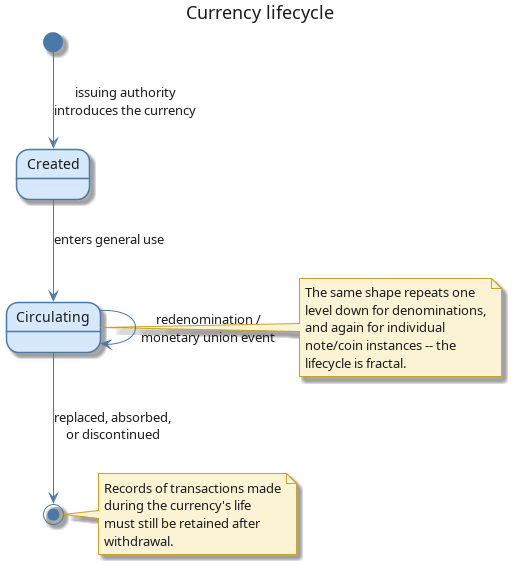
Figure 81: Currency lifecycle: creation, circulation (looping through redenomination and monetary-union events), and eventual withdrawal.
The same birth-life-death shape recurs at three nested levels: the currency itself, its individual denominations (a given note or coin value can be introduced or discontinued independently of the currency surviving), and individual physical instances. Recognising the pattern as fractal is what keeps "currency lifecycle" from being mistaken for a single, currency-wide, all-or-nothing event.
Redenominations, currency replacements, and monetary unions forming or dissolving occur more often than a system designer might expect, and rarely afford the luxury of careful advance planning; a system not built to anticipate such events — positions, reference data, and historical records all still keyed to a code that has just been withdrawn or redefined — can find itself significantly disrupted when one eventually occurs.
10.4. ISO 4217 and its limitations
The international standard for currency codes is ISO 4217. It defines
a three-letter alphabetic code (USD, EUR, GBP), a three-digit
numeric code (840, 978, 826), a currency name, and the number of
decimal places — for example, USD has 2 minor units, meaning amounts
are expressed to the nearest cent.
ISO 4217 is widely adopted and ORE Studio uses it as its primary identifier. However, the standard has gaps that matter in practice:
- It does not classify currencies by market tier — the distinction between major G10 currencies and emerging-market currencies is economically important but absent from the standard.
- It does not cover digital assets. Cryptocurrencies such as Bitcoin or Ethereum are increasingly relevant in financial systems but have no ISO 4217 code.
- It says nothing about display formatting — whether a symbol precedes or follows the amount, what the thousands and decimal separators are, or how the fractional unit is labelled.
- It does not specify rounding conventions — whether a calculation result should be rounded up, down, or to the nearest unit.
ORE Studio extends the ISO 4217 model with additional fields to cover these gaps: monetary nature, market tier, currency symbol, fraction symbol, a printf-style format string, and configurable rounding rules. The standard fields remain primary; the extensions are supplementary.
With the underlying model in place, both the standard fields ISO 4217 provides and the extensions layered on top of them, the rest of the chapter turns from what a currency record contains to where you go to work with one. That begins, as it does for any list-backed entity in ORE Studio, with the window listing every currency the tenant holds.
10.5. The Currencies window
Open the Currencies window from the Reference Data menu. It lists all currencies defined in the tenant, with one row per currency.
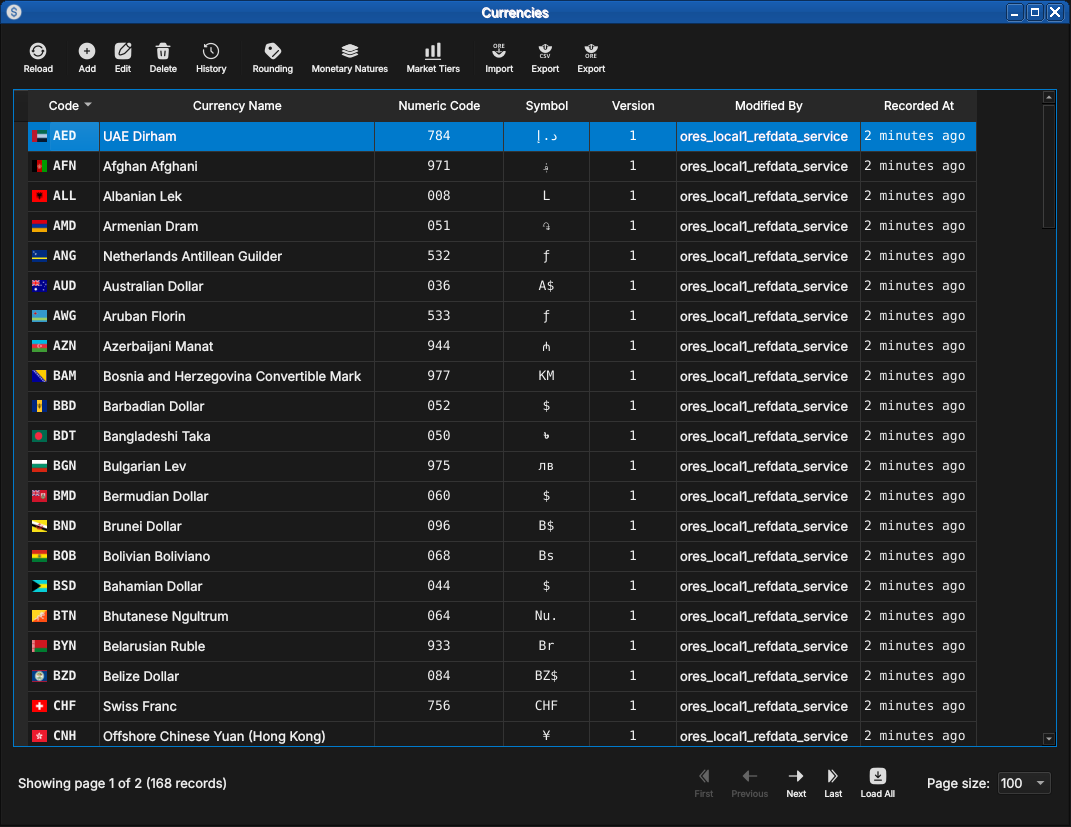
Figure 82: The Currencies window, showing the full list of currencies in the tenant. Each row shows the ISO code, name, numeric code, symbol, version number, the identity of the last modifier, and when the record was last recorded. The status bar shows the current page and total record count.
The toolbar buttons reload the list and adjust the display. The list is paginated; use the page controls at the bottom right to navigate. Double-clicking a row opens the Currency Details dialog.
10.6. Currency Details
The Currency Details dialog has four tabs: General, Formatting, Rounding, and Provenance. The three action buttons at the bottom — Delete, Close, and Save — apply to the currency as a whole.
10.6.1. General
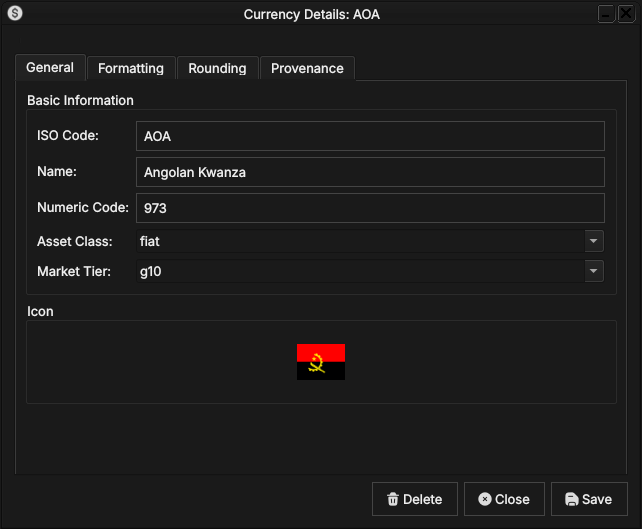
Figure 83: The General tab for the Angolan Kwanza (AOA). It shows the ISO code, full name, numeric code, monetary nature, market tier, and the country flag icon associated with the currency.
The General tab carries the core identity of the currency:
- ISO Code — the three-letter ISO 4217 alphabetic code. This is the primary key and cannot be changed after creation.
- Name — the full English name of the currency (e.g. Angolan Kwanza).
- Numeric Code — the ISO 4217 numeric code (e.g.
973for AOA). - Asset Class — the monetary nature of the currency:
fiatfor a government-issued currency,crypto.majorfor a major digital asset. See Monetary Natures below for the full list. - Market Tier — the currency's liquidity classification:
g10for the major currencies,emergingfor others. See Market Tiers below. - Icon — the country flag for the currency's issuing nation, populated automatically from the system's image dataset on import.
10.6.2. Formatting
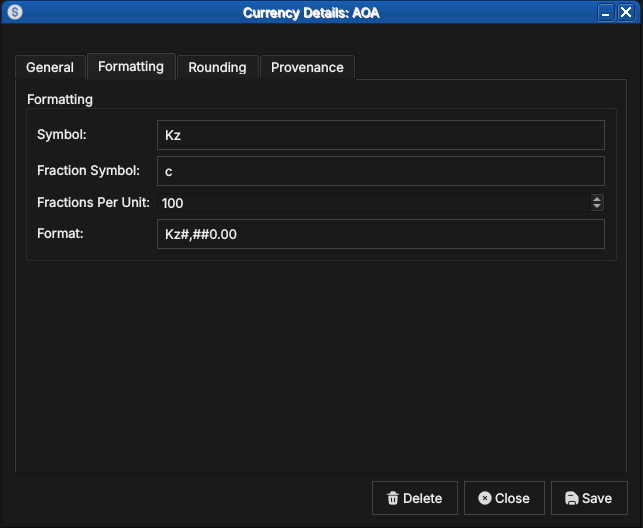
Figure 84: The Formatting tab for AOA, showing the currency symbol (Kz), the fractional unit symbol (c for centavo), fractions per unit (100), and the display format string.
The Formatting tab controls how currency amounts are displayed:
- Symbol — the currency symbol, e.g.
Kzfor the Kwanza or$for the US Dollar. - Fraction Symbol — the symbol for the fractional unit, e.g.
cfor centavo. - Fractions Per Unit — the number of fractional units in one whole
unit. Most fiat currencies use
100; the Kuwaiti Dinar uses1000; currencies with no fractional unit (e.g. Japanese Yen) use0; cryptocurrencies typically use100000000. - Format — a printf-style format string controlling amount rendering,
e.g.
Kz#,##0.00producesKz1,234.56.
10.6.3. Rounding
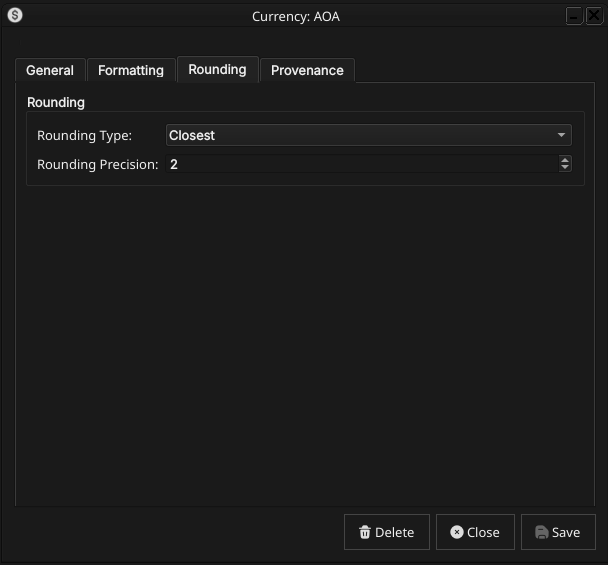
Figure 85: The Rounding tab for AOA, showing the rounding type (Closest) and rounding precision (2).
The Rounding tab controls how calculated amounts are rounded before storage and display:
- Rounding Type — the rounding algorithm applied to amounts in this currency. See Rounding Types below for the full list of options.
- Rounding Precision — the number of decimal places to round to.
Typically
2for most fiat currencies and8for cryptocurrencies.
10.6.4. Provenance
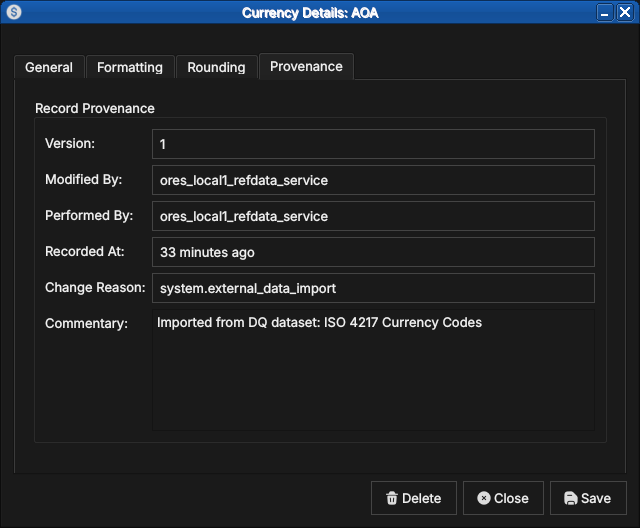
Figure 86: The Provenance tab showing record metadata: version number, the service that last modified the record, who performed the operation, when it was recorded, the change reason code, and a free-text commentary.
The Provenance tab is read-only and shows the audit metadata for the current version. See the Reference Data — Provenance section for a full description of the provenance fields common to all reference data entities.
10.7. Editing a currency
To edit a currency, open it in the Currency Details dialog, make your changes, and click Save. Before the record is written, ORE Studio prompts for a change reason.
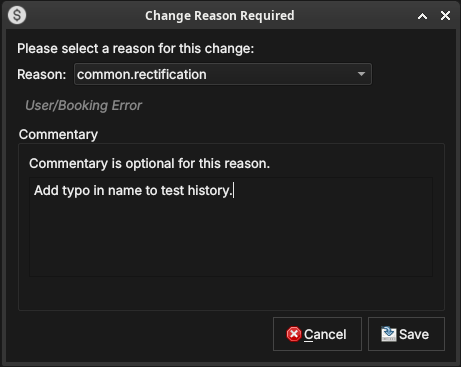
Figure 87: The Change Reason Required dialog, which appears before every save. A reason code must be selected; commentary is optional for some reason codes and required for others.
Select a Reason from the drop-down and add optional Commentary. Click Save to confirm. Every save creates a new version; the previous version is never overwritten.
10.8. Currency history
To view the full change history, open the details dialog and click the history icon in the title bar, or right-click the row and choose History.
Figure 88: The History dialog for the Angolan Kwanza, showing three versions: the original ISO 4217 import (version 1), a test correction (version 2), and a final rectification (version 3, currently selected). The Only Changes toggle narrows the field list to what actually differs between version 2 and version 3.
Pick the two versions to compare from the Compare drop-downs. The All Fields / Only Changes toggle switches between showing every field and showing only the fields that differ between the two selected versions. The Revert button reinstates any historical version as a new version, preserving the full audit chain.
10.9. Auxiliary Data
The three tables described in this section act as classification vocabularies for currencies. In a standard deployment their values are fixed at provisioning time and rarely change; ORE Studio still versions and audits them the same way as any other reference data. They are managed by the system tenant and are accessible from the Reference Data → Currencies sub-menu.
10.9.1. Rounding Types
Rounding types specify the algorithm used to round currency amounts
in financial calculations. The values match the roundingType
enumeration in ORE's XML schema, ensuring consistency with any ORE
configuration files loaded into the system.
Open the Rounding Types window from Reference Data → Currency Codes or from the toolbar within the Currency Detail dialog.
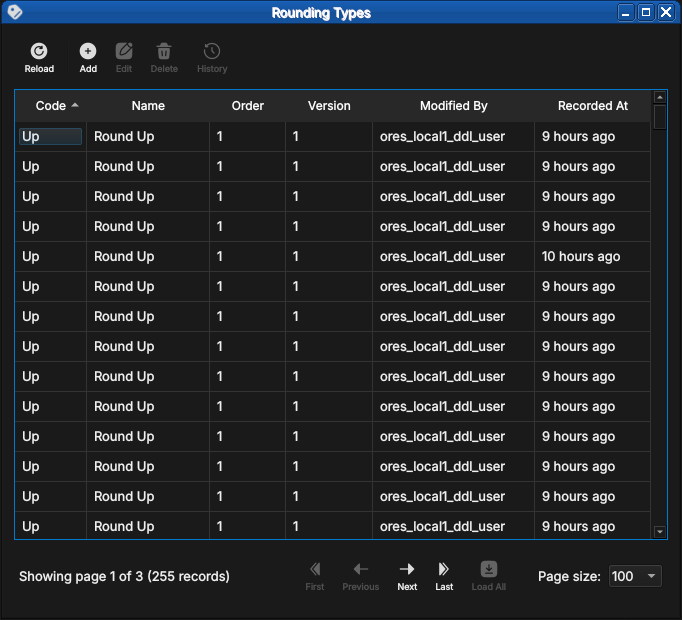
Figure 89: The Rounding Types list window showing the five standard rounding methods with their display order, version, and provenance.
Double-clicking a row opens the detail dialog, which shows the code, name, and a description that includes numeric examples at two decimal places.
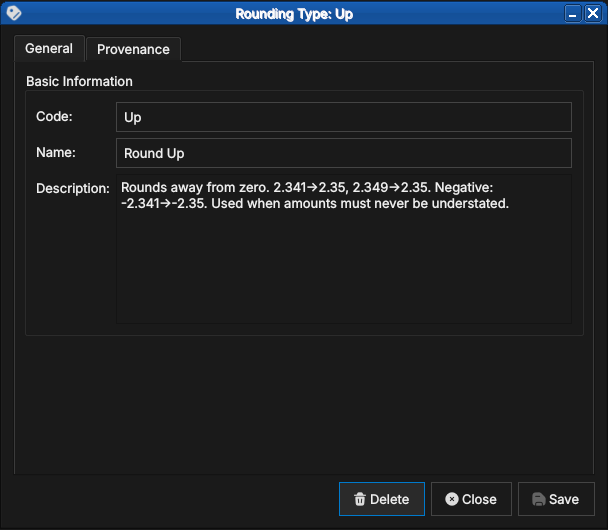
Figure 90: The detail dialog for the Up rounding type, showing the code, human-readable name, and a description with concrete examples.
There are five standard values:
10.9.1.1. Up
Rounds away from zero regardless of the fractional part. The amount is always moved to the next representable value in the direction away from zero.
Examples at 2 decimal places: 2.341 → 2.35, 2.349 → 2.35.
For negative amounts: -2.341 → -2.35.
Use Up when amounts must never be understated — for example, when
calculating a fee that must cover the full cost.
10.9.1.2. Down
Truncates toward zero. The fractional part is discarded.
Examples: 2.349 → 2.34, -2.341 → -2.34.
Use Down in conservative contexts where overstating an amount would
be the more serious error — for example, when reporting a liability
that should not be exaggerated.
10.9.1.3. Closest
Rounds to the nearest representable value, with halves rounded away from zero. This is the most common rounding mode for financial amounts and is the default for most fiat currencies.
Examples: 2.344 → 2.34, 2.345 → 2.35, -2.345 → -2.35.
10.9.1.4. Floor
Always rounds toward negative infinity — i.e., to the next lower
value regardless of sign. Unlike Down, which rounds toward zero,
Floor produces different results for negative amounts.
Examples: 2.349 → 2.34, -2.341 → -2.35.
Use Floor when rounding must never produce a value higher than the
unrounded input, even for negative amounts.
10.9.1.5. Ceiling
Always rounds toward positive infinity — i.e., to the next higher value regardless of sign.
Examples: 2.341 → 2.35, -2.349 → -2.34.
Use Ceiling when rounding must never produce a value lower than the
unrounded input.
10.9.2. Market Tiers
Market tiers classify currencies by liquidity profile and market accessibility. The classification feeds into margin calculations, settlement conventions, and risk limits in downstream analytics.
Open the Currency Market Tiers window from Reference Data → Classifications.
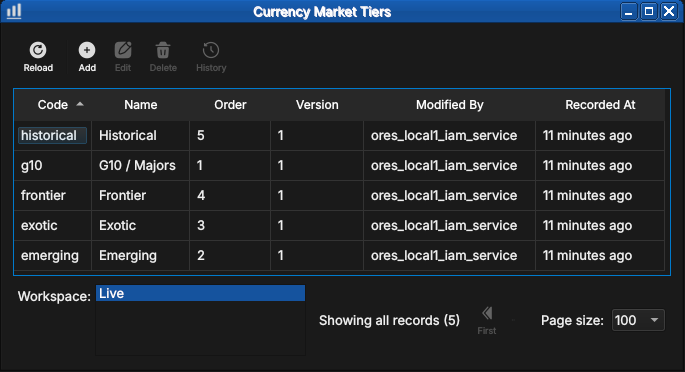
Figure 91: The Currency Market Tiers list showing all five standard tiers — historical, g10, frontier, exotic, and emerging — with their display order and provenance.
Figure 92: The detail dialog for the historical tier, showing the code, name, and description.
There are five standard tiers:
10.9.2.1. G10 / Majors
The ten most liquid and widely traded global currencies: USD, EUR, GBP, JPY, CHF, AUD, NZD, CAD, SEK, and NOK. G10 currencies have deep interbank markets, tight bid/offer spreads, and continuous 24-hour liquidity. They are the primary currencies for derivatives trading and the dominant funding and collateral currencies in global finance.
10.9.2.2. Emerging
Currencies from developing economies with growing but still maturing financial markets. They typically have moderate liquidity, wider spreads than G10, and may be subject to capital controls or central bank intervention. Examples include BRL (Brazilian Real), MXN (Mexican Peso), ZAR (South African Rand), INR (Indian Rupee), and CNY (Chinese Renminbi).
10.9.2.3. Exotic
Thinly traded currencies with wide bid/offer spreads and limited liquidity outside their domestic market. Forward markets may be shallow or absent. Examples include currencies of smaller African, Central Asian, or Pacific island nations.
10.9.2.4. Frontier
Currencies from frontier markets with limited or restricted convertibility. These may be pegged to a major currency, subject to official exchange rates, or carry transfer restrictions that make them impractical for cross-border settlement. Examples include currencies from markets classified as frontier by MSCI or FTSE Russell.
10.9.2.5. Historical
Currencies no longer in active use. This includes legacy eurozone currencies superseded by the Euro (DEM, FRF, ITL, ESP, and others), as well as currencies from defunct states or monetary unions. Historical currencies are retained in the system for back-office reconciliation and historical analytics on older trade populations.
10.9.3. Monetary Natures
Monetary nature classifies currencies by the underlying economic mechanism that gives them value. The classification matters for collateral eligibility, regulatory capital treatment, and the applicability of pricing models.
Open the Monetary Natures window from Reference Data → Classifications.
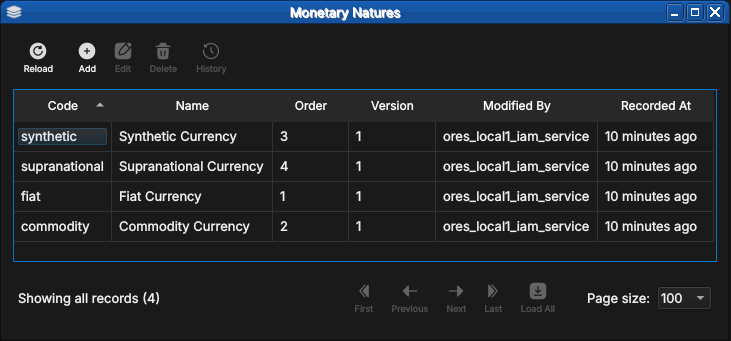
Figure 93: The Monetary Natures list showing all four standard values — synthetic, supranational, fiat, and commodity — with their display order and provenance.
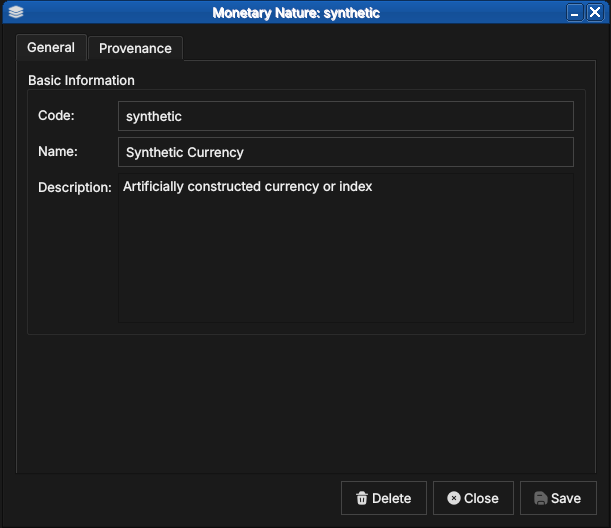
Figure 94: The detail dialog for the synthetic monetary nature, showing the code, name, and description.
There are four standard values:
10.9.3.1. Fiat
Government-issued currency that derives its value from legal tender status rather than from a physical commodity. The issuing central bank or treasury manages supply through monetary policy. The overwhelming majority of currencies in the ISO 4217 standard are fiat — USD, EUR, GBP, JPY, and so on.
10.9.3.2. Commodity
Currency backed by or representing a claim on a physical commodity.
In practice this covers the ISO 4217 commodity codes: XAU (gold),
XAG (silver), XPT (platinum), and XPD (palladium). Pricing is
driven by spot commodity markets rather than interest rate differentials.
10.9.3.3. Synthetic
Artificially constructed currency or index that does not correspond to any single government or commodity. Examples include basket currencies and internal transfer pricing units used within large financial institutions.
10.9.3.4. Supranational
Currency issued by a multi-national authority rather than a single
sovereign. The primary example is XDR (Special Drawing Rights),
issued by the International Monetary Fund as an international reserve
asset and valued as a basket of USD, EUR, CNY, JPY, and GBP —
reviewed and revised by the IMF every five years.
10.10. Shell commands
The ORE Studio interactive shell provides quick currency access without opening the Qt UI:
# List all currencies (paginated)
currencies get

# Add a new currency:
#   <iso_code> <name> <numeric_code> <symbol> <fractions_per_unit>
#   <change_reason_code> <change_commentary>
currencies add XTS "Test Currency" 963 T$ 100 system.test "manual example"

# Delete a currency by ISO code
currencies delete XTS

# Show history for a currency
currencies history USD
10.11. Conclusion
The chapter set out to show that managing a currency well follows from understanding its identity, the extensions that make it usable, its interface, and its programmatic equivalents in turn, and it has traced exactly that path. Its own birth-to-retirement lifecycle set the background the rest of the chapter operates against. ISO 4217 supplies the standard identity — code, numeric code, name, and minor units — while ORE Studio's extensions cover what the standard leaves out: market tiers, monetary natures for digital assets, display formatting, and rounding conventions. Building on that, the Qt interface took the record from the list view down to a single detail dialog and through the editing and history workflows, where reverting to an earlier version demonstrated the bitemporal audit trail keeping the full record intact. The three auxiliary classification tables then fixed the vocabulary a currency may reference, and the shell reproduced the same operations for scripted use. Currencies are the template: subsequent entity chapters follow this same progression.
10.12. See also
- Currency Lifecycle — the domain-knowledge note this chapter's Currency lifecycle section is drawn from.
- ISO 4217 Currency Codes — the international standard for currency identification.
- SIX Financial Information — the ISO 4217 maintenance agency.
- MSCI Market Classification — framework for developed, emerging, and frontier market designations.
11. Currency Pairs
A currency on its own, as the previous chapter set out, is a self-contained identity: a code, a name, a set of display and rounding rules. The moment two currencies are set against one another, a second entity comes into being, one whose identity is relational rather than intrinsic. This chapter examines that entity, the currency pair, and the separate but tightly coupled record of market conventions that governs how quotes on that pair are read, rounded, and dated.
11.1. Overview
The chapter follows the same progression as the previous one, adapted to a case where two closely related entities, rather than one, share the stage. It opens with the domain foundation in Currency pairs and market conventions, distinguishing what a pair is from the market conventions layered on top of it, and setting out the classification scheme, the base/quote precedence rule, and the pip and tick mechanics that later sections draw on. It then turns to the first entity, walking from The Currency Pairs window through Currency Pair Details, editing, and history, in the same pattern the Currencies chapter established. It then does the same for the second entity in Currency Pair Conventions, and closes by explaining how the two windows are cross-navigable from one another. The Conclusion draws the pair of entities back together.
11.2. Currency pairs and market conventions
A currency pair names an exchange rate relationship between two
currencies rather than a currency itself: it answers the question of
how many units of one currency, the quote currency, are needed to
buy one unit of the other, the base currency. Market convention
writes this as CCY1/CCY2, base over quote, and, crucially, treats
the two directions as the same market rather than as independent
instruments: EUR/USD and USD/EUR are not two pairs but one pair
quoted two ways, and a well-behaved system permits only one canonical
direction to exist as a record. Which currency of the two takes the
base position is itself conventional rather than arbitrary, governed
by a fixed precedence order with the euro at its head, followed by
sterling, the Australian and New Zealand dollars, the US dollar, and
then the remaining currencies — so market participants write
EUR/USD, never USD/EUR, even though both describe the same
underlying rate.
Currency pairs are not a homogeneous population; the market
classifies them by liquidity and tradability, a taxonomy independent
of the mere fact that both legs are valid ISO 4217 currencies. A
major pairs the US dollar with one of the six other currencies with
the deepest global markets — the euro, sterling, the yen, the Swiss
franc, and the Australian, Canadian, and New Zealand dollars — and
carries the tightest spreads and the most continuous liquidity of any
pair in the market. A minor, sometimes called a cross, pairs two of
those major non-dollar currencies against one another with no dollar
leg at all, a pair such as EUR/GBP or GBP/JPY; because the dollar
is absent, such a rate is frequently derived by triangulating through
it rather than quoted directly. An exotic pairs a major currency
against the currency of a smaller or developing economy, carrying
markedly wider spreads, thinner liquidity, and greater sensitivity to
domestic political and economic events. A further distinct
classification exists alongside this one for commodity-backed
instruments, where one leg is not a sovereign currency at all but a
precious metal such as gold or silver traded under currency-like
conventions; ORE Studio labels this fourth case commodity. It is
worth noting explicitly that classification and raw trading volume
diverge in at least one well-known respect: the Scandinavian
currencies, the Danish krone, the Norwegian krone, and the Swedish
krona, trade in somewhat lower volume than the seven majors and are
sometimes loosely called exotic on that basis, yet institutionally
they belong to the same deep-liquidity tier as the majors and should
be classified as minors, not exotics, when paired with the dollar.
Once a pair's identity and classification are settled, a further set
of market conventions governs how its rate is actually quoted and
handled operationally, and these live on a separate record from the
pair itself. A pip is the standard unit of rate movement for a
pair, and its size is not universal: most pairs quote to four decimal
places, so that a single pip equals 0.0001 of the rate, while pairs
with a yen leg quote to only two decimal places, making a pip equal
to 0.01. The pip factor is this decimal scaling made explicit and
storable, the multiplier that converts a count of pips into an
absolute rate move, and getting it wrong does not produce a merely
inaccurate result but one whose sign and order of magnitude are both
wrong, since it governs how forward points are added to or subtracted
from a spot rate. Layered on top of the pip convention is the tick
size, the smallest increment by which a quoted rate is actually
permitted to move, stated in units of pips and capable of varying by
pair, by trading venue, and by instrument; a pip defines the
denomination, a tick defines the smallest coin in that denomination
actually in circulation. Finally, settlement timing follows its own
convention: an FX rate, notwithstanding the informal name spot
rate, is very rarely a rate for immediate delivery but rather a
forward rate for the earliest date on which funds can actually
settle, arrived at by advancing from today by the number of business
days each currency's home market needs to clear a payment, one day
for the US dollar and typically two for most other currencies, with
the pair as a whole taking the longer of its two legs' requirements —
which is why most pairs are conventionally said to settle two
business days after the trade date.
A word of scope is due before moving on. Real FX markets also distinguish pairs by deliverability — whether a trade in that pair settles through physical delivery of both currencies or, for currencies subject to capital controls, is instead settled in cash in a third currency against a published fixing, the non-deliverable forward arrangement. ORE Studio explored modelling this distinction directly on the currency pair record and withdrew it again during this development cycle: a single flag proved unable to express the reality that some pairs support more than one settlement arrangement, sometimes depending on the trading centre involved, and a proper treatment needs its own structure rather than a field bolted onto the pair. Deliverability and non-deliverable settlement are, at the time of writing, not represented anywhere in ORE Studio's reference data and are not described further in this chapter.
With the domain foundation in place, the base/quote relationship and its precedence rule, the classification taxonomy, and the pip, tick, and settlement-timing conventions that will recur throughout the entity descriptions below, the chapter turns from what these concepts mean to where a user goes to work with the records that carry them.
11.3. The Currency Pairs window
Open the Currency Pairs window from the Reference Data menu. It lists all currency pairs defined in the tenant, with one row per pair.
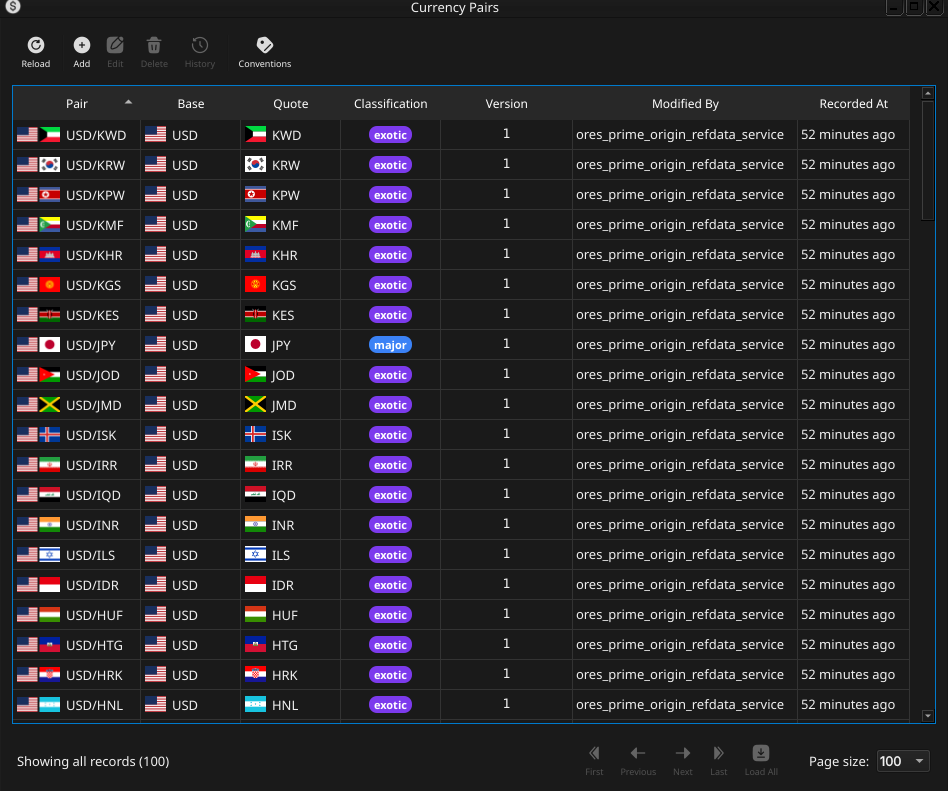
Figure 95: The Currency Pairs window, showing the full list of currency pairs in the tenant. Each row shows the composited base+quote flag, the individual Base and Quote codes, the Classification badge, version, and provenance columns.
Each row shows the pair code (with the base and quote currencies' flag icons composited into the same cell), the base and quote currency codes individually, the classification badge, the version number, the identity of the last modifier, and when the record was last recorded. The toolbar buttons reload the list and adjust the display; a further Conventions button, described in Currency Pair Conventions below, cross-navigates to the companion window. The list is paginated; use the page controls at the bottom right to navigate. Double-clicking a row opens the Currency Pair Details dialog.
11.4. Currency Pair Details
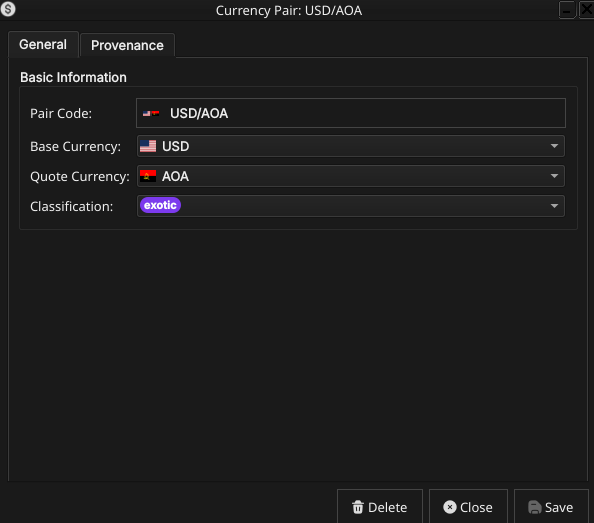
Figure 96: The Currency Pair Details dialog for USD/AOA, showing the Pair Code field with both flags, the locked Base and Quote Currency combos, and the Classification combo.
The dialog carries a compact set of fields. Pair Code is not typed directly; it is computed live from the Base Currency and Quote Currency combos while the record is still being created, and the field itself remains read-only throughout. Base Currency and Quote Currency are flagged combo boxes, each showing the relevant currency's flag alongside its ISO code, populated from the currencies already on file. Classification is a combo offering the four values described above — major, minor, exotic, and commodity.
Once a pair has been saved for the first time, its Base Currency and Quote Currency combos lock: the values remain visible, flags and all, but can no longer be changed, and Pair Code is therefore permanently fixed from the moment of creation onward. This reflects the domain reality that a currency pair's identity is its two legs; changing either leg would not modify the pair but create a different one under a different natural key.
Two checks run at creation time, both driven by the base-currency-
precedence rule described in Currency pairs and market conventions.
Attempting to create a pair whose code already exists is rejected
outright, since that would silently create a new version of the
existing record rather than a genuinely new one. Attempting to create
the inverse of a pair that already exists — for example, adding
USD/EUR when EUR/USD is already on file — is rejected for the
same underlying reason: the two directions describe one market, not
two, and only the canonically ordered direction may exist as a
record.
Figure 97: With USD/AOA already on file, attempting to create AOA/USD is rejected: the warning names both the rejected code and the existing pair it inverts, and explains the delete-then-recreate workaround for the rare case the direction genuinely needs to change.
The three action buttons at the bottom, Delete, Close, and Save, apply to the pair as a whole. The dialog also has a Provenance tab, read-only, showing the audit metadata for the current version; see the Reference Data — Provenance section for a full description of the fields common to all reference data entities.
11.5. Editing a currency pair
To edit a currency pair, open it in the Currency Pair Details dialog, change its Classification — the only field still open to editing once Base Currency and Quote Currency have locked — and click Save. As with every reference-data entity, ORE Studio prompts for a change reason before the record is written; select a Reason from the drop-down, add optional Commentary, and click Save to confirm. Every save creates a new version rather than overwriting the previous one.
11.6. Currency pair history
To view the full change history, open the details dialog and click the history icon in the title bar, or right-click the row and choose History. Select a version to populate the detail panel; the Changes tab shows which fields differ between the selected version and its predecessor, and the Revert button reinstates any historical version as a new version, preserving the full audit chain. The mechanics are identical to currency history, described in full in the previous chapter's Currency history section.
11.7. Currency Pair Conventions
Where the currency pair record establishes identity, base, quote, and classification, a second, separate record establishes the market conventions that govern how a pair's rate is quoted, rounded, and dated: pip factor, tick size, decimal places, the advancing calendar, the business day convention, and two boolean flags governing forward-date generation. The two records stand in a strict one-to-one relationship, keyed by the same pair code, and are kept as distinct entities rather than merged into one for the same reason the Currencies chapter kept Rounding Types and Market Tiers separate from the Currency record itself: identity and convention change at different rates and for different reasons, and separating them keeps each record's audit history meaningful on its own terms.
Open the Currency Pair Conventions window from the Reference Data menu, or from the Conventions toolbar button on the Currency Pairs window described above.
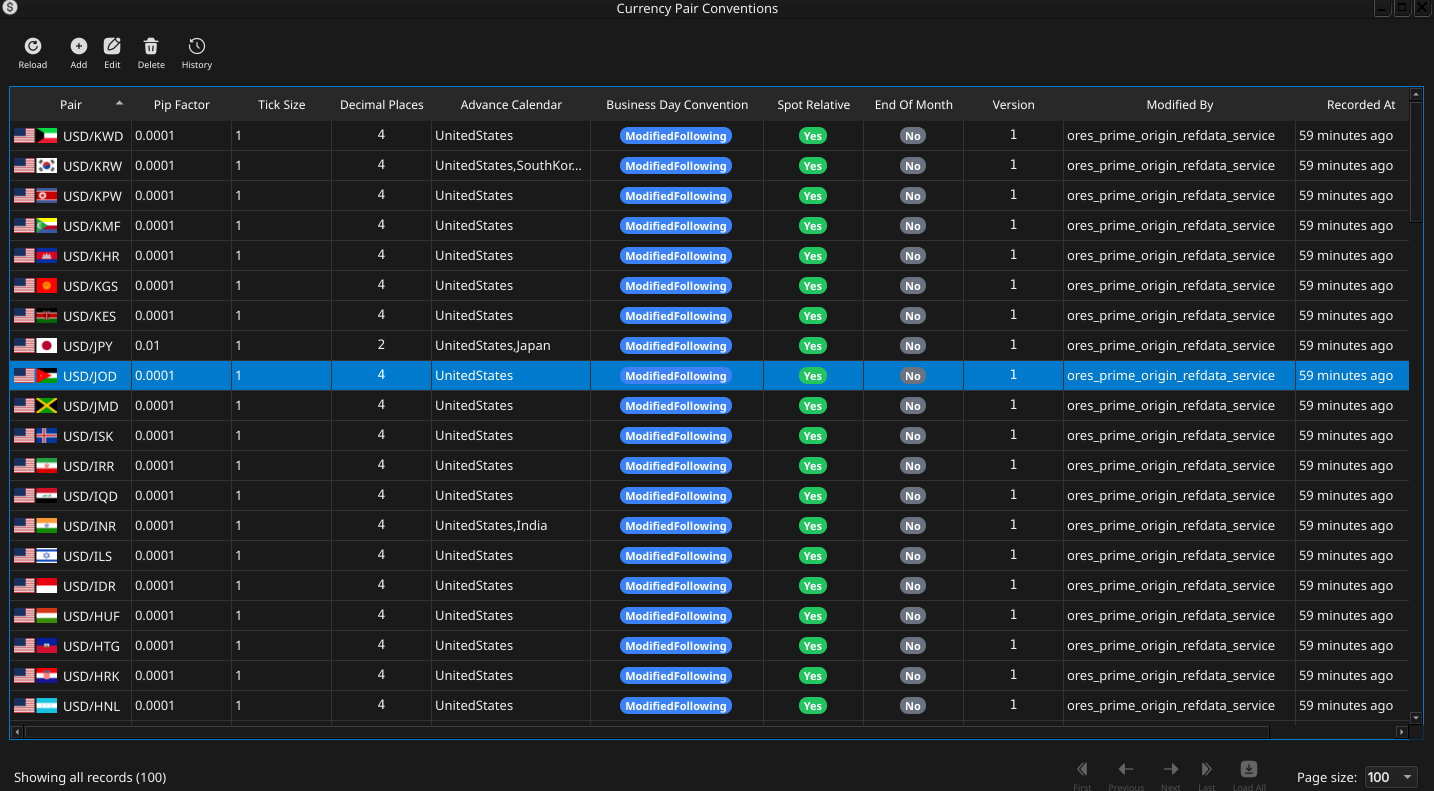
Figure 98: The Currency Pair Conventions window. USD/JPY (row eight) shows the JPY-cross convention — pip factor 0.01, two decimal places — contrasting with the =0.0001=/four-decimal-place convention every other row here shares.
Each row shows the pair code with its composited flag icons, pip factor, tick size, decimal places, advance calendar, business day convention badge, and the spot-relative and end-of-month flags rendered as Yes/No labels, followed by the usual version and provenance columns. Double-clicking a row opens the Currency Pair Convention Details dialog.
Figure 99: The Currency Pair Convention Details dialog for USD/KPW, showing the locked Pair Code combo with its flags, Pip Factor, Tick Size, Decimal Places, Advance Calendar, Business Day Convention, and the Spot Relative/End Of Month checkboxes.
Pair Code is a flagged combo, but unlike the Currency Pair Details dialog it does not derive its value from two separate legs; instead it lets the user pick directly from the pairs already on file, and, as with Base and Quote Currency above, is selectable only while creating the record and locks, still showing its flags, once saved. Attempting to create a second convention record for a pair code that already has one is rejected, on the same reasoning as the duplicate- pair check on the identity entity: a pair has at most one convention record, and the correct action is to edit the existing one rather than create a second.
The remaining fields follow directly from the domain concepts set
out earlier in the chapter. Pip Factor and Tick Size express the
pip and tick mechanics described in Currency pairs and market
conventions; a typical non-yen pair carries a pip factor of 0.0001,
a yen cross 0.01. Decimal Places fixes how many digits the rate
displays, consistent with the same pip convention — four for most
pairs, two for yen crosses. Advance Calendar names the calendar
used when advancing from the spot date to a forward date. Business
Day Convention selects among the standard date-rolling rules —
Following, Modified Following, Preceding, Modified Preceding,
Unadjusted, Half-Month Modified Following, and Nearest — that
determine how a date falling on a holiday is adjusted onto a business
day. Spot Relative indicates whether forward dates for this pair
are generated relative to the spot date rather than the trade date,
and End Of Month indicates whether the end-of-month date-rolling
convention applies.
11.8. Editing a currency pair convention
Editing follows the same pattern as every other reference-data entity in ORE Studio: open the record, change any field still open to editing once Pair Code has locked, and click Save. A change reason is required before the save is written, exactly as for currency pairs above.
11.9. Currency pair convention history
History and revert work identically to currency pair history: open the history icon or right-click and choose History, select a version, review the Changes tab, and use Revert to reinstate an earlier version as a new one.
11.10. Conclusion
The chapter set out to treat the currency pair as a relational entity distinct from, but built upon, the currencies documented in the previous chapter, and to separate that identity from the market conventions layered on top of it. The base-currency-precedence rule fixed how a pair's two legs are ordered and why only one of the two possible directions may ever be recorded; the major/minor/exotic/ commodity taxonomy classified the population of pairs by liquidity and tradability, independent of the raw fact that both legs are valid currencies; and the pip, tick, and settlement-timing conventions supplied the vocabulary the second entity's fields draw upon. The Qt interface then walked both entities from list to detail to history, in the pattern the previous chapter established, and showed how the two windows cross-navigate via the Conventions toolbar button. Unlike currencies, currency pairs and their conventions do not yet have shell or command-line equivalents; that gap is tracked as future work rather than glossed over here.
11.11. See also
- Currency pairs — the domain-knowledge hub this chapter draws on.
- Currencies — the previous chapter, covering the individual currency legs a pair is built from.
- Currency Pair (Investopedia) — an accessible introduction to currency pair quoting conventions.
12. Countries
This chapter examines the country as a reference-data entity in OreStudio. Countries are identified by the international ISO 3166-1 standard; the chapter sets out that standard and the gaps it leaves, the extensions OreStudio layers on top, and the complete lifecycle of managing country records — viewing, editing, deleting, and auditing them — through the Qt interface, the interactive shell, and the command-line tool.
12.1. Overview
The chapter advances the argument that managing a country well means first understanding what identifies it, then the interface that governs its lifecycle, and finally the programmatic equivalents — and it proceeds in that order. It begins by establishing the identity of a country in ISO 3166-1 and its limitations, which sets out the codes that name a country and the gaps in the standard that motivate OreStudio's extensions; this is the premise the rest of the chapter builds on. From there it surveys the body of records in The Countries window, explaining the list view, paging, and reloading, before narrowing to a single record in Country Details and its General and Provenance tabs. It then turns to changing a record under audit — Editing, Deleting, and Country history — culminating in reverting to an earlier version, the point at which the bitemporal audit trail does its work. Finally it shows the same operations automated from the shell, and the Conclusion draws these steps together.
12.2. ISO 3166-1 and its limitations
The international standard for country codes is ISO 3166-1. It defines three parallel codes for each country plus a short name:
- a two-letter alphabetic code,
alpha-2(US,GB,FR) — the most widely used form, and OreStudio's primary identifier; - a three-letter alphabetic code,
alpha-3(USA,GBR,FRA), which is more mnemonic and collision-resistant; - a three-digit
numericcode (840,826,250), drawn from the UN M49 series and language-independent; - the country's short name (e.g. United States).
ISO 3166-1 is near-universal, but it has gaps that matter in practice:
- It carries only a short name. The full official name (United States of America, French Republic) — needed for legal documents and reports — is not part of the standard.
- The country set is political and changes over time. Codes are added, withdrawn, and occasionally reassigned: a code freed by one country can later be given to another, so a bare code is not a stable historical key. ISO publishes transitional reservations, but consumers must still track the changes.
- It conflates countries with territories and dependencies and takes no position consistent with every user's expectations on contested or partially-recognised entities.
- It says nothing about visual identity — there is no flag or emblem in the standard.
- It does not model subdivisions (states, provinces); those are a separate standard, ISO 3166-2.
- A block of codes (
XAtoXZ) is reserved for private use, useful for fictional or internal entities that must not collide with real codes.
OreStudio uses the ISO 3166-1 fields as primary and extends the model with an official name and an optional flag image. The standard fields remain authoritative; the extensions are supplementary.
12.3. The Countries window
Open the Countries window from the Reference Data menu. It lists all countries defined in the tenant, one row per country, each row carrying the flag, alpha-2 and alpha-3 codes, numeric code, name, official name, version, last modifier, and when the record was last recorded.
Figure 100: The Countries window, showing the full list of countries in the tenant. Each row shows the flag, alpha-2 and alpha-3 codes, numeric code, name, official name, version number, the identity of the last modifier, and when the record was last recorded. The status bar shows the current page and total record count.
The list is paginated; use the page controls at the bottom right to navigate the full set of countries. The toolbar buttons reload the list and open the add, edit, delete, and history actions.
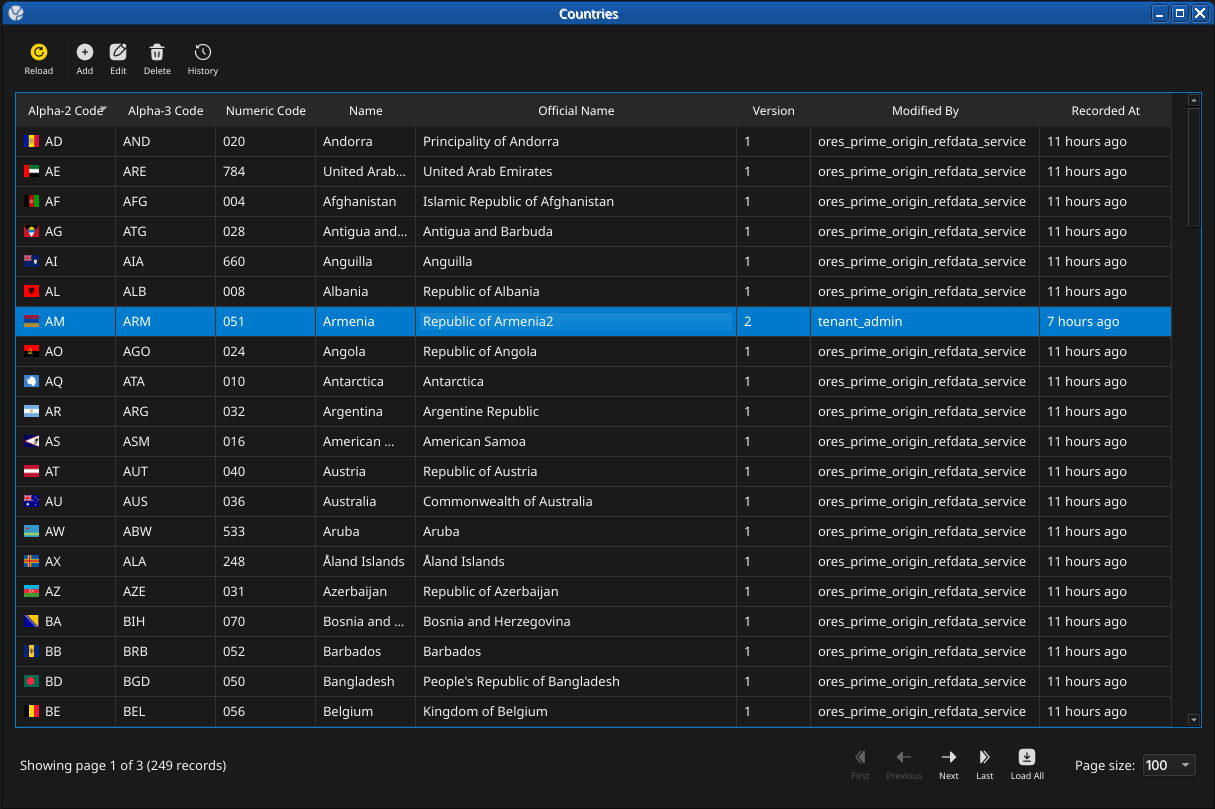
Figure 101: The toolbar Reload button refetches the current page from the server; recently-changed rows are briefly highlighted.
Double-clicking a row opens the Country Details dialog.
12.4. Country Details
The Country Details dialog has two tabs — General and Provenance — and an Icon group for the flag. The three action buttons at the bottom — Delete, Close, and Save — apply to the country as a whole.
12.4.1. General
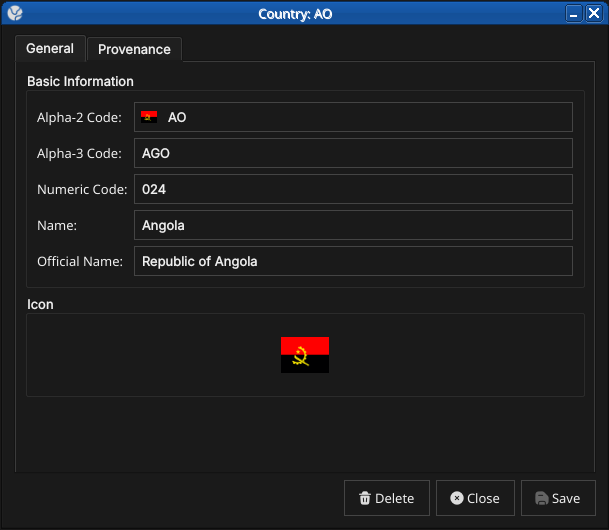
Figure 102: The General tab for a country. It shows the alpha-2 and alpha-3 ISO 3166-1 codes, the numeric code, the short name, the official name, and the country flag icon.
The General tab carries the core identity of the country:
- Alpha-2 Code — the two-letter ISO 3166-1 code. This is the primary key and cannot be changed after creation.
- Alpha-3 Code — the three-letter ISO 3166-1 code.
- Numeric Code — the ISO 3166-1 numeric code (e.g.
840for the United States). - Name — the country's short name (e.g. United States).
- Official Name — the full official name (e.g. United States of America), an OreStudio extension to the standard.
- Icon — the country flag, an OreStudio extension. Click the flag to choose a different image from the system's image dataset.
12.4.2. Provenance
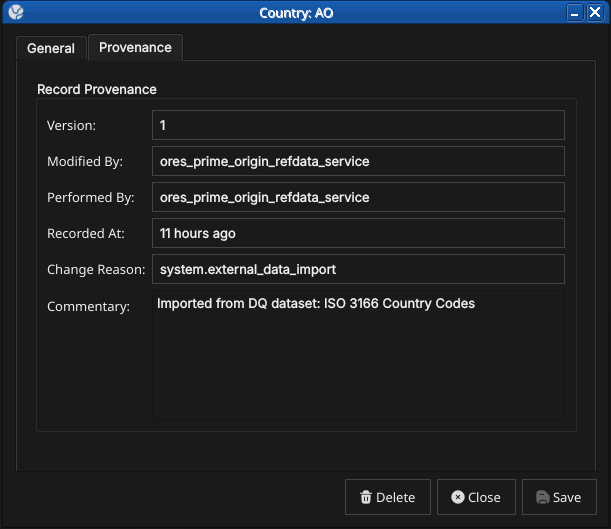
Figure 103: The Provenance tab showing record metadata: version number, the service that last modified the record, who performed the operation, when it was recorded, the change reason code, and a free-text commentary.
The Provenance tab is read-only and shows the audit metadata for the current version. See the Reference Data — Provenance section for a full description of the provenance fields common to all reference data entities.
12.5. Editing a country
To edit a country, open it in the Country Details dialog, make your changes, and click Save. Before the record is written, OreStudio prompts for a change reason — the same Change Reason Required dialog shown in the Currencies chapter, and not repeated here. Select a Reason from the drop-down and add optional Commentary, then confirm. Every save creates a new version; the previous version is never overwritten.
12.6. Deleting a country
To delete a country, open it and click Delete. OreStudio asks for confirmation before the record is closed off.
Figure 104: The confirmation prompt shown before a country is deleted. Deletion is a soft close — the record's history is preserved and remains visible in the History dialog.
12.7. Country history
To view the full change history, open the details dialog and click the history icon in the title bar, or right-click the row and choose History.
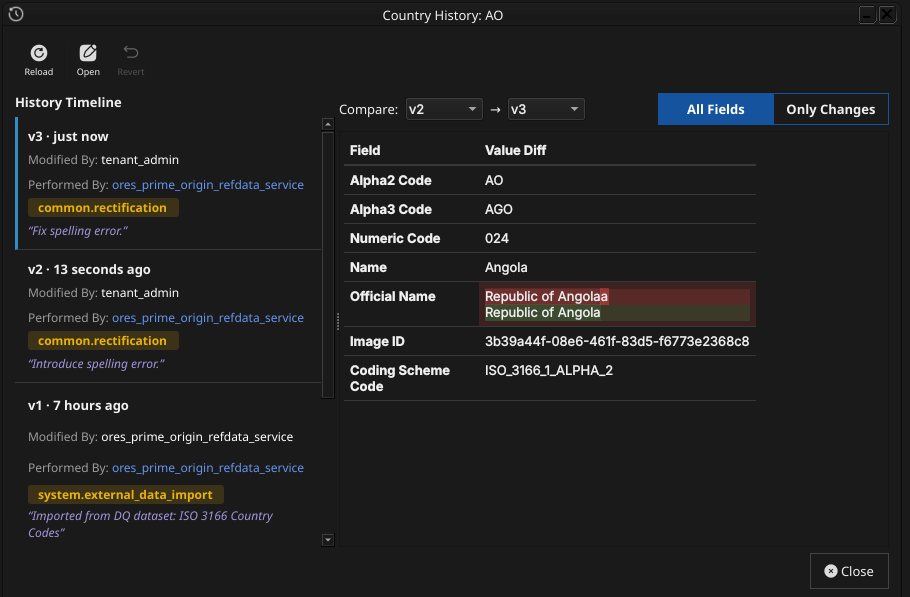
Figure 105: The History dialog for country AO (Angola), comparing version 2 against version 3. The Only Changes toggle narrows the field list to what actually differs between the two selected versions — here, a spelling correction to the Official Name.
Pick the two versions to compare from the Compare drop-downs. The All Fields / Only Changes toggle switches between showing every field and showing only the fields that differ between the two selected versions. The Revert button reinstates any historical version as a new version, preserving the full audit chain — the old version is never rewritten.
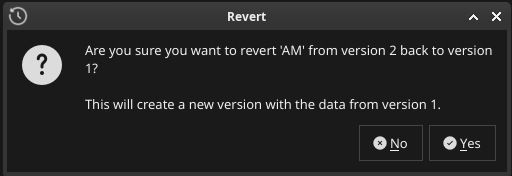
Figure 106: Choosing Revert on a past version asks for confirmation before staging the revert.
The revert opens the chosen version's values in an editable detail dialog; saving (with a change reason) writes them as the new current version.
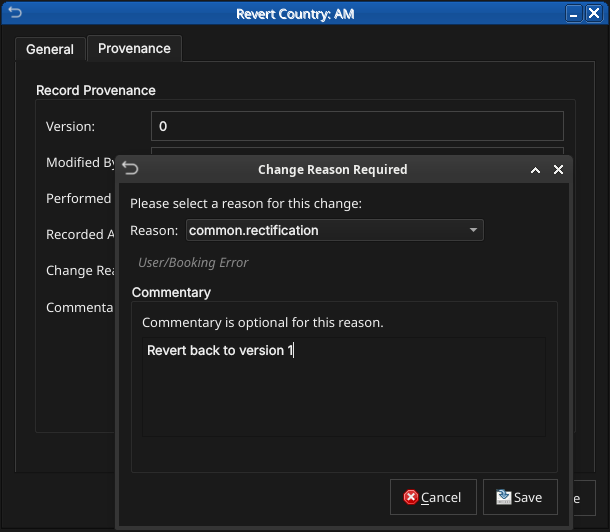
Figure 107: The reverted values open in the detail dialog ready to save as a new version, exactly like any other edit.
12.8. Shell commands
The ORE Studio interactive shell provides quick country access without opening the Qt UI:
# List all countries (paginated)
countries get

# Add a new country:
#   <alpha2> <alpha3> <numeric> <name> <official_name>
#   <change_reason_code> <change_commentary>
countries add XX XXX 999 "Test Country" "Test Country Official" system.new_record "manual example"

# Delete a country by alpha-2 code
countries delete XX

# Show history for a country
countries history GB
12.9. Conclusion
The chapter set out to show that managing a country well follows from understanding its identity, its interface, and its programmatic equivalents in turn, and it has traced exactly that path. ISO 3166-1 supplies the identity — alpha-2, alpha-3, and numeric codes with a short name — while OreStudio's extensions add the official name and the flag, filling the gaps the standard leaves. Building on that, the Qt interface took the record from the list view down to a single detail dialog and through the editing, deletion, and history workflows, where reverting to an earlier version demonstrated the bitemporal audit trail keeping the full record intact rather than overwriting it. The shell then reproduced the same operations for scripted use, closing the loop between interactive and automated management. Country is deliberately the same shape as the currency chapter, and the entity chapters that follow adopt the same progression.
12.10. See also
- ISO 3166 Country Codes — the international standard for country identification.
- UN M49 Standard Country Codes — the numeric-code series ISO 3166-1 draws on.
- Currencies — the template chapter this one mirrors.
13. Business Centres
This chapter examines the business centre as a
reference-data entity in ORE Studio. Business centres are identified by
the FpML businessCenterScheme code list; the chapter sets out that
standard, the role a business centre plays in identifying a holiday
calendar, and the complete lifecycle of managing business centre
records — viewing, editing, deleting, and auditing them — through the
Qt interface.
13.1. Overview
The chapter advances the argument that managing a business centre well means first understanding what it identifies, then the interface that governs its lifecycle. It begins by establishing the identity of a business centre in The FpML business centre scheme, which sets out the 4-character codes that name a business centre and the coding-scheme scoping that governs their uniqueness; this is the premise the rest of the chapter builds on. From there it surveys the body of records in The Business Centres window, explaining the list view, paging, and reloading, before narrowing to a single record in Business Centre Details and its General and Provenance tabs. It then turns to changing a record under audit — Editing, Deleting, and Business centre history — culminating in reverting to an earlier version, the point at which the bitemporal audit trail does its work. Finally the Conclusion draws these steps together and names what is deliberately still missing.
13.2. The FpML business centre scheme
A business centre is a 4-character code drawn from the FpML
businessCenterScheme coding scheme7:
either the real geographical location whose calendar governs a bad
business day (USNY for New York, GBLO for London), or an
FpML-format rate-publication calendar code used for fixing-day
offsets. The scheme's own description is precise about the
distinction: the geographical codes are "implicitly locatable and
used for identifying a bad business day for the purpose of payment
and rate calculation day adjustments", while the rate-publication
codes "are used in the context of the fixing day offsets" — two
different jobs sharing the same 4-character code shape.
13.3. The Business Centres window
Open the Business Centres window from the Reference Data menu. It lists all business centres defined in the tenant, one row per centre, each row carrying the code, source, description, city, coding scheme, country (with its flag), version, last modifier, and when the record was last recorded.
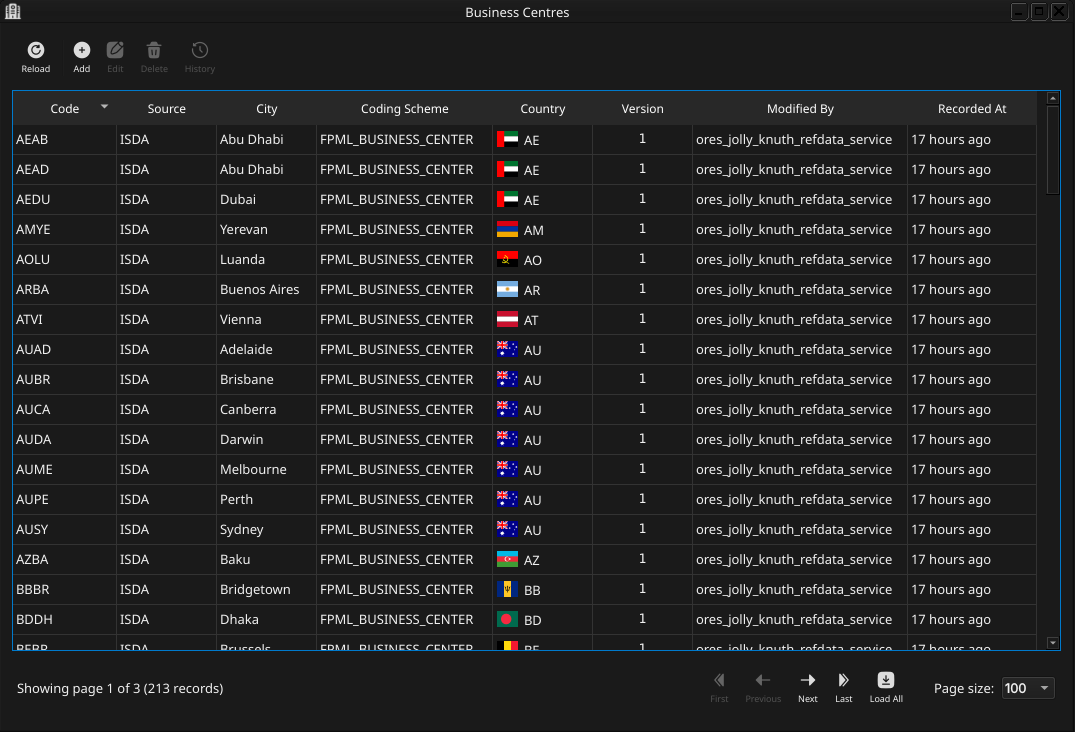
Figure 108: The Business Centres window, showing a page of business centres imported from the FpML reference data. Each row shows the code, source, city, coding scheme, country flag, version, last modifier, and when the record was last recorded; the status bar shows the current page and total record count.
The list is paginated; use the page controls at the bottom right to navigate the full set of business centres. The toolbar buttons reload the list and open the add, edit, delete, and history actions.
Double-clicking a row opens the Business Centre Details dialog.
13.4. Business Centre Details
The Business Centre Details dialog has two tabs — General and Provenance. The three action buttons at the bottom — Delete, Close, and Save — apply to the business centre as a whole.
13.4.1. General
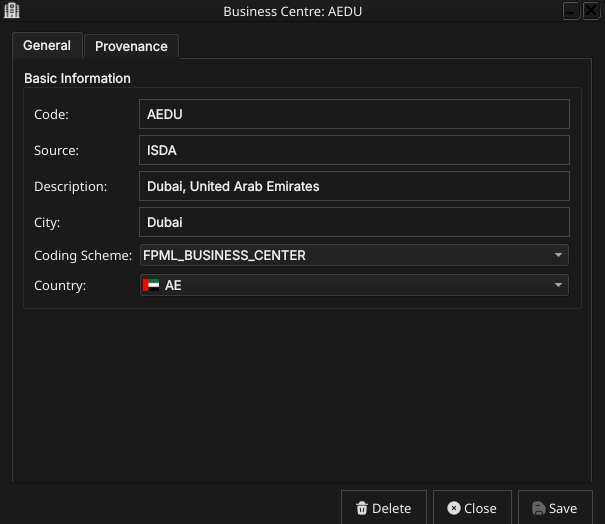
Figure 109: The General tab for business centre AEDU (Dubai), showing its code, source, description, city, the populated Coding Scheme combo, and the flagged Country combo.
The General tab carries the core identity of the business centre:
- Code — the FpML business centre code (e.g.
USNY). This is the primary key and cannot be changed after creation. - Source — the data source identifier (e.g. FpML, ISDA, Internal for platform-seeded centres).
- Description — a short human-readable description of the centre.
- City — the city name, derived from the description for centres imported from the FpML reference data.
- Coding Scheme — the coding scheme this centre's code belongs to,
chosen from a combo populated with every coding scheme known to the
system (e.g.
FPML_BUSINESS_CENTER,NONE). A value is required — the server rejects a save with no coding scheme selected. - Country — an optional link to a country, chosen from a flagged combo. Selecting a country renders its flag both in this combo and in the Country column of the list window.
13.4.2. Provenance
The Provenance tab is read-only and shows the audit metadata for the current version. See the Reference Data — Provenance section for a full description of the provenance fields common to all reference data entities.
13.5. Editing a business centre
To edit a business centre, open it in the Business Centre Details dialog, make your changes, and click Save. Before the record is written, ORE Studio prompts for a change reason — the same Change Reason Required dialog shown in the Currencies chapter, and not repeated here. Select a Reason from the drop-down and add optional Commentary, then confirm. Every save creates a new version; the previous version is never overwritten.
13.6. Deleting a business centre
To delete a business centre, open it and click Delete. ORE Studio asks for confirmation before the record is closed off.
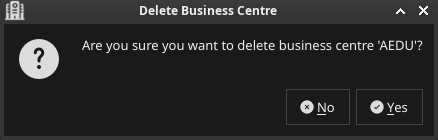
Figure 110: The confirmation prompt shown before business centre AEDU is deleted.
Deletion is a soft close — the record's history is preserved and remains visible in the History dialog.
13.7. Business centre history
To view the full change history, open the details dialog and click the history icon in the title bar, or right-click the row and choose History.
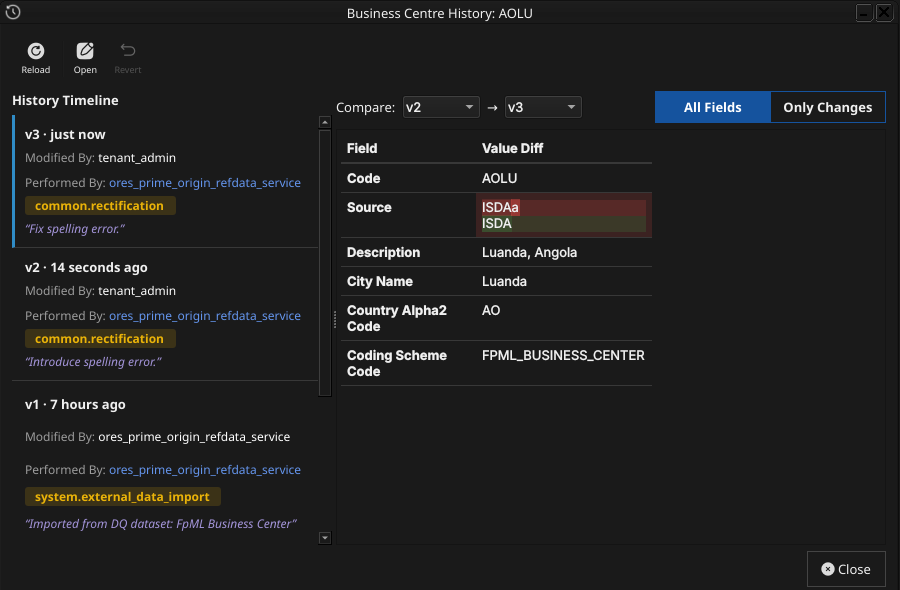
Figure 111: The History dialog for business centre AOLU (Luanda), comparing version 2 against version 3. The Only Changes toggle narrows the field list to what actually differs — here, a spelling correction to the Source field.
Pick the two versions to compare from the Compare drop-downs. The All Fields / Only Changes toggle switches between showing every field and showing only the fields that differ between the two selected versions. The Revert button reinstates any historical version as a new version, preserving the full audit chain — the old version is never rewritten. Reverting a business centre follows exactly the same confirm-then-save-with-a-reason flow described for Countries; it is not repeated here.
13.8. Conclusion
The chapter set out to show that managing a business centre well
follows from understanding what it identifies before turning to its
interface, and it has traced exactly that path. The FpML
businessCenterScheme supplies the identity — a 4-character code
naming either a real geographical calendar location or a
rate-publication calendar, scoped to a coding scheme but unique per
tenant regardless of which scheme it came from — while ORE Studio's
own country link adds a purely cosmetic flag icon on top. Building on
that, the Qt interface took the record from the list view down to a
single detail dialog and through the editing, deletion, and history
workflows, where reverting to an earlier version demonstrated the
same bitemporal audit trail already familiar from the Currencies and
Countries chapters. Business centre does not yet have shell or
command-line equivalents, nor Wt web UI or HTTP REST API support;
those gaps are tracked as backlog work rather than glossed over here.
13.9. See also
- Business Centre — the domain-knowledge hub this chapter draws on.
- Currencies — the template chapter this one mirrors.
- Countries — the country a business centre may optionally link to for its flag icon.
- Books — a book's rates centre is a business centre, referenced by code.
14. Portfolios
This chapter examines the portfolio as a reference-data entity in ORE Studio. A portfolio is the logical grouping node that organises books for risk management; the chapter sets out what a portfolio represents alongside the book it sits next to, the interface that governs its lifecycle, and the meaning of its fields — a self-referencing hierarchy, a purpose classification, and an operational status.
14.1. Overview
The chapter advances the argument that managing a portfolio well means first understanding what it represents relative to the book it sits alongside, then the interface that governs it. It begins by establishing Portfolios and books — the core distinction between the two, and the hierarchy portfolios alone carry — before turning to What is a Portfolio? and the fields a portfolio record actually carries. From there it surveys the body of records in The Portfolios window before narrowing to a single record in Portfolio Details and its General and Provenance tabs. It then turns to changing a record under audit — Editing, Deleting, and Portfolio history — culminating in reverting to an earlier version, the point at which the bitemporal audit trail does its work. Before concluding, it turns to the lookup entity backing the portfolio's own purpose classification field in Purpose Types. The Conclusion draws these steps together.
14.2. Portfolios and books
A portfolio is a trading concept, not an accounting one: it is an arbitrary hierarchy that traders and desks shape however makes sense for risk management, and it is never reflected into the general ledger. This sets it apart from a book, which must map onto the firm's ledger and is created by Finance rather than by the trading system itself. A useful shorthand for the pair is that books are the physical representation of trading activity and portfolios the logical one — or, borrowing a filesystem analogy, a portfolio is a folder and a book is a file. A portfolio holds books and other portfolios; it never holds deals directly, just as a folder holds files and other folders but is not itself a file.
This split matters because of where hierarchy lives. In the real-world accounting sense a book can have child books through ledger setup, but ORE Studio deliberately does not model that book-to-book hierarchy — the book record has no parent-book field, and there is no plan to add one. Instead, every layer of grouping that the ledger's own structure would otherwise express — a global root grouping, retired branches, sub-groupings by desk or region — is expressed once, through the portfolio tree. A portfolio carries a self-referencing parent, so portfolios can nest inside other portfolios to any depth, and every book links to exactly one portfolio. Duplicating that structure on the book side would add a second tree to keep in sync for no benefit, since the trading system's only job with respect to books is to hold a view of the ledger, not to manage the ledger's own hierarchy.
Desks group books into portfolios for reasons such as instrument type, valuation complexity, trader seniority, or region — a Head of Desk's portfolio, for instance, can be the superset of all their traders' individual portfolios, nested arbitrarily deep. With the relationship between the two entities established, the rest of this chapter turns from that relationship to the portfolio record itself — what fields it carries and the interface that governs it.
14.3. What is a Portfolio?
A portfolio is a named grouping node within a party's organisational
structure, identified by a system-generated id and a human-readable
Name — e.g. "Global Rates" or "APAC Credit". Every portfolio belongs
to exactly one party, and, per Portfolios and books above, may
optionally have a parent portfolio, letting portfolios nest to
represent a trading organisation's actual reporting lines. The parent
relationship is not yet exposed as an editable field in the Portfolio
Details dialog described below — a portfolio's place in the hierarchy
is set at creation and read through the record's data rather than
edited from a combo box, the same gap the Book chapter's account of
owner_unit_id describes for the equivalent business-unit field on a
book.
A portfolio carries a purpose type — its classification by intent, chosen from a fixed set of values: Risk (the default, for day-to-day risk-management groupings), Regulatory (portfolios kept for regulatory-reporting purposes), Client Reporting, and Internal. It also carries an optional aggregation currency — the currency P&L and risk figures roll up into at this node — and an optional free-text description. A Virtual flag distinguishes a node that exists purely for on-demand reporting, not persisted into trade attribution, from an ordinary portfolio node; and, like a book, a portfolio carries a status reflecting its position in an operational lifecycle — Active, Inactive, Closed, Frozen, or Pending. Unlike a book's status, whose real-world multi-party opening and closing workflow the Book chapter documents in detail, portfolio status is a simpler field with no equivalent formal workflow documented yet — it is set and changed directly on the record.
With the record's fields established, the rest of this chapter turns from what a portfolio contains to where you go to work with one.
14.4. The Portfolios window
Open the Portfolios window from the Reference Data menu. It lists every portfolio defined in the tenant, with one row per portfolio.
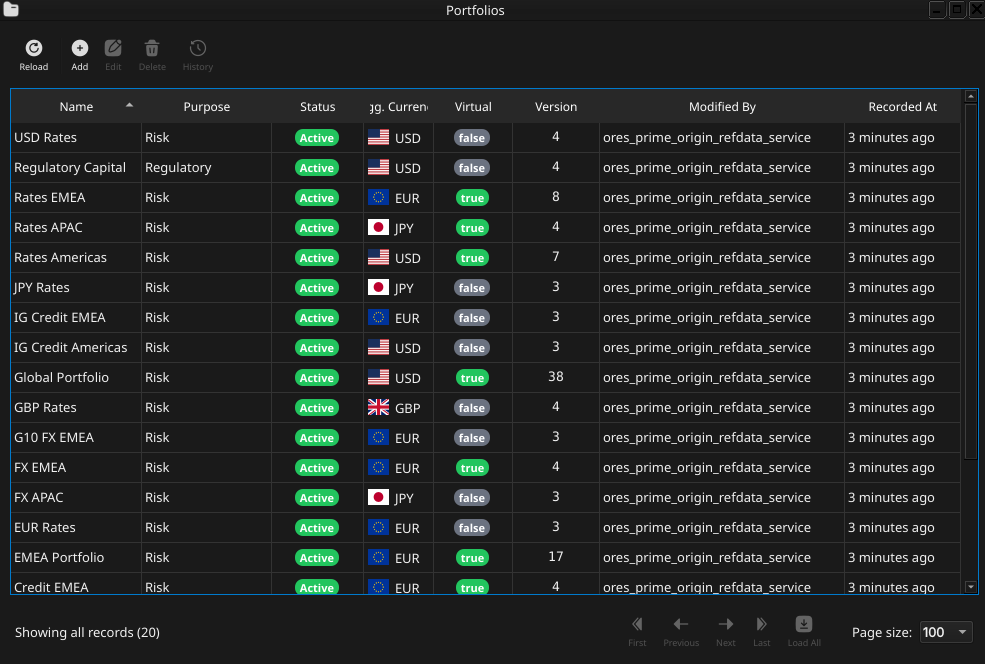
Figure 112: The Portfolios window showing the full list of portfolios in the tenant.
Each row shows the name, purpose type, status (as a colour-coded badge), aggregation currency (with flag icon), the virtual flag (as a colour-coded badge), version number, the identity of the last modifier, and when the record was last recorded. The toolbar buttons reload the list and open the add, edit, delete, and history actions. The list is paginated; use the page controls at the bottom right to navigate. Double-clicking a row opens the Portfolio Details dialog.
14.5. Portfolio Details
The Portfolio Details dialog has two tabs — General and Provenance. The three action buttons at the bottom — Delete, Close, and Save — apply to the portfolio as a whole.
14.5.1. General
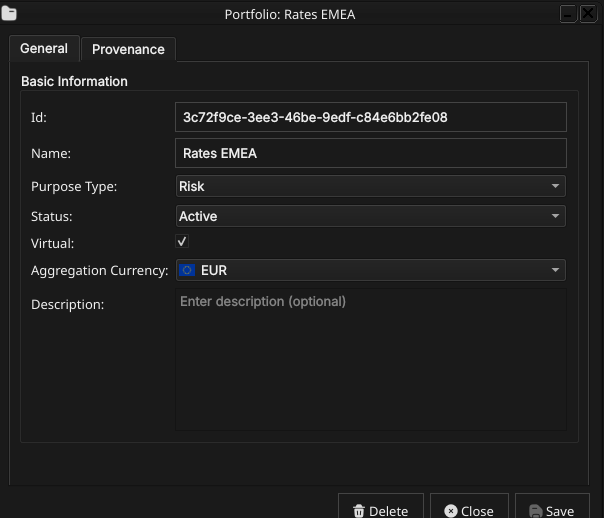
Figure 113: Portfolio Details — General tab, showing the id, name, purpose type, status, aggregation currency, virtual flag, and description fields.
The General tab carries the fields of the portfolio:
- Id — the portfolio's identifier. This is the primary key and cannot be changed after creation.
- Name — the portfolio's display name.
- Purpose Type — the portfolio's classification by intent, chosen from a combo box populated with the tenant's configured purpose types and shown as plain text once selected. See What is a Portfolio? above for what each value means.
Status — the portfolio's position in its operational lifecycle, chosen from a fixed combo box (Active, Inactive, Closed, Frozen, Pending) and shown as a colour-coded badge once selected.
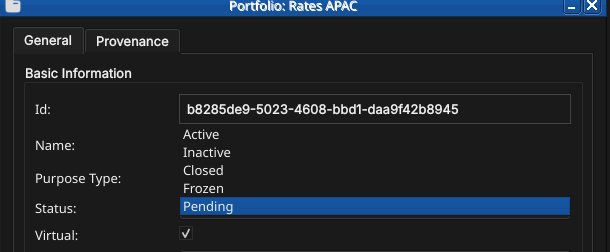
Figure 114: The Status combo box open, showing all five status values.
- Aggregation Currency — the currency P&L and risk figures roll up into at this node, chosen from a combo box populated with ISO currency codes, each shown with its flag icon; c.f. the same combo widget in the Currencies chapter.
- Virtual — a checkbox marking a node that exists purely for on-demand reporting, shown as a colour-coded badge in the list view.
- Description — free-text, optional.
14.5.2. Provenance
The Provenance tab is read-only and shows the audit metadata for the current version. See the Reference Data — Provenance section for a full description of the provenance fields common to all reference data entities.
14.6. Editing a portfolio
To edit a portfolio, open it in the Portfolio Details dialog, make your changes, and click Save. Before the record is written, OreStudio prompts for a change reason — the same Change Reason Required dialog shown in the Currencies chapter, and not repeated here. Select a Reason from the drop-down and add optional Commentary, then confirm. Every save creates a new version; the previous version is never overwritten.
14.7. Deleting a portfolio
To delete a portfolio, open it and click Delete. OreStudio asks for confirmation before the record is closed off. Deletion is a soft close — the record's history is preserved and remains visible in the History dialog.
14.8. Portfolio history
To view the full change history, open the details dialog and click the history icon in the title bar, or right-click the row and choose History.
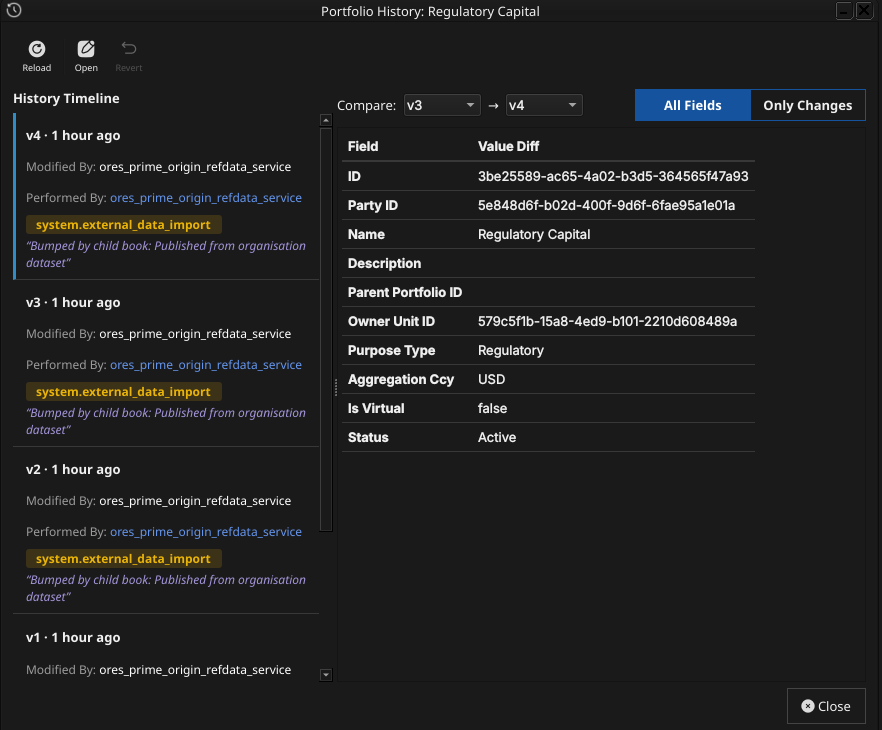
Figure 115: The Portfolio History dialog, comparing two versions of a portfolio.
Pick the two versions to compare from the Compare drop-downs. The All Fields / Only Changes toggle switches between showing every field and showing only the fields that differ between the two selected versions. The Revert button reinstates any historical version as a new version, preserving the full audit chain — the old version is never rewritten.
14.9. Purpose Types
Where the portfolio record's Purpose Type field (see What is a Portfolio? above) captures a single classification chosen from a combo box, a second, separate window manages the set of values that combo box offers. Purpose types are reference data in their own right — a system-tenant-managed lookup entity, seeded on provisioning with four values (Risk, Regulatory, Client Reporting, Internal) but editable and extensible like any other reference-data record — kept as a distinct entity for the same reason the Currency Pairs chapter kept Currency Pair Conventions separate from the Currency Pair record itself: the set of valid classifications changes at a different rate, and for different reasons, than any individual portfolio that references one.
Open the Purpose Types window from the Reference Data menu.
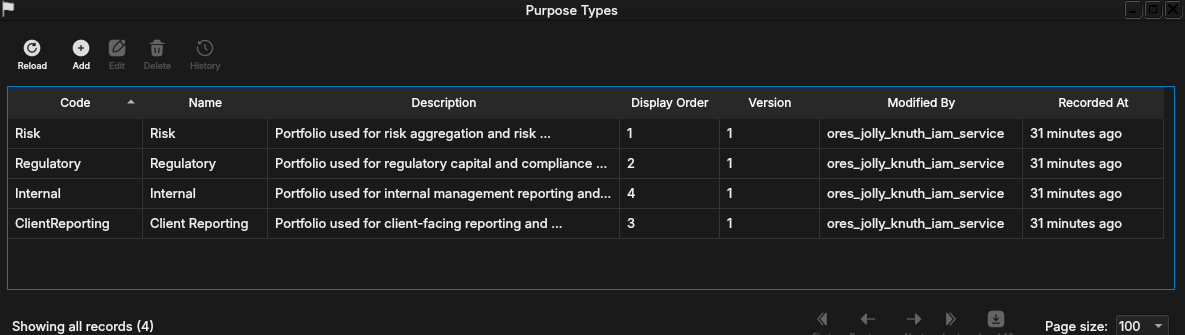
Figure 116: The Purpose Types window, listing the four seeded values (Risk, Regulatory, Client Reporting, Internal) with their display order.
Each row shows the code, name, description, display order, version, and the usual provenance columns. Double-clicking a row opens the Purpose Type Details dialog.
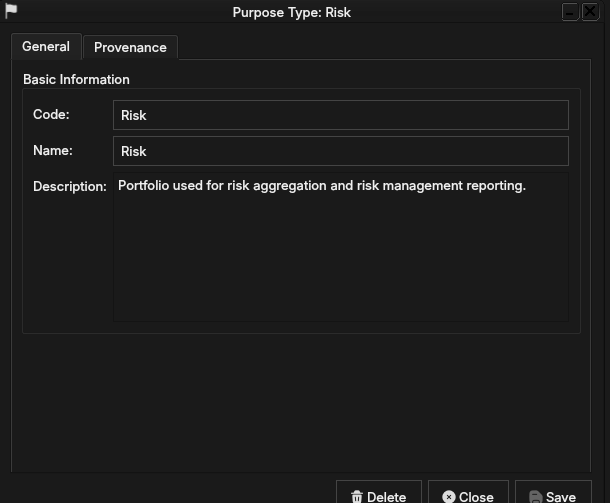
Figure 117: The Purpose Type Details dialog for the Risk purpose type, showing its code, name, and description.
Code is the purpose type's unique identifier and, like a currency's ISO code, locks once the record is created. Name is the human-readable label shown in the Portfolio Details' Purpose Type combo. Description is free-text, explaining what the classification means in practice — the four seeded values' descriptions are the source for the meanings given in What is a Portfolio? above. Display Order is an integer controlling the combo box's ordering, lowest first — shown in the list window's Display Order column; the Details dialog does not yet expose it (tracked in Audit and standardize the display_order field across lookup/code-table entities).
Editing, deleting, and history follow the same pattern as every other reference-data entity in ORE Studio and are not repeated here in full: open the record, change a field, and Save, confirming a change reason as described for currencies in the Currencies chapter; deletion is a soft close preserving history; and the history icon opens the same Compare/Revert workflow described in Portfolio history above. Purpose types have no shell or command-line access — a gap shared by every reference-data entity in ORE Studio, not specific to purpose types, and tracked separately as part of ongoing commissioning work.
14.10. Conclusion
The chapter set out to show that managing a portfolio well follows from understanding what it represents relative to a book and the interface that governs its lifecycle, and it has traced exactly that path. A portfolio is the logical grouping node in a party's organisational structure — a folder to a book's file — identified by an id and name, optionally nested under a parent portfolio, and carrying a purpose type, an aggregation currency, a virtual flag, and a status. Building on that, the Qt interface took the record from the list view down to a single detail dialog — its currency picker showing flags, its status and virtual flag shown as badges — and through the editing, deleting, and history workflows, where reverting to an earlier version demonstrated the same bitemporal audit trail described in the Reference Data chapter. The chapter then turned to the purpose type lookup entity backing the portfolio's own classification field — a small reference-data record with the same list/detail/ history interface, kept separate for the same reasons a currency pair convention is kept separate from a currency pair. Shell and command-line access to portfolios and purpose types, and an editable parent-portfolio field in the Details dialog, are not yet implemented; all are tracked separately as part of ongoing commissioning work.
14.11. See also
- Reference Data — the shared data quality and audit framework this chapter builds on.
- Currencies — the aggregation currency a portfolio references, and the Change Reason Required dialog.
- Book — the entity a portfolio groups, and the fuller account of a lifecycle workflow's real-world weight.
15. Books
This chapter examines the book as a reference-data entity in OreStudio. A book is the internal ledger unit that owns positions; the chapter sets out what a book represents, the interface that governs its lifecycle, and the meaning of its fields — a flag-icon currency picker, an operational status with its own lifecycle, and its trading-book/banking-book classification.
15.1. Overview
The chapter advances the argument that managing a book well means first understanding what it represents, then the interface that governs its lifecycle — and it proceeds in that order. It begins by establishing what a book is in What is a Book?, distinguishing a book from the counterparties and portfolios it sits alongside, and by working through the real-world Book lifecycle a book moves through — from its multi-party opening to closure — that the Status field on-screen only partially reflects; this is the premise the rest of the chapter builds on. From there it surveys the body of records in The Books window before narrowing to a single record in Book Details and its General and Provenance tabs. It then turns to changing a record under audit — Editing, Deleting, and Book history — culminating in reverting to an earlier version, the point at which the bitemporal audit trail does its work. The Conclusion draws these steps together.
15.2. What is a Book?
A book is the internal ledger unit that owns positions within a party's trading organisation. Every trade books into exactly one book; a book aggregates the trades it owns for risk, P&L, and reporting purposes. A book is, first and foremost, an accounting concept rather than a purely trading-system one: it must reconcile with the firm's general ledger, and OreStudio's own view of a book is downstream of that ledger rather than the other way round.
Books sit within a party's organisational structure alongside business units and portfolios, and it helps to keep the two apart: a portfolio groups related books for a trading strategy or desk, and can itself be composed of other portfolios; a book is the leaf-level unit that actually carries positions. A useful shorthand is that books are the physical representation and portfolios the logical one — or, borrowing a filesystem analogy, a portfolio is a folder and a book is a file. In the real-world accounting sense a book can have child books through ledger setup, but ORE Studio deliberately does not model that book-to-book hierarchy: a book has no parent-book field. Instead, all hierarchy in ORE Studio is expressed through the portfolio tree — portfolios can nest inside other portfolios, and every book links to exactly one portfolio — so the folder/file split above is also the whole of the tool's hierarchy, not just an analogy for it.
Every book carries a functional currency — the accounting currency its positions are reported in. Trades themselves can happen in whatever currency the deal was struck in, but the ledger needs one settled currency per book to carry balances and P&L in; that currency is designated by the ledger, not chosen freely by the desk. A book also carries a GL account reference, which is simply the general ledger account in the firm's accounting system that this book's activity maps to — the trading system's record of a position only means something once it can be traced back to a specific line in the firm's books of account. Alongside that sits a cost centre, the internal code that activity in this book is charged against for cost allocation and management reporting; a full treatment of how functional currency, GL accounts, and cost centres compose into the wider accounting hierarchy belongs to a future ledger-focused chapter, not this one.
A book also carries a status — its current operational state, such as active, closed, or frozen — chosen from the set of statuses configured for the tenant. See Book lifecycle below for what drives a book between these states.
Perhaps the most consequential classification a book carries is whether it is a trading book or a banking book — a distinction that traces back to the Basel III/IV capital adequacy framework, and specifically to a component of it called FRTB (the Fundamental Review of the Trading Book).
The distinction is about intent, not instrument type: a position held with the intent of benefiting from short-term price movements, market making, or hedging other trading-book positions belongs in the trading book; a position held to maturity or for longer-term investment purposes belongs in the banking book. The same instrument — a bond, a swap — can sit in either book depending on why it is held.
The distinction matters because the two books are subject to entirely different capital regimes. Trading-book positions are capitalised for market risk — the risk that market prices move against an open position — recognising that these positions may be actively traded and revalued daily. Banking-book positions are instead capitalised for credit risk — the risk that a counterparty fails to pay — reflecting that these positions are typically held to term. Getting this classification wrong, or moving positions between the two books opportunistically to reduce capital charges, is precisely what regulators police most closely; switching a position's classification after the fact is heavily restricted for that reason.
15.3. Book lifecycle
A book moves through a much heavier real-world process than a simple open/closed flag suggests: a deliberate opening workflow, a live phase in which deals move and access is periodically reviewed, and a closing process gated on the book being flat. This section walks through that process in its own terms; c.f. the Status field on the General tab below, which is OreStudio's simplified, editable reflection of it.
15.3.1. Opening a book
A new book is not something a desk sets up for itself. Bringing a book live is a deliberately heavyweight, multi-party process, with four separate functions involved:
- The desk initiates the request — it knows it needs a new book (a new product line, a new trading strategy) but cannot create or enrich one itself.
- A controller reviews and approves the initiation request — an independent check that exists specifically to prevent a desk from authorising its own new book.
- Three functions then enrich the book in parallel, each contributing the data their function owns: Finance wires the book into the ledger — its functional currency, cost centre, and monthly balance carry-forward; Market Risk sets its regulatory book type (Trading or Banking) and assigns it to a rates centre for consistent revaluation data; Operations sets up the book's allowed-currency and allowed-product constraints. Because all three enrich the book at the same time rather than in sequence, each must independently approve its own contribution before the book can move on.
- Only once every approval is in does the book's access review begin; once that completes, the book is set up on the booking systems and becomes Active.
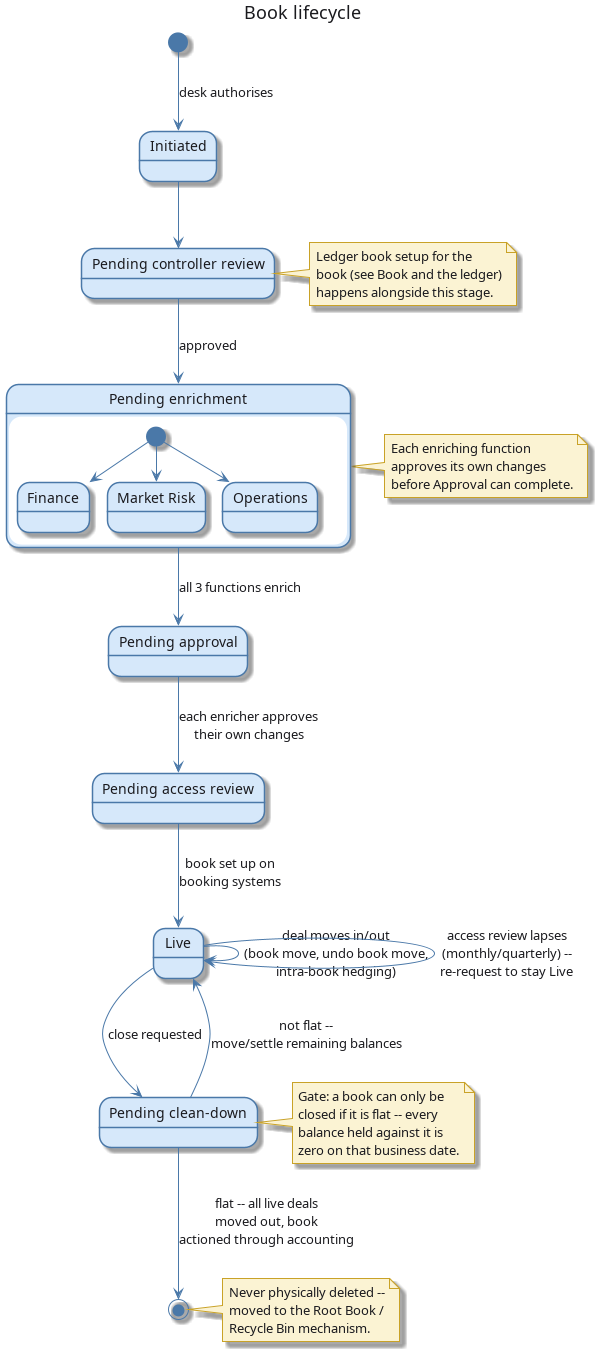
Figure 118: The book lifecycle: the multi-party opening workflow, the live-book loop (deal moves, periodic access review), and the flat-check gate on closing.
15.3.2. While a book is active
A live book is not static:
- Deals move between books routinely — freely if the move stays within the same legal entity and branch, or via a close-and-rebook if not. An erroneous move can be undone.
- Access to a book is not permanent: it must be periodically reviewed (monthly or quarterly, depending on the tenant's policy). If nobody renews a user's access, it lapses automatically and must be re-requested.
- A book can be temporarily Frozen — taken out of normal trading use without being closed down entirely.
15.3.3. Closing a book
A book can only be closed once it is flat — every balance held against it is zero on that business date. Closure is executed through accounting: all remaining live deals are moved to a different book, after which the book's status moves to Closed. A closed book is never physically deleted; it is retained in the system for its audit history, exactly like any other historical version.
With the concept and its lifecycle established, the rest of this chapter turns to the interface OreStudio provides for it — starting with the Books window, which lists every book governed by the process just described.
15.4. The Books window
Open the Books window from the Trading menu. It lists all books defined in the tenant, with one row per book.
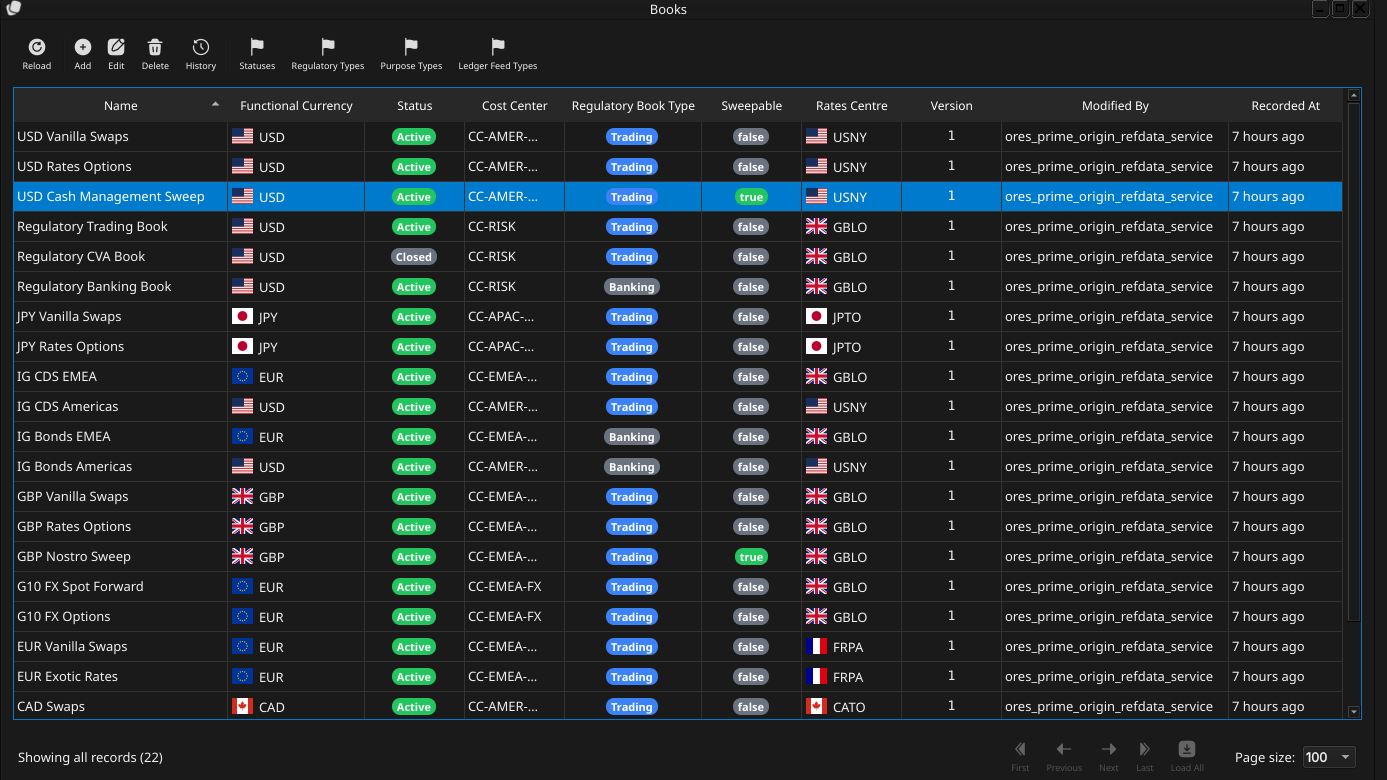
Figure 119: The Books window, showing the full list of books in the tenant. Each row shows the name, functional currency (with flag icon), status (as a colour-coded badge), cost centre, regulatory book type (as a colour-coded Trading/Banking badge), version number, the identity of the last modifier, and when the record was last recorded. The status bar shows the current page and total record count.
The toolbar buttons reload the list and open the add, edit, delete, and history actions. The list is paginated; use the page controls at the bottom right to navigate. Double-clicking a row opens the Book Details dialog.
15.5. Book Details
The Book Details dialog has two tabs — General and Provenance. The three action buttons at the bottom — Delete, Close, and Save — apply to the book as a whole.
15.5.1. General
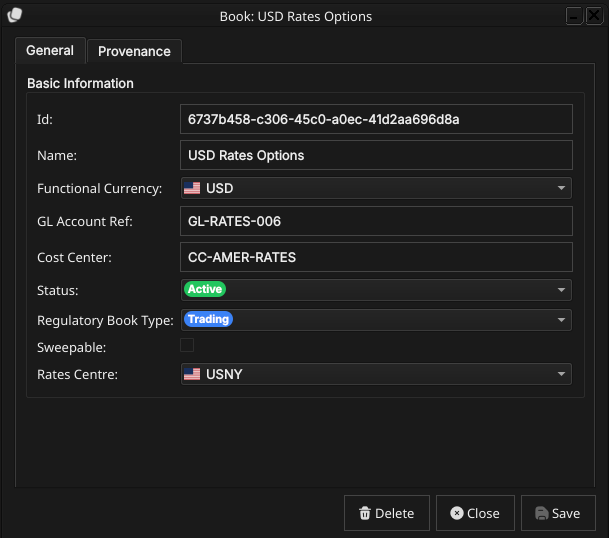
Figure 120: The General tab for a book. It shows the id, name, functional currency, GL account reference, cost centre, status, and regulatory book type.
The General tab carries the fields of the book:
- Id — the book's identifier. This is the primary key and cannot be changed after creation.
- Name — the book's display name. Unlike the id, the name can be changed after creation — real trading systems allow a book to be renamed while its id and GL mapping remain the durable identity.
Functional Currency — the currency this book reports in, designated by the ledger, chosen from a combo box populated with ISO currency codes, each shown with its flag icon.
Figure 121: The Functional Currency combo box open, showing the list of ISO currency codes each with its flag icon; c.f. the same combo widget in the Currencies chapter. Selecting a currency updates the closed box to show the chosen code and flag.
- GL Account Ref — free-text reference to the general ledger account this book maps to.
- Cost Center — free-text internal cost allocation code.
Status — the book's position in its operational lifecycle, chosen from a combo box populated from the tenant's configured book statuses and shown as a colour-coded badge once selected. See Book lifecycle above for what each value means.
Figure 122: The Status combo box open, showing the badge-coloured status values.
Regulatory Book Type — a combo box choosing the book's Basel classification, Trading or Banking, also shown as a colour-coded badge. See Book lifecycle and What is a Book? above for what the distinction means.
Figure 123: The Regulatory Book Type combo box open, showing both values (Trading, Banking) as coloured badges.
15.5.2. Provenance
The Provenance tab is read-only and shows the audit metadata for the current version. See the Reference Data — Provenance section for a full description of the provenance fields common to all reference data entities.
15.6. Editing a book
To edit a book, open it in the Book Details dialog, make your changes, and click Save. Before the record is written, OreStudio prompts for a change reason — the same Change Reason Required dialog shown in the Currencies chapter, and not repeated here. Select a Reason from the drop-down and add optional Commentary, then confirm. Every save creates a new version; the previous version is never overwritten.
15.7. Deleting a book
To delete a book, open it and click Delete. OreStudio asks for confirmation before the record is closed off. Deletion is a soft close — the record's history is preserved and remains visible in the History dialog.
15.8. Book history
To view the full change history, open the details dialog and click the history icon in the title bar, or right-click the row and choose History.
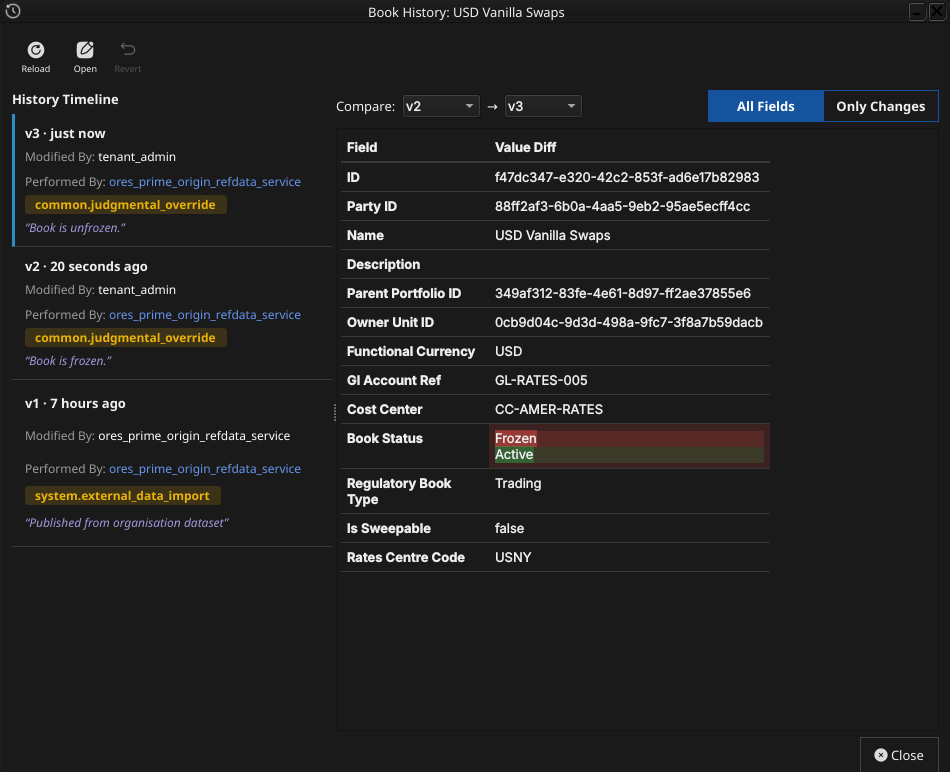
Figure 124: The History dialog for book USD Vanilla Swaps, comparing version 2 against version 3. The Only Changes toggle narrows the field list to the single field that actually differs — Book Status, Frozen to Active.
Pick the two versions to compare from the Compare drop-downs. The All Fields / Only Changes toggle switches between showing every field and showing only the fields that differ between the two selected versions. The Revert button reinstates any historical version as a new version, preserving the full audit chain — the old version is never rewritten.
15.9. Conclusion
The chapter set out to show that managing a book well follows from understanding what it represents and the interface that governs its lifecycle, and it has traced exactly that path. A book is the leaf-level ledger unit that owns positions, identified within its party by an id and name and carrying a functional currency, a GL mapping, a cost centre, a status, and a trading/non-trading flag. Building on that, the Qt interface took the record from the list view down to a single detail dialog — its currency picker showing flags, its status governed by the book lifecycle — and through the editing, deleting, and history workflows, where reverting to an earlier version demonstrated the same bitemporal audit trail described in the Reference Data chapter. Shell and command-line access to books is not yet implemented; it is tracked separately as part of the shell and CLI commissioning work.
15.10. See also
- Reference Data — the shared data quality and audit framework this chapter builds on.
- Currencies — the functional currency a book references, and the Change Reason Required dialog.
16. Parties
This chapter examines the party as a reference-data entity in ORE Studio. A party is an internal legal entity — the organisation itself and each of its subsidiaries — and, barring the tenant's own house root, every party sits somewhere beneath another in a single corporate hierarchy tree; the chapter sets out that hierarchy rule, the identifiers and contact information a party carries, and the complete lifecycle of managing party records through the Qt interface.
16.1. Overview
The chapter advances the argument that managing a party well means first understanding what it represents and how it fits into the organisation's structure, then the interface that governs its lifecycle. It begins by establishing what a party is in What is a Party?, then shows that a party's type and status are themselves configurable lookups with their own windows in Party types and statuses. From there it surveys the body of records in The Parties window before narrowing to a single record in Party Details and its five tabs — General, Identifiers (where the ten schemes a party can carry turn out to be a configurable lookup in their own right), Contact Information, Hierarchy (where the house-root rule introduced early in the chapter finally gets its screen), and Provenance. It then turns to changing a record under audit — Editing, Deleting, and Party history — culminating in reverting to an earlier version, the point at which the bitemporal audit trail does its work. The Conclusion draws these steps together and names what is deliberately still missing.
16.2. What is a Party?
A party is an internal legal entity participating in financial transactions — the organisation's own top-level entity and each of its subsidiaries, branches, and other group-structure members. See the Tenants chapter's Parties section for the conceptual model this chapter builds on: the house/counterparty distinction, the administrative system party, and how a user's position in the party hierarchy determines their data visibility. This chapter does not repeat that model; it picks up from it to document the Qt interface for managing individual party records.
A party is, first and foremost, a stand-in for a real legal entity — a registered company, a bank, a branch — and real legal entities are notoriously hard to identify consistently: the same organisation can appear under different names, registration numbers, and codes across different jurisdictions, counterparties, and vendor systems, with no single authority reconciling them all.
Because no single identifier scheme covers every counterpart a party might need to be recognised by, a party can carry more than one — see Identifiers below for the full set of schemes OreStudio recognises, including the LEI and BIC schemes GLEIF publishes.
Every party carries a full name (its official registered legal
name) and a short code (a brief mnemonic used elsewhere in the
system for quick reference), both of which participate in the
party's natural key alongside its surrogate id. A party also carries
a codename — a globally unique, immutable, human-readable
identifier (adjective_noun, e.g. swift_falcon) auto-generated on
creation and used internally as the party's per-party message-queue
prefix and scheduled-job namespace; it plays no role in the Qt UI and
is not user-editable.
A party's type classifies what kind of entity it is (e.g. Corporate), chosen from the tenant's configured party types, and its status tracks where it sits in its own operational lifecycle (e.g. Active), chosen from the tenant's configured party statuses — both shown as colour-coded badges once selected. A party also carries a business center — an FpML business center code identifying the entity's primary location, the same code list documented in the Business Centres chapter.
16.3. Party types and statuses
A party's type and status are not fixed enumerations built into OreStudio; they are themselves tenant-configured reference-data lookups, each with its own list and detail window under the Reference Data menu, alongside the Party Types and Party Statuses entries. Both follow the same small shape — a Code (the value stored against the party), a Name (the label shown in the combo and, once selected, on the colour-coded badge), an optional Description, and a Display Order controlling where the value falls in the combo's drop-down list — plus the standard Provenance tab described in Provenance below.
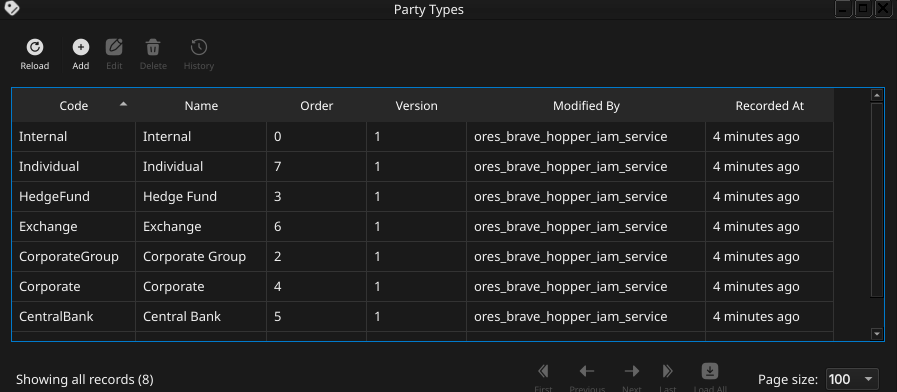
Figure 125: The Party Types window, listing the tenant's configured party types by code, name, order, version, last modifier, and when the record was last recorded.
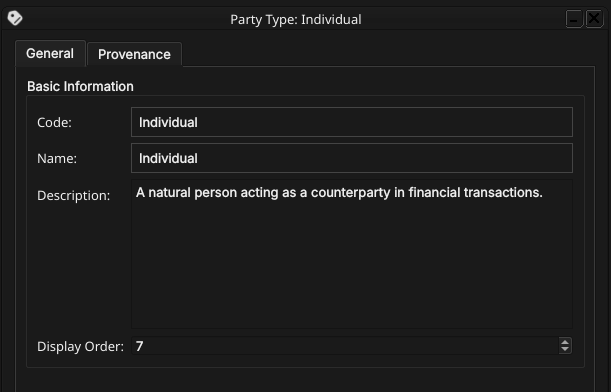
Figure 126: The Party Type Details dialog, showing its General tab (Code, Name, Description, Display Order) and Provenance tab.
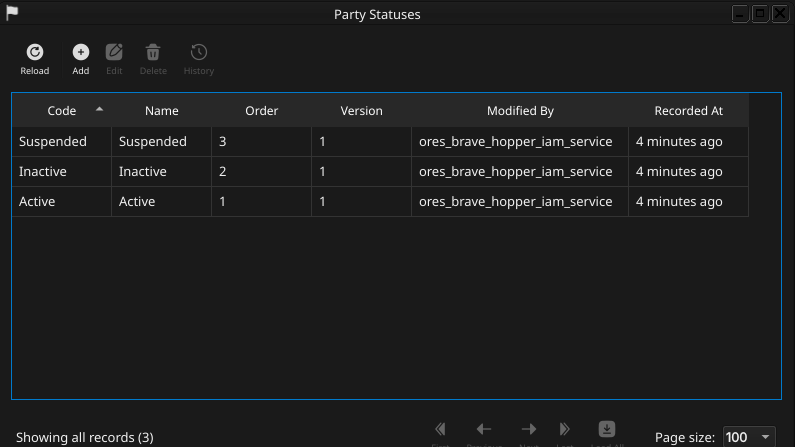
Figure 127: The Party Statuses window, listing the tenant's configured party statuses by code, name, order, version, last modifier, and when the record was last recorded.
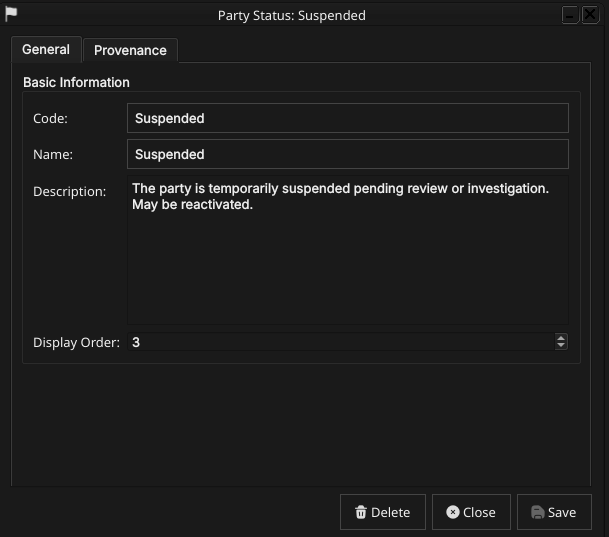
Figure 128: The Party Status Details dialog, showing its General tab (Code, Name, Description, Display Order) and Provenance tab.
Editing, deleting, and history for party type and party status records follow the same pattern described later in this chapter for the party record itself — a change reason on save, a soft close on delete, and a full version history with revert. Because both lookups are shared across every party (and, for status, every counterparty too — see the Counterparties chapter), changing a code or renaming a value here is immediately visible wherever that type or status is displayed.
With type and status established as configurable lookups in their own right, the rest of this chapter turns to the interface OreStudio provides for the party record itself — starting with the Parties window, which lists every party in the tenant.
16.4. The Parties window
Open the Parties window from the Reference Data menu. It lists all parties defined in the tenant, one row per party, each row carrying the short code, full name, party type, status, business center, version, last modifier, and when the record was last recorded.
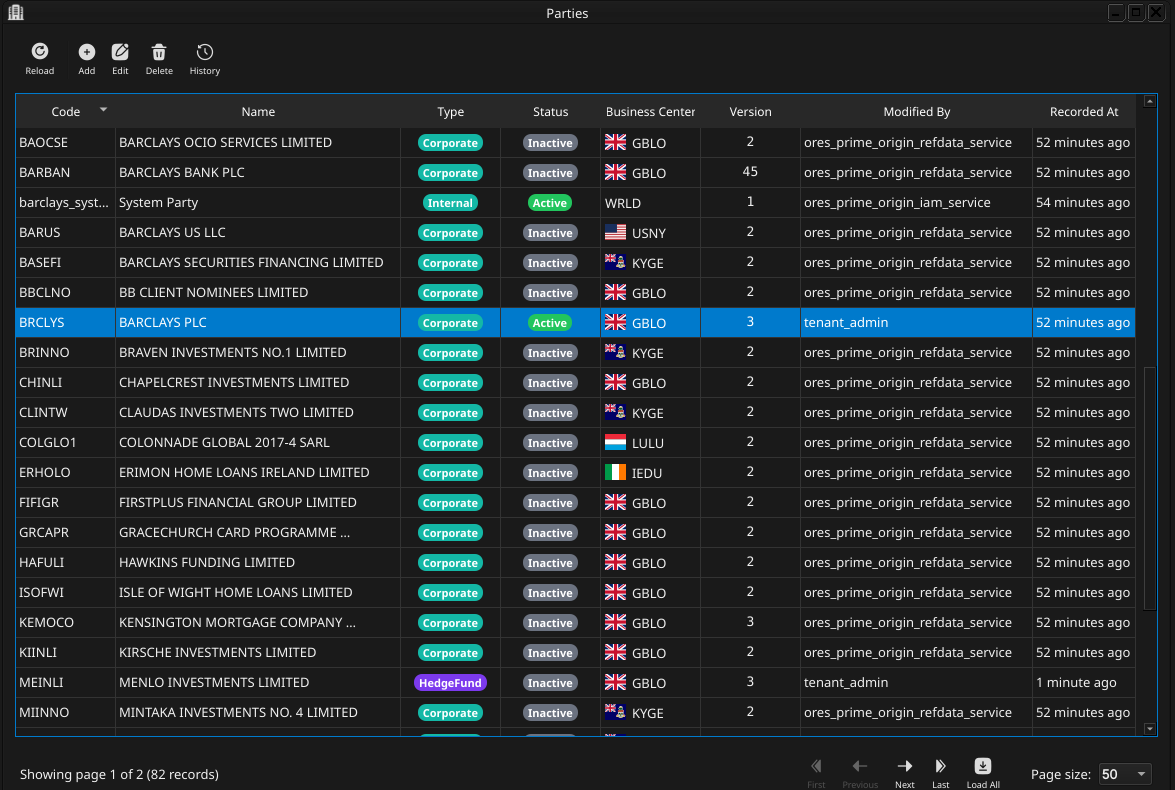
Figure 129: The Parties window, showing a page of parties. Each row shows the short code, name, party type and status badges, business center, version, last modifier, and when the record was last recorded; the status bar shows the current page and total record count.
The list is paginated; use the page controls at the bottom right to navigate. The toolbar buttons reload the list and open the add, edit, delete, and history actions. Double-clicking a row opens the Party Details dialog.
16.5. Party Details
The Party Details dialog has five tabs — General, Identifiers, Contact Information, Hierarchy, and Provenance. The three action buttons at the bottom — Delete, Close, and Save — apply to the party as a whole.
16.5.1. General
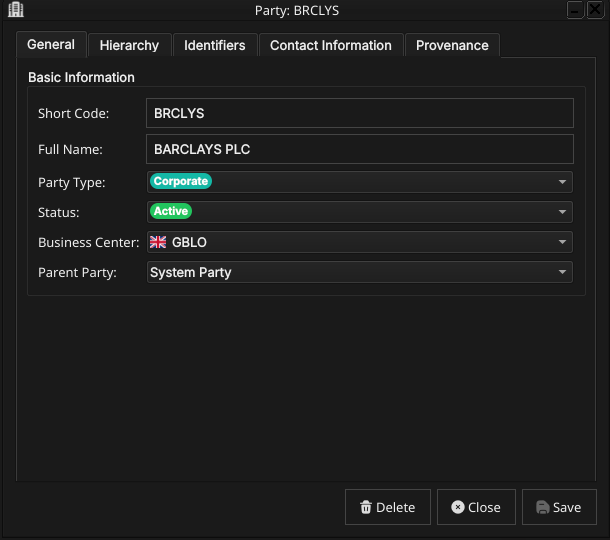
Figure 130: The General tab for a party, showing its short code, full name, the populated Party Type and Status combos, the flagged Business Center combo, and the Parent Party combo.
The General tab carries the core fields of the party:
- Short Code — a brief mnemonic code. This is part of the natural key and cannot be changed after creation.
- Full Name — the party's official registered legal name.
- Party Type — the party's classification, chosen from a combo populated from the tenant's configured party types and shown as a colour-coded badge once selected.
- Status — the party's operational status, chosen from a combo populated from the tenant's configured party statuses and shown as a colour-coded badge once selected.
- Business Center — the party's primary location, chosen from a flagged combo of business center codes (see Business Centres).
Parent Party — the party's immediate parent in the hierarchy, chosen from a combo listing every other party by full name, plus a leading No Parent entry. When editing an existing party, the party being edited is excluded from its own list of candidate parents, since a party can never be its own ancestor. No Parent is a genuinely valid choice — it is how the tenant's house root itself is represented — but saving a second party with no parent is rejected by the database's single-root constraint; see Hierarchy below for the full rule and how it plays out on that tab.
# Capture: open Party Details, click the Parent Party combo, and screenshot it open
16.5.2. Identifiers
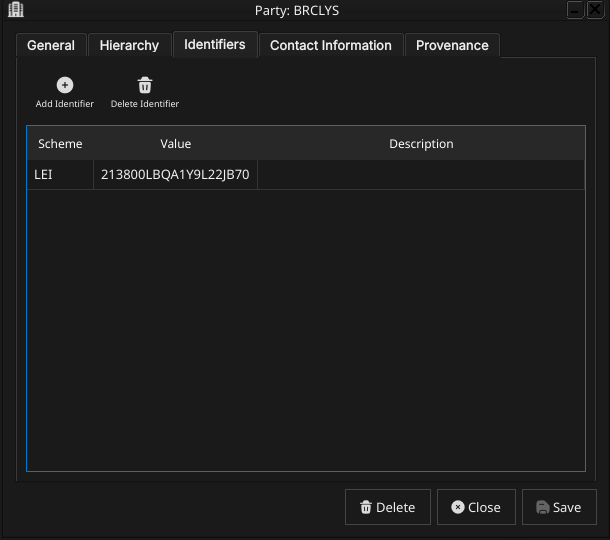
Figure 131: The Identifiers tab, listing the external identifiers held against a party.
The Identifiers tab is an editable table of external identifiers held against the party. Each row carries an Identification Scheme (chosen from the tenant's configured schemes), an Identifier Value (the actual code or string within that scheme), and an optional free-text Description. A party may hold at most one identifier per scheme, but may hold identifiers under as many different schemes as apply to it. Use the row toolbar to add, edit, or remove identifier rows; changes to this tab are saved together with the rest of the party record when Save is clicked.
The ten schemes OreStudio recognises span a spectrum from globally standardised to purely internal, reflecting how fragmented legal entity identification remains in practice: even the LEI, the closest thing to a universal answer, only reaches back to 2012 and still leaves gaps that jurisdiction-specific and venue-specific schemes fill.
| Scheme | Standard / issuer | What it identifies |
|---|---|---|
LEI |
ISO 17442 / GLEIF | Any legal entity, globally, mandated for MiFID II/EMIR/Dodd-Frank/Basel III reporting. |
BIC |
ISO 9362 / SWIFT | Banks and financial institutions on the SWIFT network. |
MIC |
ISO 10383 / SWIFT | Trading venues (e.g. XNYS, XLON), where a party also acts as a venue. |
NATIONAL_ID |
Jurisdiction-specific | Passport, tax ID, or national ID card — covers MiFID II client identification. |
CEDB |
CFTC (US) | CFTC Entity Directory code for non-LEI entities in swap data reporting. |
NATURAL_PERSON |
Not standardised | Individuals (employee ID, trader ID); value interpreted contextually. |
ACER |
EU Agency for Energy Regulation | Non-LEI energy market participants, for REMIT reporting. |
DTCC_PARTICIPANT_ID |
DTCC (US) | Member firms in US clearing and settlement systems. |
MPID |
FINRA (US) | Broker-dealers and ATSs in US equities markets (also known as AII). |
INTERNAL |
Proprietary | A party's own OMS, CRM, or clearing-system client ID. |
GLEIF and the Legal Entity Identifier (LEI)
The Global Legal Entity Identifier Foundation (GLEIF) is a not-for-profit organisation that oversees the global LEI system on behalf of financial regulators. A Legal Entity Identifier (LEI) is a 20-character alphanumeric code that uniquely identifies a legal entity participating in financial markets — a bank, a corporation, a fund, a branch. LEIs are mandated by major regulatory frameworks including MiFID II, EMIR, Dodd-Frank, and Basel III for trade reporting and counterparty identification.
GLEIF publishes the full registry of LEI entities and their corporate hierarchies (parent-child relationships) as open data. OreStudio uses the GLEIF dataset to seed counterparties and, when a party's root LEI is selected during tenant provisioning, to populate the initial party hierarchy from real organisational data — see Hierarchy below.
A BIC (Bank Identifier Code, ISO 9362) is an 8 or 11 character code identifying a specific financial institution, used in SWIFT messaging for settlement routing. GLEIF publishes a LEI-to-BIC mapping dataset that OreStudio also imports, allowing settlement systems to resolve a counterparty's BIC from its LEI.
These ten schemes are seeded on tenant provisioning, but the table
above is not a fixed list either — the Identification Scheme combo
itself is populated from the Party Id Schemes lookup, its own
reference-data entity with a list and detail window under the
Reference Data menu. Each scheme record carries a Code (LEI,
BIC, and so on — the value stored against each identifier row), a
Name, an optional Description, a Coding Scheme field (an
external coding-scheme identifier, used where the value needs to
resolve against an outside standard such as an FpML scheme URI), a
Display Order, and a Max Cardinality field (an optional cap on
how many identifiers under this scheme a single party may hold, left
(unset) for schemes with no such limit), plus the standard
Provenance tab.
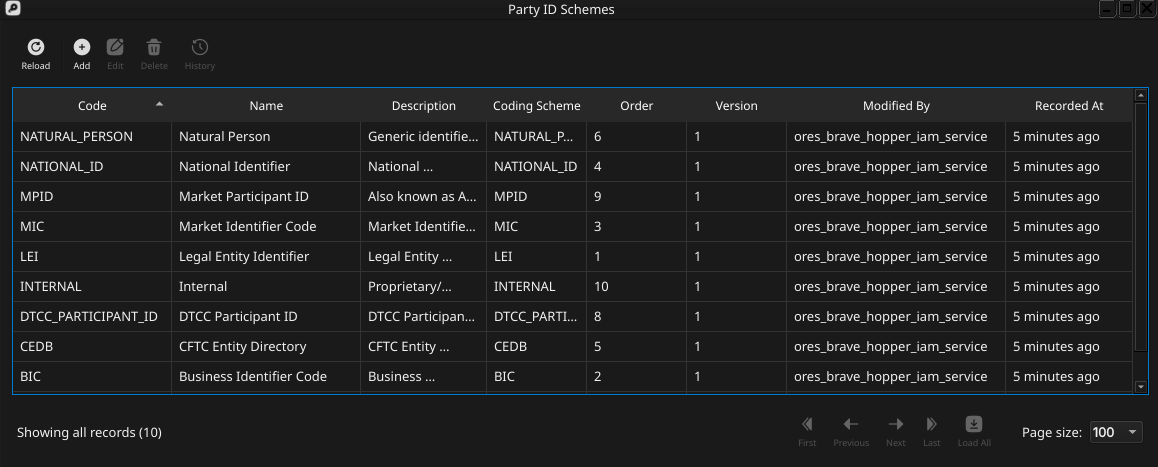
Figure 132: The Party Id Schemes window, listing the tenant's configured identification schemes by code, name, description, coding scheme, order, version, last modifier, and when the record was last recorded.
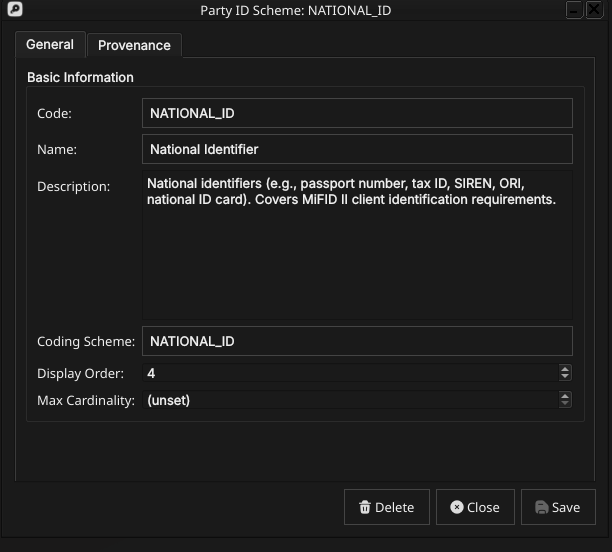
Figure 133: The Party Id Scheme Details dialog, showing its General tab (Code, Name, Description, Coding Scheme, Display Order, Max Cardinality) and Provenance tab.
A tenant can add, edit, or retire schemes here rather than being limited to the ten in the table above; editing, deleting, and history for a scheme record follow the same change-reason, soft-close, and revert pattern as the party record itself, described later in this chapter.
16.5.3. Contact Information
Figure 134: The Contact Information tab, listing the addresses and contact points held against a party.
The Contact Information tab is an editable table of addresses and contact points held against the party. Each row carries a Contact Type (e.g. Legal, Operations, Settlement, Billing — distinguishing, for instance, a registered legal address from an operational one) and an optional street address, city, state, postal code, phone, and email, plus an optional Country chosen from a flagged combo of ISO 3166-1 alpha-2 country codes. A party may hold more than one contact record, one per contact type. Use the row toolbar to add, edit, or remove rows; changes to this tab are saved together with the rest of the party record when Save is clicked.
16.5.4. Hierarchy
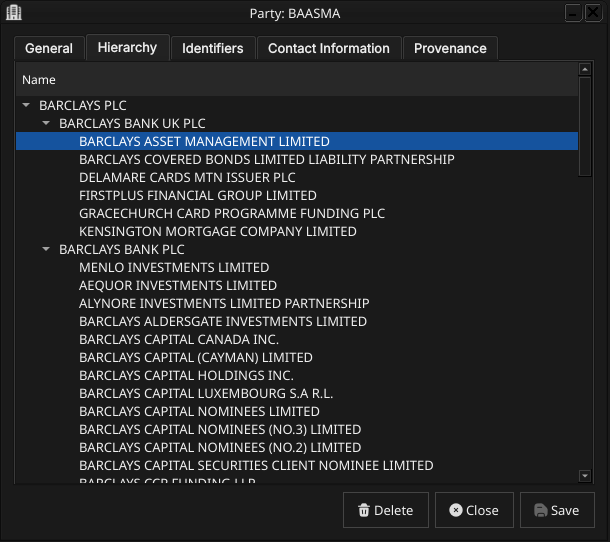
Figure 135: The Hierarchy tab for a party, showing its chain of ancestors up to the tenant's root party and its immediate children.
The Hierarchy tab is read-only and shows this party's position in the tenant's single corporate tree: its chain of ancestor parties up to the root, and its immediate children, if any. This is the screen that makes the party hierarchy rule introduced earlier in the chapter concrete, and it is worth spelling that rule out in full here.
Every tenant has, at most, two parties with no parent: the system party created automatically during provisioning (administrative only, never part of the business hierarchy), and — among the operational parties that actually own trades, books, and analytics results — exactly one house root, the organisation's own top-level legal entity. This is enforced structurally, not just by convention: the database carries a unique index that permits at most one operational party per tenant with no parent. Once that one slot is taken by the house root, every other operational party must supply a parent — a second attempt to create a rootless operational party is rejected outright.
The practical consequence for the General tab's Parent Party combo
(see General above) is that it does offer a No Parent choice, but
the database enforces the rest: saving a second party with no parent
is rejected outright, so in practice No Parent only succeeds for the
tenant's one house root. A business entity newly onboarded into ORE
Studio almost always needs to attach somewhere in the one tree that
already exists for its tenant — a party can also be created from the
shell's provision party command, which is not bound by any
particular UI's field requirements.
In practice, most parties never go through the manual Create dialog at all: the shell-driven GLEIF (Global Legal Entity Identifier Foundation) reference data pipeline resolves an entity's real-world corporate-hierarchy relationships and assigns each imported party's parent automatically, level by level, from that external data. The manual Create dialog exists for the smaller number of parties added or corrected by hand outside that pipeline — and this Hierarchy tab is where the result of either path, automatic or manual, becomes visible for a given party.
16.5.5. Provenance
The Provenance tab is read-only and shows the audit metadata for the current version. See the Reference Data — Provenance section for a full description of the provenance fields common to all reference data entities.
16.6. Editing a party
To edit a party, open it in the Party Details dialog, make your changes, and click Save. Before the record is written, ORE Studio prompts for a change reason — the same Change Reason Required dialog shown in the Currencies chapter, and not repeated here. Select a Reason from the drop-down and add optional Commentary, then confirm. Every save creates a new version; the previous version is never overwritten.
16.7. Deleting a party
To delete a party, open it and click Delete. ORE Studio asks for confirmation before the record is closed off. Deletion is a soft close — the record's history is preserved and remains visible in the History dialog.
16.8. Party history
To view the full change history, open the details dialog and click the history icon in the title bar, or right-click the row and choose History.
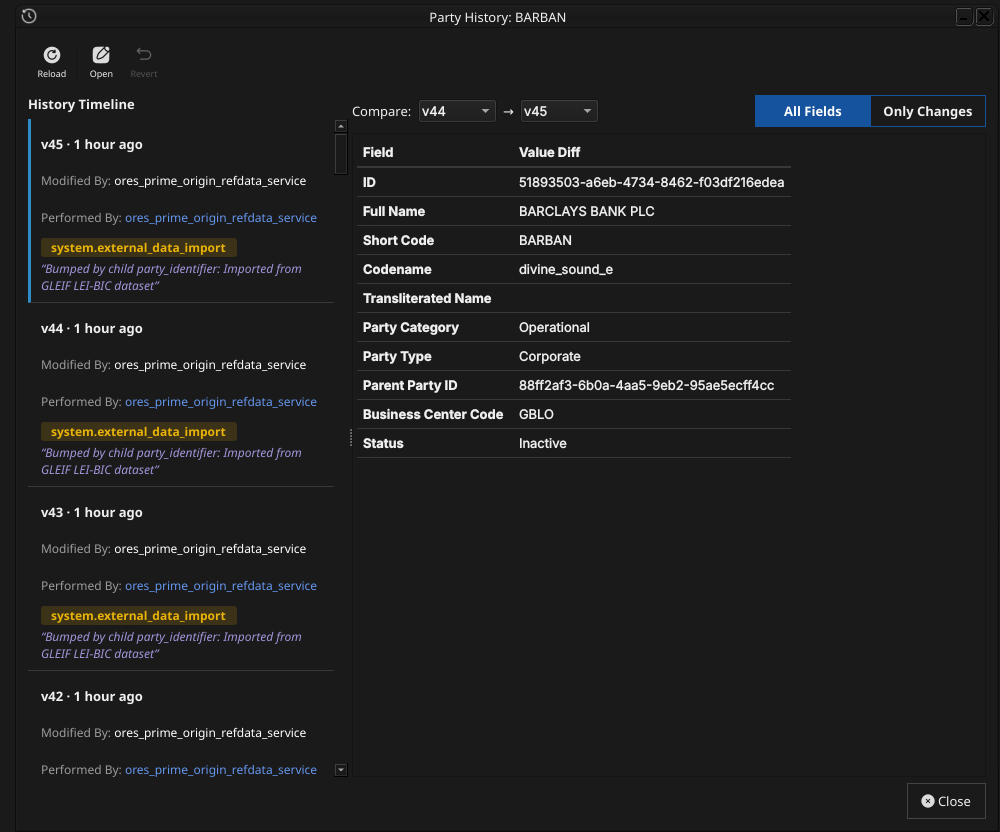
Figure 136: The History dialog for party BARCLAYS BANK PLC, comparing version 44 against version 45. The Only Changes toggle narrows the field list to what actually differs between the two selected versions.
Pick the two versions to compare from the Compare drop-downs on the right. The All Fields / Only Changes toggle switches between showing every field and showing only the fields that differ between the two selected versions. The Revert button reinstates any historical version as a new version, preserving the full audit chain — the old version is never rewritten.
16.9. Conclusion
The chapter set out to show that managing a party well follows from
understanding what it represents and how it fits into the
organisation's structure, and it has traced exactly that path. A
party is an internal legal entity identified by a short code and full
name, carrying a type and status, and sitting beneath a parent party
in a single corporate hierarchy tree — with the sole exception of the
tenant's own house root; the Parent Party combo's No Parent choice
exists precisely for that one narrow exception, with the database
rejecting any second attempt to use it. Building on that, the Qt
interface took the record from the list view
through its General, Identifiers, Contact Information, Hierarchy, and
Provenance tabs, and through the editing, deleting, and history workflows, where
reverting to an earlier version demonstrated the same bitemporal
audit trail described in the Reference Data chapter. The shell's
provision party command covers bulk/GLEIF onboarding (see
Hierarchy above), but general-purpose shell/CLI commands
for adding, editing, deleting, or viewing the history of an
individual party are not yet implemented — tracked separately rather
than glossed over here. See the Counterparties chapter for the
external-facing mirror of this one.
16.10. See also
- Tenants — the multi-tenant, multi-party conceptual model (house vs counterparty, the system party, hierarchy-based data visibility) this chapter assumes and builds on.
- Reference Data — the shared data quality and audit framework this chapter builds on.
- Currencies — the template chapter this one mirrors, including the Change Reason Required dialog.
- Counterparties — the external-facing mirror of this chapter.
- Business Centres — the business center a party links to, and the country flag a contact record may carry.
- Temporal Composite Entity Versioning — the architecture behind the Identifiers and Contact Information child tables.
17. Counterparties
This chapter examines the counterparty as a reference-data entity in ORE Studio. A counterparty is the external mirror of a party — sharing almost the same shape but modelling the opposite side of a relationship — and the chapter sets out where the two genuinely diverge, the identifiers and contact information a counterparty carries, and the complete lifecycle of managing counterparty records through the Qt interface.
17.1. Overview
The chapter advances the argument that managing a counterparty well means first understanding how it differs from the party chapter this one mirrors, then the interface that governs its lifecycle. It begins by establishing what a counterparty is in What is a Counterparty?, leaning on the Parties chapter for everything the two entities share rather than repeating it. From there it sets out The counterparty hierarchy — a real structural difference from a party's single house-root rule — before surveying the body of records in The Counterparties window and narrowing to a single record in Counterparty Details and its General, Identifiers, Contact Information, Hierarchy, and Provenance tabs. It then turns to changing a record under audit — Editing, Deleting, and Counterparty history — culminating in reverting to an earlier version, the point at which the bitemporal audit trail does its work. The Conclusion draws these steps together.
17.2. What is a Counterparty?
A counterparty is an external legal entity the organisation trades with — a bank, a broker-dealer, a corporate, a fund — as distinct from a party, which represents the organisation's own internal structure. The two entities are deliberately near-identical in shape — full name, short code, party type, status, business center, identifiers, contact information, a hierarchy field — because both are answering the same underlying question (what legal entity is this, and how do we recognise it consistently), just for opposite sides of a trade. Everything about legal-entity identification — GLEIF, the LEI standard, why identification is hard, the identifier schemes OreStudio recognises — is covered once in the Parties chapter's What is a Party? section and not repeated here.
Two field-level differences are worth calling out because they
reflect a genuine modelling choice, not an oversight. First, a
counterparty has no codename — the auto-generated, immutable,
per-party message-queue and scheduled-job identifier a party carries
— because that machinery exists to namespace a party's own
processing (its queues, its scheduled reports), and a counterparty
has none of its own to namespace. Second, a counterparty's full
name is explicitly not unique within a tenant, unlike a party's:
the same external legal name can legitimately recur across distinct
branches or booking entities of the same institution, each with its
own short code, so OreStudio indexes full name for search without
constraining it to be distinct.
17.3. The counterparty hierarchy
A counterparty's parent_counterparty_id lets counterparties form
group structures too — a subsidiary counterparty pointing at its
parent institution — but the resemblance to a party's hierarchy
ends there. A party's hierarchy is a single tree per tenant with
exactly one designated house root, enforced by a database constraint;
a counterparty's hierarchy has no such constraint at all. Any number
of counterparties may have no parent, because each represents an
independent external organisation — Barclays' counterparties include
many unrelated banks and corporates, and there is no reason to force
them into one shared tree the way a tenant's own internal structure
is.
The Parent Counterparty combo reflects that directly: alongside every other counterparty, it offers a leading No Parent entry, and choosing it is a completely ordinary, unconstrained choice here — unlike a party's equivalent No Parent choice, nothing in the database restricts how many counterparties may have no parent. A standalone institution with no group structure to nest under is created or edited through this dialog like any other, simply by leaving Parent Counterparty set to No Parent.
17.4. The Counterparties window
Open the Counterparties window from the Reference Data menu. It lists all counterparties defined in the tenant, one row per counterparty, each row carrying the short code, full name, party type, status, business center, version, last modifier, and when the record was last recorded — the same column layout as the Parties window.
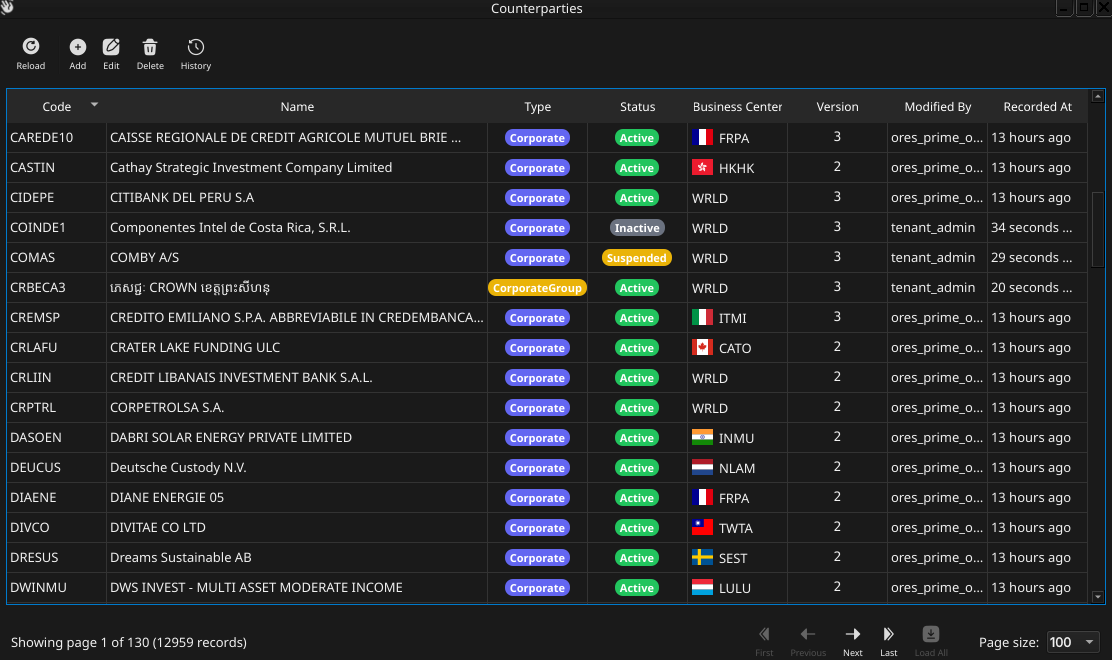
Figure 137: The Counterparties window, showing a page of counterparties. Each row shows the short code, name, party type and status badges, business center, version, last modifier, and when the record was last recorded; the status bar shows the current page and total record count.
The list is paginated; use the page controls at the bottom right to navigate. The toolbar buttons reload the list and open the add, edit, delete, and history actions. Double-clicking a row opens the Counterparty Details dialog.
17.5. Counterparty Details
The Counterparty Details dialog has five tabs — General, Identifiers, Contact Information, Hierarchy, and Provenance — the same set as Party Details. The three action buttons at the bottom — Delete, Close, and Save — apply to the counterparty as a whole.
17.5.1. General
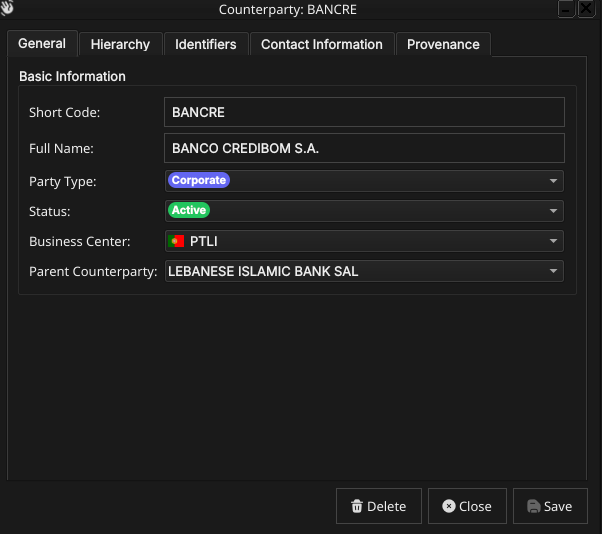
Figure 138: The General tab for a counterparty, showing its short code, full name, the populated Party Type and Status combos, the flagged Business Center combo, and the Parent Counterparty combo.
The General tab carries the core fields of the counterparty:
- Short Code — a brief mnemonic code. This is part of the natural key and cannot be changed after creation.
- Full Name — the counterparty's registered legal name. Unlike a party's, this is not required to be unique — see What is a Counterparty? above.
- Party Type — the counterparty's classification, chosen from the same tenant-configured party types a party uses, shown as a colour-coded badge once selected.
- Status — the counterparty's operational status, chosen from the same tenant-configured party statuses a party uses, shown as a colour-coded badge once selected.
- Business Center — the counterparty's primary location, chosen from a flagged combo of business center codes (see Business Centres).
Parent Counterparty — the counterparty's immediate parent, chosen from a combo listing a leading No Parent entry followed by every other counterparty by full name. When editing an existing counterparty, the counterparty being edited is excluded from its own list of candidate parents. See The counterparty hierarchy above for why No Parent is a completely ordinary choice here, unlike the equivalent choice for a party.
# Capture: open Counterparty Details, click the Parent Counterparty combo, and
17.5.2. Identifiers
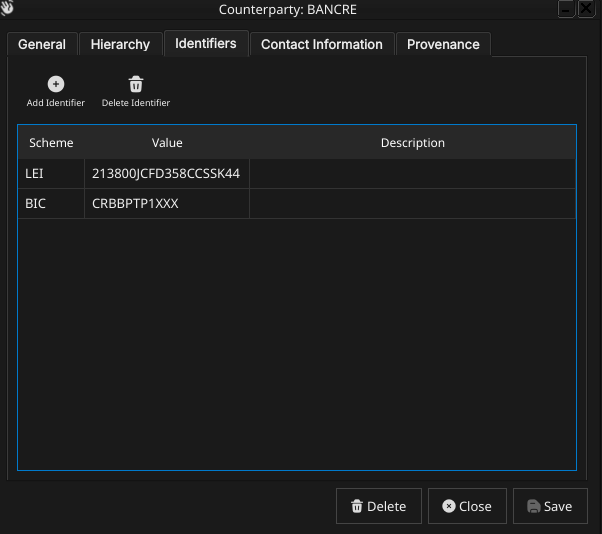
Figure 139: The Identifiers tab, listing the external identifiers held against a counterparty.
The Identifiers tab works exactly as a party's does — the same editable table, the same Identification Scheme, Identifier Value, and Description fields, the same ten schemes (LEI, BIC, and so on) — see Parties' Identifiers section for the full scheme table; it is not repeated here. A counterparty may hold at most one identifier per scheme, but as many different schemes as apply to it.
17.5.3. Contact Information
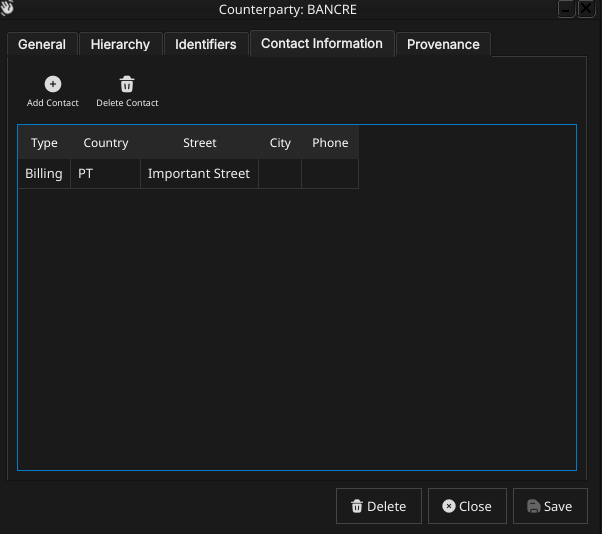
Figure 140: The Contact Information tab, listing the addresses and contact points held against a counterparty.
The Contact Information tab is, again, identical in shape to a party's: Contact Type, an optional street address, city, state, postal code, phone, and email, plus an optional flagged Country combo. A counterparty may hold more than one contact record, one per contact type.
17.5.4. Hierarchy
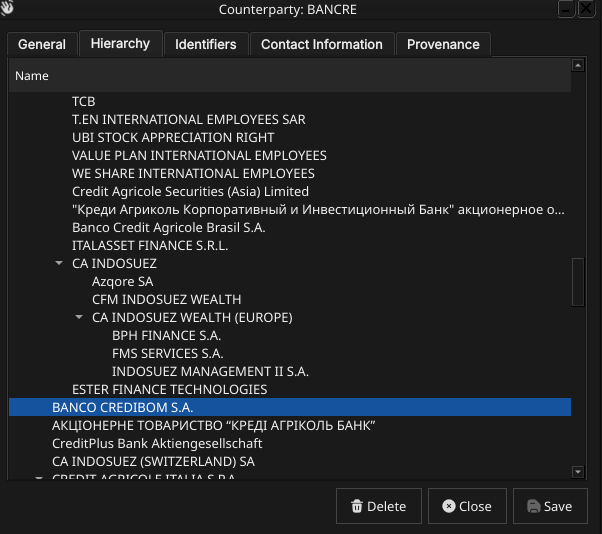
Figure 141: The Hierarchy tab for a counterparty, showing its chain of ancestors (if any) and its immediate children (if any).
The Hierarchy tab is read-only and shows this counterparty's position in whatever group structure it belongs to, if any — its chain of ancestor counterparties and its immediate children. Unlike a party's Hierarchy tab, there is no guarantee of a single connected tree reaching back to one root: an unrelated counterparty with no parent simply shows no ancestors at all. See The counterparty hierarchy above for why.
17.5.5. Provenance
The Provenance tab is read-only and shows the audit metadata for the current version. See the Reference Data — Provenance section for a full description of the provenance fields common to all reference data entities.
17.6. Editing a counterparty
To edit a counterparty, open it in the Counterparty Details dialog, make your changes, and click Save. Before the record is written, ORE Studio prompts for a change reason — the same Change Reason Required dialog shown in the Currencies chapter, and not repeated here. Select a Reason from the drop-down and add optional Commentary, then confirm. Every save creates a new version; the previous version is never overwritten.
17.7. Deleting a counterparty
To delete a counterparty, open it and click Delete. ORE Studio asks for confirmation before the record is closed off. Deletion is a soft close — the record's history is preserved and remains visible in the History dialog.
17.8. Counterparty history
To view the full change history, open the details dialog and click the history icon in the title bar, or right-click the row and choose History.
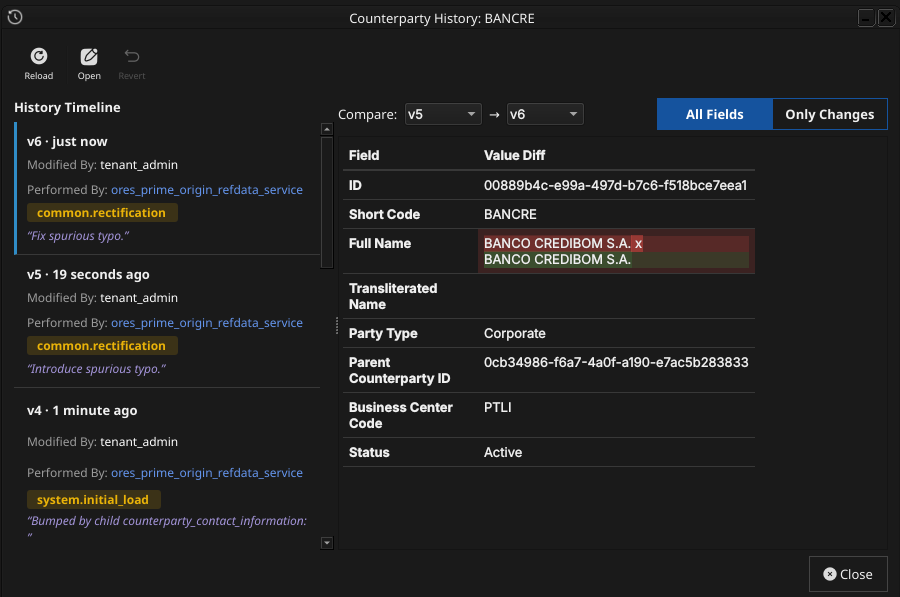
Figure 142: The History dialog for a counterparty, comparing two versions. The All Fields/Only Changes toggle narrows the field list to what actually differs between the two selected versions.
Pick the two versions to compare from the Compare drop-downs. The All Fields / Only Changes toggle switches between showing every field and showing only the fields that differ between the two selected versions. The Revert button reinstates any historical version as a new version, preserving the full audit chain — the old version is never rewritten.
17.9. Conclusion
The chapter set out to show that managing a counterparty well
follows from understanding how it differs from the party it mirrors,
and it has traced exactly that path. A counterparty shares a party's
full name, short code, type, status, business center, identifiers,
and contact information almost verbatim, but diverges in two real
ways: it carries no codename, since it has no processing of its own
to namespace, and its hierarchy has no single-root constraint, since
each counterparty represents an independent external organisation
rather than a branch of the tenant's own structure. Building on that,
the Qt interface took the record from the list view through its
General, Identifiers, Contact Information, Hierarchy, and Provenance
tabs, and through the editing, deleting, and history workflows, where
reverting to an earlier version demonstrated the same bitemporal
audit trail described in the Reference Data chapter. Shell and
command-line access to counterparties is not yet implemented beyond
the provision tenant GLEIF import path.
17.10. See also
- Parties — the internal mirror of this chapter; legal-entity identification, GLEIF/LEI, and the full identifier scheme table all live there rather than being duplicated here.
- Reference Data — the shared data quality and audit framework this chapter builds on.
- Currencies — the template chapter this one mirrors, including the Change Reason Required dialog.
- Business Centres — the business center a counterparty links to.
- Temporal Composite Entity Versioning — the architecture behind the Identifiers and Contact Information child tables.
Footnotes:
Open Source Risk Engine, project home: https://www.opensourcerisk.org/.
Open Source Risk Engine, source: https://github.com/OpenSourceRisk/Engine.
QuantLib, project home: https://www.quantlib.org/.
QuantLib, source: https://github.com/lballabio/QuantLib.
Acadia, an LSEG business, which maintains ORE: https://acadia.inc/.
GLEIF, the Legal Entity Identifier system and BIC codes are described in more detail in the Parties chapter's "What is a Party?" section.
http://www.fpml.org/coding-scheme/business-center.
A business centre's defining role in ORE Studio is exactly the one
the FpML description names: it identifies which holiday calendar a
business day-adjustment is performed against. The business centre
itself is only the identifier — resolving a code to its actual set of
holiday dates is a downstream concern the pricing/analytics layer
carries out, not something the business centre record stores. Every
code belongs to a coding scheme — FPML_BUSINESS_CENTER for the
standard FpML set, or NONE for platform-internal centres such as
the system's own WRLD ("World") centre, used for entities not tied
to a specific geographic location. Unlike some coding-scheme-scoped
reference data, a business centre's code is unique per tenant
regardless of which scheme it came from: two schemes cannot both
register the same code for one tenant.
ORE Studio layers one further, optional extension on top of the FpML
fields: a link to a country, used purely to render a flag icon next
to the centre in the Qt UI. This link plays no role in calendar
resolution — a centre with no natural country mapping, such as a
rate-publication-calendar code or the system's WRLD centre, simply
has no flag.
Two other entities reference a business centre by its code rather than embedding calendar logic of their own: a book's rates centre, which determines which set of end-of-day revaluation market data the book uses, and a business unit, which may itself carry a business centre assignment (see Business Unit in the domain knowledge base; a dedicated manual chapter for business units does not exist yet). This chapter documents only the business centre record itself.
With the underlying identity and scoping rules in place, the rest of the chapter turns from what a business centre record contains to where you go to work with one.